

 Español
 Català
 Deutsch
 Français
 Português
 Italiano
 Nederlands
 Polski
A case to follow the button from start to finish
Example Illustrative case: the company and its figures are made up to explain the flow.
Hogar Atlántico is an invented shop that sells on Cdiscount and Octopia and has its account connected in Odoo. Marta, in administration, needs the PDF of a DAC7 report and wants to keep it stored in Odoo itself. She opens the report, looks at the Pdf Attachment field first, presses Download PDF and looks at the field again. What follows is what happens between that click and that field, according to the published Odoo 20 code.

Where the button is and when it shows
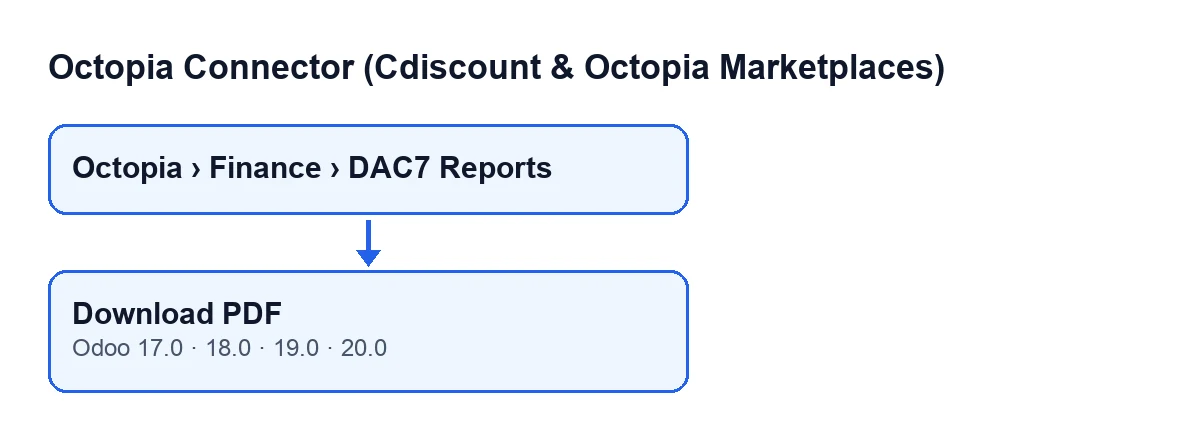
The DAC7 report records open from the menu Octopia › Finance › DAC7 Reports. The first step, Octopia, requires the Octopia User permission: without it, you do not see that part of the menu.
The Download PDF button is on the DAC7 Reports screen and exists in the published branches of the module (Odoo 17, 18, 19 and 20). In all of them it is always visible, with no view condition hiding it.
The label changes with the language of your Odoo, but it is the same button:
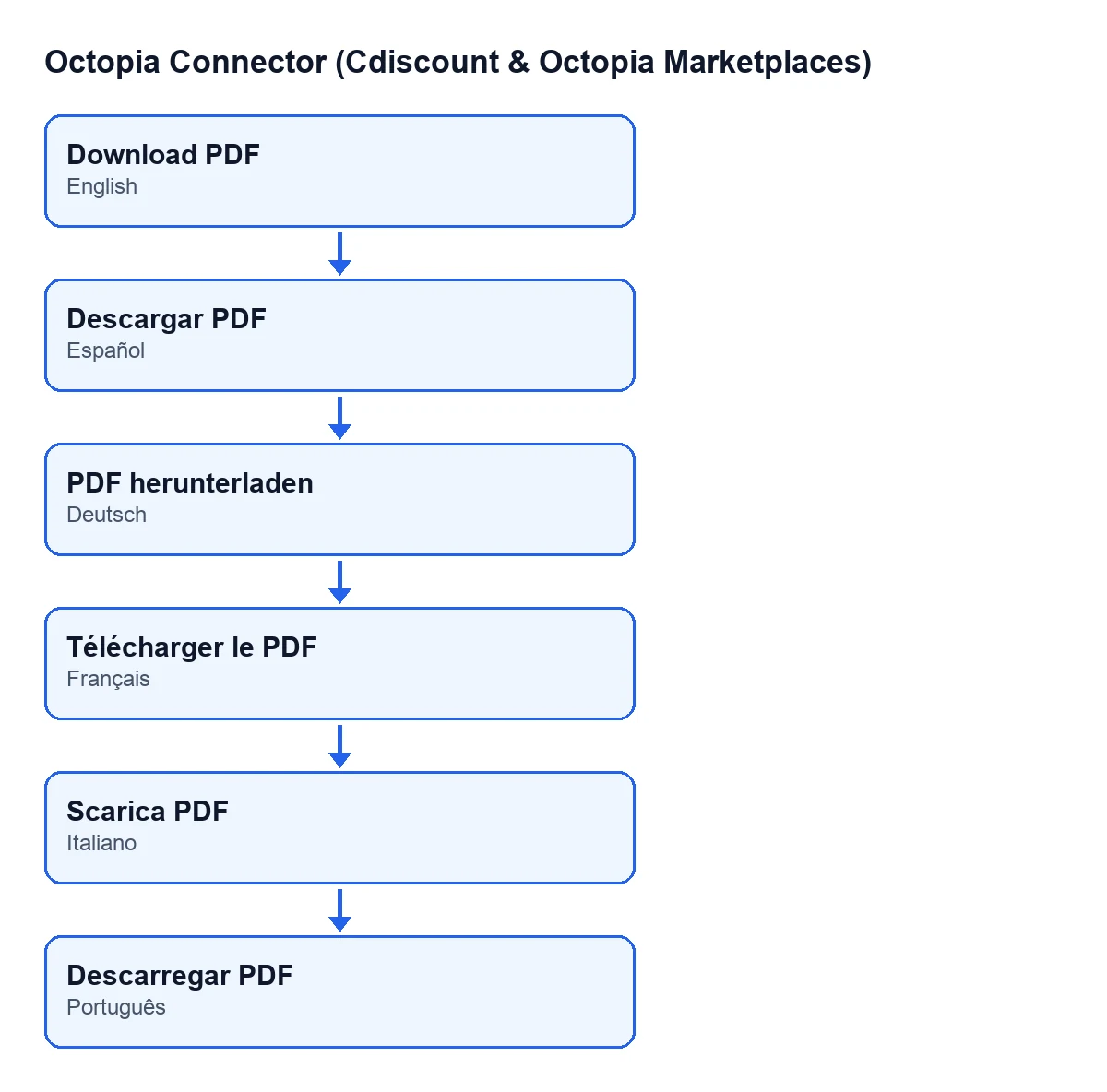
Descargar PDF in Spanish, PDF herunterladen in German, Télécharger le PDF in French, Scarica PDF in Italian and Descarregar PDF in Portuguese.What the button does, in order
The Odoo 20 code goes through the reports the action is run on and, for each one, does this:
- It takes the account from the report's
Accountfield and creates the connection client for that account. - It asks that client for the report document, using the value of the
Report IDfield. - It checks what came back: if it is not binary content or it is empty, it moves on to the next report without doing anything more with this one. In that case it creates no attachment and writes nothing in
Pdf Attachment. - If the content is valid, it creates a PDF attachment named
octopia-dac7-….pdf, with theReport IDwhere the code puts the value, and links it to that report. - It writes that attachment into the report's
Pdf Attachmentfield.
When it has dealt with every report, the action simply ends.
What changes on the record and how to check it
When valid content arrives, the button creates a new attachment, holding the content received, and writes it into the Pdf Attachment field. That field is visible on the DAC7 Reports form and in its list, is read-only and is not written by the user: the Download PDF button fills it in.
The two other values the button uses, Account and Report ID, are also visible on the form and in the list, so you can review them on the same screen.
One caution when checking the result: a file in Pdf Attachment does not by itself prove that the latest press brought in content, because the field may already be filled from an earlier press. That is why Marta looks at it before pressing. If it was empty and afterwards holds a file, that file comes from the press, since this button is what fills the field.
If the attachment does not appear
The button's code has one case in which nothing is created: what comes back is not binary content, or it is empty. Then no attachment is created and Pdf Attachment is not written: the field stays as it was, empty or holding the attachment from an earlier download.
What you can do from the record itself:
- Check that
Accountpoints to the account you expect and thatReport IDholds the value of the report you want. - Press
Download PDFagain: the button is always visible and, each time valid content arrives, it creates a new attachment and writes it intoPdf Attachment.
What to take from the case
- The button only creates the attachment and fills in
Pdf Attachmentwhen it receives valid content. - If no valid content arrives, the field keeps what it had: empty, or the earlier attachment. Compare the field before and after pressing.
- The file ends up as an attachment linked to the report itself, with a name that carries the
Report ID. - The button starts from two fields on the record,
AccountandReport ID. - Each press with valid content creates a new attachment and leaves that one in
Pdf Attachment.
What the module needs and how FlexigoTech helps
Octopia Connector (Cdiscount & Octopia Marketplaces) is a one-off purchase per Odoo version, published on Odoo Apps for 17, 18, 19 and 20 (listing). It also needs the FlexigoTech Cloud subscription, Connector plan: €49/month or €490/year excluding VAT, with up to 3 accounts on the platform. The connection goes through FlexigoTech Cloud, which stores the credentials encrypted, monitors synchronisation and emails you if it fails. Without a subscription, or with the service suspended, what the subscription provides stops; your data stays in your Odoo.
If you are implementing Odoo and want this flow tested with your own accounts, FlexigoTech implements Odoo 17, 18, 19 and 20 and builds custom connectors and integrations.
Keep reading
Checked in the connector's source code (version 20.0) and the linked sources
Sources
- Module source code: flexigobe_octopia_connector 20.0 (4848da6a): views/octopia_finance_views.xml
- Module source code: flexigobe_octopia_connector 20.0 (4848da6a): models/octopia_finance.py
- apps.odoo.com/apps/modules/20.0/flexigobe_octopia_connector
- flexigotech.com/precios.html
- flexigotech.com/en/services.html