

 Español
 Català
 Deutsch
 Français
 Português
 Italiano
 Nederlands
 Polski
Before installing: version, price and screens
The module is published on Odoo Apps for 17.0, 18.0, 19.0 and 20.0, with one listing per version. On Odoo Apps it costs €9 per Odoo version (17.0, 18.0, 19.0 and 20.0), a one-off payment excluding VAT; the FlexigoTech local service costs €29/month or €290/year excluding VAT (Pro: €58/month or €580/year). Without a subscription, or with the service suspended, whatever the subscription provides stops, but your data stays in your Odoo. If you are still weighing up whether it fits, start with what it covers and what you need before installing.
Once installed, these are the screens you will work with during setup:
The document list shows number, company, type, date, customer, total amount and validation status. The validation rules list appears with its Rule Name column and the Nuevo button.
The company form: the first thing to fill in
The company form has four blocks: information, validation settings, API configuration and audit. Straight after installation, the NIT and the API key are blank, and the timeout already has a value.
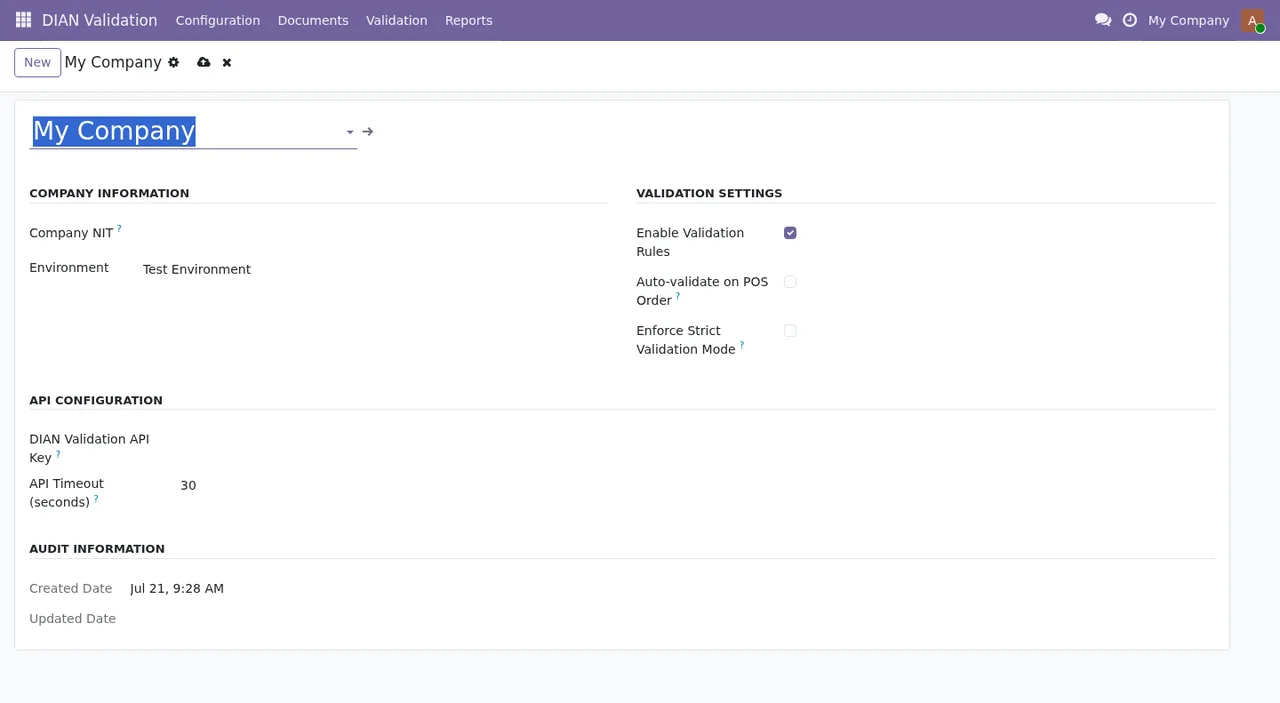
There is one check on the NIT worth knowing before you type it: the module rejects a NIT that does not have exactly 11 digits, with the message NIT must be exactly 11 digits. If you see it, count the digits you have entered.
Steps to get it working
This is the order you would follow, from installation to the first validation:
- Install the module from the listing for the version your Odoo runs (17.0, 18.0, 19.0 or 20.0).
- Open the company form and fill in the NIT with exactly 11 digits.
- In the API configuration block, fill in the API key, which is empty after installation.
- Go over the validation settings and the timeout, then save.
- Before validating, check your documents: the total must be the subtotal plus the tax, no amount can be negative and the document date cannot be later than today.
- Open the
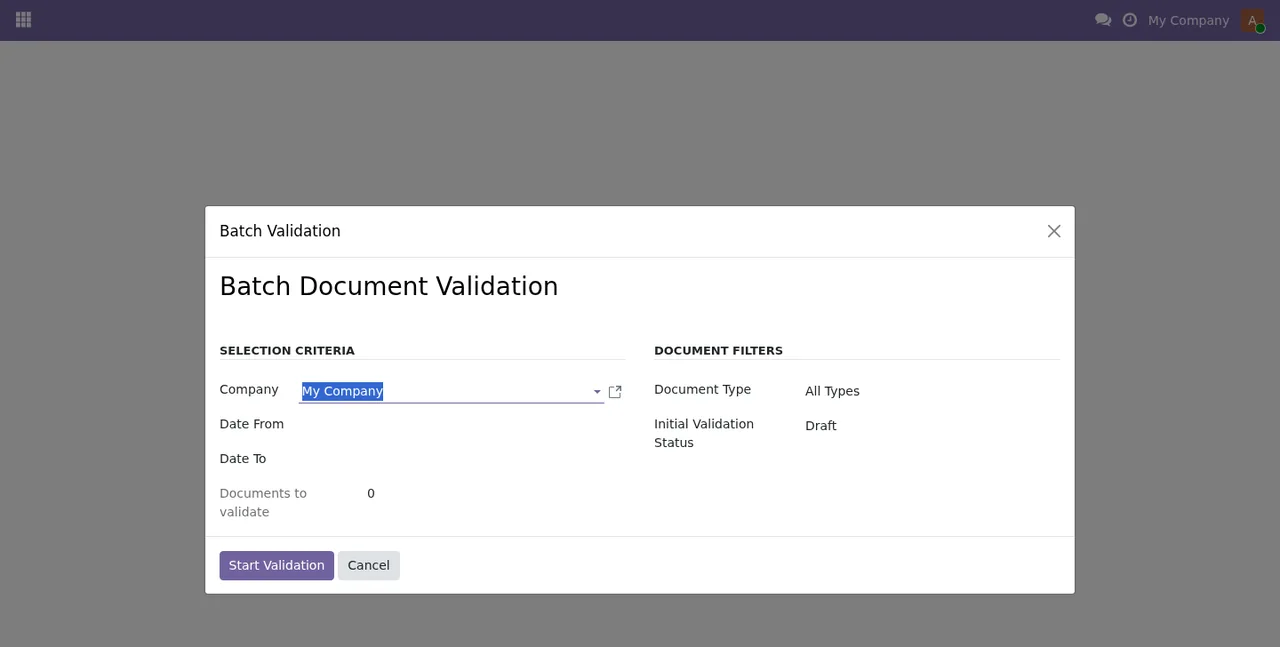
Batch Document Validationwizard, chooseCompany,Date FromandDate To, set the type and status filters and clickStart Validation. The wizard also has aCancelbutton.
- Go back to the document list and look at the validation status of each document.
- Check the
Validation Reportslist.
Validation statuses and results
The validation_status field, the validation status you see in the document list, can take these values (code and label as the module defines them):
draft:Draft
pending:Pending Validation
validated:Validated
invalid:Invalid
error:Validation Error
Separately there is result_status, with three values: pass (Pass), fail (Fail) and warning (Warning).
The module also has a second set of options for validation_status, with shorter labels and one extra option: all (All Statuses), draft (Draft), pending (Pending), validated (Validated), invalid (Invalid) and error (Error). The codes match those in the first set; only the label changes, so pending can appear as Pending or Pending Validation, and error as Error or Validation Error.
Look at the code, not just the label: error is shown as Validation Error or as Error depending on the list.
Setup errors and how to fix them
These are the validation messages the module includes and what to do about each one:
Total amount ({document.total}) does not match subtotal ({document.subtotal}) + tax ({document.tax_amount}). Expected: {expected_total}. The total is not the sum of subtotal and tax. The message itself gives you the expected total: correct the total, subtotal or tax until they match.
Total amount cannot be negative. Check the document's total amount and make it positive or zero.
Subtotal cannot be negative. The same for the subtotal.
Tax amount cannot be negative. The same for the tax amount.
Document date cannot be in the future. Change the document date to today or an earlier day.
NIT must be exactly 11 digits. Correct the NIT so it has exactly 11 digits.
What to check in the first week
With the company form filled in and a first batch validation done, spend a few minutes a day on this:
- Documents in
InvalidorValidation Error: open them and see whether one of the messages above explains the problem.
- Validation results with
result_statusset toFailorWarning: review them before treating the documents concerned as fine.
- Documents still in
DraftorPending Validation: find them in the list and decide whether they should go into the next batch validation.
- The
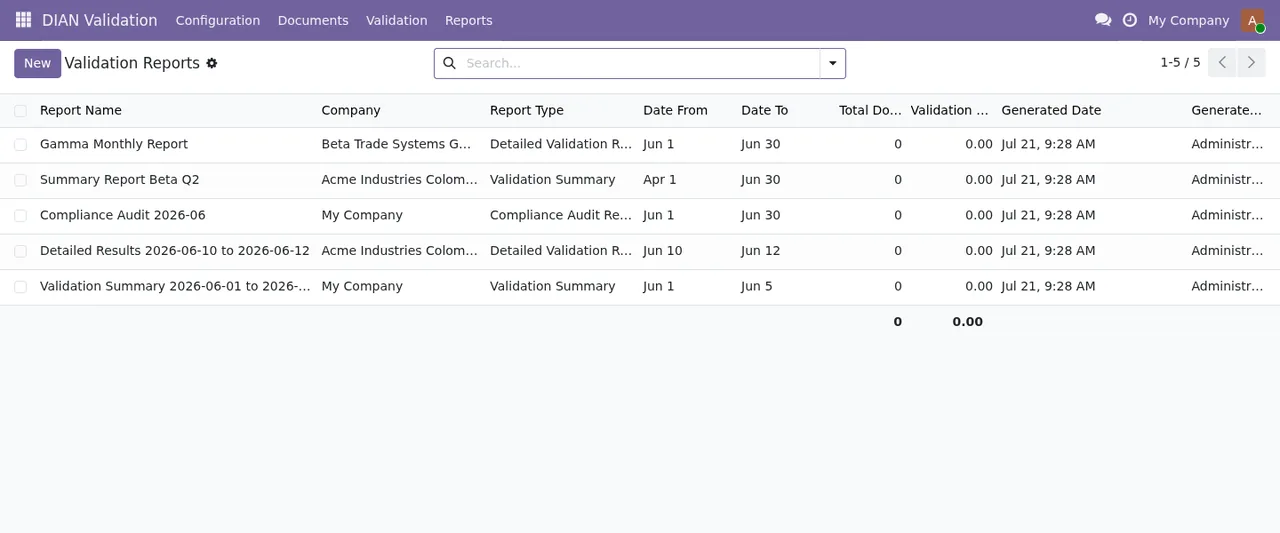
Validation Reportslist: go over the company, type, dates and who generated each report.
How FlexigoTech can help
You can read the module's details on the module page at flexigotech.com or on its Odoo Apps listing. With the subscription, the module for new Odoo versions is included if you bought it at flexigotech.com; on the Odoo App Store, each Odoo version is bought there. If you also need Odoo 17, 18, 19 or 20 implemented, or a bespoke integration linking this validator to the rest of your processes, FlexigoTech handles the implementation and builds connectors and bespoke integrations.
Keep reading
Checked in the module's source code (version 20.0) and the linked sources
Sources
- Module source code: flexigo_colombia_dian_electronic_equivalent_pos_documen 20.0 (2e8fbc9f): models/pos_document.py
- Module source code: flexigo_colombia_dian_electronic_equivalent_pos_documen 20.0 (2e8fbc9f): models/validation_result.py
- Module source code: flexigo_colombia_dian_electronic_equivalent_pos_documen 20.0 (2e8fbc9f): wizards/batch_validation_wizard.py
- apps.odoo.com/apps/modules/20.0/flexigo_colombia_dian_electronic_equivalent_pos_documen
- apps.odoo.com/apps/modules/17.0/flexigo_colombia_dian_electronic_equivalent_pos_documen
- apps.odoo.com/apps/modules/18.0/flexigo_colombia_dian_electronic_equivalent_pos_documen
- apps.odoo.com/apps/modules/19.0/flexigo_colombia_dian_electronic_equivalent_pos_documen
- flexigotech.com/en/services.html
- flexigotech.com/precios.html