

 Español
 Català
 Deutsch
 Français
 Português
 Italiano
 Nederlands
 Polski
What you see in Odoo straight after installing
Colombia DIAN Electronic Equivalent POS Document Validator introduces itself on its Odoo Apps page with a plain heading: Validate DIAN POS documents in Odoo. Once installed, a new entry appears in the apps bar, DIAN Validation, with four menus underneath:
DIAN Validation › Configuration, with itsConfigurationsubmenu.DIAN Validation › Documents, with itsDocumentssubmenu.DIAN Validation › Validation, with two submenus:Validation RulesandValidation Results.DIAN Validation › Reports, with itsReportssubmenu.
Those are all the menus there are. Everything the module does lives inside that entry, so if you are looking for any part of it, start there.
The timeline, in menu order
This timeline follows the order in which the module lays out its menus, with the scheduled action slotted in where it belongs. It is not a mandatory procedure: it is simply the quickest way to see which piece sits where.
- On installation The
DIAN Validationmenu appears and the scheduled actionAuto-validate DIAN POS Documentsis created, set to run every hour and active from the start.
- Configuration Under
DIAN Validation › Configuration › Configurationyou find the module settings, stored in thedian_pos.configmodel (DIAN POS Configuration). The last step of the animated walkthrough shows that form for a company.
- Documents Under
DIAN Validation › Documents › Documentsyou have the document list, which the module stores in thedian_pos.documentmodel (DIAN POS Document).
- Rules Under
DIAN Validation › Validation › Validation Rulessit the validation rules, in thedian_pos.validation_rulemodel (POS Document Validation Rule).
- Every hour The
Auto-validate DIAN POS Documentsaction runs.
- Batch validation The module includes a wizard, the
dian_pos.batch_validation_wizardmodel (Batch Validation Wizard), which opens as a dialogue over the screen.
- Results Under
DIAN Validation › Validation › Validation Resultsyou review the results, stored in thedian_pos.validation_resultmodel (POS Document Validation Result).
- Reports Under
DIAN Validation › Reports › Reportsis the report, from thedian_pos.document_reportmodel (POS Document Validation Report).
The document list and its statuses
The documents screen is the heart of the module: it is where you land when you go in to check what you have. In the screenshot, with ten sample records, you can see the number, company, type, date, customer, total amount and validation status columns.
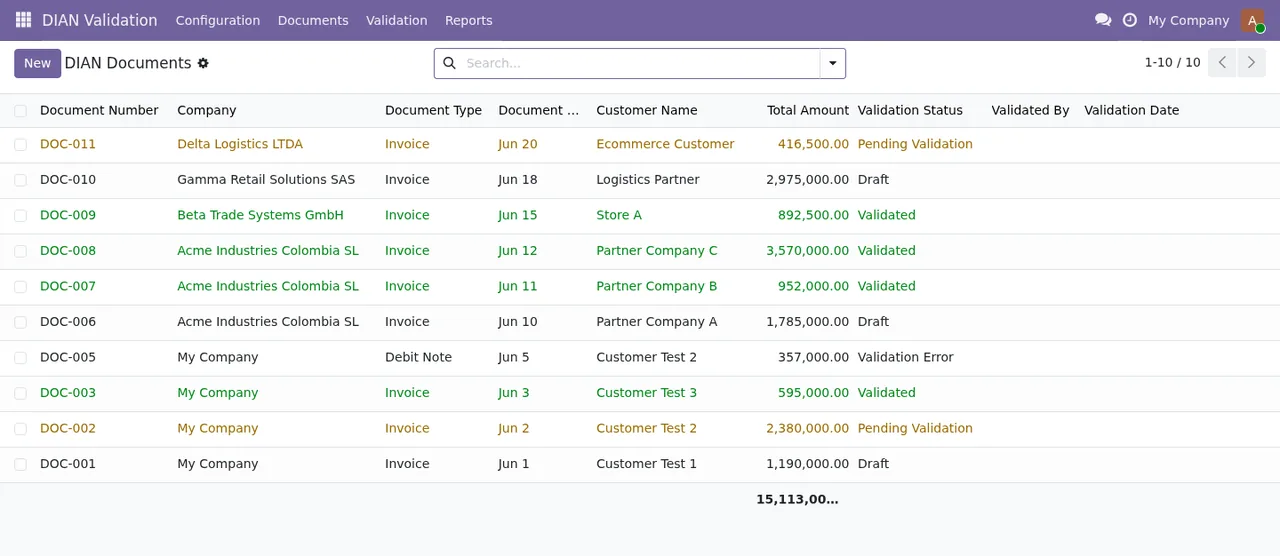
For the detail on which fields to fill in and what to check when a document does not move on, see the module set-up guide.
The validation rules, in plain sight
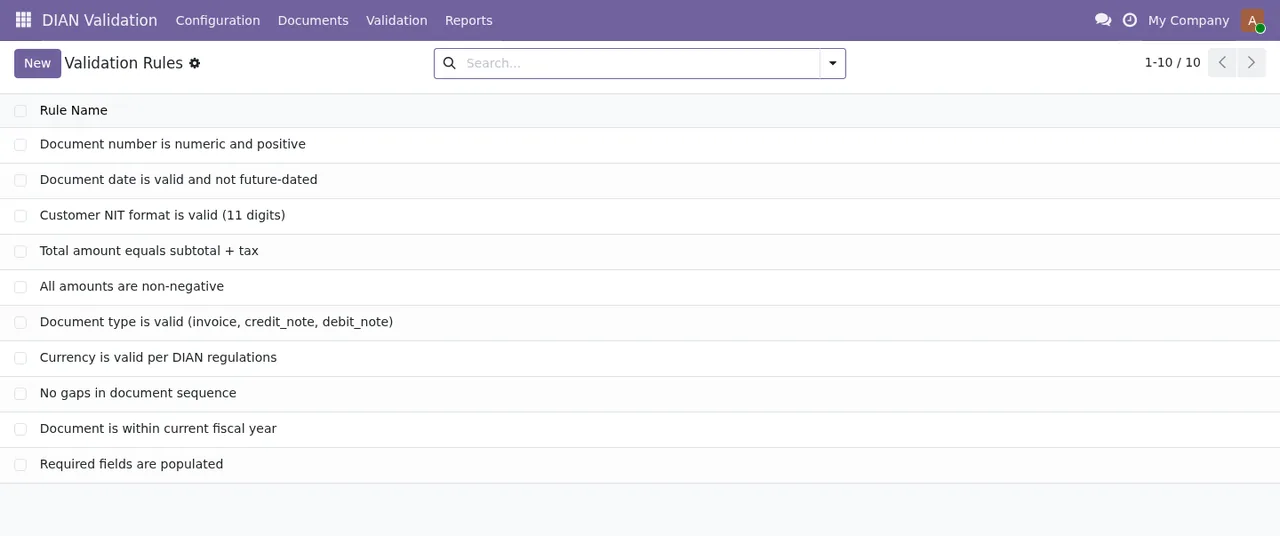
Rules have their own menu and their own model, kept apart from documents and results. The screenshot shows the list with ten rules in the Rule Name column, the button to create a new one, the search bar and the pagination.
The scheduled action that runs every hour
The module ships with a scheduled action: Auto-validate DIAN POS Documents. It runs every hour and is active. If you want to check when it runs or pause it in your implementation, look it up by that exact name.
The batch validation wizard
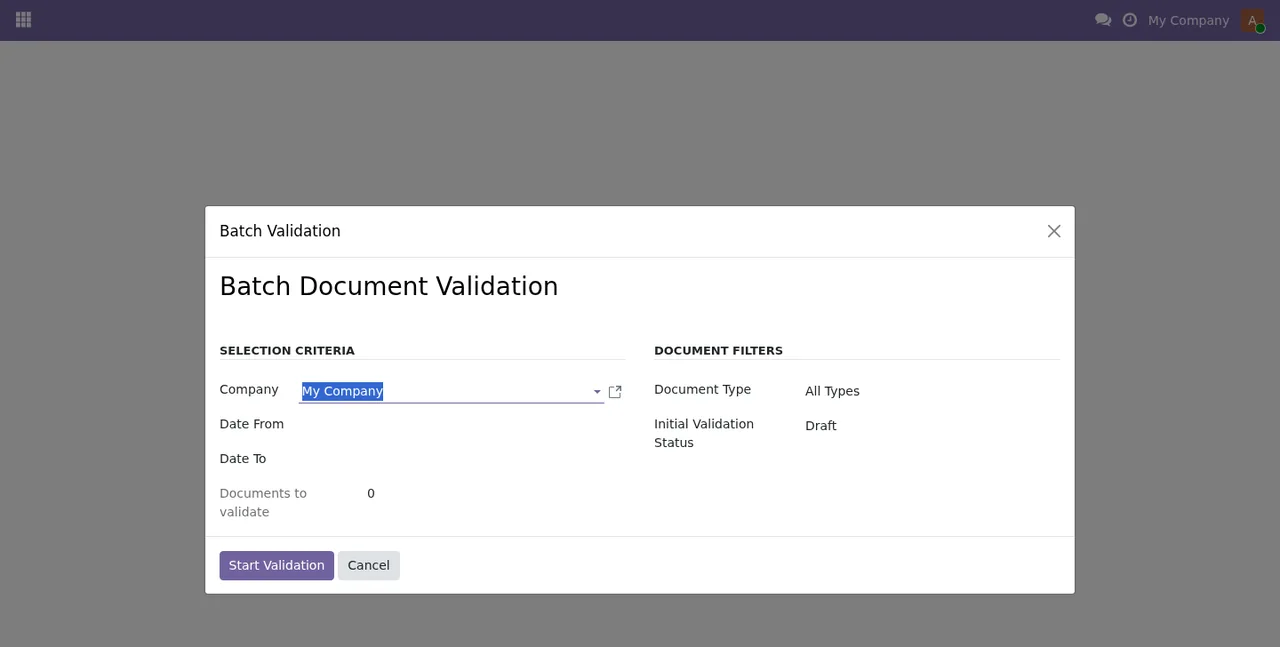
Alongside the automatic action, the module has a wizard, Batch Validation Wizard, which opens in a dialogue titled Batch Document Validation. The screenshot shows the selection criteria (Company, Date From, Date To and the Documents to validate counter), the document filters (All Types and Draft) and the Start Validation and Cancel buttons.
The models underneath, for consultants
If you are going to work on views, access rights or reports, these are the technical names the module uses:
dian_pos.config:DIAN POS Configuration.dian_pos.document:DIAN POS Document.dian_pos.validation_rule:POS Document Validation Rule.dian_pos.validation_result:POS Document Validation Result.dian_pos.document_report:POS Document Validation Report.dian_pos.batch_validation_wizard:Batch Validation Wizard.
External service, versions and price
The app page warns you before you buy: Before you buy: some features of this app use a paid external service. For this module, that service is the FlexigoTech Cloud local service. Without a subscription, or with the service suspended, whatever the subscription provides stops, and your data stays in your Odoo. The page also includes a Privacy policy section.
It is published on Odoo Apps for Odoo 17, 18, 19 and 20. The app costs €9 per Odoo version, one-off payment excluding VAT, for 17, 18, 19 and 20; the local service costs €29/month or €290/year excluding VAT (Pro: €58/month or €580/year). With the subscription, the module for new Odoo versions is included if you bought it on flexigotech.com; on the Odoo App Store, each Odoo version is bought there, on the Odoo Apps page.
If you are still weighing up whether it fits, the criteria are in whether the module suits your business.
How FlexigoTech can help
FlexigoTech implements Odoo 17, 18, 19 and 20 and builds bespoke connectors and integrations. If you need this validator to fit your point of sale, want its reports adapted or need it linked to another system, we can do it inside your own Odoo.
Keep reading
Checked in the module's source code (version 20.0) and the linked sources
Sources
- Module source code: flexigo_colombia_dian_electronic_equivalent_pos_documen 20.0 (2e8fbc9f): data/ir_ui_view.xml
- Module source code: flexigo_colombia_dian_electronic_equivalent_pos_documen 20.0 (2e8fbc9f): data/ir_cron.xml
- Module source code: flexigo_colombia_dian_electronic_equivalent_pos_documen 20.0 (2e8fbc9f): static/description/index.html
- Module source code: flexigo_colombia_dian_electronic_equivalent_pos_documen 20.0 (2e8fbc9f): models/config.py
- Module source code: flexigo_colombia_dian_electronic_equivalent_pos_documen 20.0 (2e8fbc9f): models/document_report.py
- Module source code: flexigo_colombia_dian_electronic_equivalent_pos_documen 20.0 (2e8fbc9f): models/pos_document.py
- Module source code: flexigo_colombia_dian_electronic_equivalent_pos_documen 20.0 (2e8fbc9f): models/validation_result.py
- Module source code: flexigo_colombia_dian_electronic_equivalent_pos_documen 20.0 (2e8fbc9f): models/validation_rule.py
- Module source code: flexigo_colombia_dian_electronic_equivalent_pos_documen 20.0 (2e8fbc9f): wizards/batch_validation_wizard.py
- apps.odoo.com/apps/modules/20.0/flexigo_colombia_dian_electronic_equivalent_pos_documen
- apps.odoo.com/apps/modules/17.0/flexigo_colombia_dian_electronic_equivalent_pos_documen
- apps.odoo.com/apps/modules/18.0/flexigo_colombia_dian_electronic_equivalent_pos_documen
- apps.odoo.com/apps/modules/19.0/flexigo_colombia_dian_electronic_equivalent_pos_documen
- flexigotech.com/en/services.html
- flexigotech.com/precios.html