

 Español
 Català
 Deutsch
 Français
 Português
 Italiano
 Nederlands
 Polski
Before you install: version, purchase and service
CPQ Guided Selling Assistant is published on Odoo Apps for Odoo 19.0 and 20.0, and both listings price it at €9, a one-off payment per version, excluding VAT. It is a module with a local FlexigoTech Cloud service, subscribed separately: €29/month or €290/year excluding VAT (Pro: €58/month or €580/year).
- Check that your Odoo is 19.0 or 20.0: those are the versions it is published for.
- Decide where to buy it. With the subscription, the module for new Odoo versions is included if you bought it on flexigotech.com; on the Odoo App Store, each Odoo version is bought there.
- Be clear on what happens without a subscription: if you don't have one or the service is suspended, whatever the subscription provides stops, and your data stays in your Odoo.
- If you run several companies, decide which one the module will use: it has several
Companyfields (Many2one) and the options list shows a company column.
If you're still unsure whether the module suits the way you sell, read whether CPQ Guided Selling Assistant fits your business first.
Setting up categories and options
- Review the option categories list: it has the columns
Name,Parent CategoryandCompany, plus theNewbutton and the search bar.
- In
CPQ › Configuration Options, go through each option using the list columns: name, technical name, option type, display,Mandatory,Categoryand company.
- Decide which options you tick as
Mandatory(Boolean) and whichCategory(Many2one) each one belongs to.
- Find the
Values(One2many) andDefault Value(Many2one) fields and note down the default value you want in each case.
- Decide whether you'll use
Tags(Many2many) and with which tags.
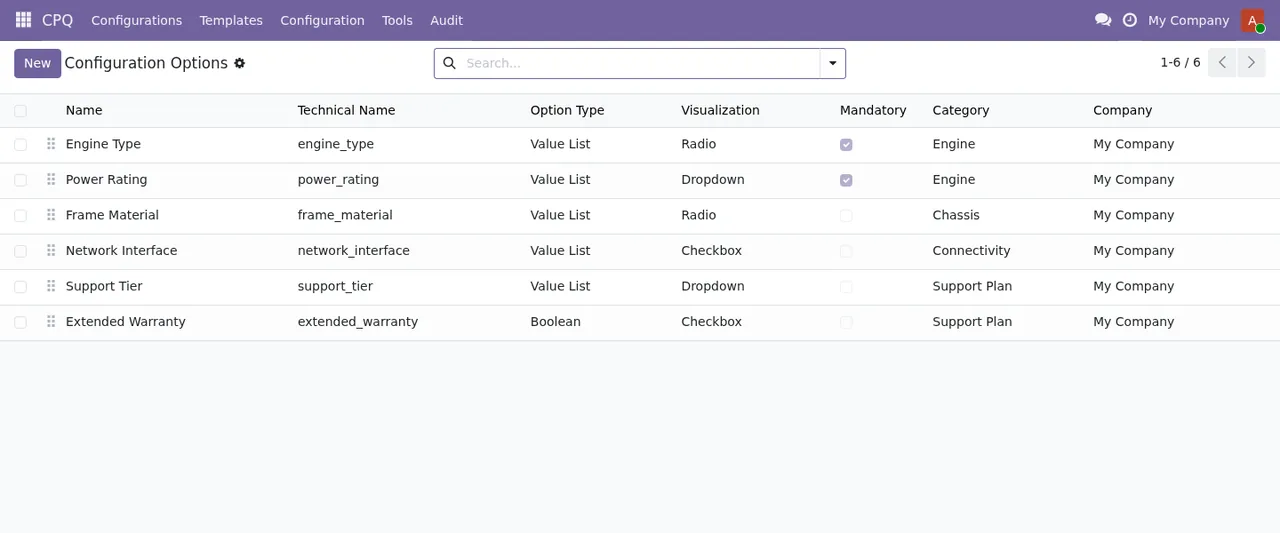
CPQ › Configuration Options list with six options, the New button and the search bar.Preparing rules and products
The module defines fields named for source and target: Source Option (Many2one), Source Values (Many2many), Target Option (Many2one) and Target Values (Many2many), alongside Active (Boolean) and Products (Many2many). There are also Many2many fields called Options, Rules and Products, and three that start with CPQ: CPQ Configurable (Boolean), CPQ Options and CPQ Rules (Many2many).
- Before touching Odoo, write down in a spreadsheet which option and values go into
Source OptionandSource Values, and which intoTarget OptionandTarget Values.
- Check the
Activetick box on every record you create.
- Check which products end up in each
Productsfield.
- Find the
CPQ Configurabletick box and theCPQ OptionsandCPQ Rulesfields, and check what they contain on the products you're starting with.
What you'll see in each configuration
Another group of fields in the module holds sales data: Product, Customer, Sales Rep, Quote and Template (Many2one), a currency (res.currency), Expires On (Datetime), Needs Approval (Boolean), Collaborators and Bundle Lines (One2many), and two Json fields: Selections and Price Breakdown. There are also CPQ Session (Many2one) and CPQ Configuration Snapshot (Json).
- Show the sales team where they see
Customer,Sales RepandProduct.
- Go through what appears in
SelectionsandPrice Breakdownwith someone from sales.
- Decide who on your team looks at records with
Needs Approvalticked.
- Check the
Expires Ondates on the first records.
- Check who is listed under
Collaboratorsand what is inBundle Lines.
- Find
Quote,Template,CPQ SessionandCPQ Configuration Snapshotso you know where to look when someone asks about a specific record.
The states: Pending, Done and Error
The module uses a state field with three values: pending (Pending), done (Done) and error (Error).
- Learn to search records by
stateand save a search forError.
- If you find a record in
Error, note which one it is and when you saw it before changing anything.
- Also review records still in
Pendingwhen you expected them to beDone.
The first week: performance and review
The module includes two performance lists. CPQ › Performance Log records events with date, event type, duration, a Slow tick box, number of options and product. CPQ › Performance Summary groups by day and event type with the median, two percentile columns and the total number of events.
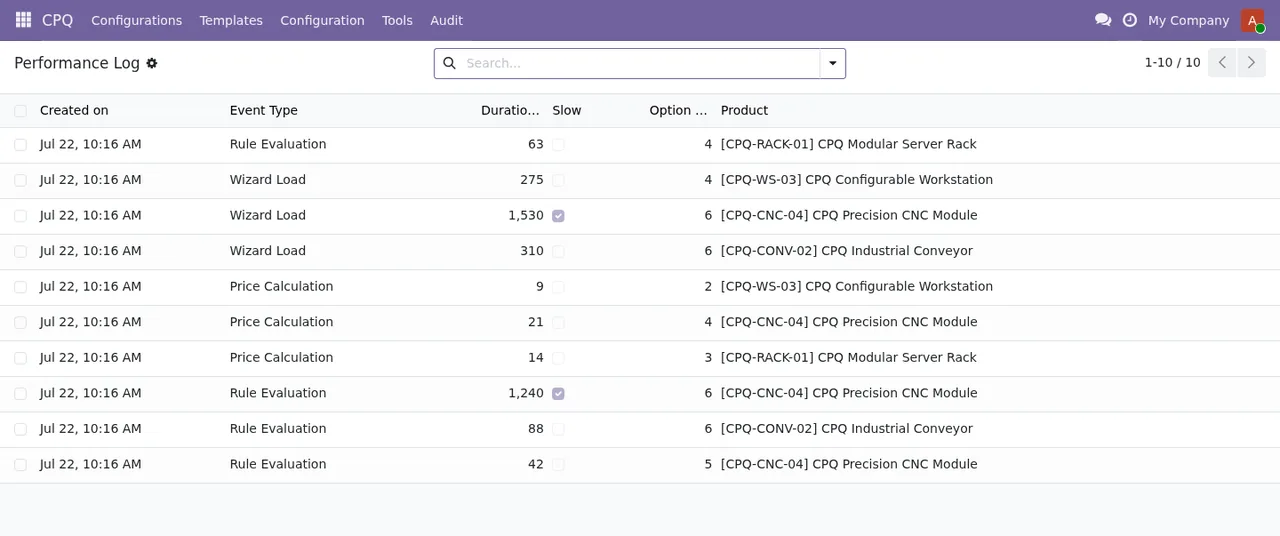
CPQ › Performance Log: each event with its duration; two rows have the Slow box ticked.- Open
CPQ › Performance Logand look for rows withSlowticked.
- For those rows, note the product and the number of options.
- In
CPQ › Performance Summary, review the median, the percentiles and the event total per type, day by day.
- Repeat the
ErrorandSlowchecks at the end of the week and compare with day one.
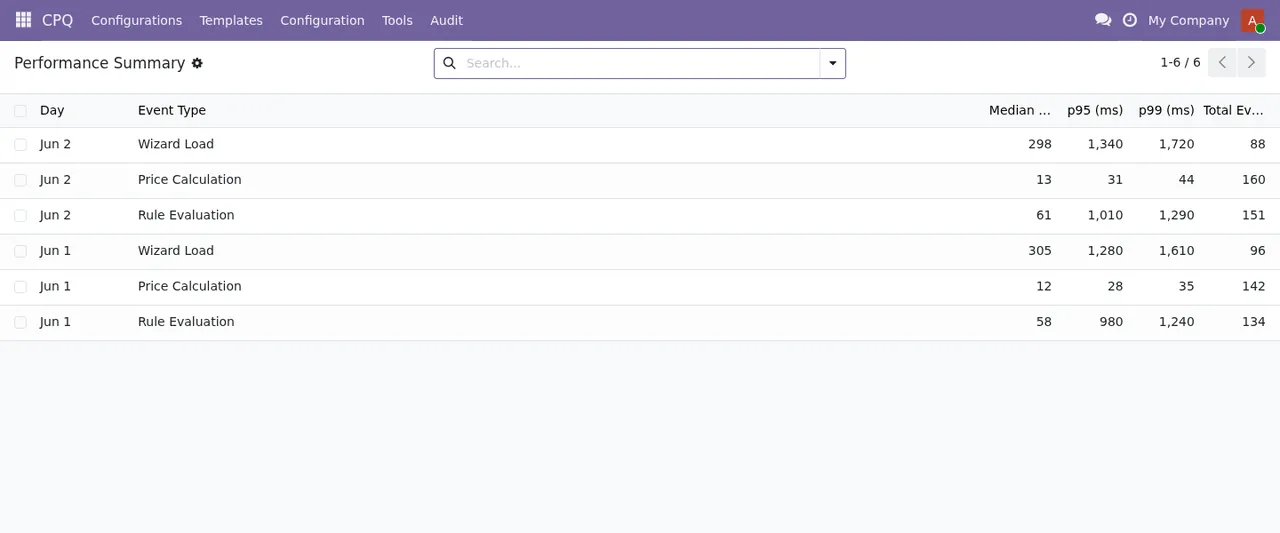
CPQ › Performance Summary: a summary per day and per event type.How FlexigoTech can help
At FlexigoTech we implement Odoo and build bespoke connectors and integrations. If you'd like us to prepare the options, the rules and the first-week review with you, get in touch through the module page. The Odoo Apps listing is here.
Keep reading
Checked in the module's source code (version 20.0) and the linked sources
Sources
- Module source code: flexigo_cpq_guided_selling_assistant_for_complex_quotes 20.0 (ed42681c): models/bulk_job.py
- Module source code: flexigo_cpq_guided_selling_assistant_for_complex_quotes 20.0 (ed42681c): models/config_option.py
- Module source code: flexigo_cpq_guided_selling_assistant_for_complex_quotes 20.0 (ed42681c): models/config_rule.py
- Module source code: flexigo_cpq_guided_selling_assistant_for_complex_quotes 20.0 (ed42681c): models/config_session.py
- Module source code: flexigo_cpq_guided_selling_assistant_for_complex_quotes 20.0 (ed42681c): models/product_template.py
- Module source code: flexigo_cpq_guided_selling_assistant_for_complex_quotes 20.0 (ed42681c): models/sale_order_line.py
- apps.odoo.com/apps/modules/20.0/flexigo_cpq_guided_selling_assistant_for_complex_quotes
- apps.odoo.com/apps/modules/19.0/flexigo_cpq_guided_selling_assistant_for_complex_quotes
- flexigotech.com/en/services.html
- flexigotech.com/precios.html