

 Español
 Català
 Deutsch
 Français
 Português
 Italiano
 Nederlands
 Polski
What to be clear about before your first document
These are practical details you won't spot at a glance on the app listing: which field is which, what the states mean and where to look when something doesn't add up. If you'd first like to see how the module is built, read how Chile SII DTE and CAF works.
The issuer's RUT goes in Company RUT, not in the Legacy fields
The configuration is tied to a company (Company) and the key field is Company RUT: according to its help text, it is the issuer's RUT (RUTEmisor), in a format such as 76.086.428-5. Among the module's fields you'll also find several prefixed Legacy: Legacy Company RUT, Legacy API Token, Legacy Production Username, Legacy Production Password, Legacy Test RUT, Legacy Test Username, Legacy Test Password, Legacy Client Certificate Path, Legacy Rate Limit (requests/hour) and Legacy API Status, the last one with the states Unchecked, Valid and Invalid. For the issuer's RUT, the field whose help text describes it is Company RUT, so that's where it goes.
Certification is the test environment and the resolution is 0
The SII Environment field sets which environment you work against. Its help text is clear: Certification is the SII test environment, and you switch to production once the SII has authorised the company. While you're in certification, Resolution Number (the NroResol of the SII authorisation) is 0. Next to it sits Resolution Date, which corresponds to the FchResol of that authorisation. When you switch to production, make sure the number and date are those of the SII authorisation rather than the ones you used in testing.
Business activity, Acteco codes and address describe the issuer
These fields hold the issuer's details:
Business Activity (Giro): theGiroEmisprinted on the documents.Economic Activity Codes: the Acteco codes registered with the SII, separated by commas, with a maximum of 4.Address: corresponds toDirOrigen, the issuer's legal address.Comuna: corresponds toCmnaOrigen.City: corresponds toCiudadOrigen.
Enter the Acteco codes exactly as registered with the SII, separated by commas, and no more than four of them.
One certificate both signs and authenticates
The Signing Certificate field points to the digital certificate (.p12 or .pfx). According to its help text, that same certificate is used to sign documents and to authenticate with the SII. Alongside it is Notification E-mail, the address that receives acceptance, rejection, certificate and folio alerts. Use an address someone actually reads.
The states you'll see on folios and documents
CAF folios have their own list
Authorised folios live in the CAF (Authorized Folios) list. In the screenshot, each row shows a document type with its folio range, the next folio, the remaining folios and its state.
In the screenshot, the invoice, the tax-exempt invoice and the credit note are all Active. The module also defines a set of states with Not loaded, Active, Expired and Revoked.
Signed, not sent doesn't mean the SII has it
Every electronic document (DTE) has a state. The ones the module defines are Draft, Signed, not sent, Sent to SII, Accepted by SII, Accepted with objections, Rejected by SII and Archived. Pay attention to Signed, not sent: the document is signed but has not yet been sent to the SII. Note too that Accepted with objections is a separate state from Accepted by SII, and it's worth reviewing on its own.
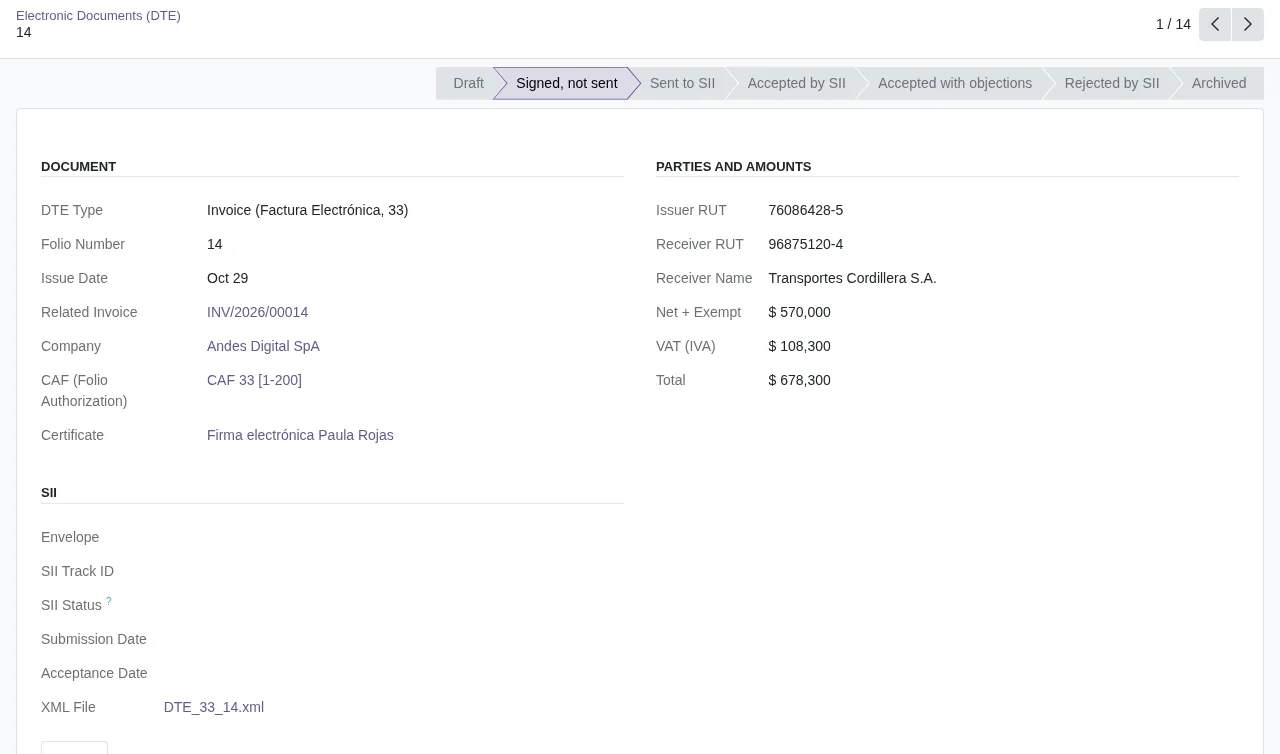
Signed, not sent: the SII section, with no submission records.Another record in the module uses a different set of states: Draft, Sent, waiting for the SII, Accepted, Partially accepted, Rejected and Not sent. That's where partial acceptance appears, which isn't among the DTE states.
Your first week: connection, alerts and automatic submission
The configuration has three fields about the connection test: Last Connection Test, Connection Status (either Connected or Failed) and Connection Test Result. If the status is Failed, read the text in Connection Test Result. Automatic submission is controlled by Enable Automatic Submission (its help text begins «Send posted invoices marked»; check the full wording in your Odoo) and by Auto-Submit Delay (days), the number of days to wait after the invoice date before sending.
Signed, not sent.A simple routine for those first days:
- Check that
Connection StatussaysConnected. - Filter DTEs in
Signed, not sent,Rejected by SIIandAccepted with objections. - Read the alerts that reach
Notification E-mail. - Check the next folio and the state of each row in the CAF list.
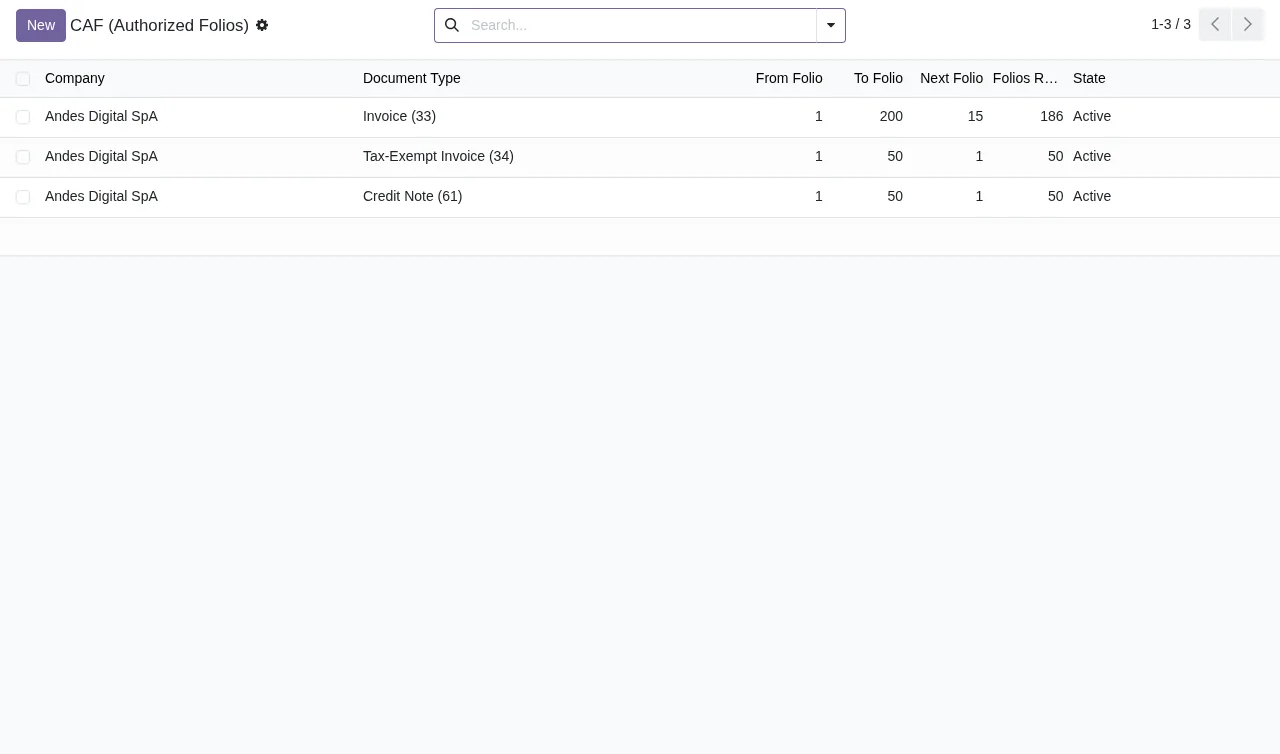
Active state.How FlexigoTech can help
FlexigoTech implements Odoo 17, 18, 19 and 20 and builds bespoke connectors and integrations, so we can help you get the configuration right and go through the first week with you. If you're still unsure whether it fits, read whether Chile SII DTE and CAF suits your business. The module costs €9 per Odoo version, a one-off payment excluding VAT, for 17, 18, 19 and 20, and the local service is €29/month or €290/year excluding VAT (Pro: €58/month or €580/year). Without a subscription, or with the service suspended, whatever the subscription provides stops and your data stays in your Odoo. With the subscription, the module for new versions is included if you bought it at flexigotech.com; on Odoo Apps each version is bought there.
Keep reading
Checked in the module's source code (version 20.0) and the linked sources
Sources
- Module source code: flexigo_chile_sii_integration 20.0 (2c228713): models/sii_configuration.py
- Module source code: flexigo_chile_sii_integration 20.0 (2c228713): models/sii_certificate.py
- Module source code: flexigo_chile_sii_integration 20.0 (2c228713): models/sii_dte.py
- Module source code: flexigo_chile_sii_integration 20.0 (2c228713): models/sii_submission_batch.py
- apps.odoo.com/apps/modules/20.0/flexigo_chile_sii_integration
- apps.odoo.com/apps/modules/17.0/flexigo_chile_sii_integration
- apps.odoo.com/apps/modules/18.0/flexigo_chile_sii_integration
- apps.odoo.com/apps/modules/19.0/flexigo_chile_sii_integration
- flexigotech.com/en/services.html
- flexigotech.com/precios.html