

 Español
 Català
 Deutsch
 Français
 Português
 Italiano
 Nederlands
 Polski
Walk through the lists before adding anyone
It's worth opening the module's lists before you load your first employee, so you know where each piece of data lives. The walkthrough below goes through the employee funds list, the error map, the super funds list and the rule packs. Among the rule packs there's an extended-deadline pack marked as draft: keep an eye on its draft and active columns.
For the full map of menus and what a record goes through, see how Payday Super works under the hood. Here we stick to the practical setup details.
What the Odoo Apps listing doesn't explain
There are two member number fields, and they aren't the same
The module has Member Number (technical field member_number) and Member No. (technical field member_number_masked). The employee funds list shows the masked member number. Once you've filled in Member Number, check in the list that the masked number matches that employee.
TFN is a tick box, and its date sits separately
TFN Provided is a yes/no tick box, not a text field. Next to it is TFN Status Changed On, a date and time field. When you review an employee's record, look at both: whether the box is ticked, and the date shown in TFN Status Changed On.
An SMSF has its own fields
Alongside the SMSF tick box, the module has three fields with that prefix: SMSF Electronic Service Address, SMSF Bank BSB and SMSF Bank Account. If the record is for an SMSF, go through those three fields one by one against the details the employee gives you. There's also Fund Source, a drop-down for the fund's origin, which appears as a column in the employee funds list.
Splitting between funds has a method, a percentage and an amount
Split Method is a drop-down, while Split % and Split Amount are two separate number fields. Before loading employees, open the drop-down in your own database to see which methods it offers, and check what you leave in Split % and in Split Amount each time.
Two status fields on the record and another on the validation
The employee fund record has two status fields: Status (technical field state) and Verification State (technical field verification_state). Next to them is Member Verification, a link to a member verification. In the employee funds list, the status column shows values such as Approved or Pending Approval. The fund validation is a separate record, with its own Fund field and its own Validation Status (technical field status). When someone on your team says a record is 'validated', ask which field they mean: the names are similar and the fields are different.
Closure, successor and NPP details
The module's fields include USI Closure Reason, Successor Fund USI and Successor Fund Transfer Details, and the super funds list has a USI Closed column. For payments there are Payment Methods, PayID, Financial Institution Account Name and two similarly named tick boxes: NPP Capable and NPP Contribution Ready. The column in the funds list is NPP Capable; the other one isn't a column in that list, so don't assume they're the same.
Validation data and evidence
The module's fields also include Last Refresh (a date), Validation Version, FVS Source Version, Source File Hash and Received Timestamp, plus Evidence Attachments for files. Under the Compliance & Evidence menu you have the Audit Log and the SGC Risk Summary. The risk summary carries the notice Indicative only: read it that way.
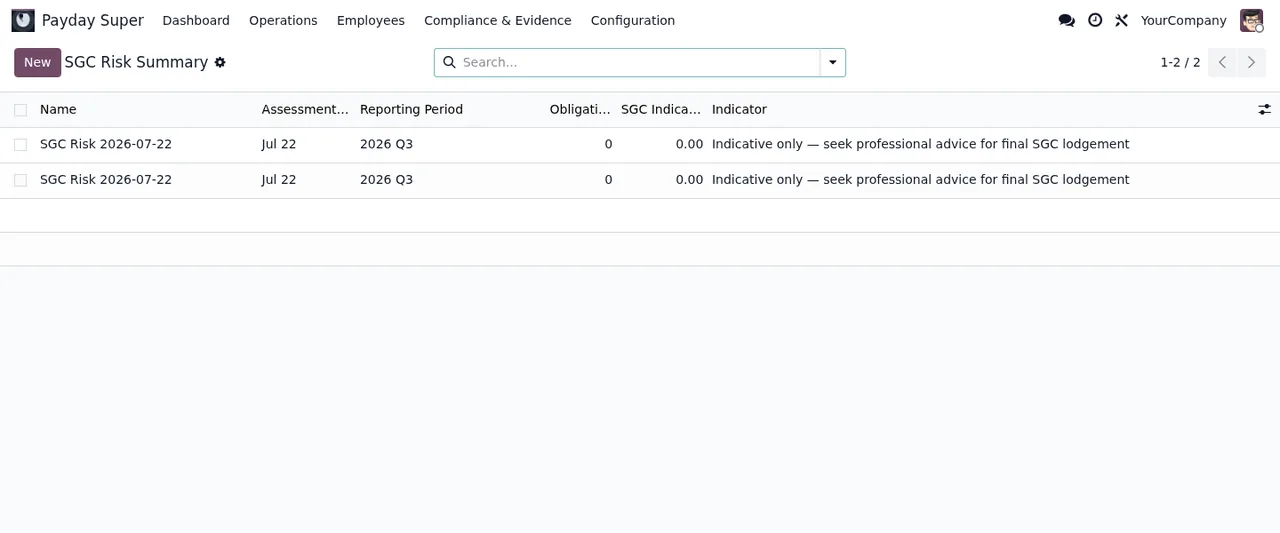
Payday Super › Compliance & Evidence › SGC Risk Summary, with two identical records and the Indicative only notice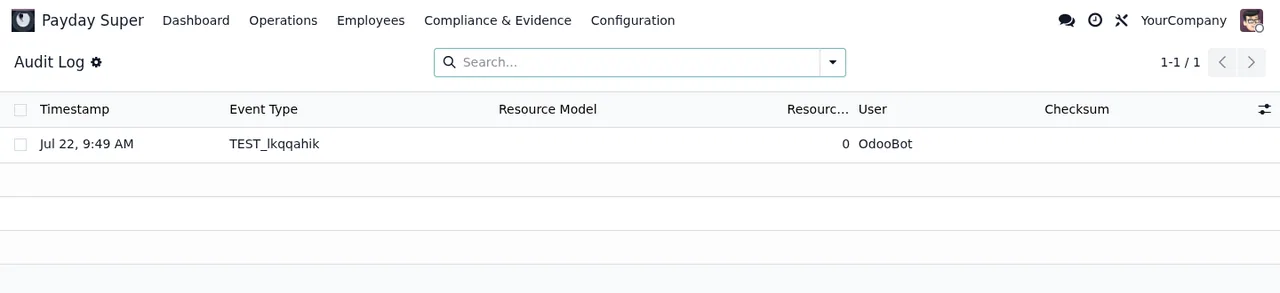
Payday Super › Compliance & Evidence › Audit Log with a single test row (demo data)What to check in your first week
- That every employee has their
Super FundandMember Number, and that the maskedMember No.in the list matches. - That
TFN Providedis ticked correctly and thatTFN Status Changed Onmakes sense for that employee. - That records with
SMSFticked haveSMSF Electronic Service Address,SMSF Bank BSBandSMSF Bank Accountfilled in. - That splits have a
Split Methodand the right value inSplit %orSplit Amount. - Which records are still in
Pending Approvalin the employee funds list. - In the funds list, the
USI ClosedandNPP Capablecolumns for every fund you use. - The
Audit Log, to see which events appear and under which user.
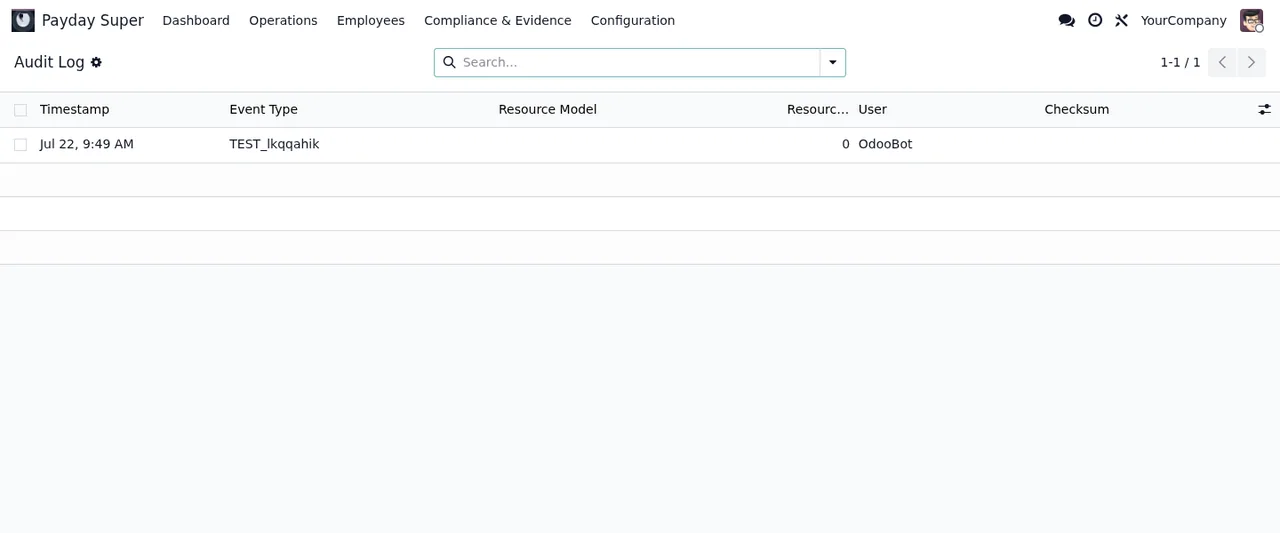
Audit Log from Compliance & Evidence, with one test row and nothing else (demo data)If a code turns up in the Error Map or on screen, the guide to error messages and warnings lists the literal texts and what to do about each one.
Subscription, versions and your data
The module is published on Odoo Apps for 17.0, 18.0, 19.0 and 20.0, at €9 one-off per Odoo version, excluding VAT. The FlexigoTech Cloud local service costs €29/month or €290/year excluding VAT (Pro: €58/month or €580/year). Without a subscription, or with the service suspended, whatever the subscription provides stops, but your data stays in your Odoo. With the subscription, the module for new Odoo versions is included if you bought it at flexigotech.com; on the Odoo App Store, each version is bought there (Odoo Apps listing).
How FlexigoTech can help
FlexigoTech implements Odoo 17, 18, 19 and 20 and builds bespoke connectors and integrations. If you'd like a hand loading your employees' funds, reviewing statuses or linking Payday Super with the rest of your Odoo, get in touch through the module page.
Keep reading
Checked in the module's source code (version 20.0) and the linked sources
Sources
- Module source code: flexigo_australia_payday_super_superstream_3_0_payroll_ 20.0 (dc0cce8c): models/payday_super_employee_fund.py
- Module source code: flexigo_australia_payday_super_superstream_3_0_payroll_ 20.0 (dc0cce8c): models/payday_super_fund_validation.py
- apps.odoo.com/apps/modules/20.0/flexigo_australia_payday_super_superstream_3_0_payroll_
- apps.odoo.com/apps/modules/17.0/flexigo_australia_payday_super_superstream_3_0_payroll_
- apps.odoo.com/apps/modules/18.0/flexigo_australia_payday_super_superstream_3_0_payroll_
- apps.odoo.com/apps/modules/19.0/flexigo_australia_payday_super_superstream_3_0_payroll_
- flexigotech.com/en/services.html
- flexigotech.com/precios.html
- Module source code: flexigo_australia_payday_super_superstream_3_0_payroll_ 20.0 (dc0cce8c): __manifest__.py