

 Español
 Català
 Deutsch
 Français
 Português
 Italiano
 Nederlands
 Polski
Before you start: versions and starting point
The module is published on Odoo Apps for Odoo 17.0, 18.0 and 19.0. On the listings for all three versions the price is the same: €39 excluding VAT, a one-off payment per version. The description and checkout are on the module page.
If you want the full map of menus and what happens under the bonnet, see how it works inside.
Seven setup details
The setup has named steps
The module defines a state whose values are numbered steps: step1 = Company Info, step2 = Scope, step3 = Auto-Import, step4 = Data Owners and step5 = Confirm.
The practical point is not to open it blind. Before you begin, agree with your team who in your company will answer each of those names: who knows the general company data, who decides the scope and who will look after each block of data.
There is no single «finished»: each record has its own set of states
The module uses several state fields, each with its own values:
Draft,Active,Completed.
Not Started,In Progress,Complete.
Draft,Completed,Sent.
Draft,Under Review,Approved,Revised.
Draft,In Progress,Completed,Closed.
Draft,Collecting,Done.
Note the detail: some sets use Completed, one uses Complete and another uses Done, and some include values such as Sent, Approved, Revised or Closed. When you filter or group a list by state, use the exact value that list has, and do not assume «finished» is called the same thing on every screen.
Several reporting periods can sit side by side
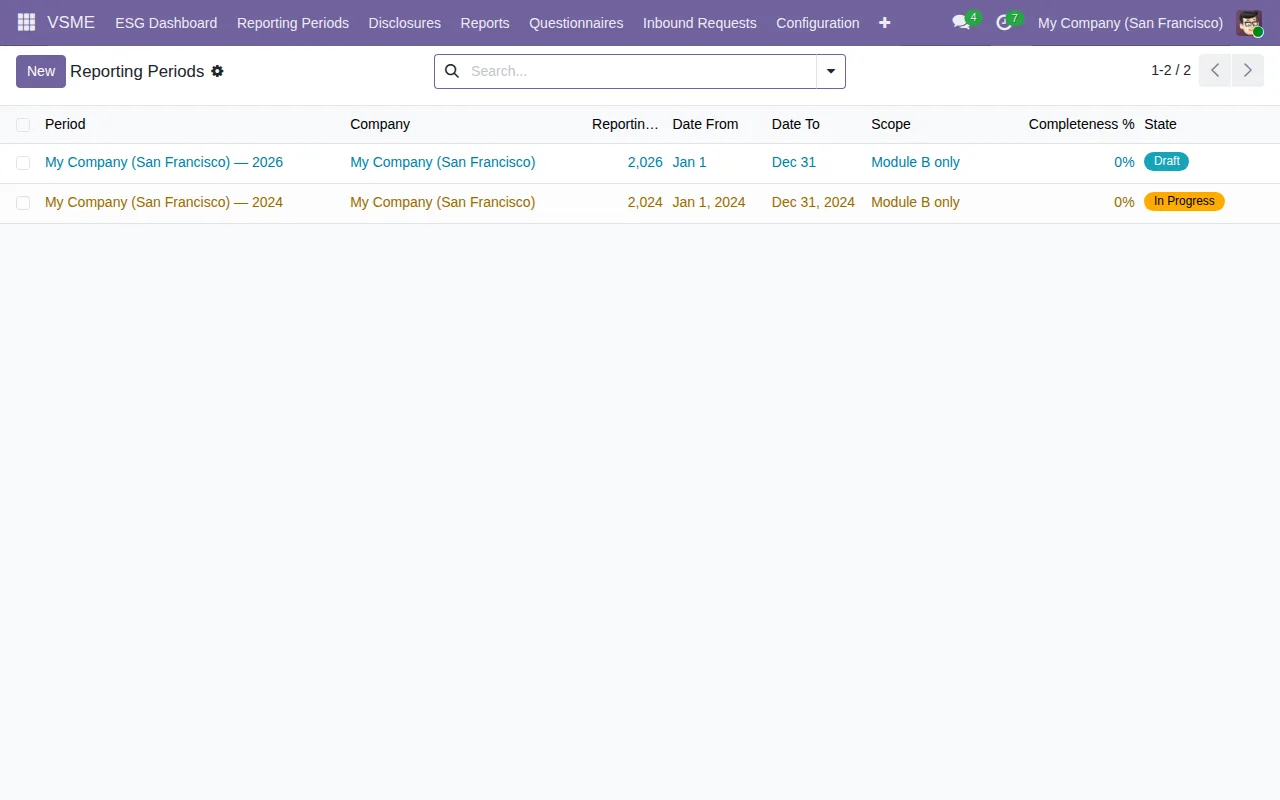
The Reporting Periods list in the screenshot holds two periods for the same company: one for 2026 in Draft and one for 2024 in In Progress, both with scope Module B only and a completeness column. In other words, the same list can hold different years in different states. Before you load or review anything, check which period you are in and what scope it has.
Each disclosure has a data owner and a deadline
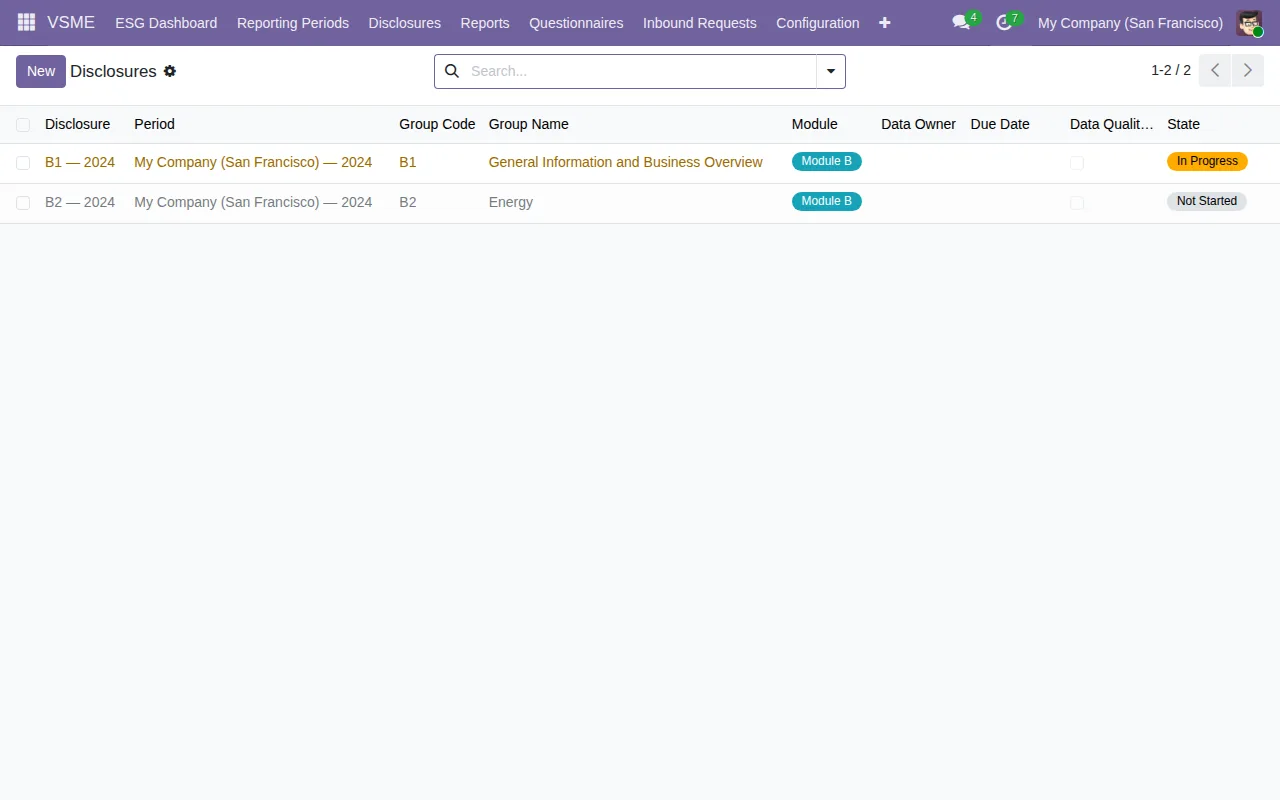
The Disclosures list shows, for each row, the period, the group code and name, the module, the data owner, the deadline and the state. The screenshot has two 2024 rows, one In Progress and one Not Started. The first practical job is to go through that list and make sure every row has an owner and a date your team knows about and has agreed to.
Questionnaire responses are not just yes or no
The response_status field has four values: Pending, Responded, Declined and Partial Response. When you review progress, do not stop at what is Pending: filter for Partial Response and Declined as well, so you see them separately.
In the animated walkthrough further down you will also see the questionnaire templates list, with two rows (Bank ESG Questionnaire and Supply Chain ESG Questionnaire), their template type and the Is Active toggle switched on.
Each reference data list shows different details
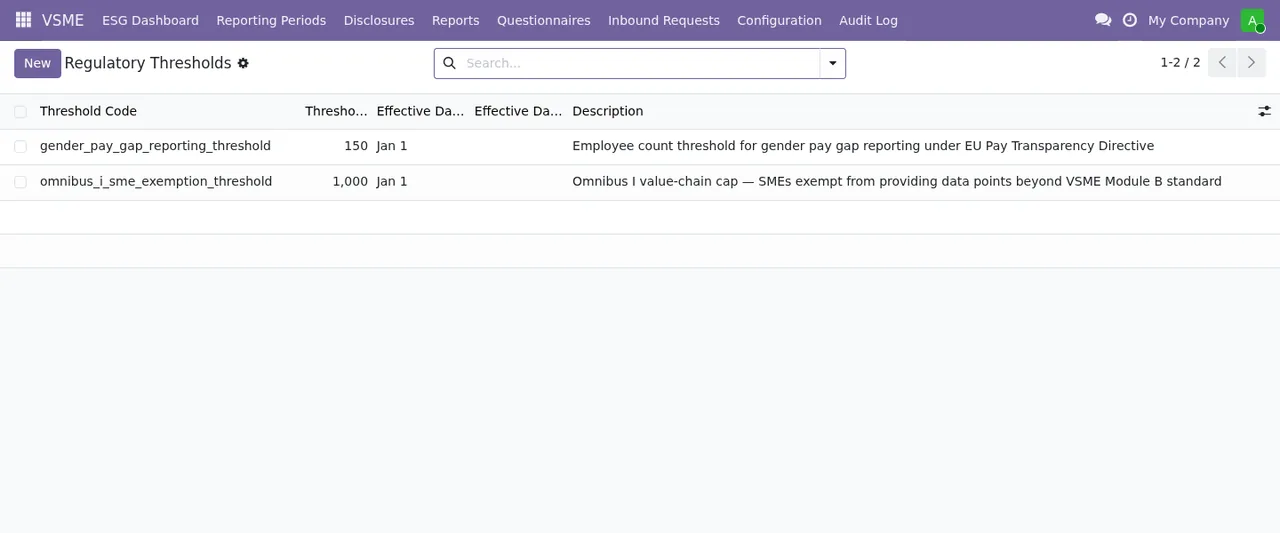
The Regulatory Thresholds list in the screenshot shows two records, gender_pay_gap_reporting_threshold and omnibus_i_sme_exemption_threshold, each with its value, effective date and a description. The animated walkthrough also shows an Emission Factors list with DEFRA methodology, fuel type, country, value, unit, effective year, version and source, and a Taxonomy Configuration list with a single record showing its version, its publication date and an EFRAG URL, marked as included and active.
What to do in the first week: read those lists, look at what each one shows (the effective date of the thresholds, the version and source of the emission factors, and the version, date and URL of the taxonomy configuration) and compare it with the sources your company or your adviser uses. Do not take a reference figure at face value without checking where it comes from.
Imports go through a dialog with a CSV file
The «Import VSME Data» dialog carries the title «Data Import», an Import Type selector (the walkthrough shows Industry Benchmark Data), a CSV File field with the «Upload your file» button, and the Import and Cancel buttons. If you are going to import your own data, prepare the CSV carefully and run the first attempt on a test database, not in production. If something will not go in, the wording of each warning is collected in the module's error messages.
What to check in the first week
- That everyone knows which setup step they need to answer, from
Company InfotoConfirm.
- Which reporting period you are working in, with what scope and in what state.
- That every Disclosures row has a data owner and a deadline.
- Which state value means «finished» in each list you plan to filter.
- Responses in
Partial ResponseandDeclined, as well as those inPending.
- The effective date of the thresholds, the version and source of the emission factors, and the version, date and URL of the taxonomy configuration.
- That the first CSV import has been tried outside production.
How FlexigoTech can help
At FlexigoTech we implement Odoo 17, 18, 19 and 20 and build bespoke connectors and integrations. If you want the VSME module to start with its periods, owners and reference data reviewed from day one, or you need your data to flow into it from another system, we can help with the implementation or with bespoke development.
Keep reading
Checked in the module's source code (version 19.0) and the linked sources
Sources
- Module source code: flexigo_vsme_voluntary_sustainability_reporting_for_sme 19.0 (18bc0d83): models/vsme_collection_campaign.py
- Module source code: flexigo_vsme_voluntary_sustainability_reporting_for_sme 19.0 (18bc0d83): models/vsme_disclosure.py
- Module source code: flexigo_vsme_voluntary_sustainability_reporting_for_sme 19.0 (18bc0d83): models/vsme_inbound_request.py
- Module source code: flexigo_vsme_voluntary_sustainability_reporting_for_sme 19.0 (18bc0d83): models/vsme_questionnaire_response.py
- Module source code: flexigo_vsme_voluntary_sustainability_reporting_for_sme 19.0 (18bc0d83): models/vsme_report_snapshot.py
- Module source code: flexigo_vsme_voluntary_sustainability_reporting_for_sme 19.0 (18bc0d83): models/vsme_reporting_period.py
- Module source code: flexigo_vsme_voluntary_sustainability_reporting_for_sme 19.0 (18bc0d83): wizard/vsme_dsar_wizard.py
- Module source code: flexigo_vsme_voluntary_sustainability_reporting_for_sme 19.0 (18bc0d83): wizard/vsme_setup_wizard.py
- apps.odoo.com/apps/modules/19.0/flexigo_vsme_voluntary_sustainability_reporting_for_sme
- apps.odoo.com/apps/modules/17.0/flexigo_vsme_voluntary_sustainability_reporting_for_sme
- apps.odoo.com/apps/modules/18.0/flexigo_vsme_voluntary_sustainability_reporting_for_sme
- flexigotech.com/en/services.html