

 Español
 Català
 Deutsch
 Français
 Português
 Italiano
 Nederlands
 Polski
What is in the button's window
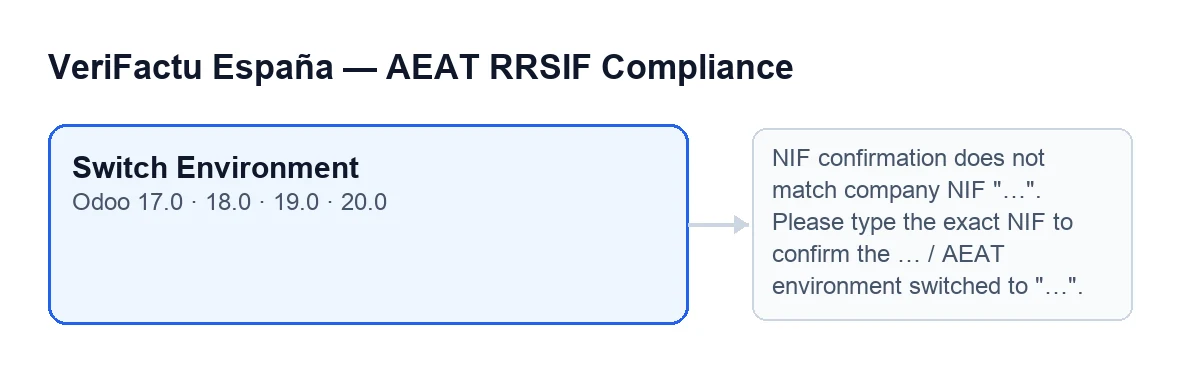
The Switch Environment button is in every published branch of the module (Odoo 17, 18, 19 and 20), and its view condition never hides it. In Odoo 20, when you press it, the button does what is described below. Purchase and version details are on the Odoo Apps listing.
The window that holds the button has, among others, these fields:
Company, in theCompanygroup, read-only. In the code its default is the active company.Confirm Company NIF, in theConfirmationgroup. Its help text reads:Type the company NIF to confirm the environment switch..Switch to Environment, in theTargetgroup, with the optionsTest (AEAT pre-production)andProduction.
Misconceptions about the button, one by one
Myth: "I press the button and the environment changes"
Fact: before touching anything, the button compares. First it works out the expected NIF: the NIF the company has set for VeriFactu and, if that is empty, the company's tax identification number. Then it compares that with what you typed in Confirm Company NIF. Only if they match does the button carry on.
Myth: "I have to copy the NIF exactly, capitals included"
Fact: the code strips the spaces at the start and end of both NIFs and compares them ignoring upper and lower case. Typing it in lower case, or with a stray space at the end, does not stop the switch. What does matter is which NIF is expected: if the company has its own NIF for VeriFactu, that is the one compared.
Myth: "If the NIF fails, the switch is left half done"
Fact: when it does not match, the button stops with this message: NIF confirmation does not match company NIF "…". Please type the exact NIF to confirm the environment switch.. In place of «…» it shows the company NIF the code expected, so the message itself tells you what to type.
The error stops the action and nothing it was going to change is saved: the company's environment stays as it was. The fix is what the message says: type that NIF in Confirm Company NIF and press Switch Environment again.
Myth: "If I pick the environment I am already on, it errors or applies it again"
Fact: the NIF is checked first, so even if the target is the current one you still need to type it correctly. If the NIF is right and the environment chosen in Switch to Environment is the one the company already has, the window simply closes: nothing changes and no notice appears. If the window closes with no message, that is what happened: the target matched the current environment.
Myth: "The switch leaves no trace"
Fact: when the chosen environment differs from the current one, the button asks the company to make the change. That company method checks again whether the environment is already the requested one and, if not, writes the new environment. After that, the code records an informational line in the Odoo log with the company name, the new environment and the name of the user who did it.
Finally, the screen shows a success notification. Its title is Environment Switched and its message is AEAT environment switched to "…"., with the chosen environment in place of «…». That notice is what the button gives when it finishes.
Myth: "This button is only in Odoo 20"
Fact: the button is in branches 17.0, 18.0, 19.0 and 20.0, and the module is published on Odoo Apps for those versions. With Odoo in Spanish it is called Cambiar Entorno; in Catalan, Canviar Entorn; in English, Switch Environment.
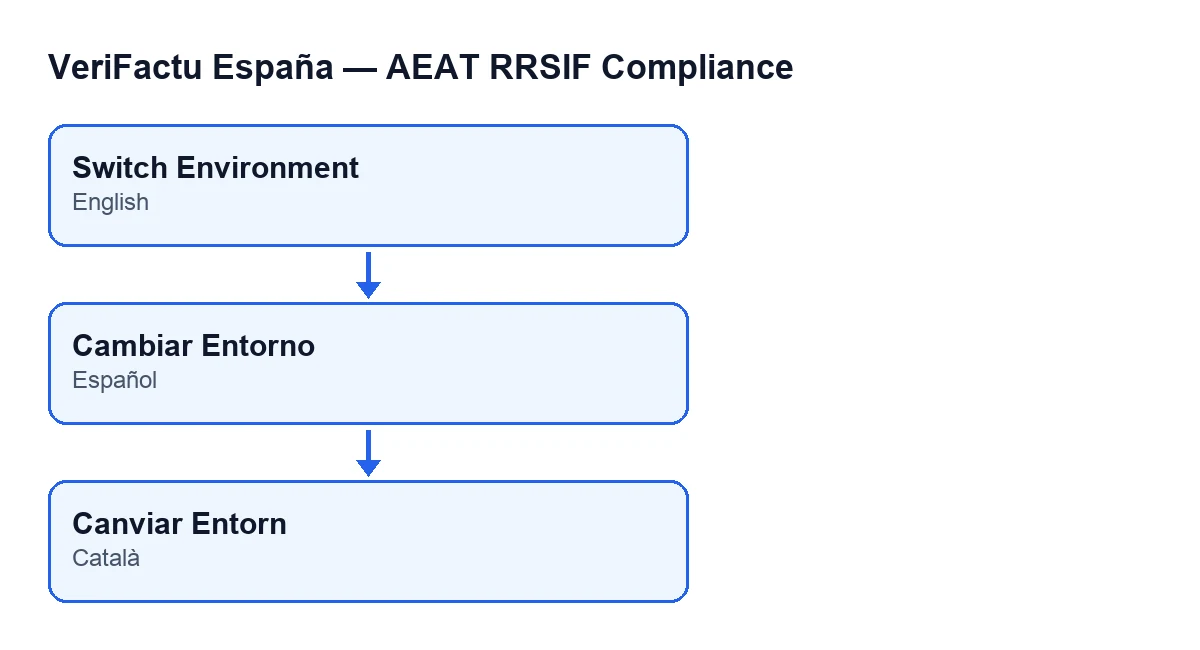
Switch Environment in Spanish and Cambiar Entorno in Catalan.The button's order of work, start to finish
In short, and going by the Odoo 20 code, this is what happens when you press Switch Environment:
- The company's expected NIF is worked out and compared with the one you typed, ignoring spaces at the ends and upper or lower case.
- If they differ, the NIF message appears and everything stops: nothing is saved.
- If they match and the target is the current environment, the window closes with no notice.
- If the target is a different environment, the new one is written to the company and a line goes into the log with the company, the environment and the user.
- The
Environment Switchednotification is shown.
To see what the module adds to invoices, there is what it adds to invoices; and if you are curious about another button in the module, with the same format, there is the Generar Exportación one.
How FlexigoTech can help
FlexigoTech implements Odoo 17, 18, 19 and 20 and builds custom connectors and integrations. If you are preparing the VeriFactu go-live in your Odoo and want someone to review the company data before you switch environment, get in touch.
Keep reading
Checked in the module's source code (version 20.0) and the linked sources
Sources
- Module source code: flexigo_spain_verifactu 20.0 (1fdc980f): wizards/verifactu_env_switch_wizard_views.xml
- Module source code: flexigo_spain_verifactu 20.0 (1fdc980f): wizards/verifactu_env_switch_wizard.py
- apps.odoo.com/apps/modules/20.0/flexigo_spain_verifactu
- flexigotech.com/en/services.html