

 Español
 Català
 Deutsch
 Français
 Português
 Italiano
 Nederlands
 Polski
Before installing: version, price and service
Which Odoo versions can I install it on, and what do I pay?
The module is published on Odoo Apps for Odoo 17, 18, 19 and 20, and each version's listing shows €9 excluding VAT, a one-off payment per version. It is a module with a FlexigoTech Cloud local service, and that service has its own price: €29/month or €290/year excluding VAT (Pro: €58/month or €580/year). Before buying, check which version your database runs and choose the module for that exact version, as each Odoo version has its own listing.
What happens without a subscription, or if I upgrade Odoo later on?
Without a subscription, or with the service suspended, whatever the subscription provides stops; your data stays in your Odoo. For new versions it depends on where you bought it: with the subscription, the module for new Odoo versions is included if you bought it on flexigotech.com; if you bought it on the Odoo App Store, each Odoo version is purchased there. Bear this in mind when you plan an Odoo migration.
The fields to understand from day one
Looking through the module's fields, their names fall into three groups: one that keeps a trail of who changes what, one for updates linked to a jurisdiction and one for court cases. The last two have a jurisdiction_id field pointing to the dst.jurisdiction model, so each of those records is linked to a jurisdiction.
What does the change trail store, and what is Reason for?
This group holds Timestamp (date and time), a user from res.users, User Role (described as «Snapshot of user»), Model Name, Record ID, Field Changes (JSON) and IP Address. In Model Name the field's own help gives dst.revenue_entry and dst.filing_submission as examples. The Reason field is described as «User-provided explanation for sensitive changes», that is, the explanation the user gives for sensitive changes. And Checksum is defined as SHA256(previous_entry + this_entry) for chain integrity: each entry's checksum is calculated with SHA256 from the previous entry and the current one, to keep the chain intact. When you make a change you consider sensitive, write the explanation in Reason.
What do you fill in when you record an update for a jurisdiction?
The record carries the jurisdiction, Update Title, Description of Change and Effective Date. For the source there are Source/Reference URL and Source Document. If the update comes from litigation, there is room for Case Number, Parties (Plaintiff v. Defendant), Court/Jurisdiction and Court Ruling Summary. The impact section is made up of the Potentially Impacts Company tick box, How This Impacts Compliance and Recommended Action. There are also Alert Generated, Alert Date and Notified Users, and the record keeps who created it (a user from res.users) and Created Date.
And the court cases?
They have their own group: jurisdiction, Case Number, Case Title, Filing Date, Parties (Plaintiff v. Defendant), Court, Case Summary, Ruling/Decision and Case URL. If you are following a case, save the link in Case URL, summarise in Case Summary what affects you and note the decision in Ruling/Decision.
The first week: what to check
How do I check the jurisdictions are set up correctly?
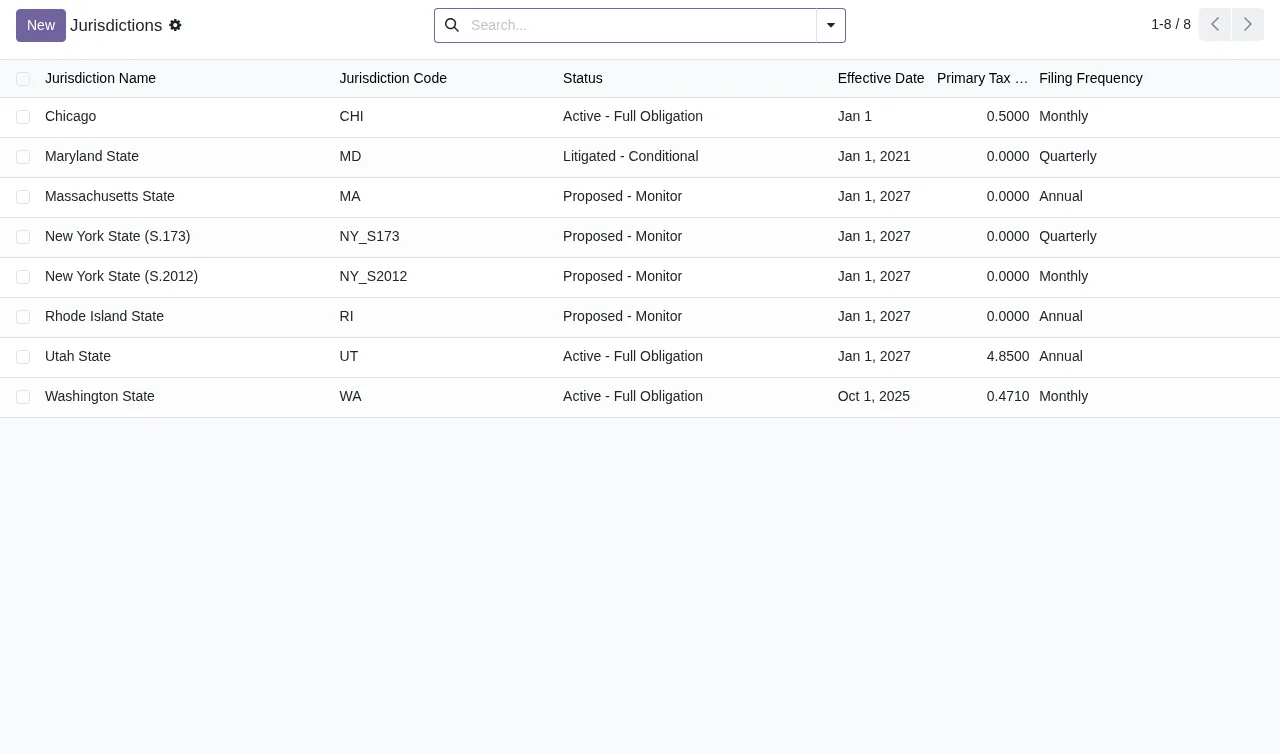
Open the jurisdictions list and go through the columns it shows row by row: name, code, status, effective date, primary tax and filing frequency. If an effective date or a frequency does not match what you have on file, correct it before carrying on with that jurisdiction.
What should I look at on the dashboard?
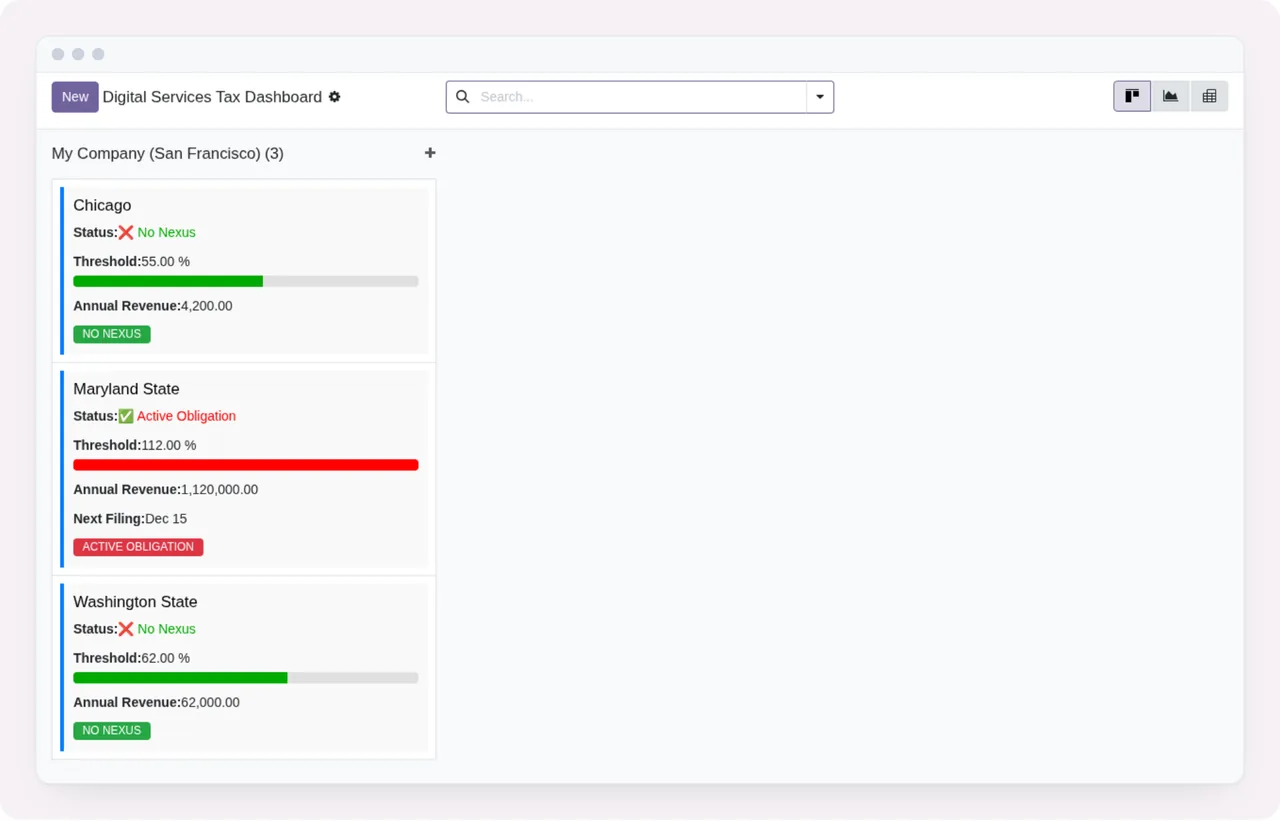
The Digital Services Tax Dashboard is a kanban view with jurisdiction cards (in the screenshot, Chicago, Maryland State and Washington State). Each card shows its status, the threshold with a progress bar, annual revenue and an obligation label. In the first week, check that the cards you see match jurisdictions that genuinely apply to you and that the annual revenue shown agrees with your own figures.
Draft - Not Filed status, with the tax calculation and an unpaid payment section.What do I check in the trail, the updates and the cases?
During that week, go over these points:
- In the change trail, that sensitive changes have text in
Reason. - In jurisdiction updates with
Potentially Impacts Companyticked, thatHow This Impacts ComplianceandRecommended Actionare not empty. - That
Notified Usersincludes whoever in your team needs to know. - That each update has an
Effective Dateand a source inSource/Reference URLorSource Document. - In court cases, that
Case URLandCase Summaryare filled in.
If that review throws up a warning or message you do not understand, the literal texts are explained in the module's errors and warnings.
How FlexigoTech can help
FlexigoTech implements Odoo 17, 18, 19 and 20 and builds bespoke connectors and integrations. If you would like help setting up the jurisdictions, deciding who goes into Notified Users or connecting the module to other systems, get in touch through the module page. You can also check the Odoo Apps listing for the version you use.
Keep reading
Checked in the module's source code (version 20.0) and the linked sources
Sources
- Module source code: flexigo_usa_digital_services_tax_compliance 20.0 (5c0ad1e2): models/dst_audit_log_entry.py
- Module source code: flexigo_usa_digital_services_tax_compliance 20.0 (5c0ad1e2): models/dst_regulatory_update.py
- apps.odoo.com/apps/modules/20.0/flexigo_usa_digital_services_tax_compliance
- apps.odoo.com/apps/modules/17.0/flexigo_usa_digital_services_tax_compliance
- apps.odoo.com/apps/modules/18.0/flexigo_usa_digital_services_tax_compliance
- apps.odoo.com/apps/modules/19.0/flexigo_usa_digital_services_tax_compliance
- flexigotech.com/en/services.html
- flexigotech.com/precios.html