

 Español
 Català
 Deutsch
 Français
 Português
 Italiano
 Nederlands
 Polski
Where the button is and when you see it
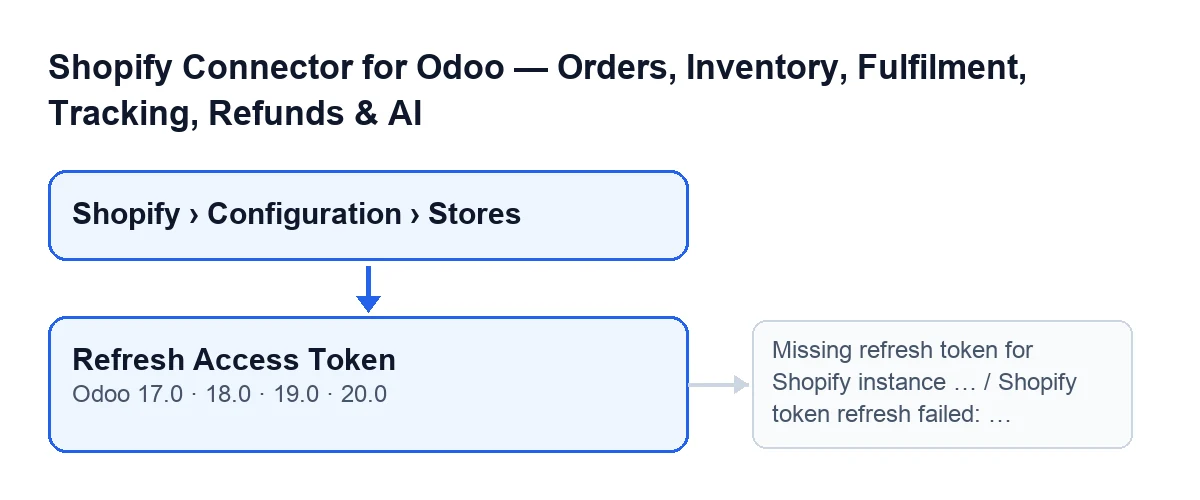
The Refresh Access Token button is on the Shopify Instances screen and exists in the 17.0, 18.0, 19.0 and 20.0 branches of the module.
- Go in through
Shopify › Configuration › Stores. TheConfigurationstep asks for theOperatorpermission and theShopifystep asks forViewer; if you lack one, you do not see that step.
- Open the store record. With the default values the
Refresh Access Tokenbutton does not appear: in Odoo 17, 18, 19 and 20 it is hidden while theShopify connectionfield holds its default value. That field does not appear in any view; the button is shown when the field holds a different value.
- If you cannot see the button, read the next section: the module can renew the token without you pressing anything.

First, what can happen without pressing anything
The button is not the normal route. The module has an access token check that can trigger that same renewal, and that check can be reached from these points:
- when you save a delivery order record;
- when you validate a delivery order with the standard Odoo button, which the module extends;
- from the scheduled task
Shopify Process Webhooks, which runs every minute and is active on install; - from the task
Shopify Sync Orders, every five minutes and inactive on install; - from the task
Shopify Sync Payouts, every six hours and inactive on install; - from the task
Shopify Sync Products, every hour and inactive on install.
Whether it renews depends on the type of store:
- Store with a refresh token and a saved expiry date: if that date has passed or falls within the next five minutes, the module runs the same renewal as the button. If there is no saved expiry date, that check ends without renewing.
- Store with the Client ID and secret of its own app and no refresh token: it does not use the button. The module asks Shopify for a new token with those credentials when there is no access token or when the current one expires in five minutes or less.
- If you press the button on a store of that last type, it stops with
Missing refresh token for Shopify instance ….
What the button does when you press it
The button goes through the stores it is run on and renews each one. For each store, in this order:
- If the store has no refresh token, it stops with
Missing refresh token for Shopify instance …; the dots are replaced by the store name. - If the store has no Shopify app secret, the button takes another route and does not carry out the steps below.
- If it has one, it sends Shopify the Client ID, the secret and the refresh token to ask for a new access token.
- If Shopify answers with an error code, it stops with
Shopify token refresh failed: …; after the colon comes the start of what Shopify replied. - If Shopify answers without an access token, it stops with
Shopify token refresh response did not include an access token.. - If all goes well, it saves on the record the new access token and the date and time of that renewal. It saves a new refresh token only if Shopify sends one, and it saves the new expiry date only if Shopify says how long the token lasts.
When the button stops with a message, saving happens at the very end of the process: nothing from that renewal is saved.
With Odoo in Spanish the button reads Actualizar token de acceso; other languages change the label, as the diagram shows.
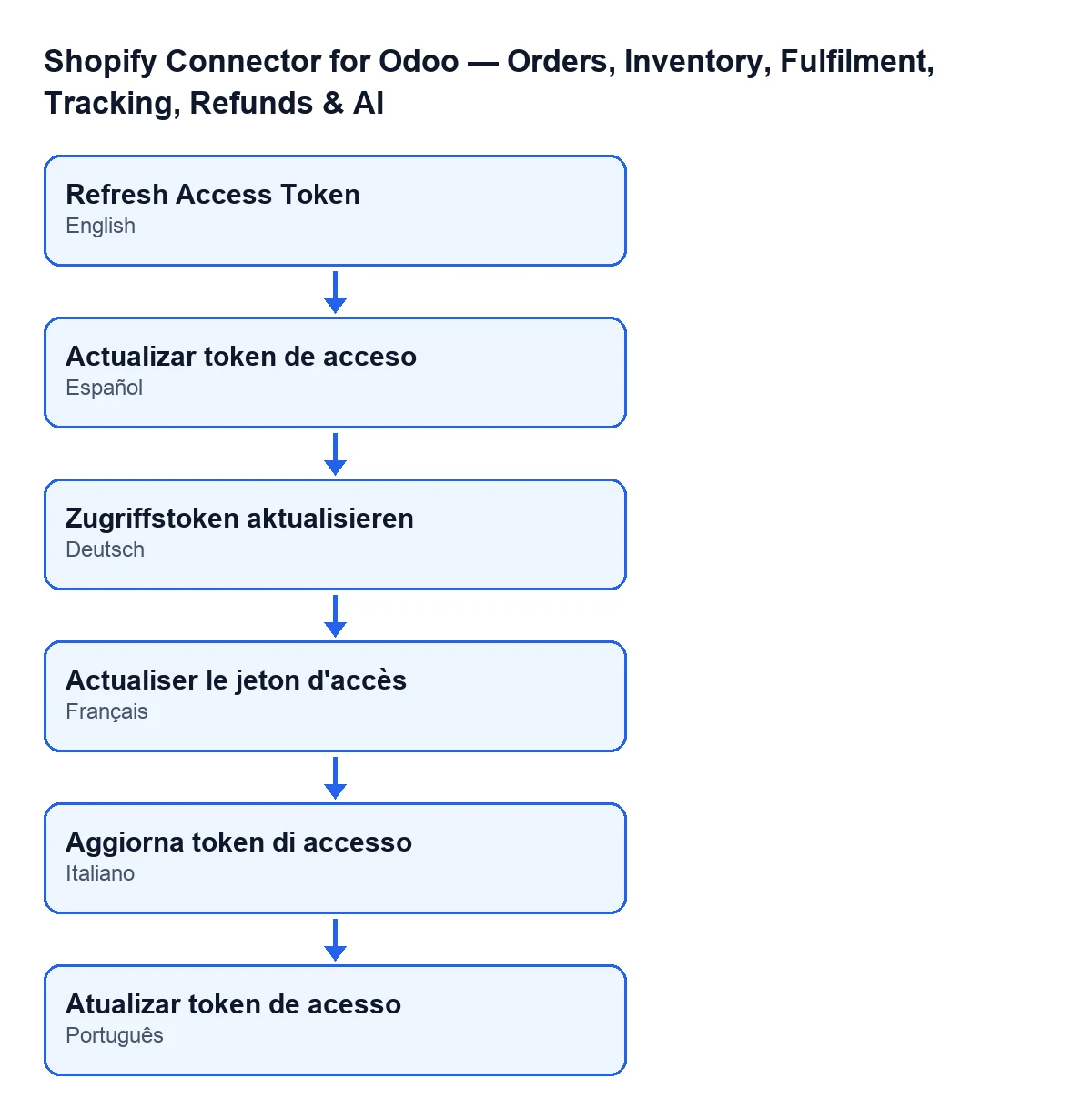
Actualizar token de acceso in Spanish, Zugriffstoken aktualisieren in German, Actualiser le jeton d'accès in French, Aggiorna token di accesso in Italian and Atualizar token de acesso in Portuguese.If an error appears: what to do
Missing refresh token for Shopify instance …: the button needs the store to have a refresh token; without one it never reaches Shopify. If the store uses the Client ID and secret of its own app and has no refresh token, the module asks for the token the other way, without the button.
Shopify token refresh failed: …: Shopify answered with an error code. Read the text after the colon, which is what Shopify returned, before pressing again.
Shopify token refresh response did not include an access token.: Shopify answered without an error, but the reply carried no access token, and nothing is saved. Try again and, if it repeats, keep the text of the message and get in touch with us.
After pressing
- Check that none of those messages came up.
- If you have the scheduled tasks above switched on, they can also renew the token by themselves.
- If you are after another button of the connector, see the
Pull Stockbutton.
Versions and cost
The module is published on Odoo Apps for 17.0, 18.0, 19.0 and 20.0, and the button is in all four branches. It is a one-off payment per version and needs the FlexigoTech Cloud subscription (Connector plan): €49/month or €490/year excluding VAT, with up to three accounts on the platform. With the subscription, the module for newer Odoo versions is included if you bought it on flexigotech.com; on the Odoo App Store, each Odoo version is bought there. The price for each version is on its Odoo Apps listing.
How FlexigoTech can help
FlexigoTech implements Odoo 17, 18, 19 and 20 and builds custom connectors and integrations. If you want to see the whole module, here is its page on flexigotech.com.
Keep reading
Checked in the connector's source code (version 20.0) and the linked sources
Sources
- Module source code: flexigobe_shopify_seller_connector 20.0 (d7e627b4): views/shopify_instance_views.xml
- Module source code: flexigobe_shopify_seller_connector 20.0 (d7e627b4): models/shopify_instance.py
- Module source code: flexigobe_shopify_seller_connector 20.0 (d7e627b4): models/fgt_cloud.py
- apps.odoo.com/apps/modules/20.0/flexigobe_shopify_seller_connector
- flexigotech.com/precios.html
- flexigotech.com/en/services.html