

 Español
 Català
 Deutsch
 Français
 Português
 Italiano
 Nederlands
 Polski
When the message appears
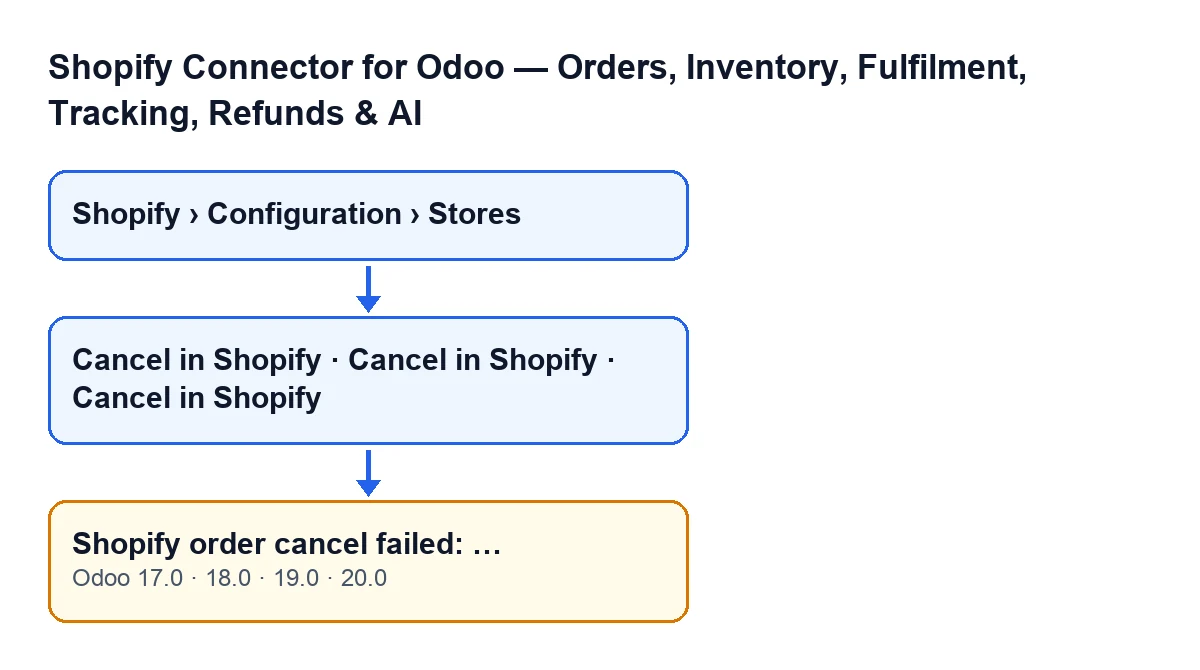
It appears when you press the Cancel in Shopify button, on the sales order or on the Shopify order form. Odoo asks Shopify to cancel the order and tells it three things: whether to notify the customer, whether to refund and whether to restock. According to the Odoo 20 code, when no other value is given, the module takes those three settings from the store's configuration.
Shopify then replies. If the reply contains cancellation errors and at least one of them has text, the module joins the texts with semicolons and shows them after the colon. The action stops. If the errors arrive without text, this message is not raised.
The message is in the published code for Odoo 17, 18, 19 and 20.

What the text after the colon means
The module does not write that text: Shopify returns it. The cause is in it, not in the start of the sentence. If Shopify returns several errors, they appear one after another, separated by semicolons.
So the fix is not the same every time: it depends on what Shopify says in that reply. The first job is to read it in full rather than stopping at the start of the message.
Checklist
Before pressing the button
- Check that the button should be visible. On the sales order it is hidden if the
Shopify Order Reffield is empty or if the order is in theCancelledstate.
- On the Shopify order form, the button is hidden when the
Statefield marks the order as cancelled. With the default values it is visible.
- On the sales order, read the confirmation:
Cancel the linked Shopify order and this Odoo order?. Accept only if you want to cancel both.
- Bear in mind that the customer notification, the refund and the restocking come, unless something else is specified, from the store's configuration.
- Find the store form under
Shopify › Configuration › Stores. TheShopifysection needs theViewerpermission and theConfigurationsection needsOperator; if one is missing, you do not see that section.
When the message appears
- Copy the full text after the colon. If there are several errors, they are separated by semicolons.
- Read it for what it is: Shopify's answer to the cancel request. Deal with what that text says.
- Open the order in Shopify and look at its status there, to compare it with what Odoo shows.
- Do not assume the cancellation went through: the action stops when the message is shown. Before repeating it, check the order in Odoo and in Shopify.
- If the customer notification, the refund or the restocking are not what you want, review the store's configuration before trying again.
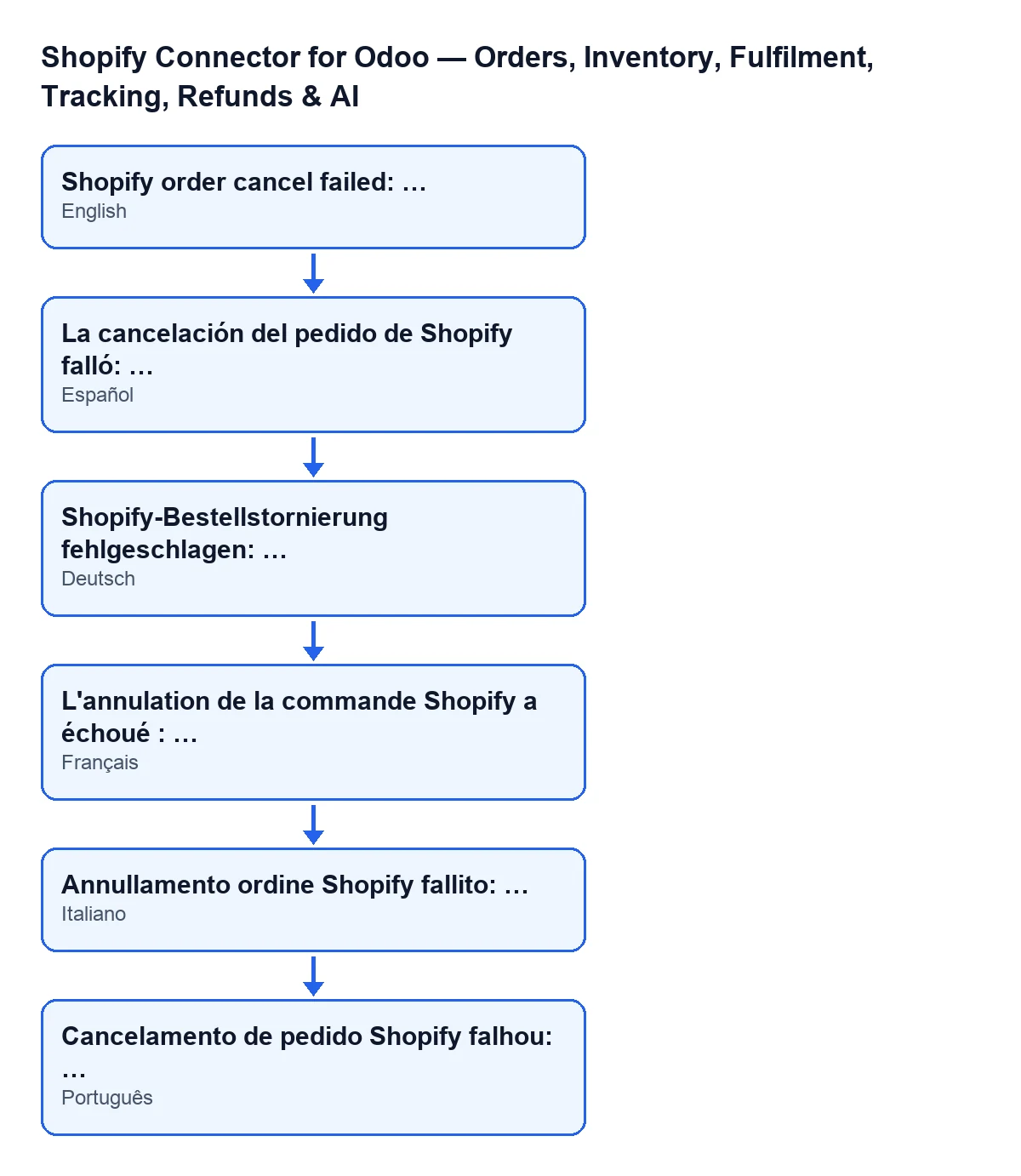
The wording of the message depends on the language of your Odoo. This diagram shows the module's published translations:
| Odoo language | Message |
|---|---|
| Spanish | Shopify order cancel failed: … |
| German | Shopify-Bestellstornierung fehlgeschlagen: … |
| French | L'annulation de la commande Shopify a échoué : … |
| Italian | Annullamento ordine Shopify fallito: … |
| Portuguese | Cancelamento de pedido Shopify falhou: … |
After fixing it
- Press
Cancel in Shopifyagain. If the button no longer appears, check the state of the sales order or theStatefield on the Shopify order form, because those values hide it.
- Check the result on both sides: the order in Shopify and the order in Odoo.
- If Shopify's text does not make the cause clear, keep it whole and use it when asking for help.
The button's step-by-step, with the conditions for when it appears, is in What the «Cancel in Shopify» button does.
Cost and help
The module is a one-off payment per Odoo version (17, 18, 19 and 20) and needs the FlexigoTech Cloud subscription, Connector plan: €49 a month or €490 a year, excluding VAT. The connection goes through FlexigoTech Cloud, which stores the credentials encrypted, watches the synchronisation and emails you if it fails. Details are on the Odoo Apps listing and the module page.
If you are implementing Odoo with Shopify and want to review how orders are cancelled, FlexigoTech implements Odoo 17, 18, 19 and 20 and builds custom connectors and integrations.
Keep reading
Checked in the connector's source code (version 20.0) and the linked sources
Sources
- Module source code: flexigobe_shopify_seller_connector 20.0 (2950bdc0): models/shopify_instance.py
- Module source code: flexigobe_shopify_seller_connector 20.0 (2950bdc0): views/sale_order_views.xml
- Module source code: flexigobe_shopify_seller_connector 20.0 (2950bdc0): views/shopify_order_views.xml
- Module source code: flexigobe_shopify_seller_connector 20.0 (2950bdc0): models/fgt_cloud.py
- apps.odoo.com/apps/modules/20.0/flexigobe_shopify_seller_connector
- flexigotech.com/precios.html
- flexigotech.com/en/services.html