

 Español
 Català
 Deutsch
 Français
 Português
 Italiano
 Nederlands
 Polski
The route that does not need the button
Before you press anything, know that the module can ask Shopify to cancel on its own. On the Shopify Instances form, Operations tab, Sync Settings group, there is the checkbox Auto-push cancellations to Shopify. Its help text reads: «When a Shopify-linked sale order is cancelled in Odoo, cancel it in Shopify too.» The checkbox is off by default.
With it on, when you cancel a sale order in Odoo the module asks Shopify to cancel as well, provided the order is linked to an instance, has a Shopify order reference and has ended up cancelled. If that request fails, the error goes to the log and the cancellation in Odoo is not undone.
The Cancel in Shopify button is the manual route: you press it from the Shopify order record. When the button cancels the Odoo sale order, it flags that this cancellation must not be sent to Shopify again by the automatic route.

When the button appears
It sits on the Fulfilment Funnel form, opened from Shopify › Operations › Orders. To see that menu you need the Viewer permission.
The view condition looks only at the State field: the button is hidden when it is Cancelled and shown for any other value. The default is Open, so on a newly arrived order you will see it. The other values are Partially Fulfilled, Fulfilled and Refunded. The button exists in Odoo 17, 18, 19 and 20, with the same condition.
Seeing the button is not the same as being able to use it: the view condition only concerns the state, and access is checked when you press it (see below).
With Odoo in English, the button is called Cancel in Shopify.
A case: Tienda Aurora cancels an order
Example Illustrative case: the company and its figures are made up to explain the flow.
Tienda Aurora (a company invented for this example) sells through Shopify and manages its orders in Odoo. A customer asks to cancel a purchase that has not shipped yet. Marta, in customer service, has Shopify operator access.
- Marta opens
Shopify › Operations › Ordersand goes into the order record.StateisOpenand the button is visible. - She presses
Cancel in Shopify. Shopify returns no error with text. StatebecomesCancelled, the button disappears and the linked sale order is cancelled in Odoo.
The next day another request comes in and Shopify returns an error with its reason. Marta sees Shopify order cancel failed: …, with Shopify's own text after the colon. State stays as it was and the sale order is left alone. What she has to do is read the reason.
A colleague who only has the Viewer permission opens the same record, sees the button and, on pressing it, gets the access message shown in the table below.
What it checks and does, in order
This is the order in the Odoo 20 code. As soon as a check fails, the button stops and saves nothing of what it was about to change.
- It checks that you have Shopify operator or manager access.
- It checks that the order is not already cancelled (the button is already hidden in that state).
- It checks that the
Shopify Orderfield has a value. - It asks Shopify to cancel. Whether to notify the customer, refund or restock is decided by the order's instance configuration: the button asks nothing. If Shopify returns errors with text, the button stops here.
- If the previous step did not stop, it writes
CancelledintoState. - If the order has a linked
Sale Orderand that order is not cancelled, it tries to cancel it in Odoo. If that cancellation fails, the error goes to the log, the button shows no message for it and the Shopify order staysCancelled.
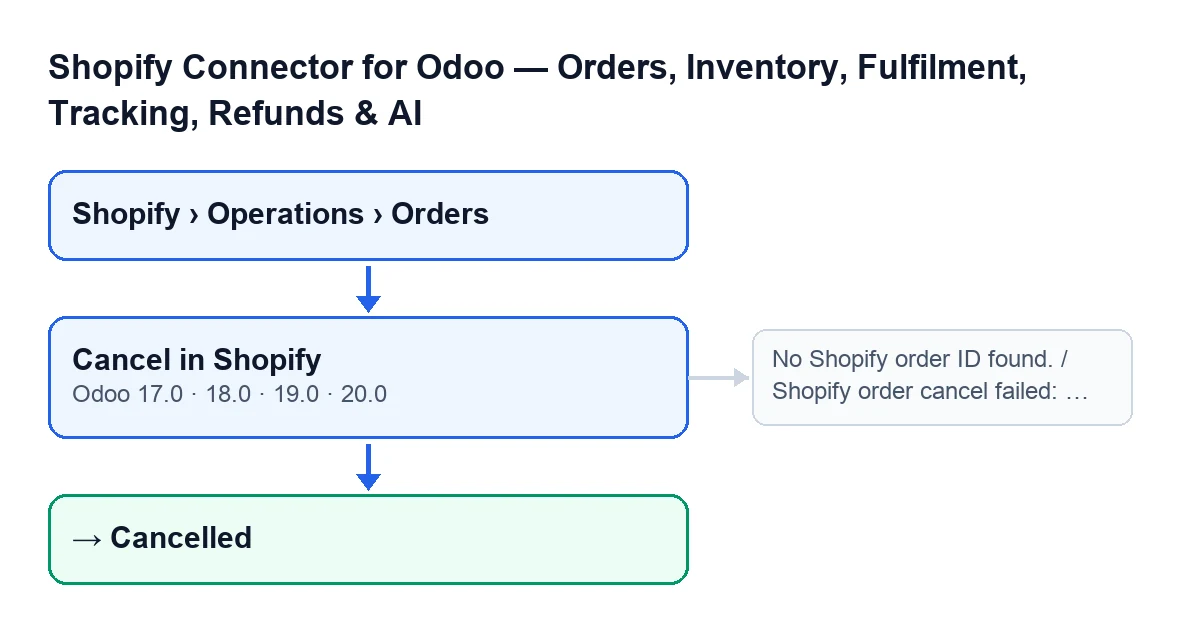
The Shopify Order, Sale Order and State fields are visible on the record and are filled in by the module, not by the user. Shopify Order is read-only.
Messages it can give when you press it
These are some of the messages the button can give:
| Message | When it appears | What to do |
|---|---|---|
You need Shopify Operator (or Manager) access for this action. | On pressing the button without Shopify operator or manager access. | Ask for that access, or have someone who has it press the button. |
No Shopify order ID found. | On pressing the button with Shopify Order empty. | Check that field on the record: it is not typed by hand, the module fills it in. |
Shopify order cancel failed: … | On pressing the button, when Shopify returns errors with text; Shopify's text replaces the ellipsis. | Read the reason Shopify gives. In that case the button stops and the state does not change. |
What to take from the case
- With the automatic checkbox off, cancelling the sale order in Odoo does not tell Shopify by that route; the button does.
- The
Cancelledstate is written after the cancellation has been requested from Shopify, unless Shopify returns errors with text: thenShopify order cancel failed: …appears and nothing changes. - A failure when cancelling the Odoo sale order does not show on screen: if in doubt, check the linked sale order after pressing.
How FlexigoTech helps
The module is published on Odoo Apps for Odoo 17, 18, 19 and 20; see the Odoo Apps listing and the module page. Besides the one-off payment for the module, it needs a FlexigoTech Cloud subscription: the connection to Shopify goes through that service, which stores the credentials encrypted and emails you if the sync fails (Connector plan: €49/month or €490/year excl. VAT). FlexigoTech implements Odoo 17, 18, 19 and 20 and builds custom connectors and integrations, in case you need the cancellation flow adjusted to your shop.
Keep reading
Checked in the connector's source code (version 20.0) and the linked sources
Sources
- Module source code: flexigobe_shopify_seller_connector 20.0 (2950bdc0): views/shopify_order_views.xml
- Module source code: flexigobe_shopify_seller_connector 20.0 (2950bdc0): models/shopify_order.py
- Module source code: flexigobe_shopify_seller_connector 20.0 (2950bdc0): models/sale_order.py
- Module source code: flexigobe_shopify_seller_connector 20.0 (2950bdc0): models/shopify_instance.py
- apps.odoo.com/apps/modules/20.0/flexigobe_shopify_seller_connector
- flexigotech.com/precios.html
- flexigotech.com/en/services.html