

 Español
 Català
 Deutsch
 Français
 Português
 Italiano
 Nederlands
 Polski
Where the button is and when you see it
Where do I find the Test Connection button?
It is on the Shopify Instances form. That form opens from the menu Shopify › Configuration › Stores. Each part of the menu asks for a permission: Shopify asks for Viewer and Configuration asks for Operator. If you lack one of them, you do not see that part of the menu.
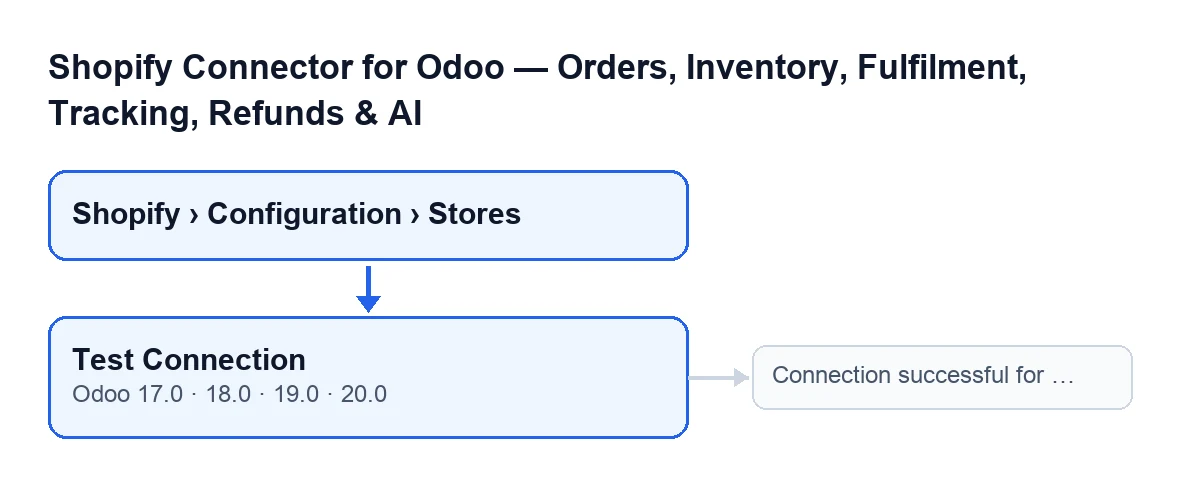
Connection successful for …. The labels are in English, the original text in the code.With Odoo in Spanish the button is called Probar conexión.
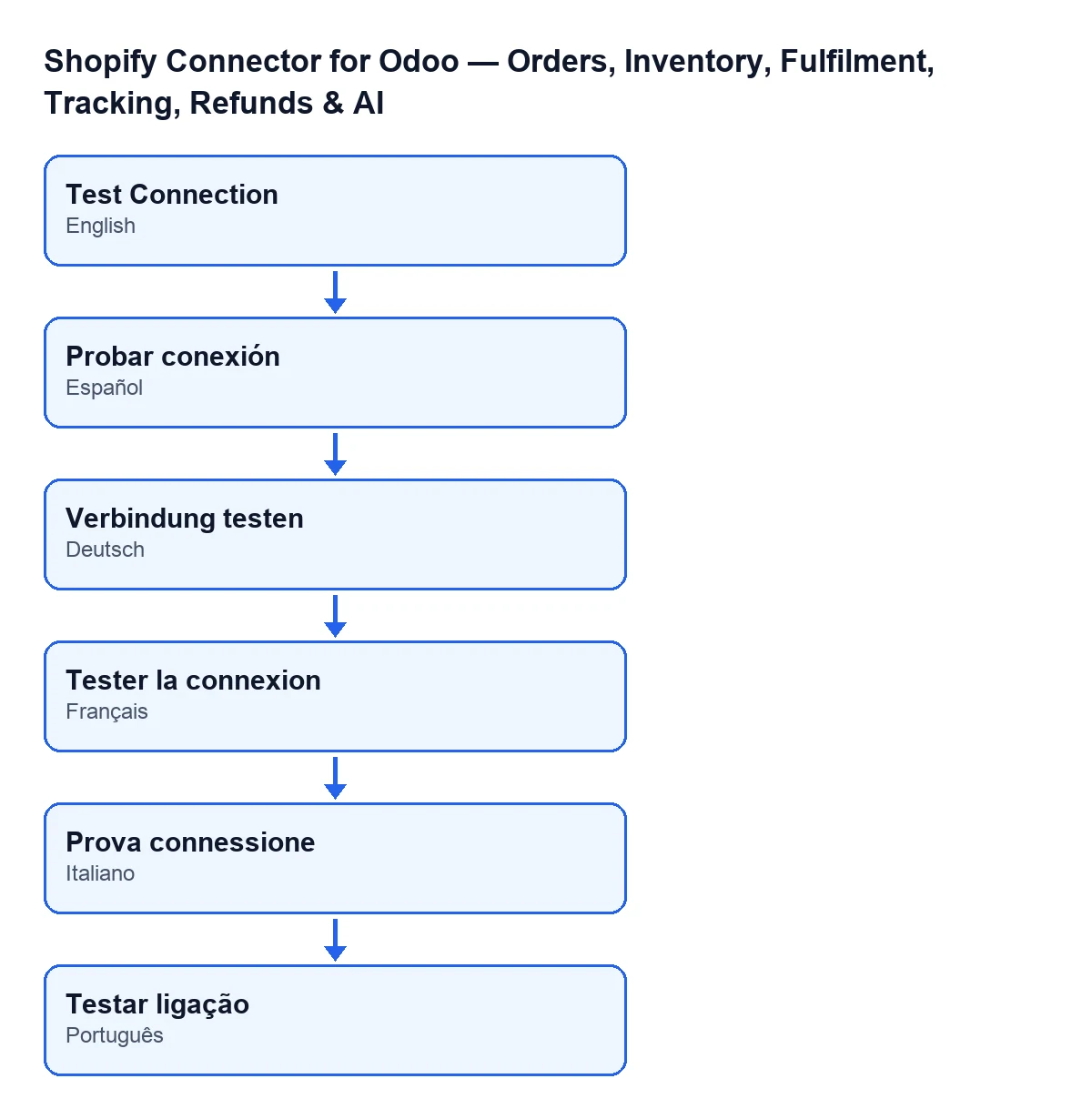
Probar conexión in Spanish, Verbindung testen in German, Tester la connexion in French, Prova connessione in Italian and Testar ligação in Portuguese.When does the button appear?
It is always visible on the form, with no state condition, in Odoo 17, 18, 19 and 20. The module is published on Odoo Apps for those four versions and the button exists in all of them.

What it checks and what changes
What exactly does it check?
It sends Shopify a query asking for the shop profile: name, domain, email and currency. If Shopify answers without an error, the connection is taken as good. If the query fails, the error handling described below takes over.
What changes in Odoo when it works?
The button saves the name, email and currency returned by Shopify on the store, marks the connection as connected and clears any last connection error it had stored. If Shopify does not return one of those values, that value is saved empty.
You can see the name in the Shop Name field, both on the form and in the Shopify Instances list. It is read-only: you do not type it, the code fills it when you press Test Connection and also when you press the Connect button.
Which message do I see when it works?
A success notification that does not stay fixed on screen, reading Connection successful for …. In place of the dots you get the shop name or, if the store has no name yet, its domain. The domain is the one you typed in the Shop Domain field, which is also on the form and in the list. Its help text reads: «Use your exact Shopify domain, for example: flexigobe.myshopify.com».
What happens when it fails
What do I see if the connection fails?
A red notification appears and stays on screen until you close it. Its text is the error's own text, cut to 300 characters, so it depends on what went wrong. The button also does three more things: it marks the store with an error state, stores the error text (up to 500 characters) and leaves a warning in the server log.
The code deliberately does not raise the error. If it did, Odoo would roll back what had been saved and the failure would leave no trace. So the button returns the notification and the reason stays stored on the store.
And if FlexigoTech Cloud has paused the service?
Then the button shows the pause notice and the store is not marked as failing: it does not move to the error state. The connection goes through FlexigoTech Cloud, which keeps the credentials encrypted and watches the synchronisation. Without a subscription, or with the service suspended, whatever the subscription provides stops, and your data stays in your Odoo.
What should I do after a failure?
Read the notification text, fix what it points to and press Test Connection again. Each press repeats the query: if it now works, the store goes back to connected and the stored error is cleared. If you do not know where to start, check that the Shop Domain is your exact Shopify domain, as its help text asks.
How much does the button cost?
The module is a one-off payment per Odoo version and needs a FlexigoTech Cloud subscription. The Connector plan costs €49 a month or €490 a year excluding VAT, with up to 3 accounts on the platform (the Pro plan, €98 a month or €980 a year, with up to 10). The module price for each version is on the Odoo Apps listing.
How FlexigoTech can help
FlexigoTech implements Odoo 17, 18, 19 and 20 and builds custom connectors and integrations. If you are setting up your Shopify store in Odoo and want a second pair of eyes, see the module page. Another button of the module with its own article is Get stock.
Keep reading
Checked in the connector's source code (version 20.0) and the linked sources
Sources
- Module source code: flexigobe_shopify_seller_connector 20.0 (d7e627b4): views/shopify_instance_views.xml
- Module source code: flexigobe_shopify_seller_connector 20.0 (d7e627b4): models/shopify_instance.py
- Module source code: flexigobe_shopify_seller_connector 20.0 (d7e627b4): models/fgt_cloud.py
- apps.odoo.com/apps/modules/20.0/flexigobe_shopify_seller_connector
- flexigotech.com/en/services.html
- flexigotech.com/precios.html