

 Español
 Català
 Deutsch
 Français
 Português
 Italiano
 Nederlands
 Polski
Where the button is and who can see it
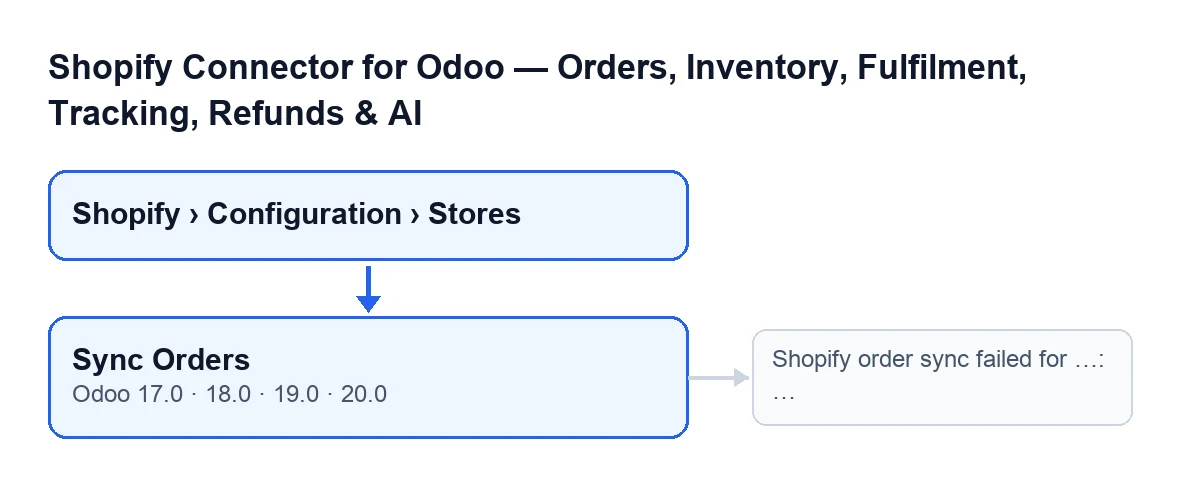
The store records open from the menu Shopify › Configuration › Stores. The Shopify level asks for the Viewer permission and the Configuration level asks for Operator; if you lack one of them, you do not see that level. On the Shopify Instances screen you will find the Sync Orders button, which has no visibility condition in Odoo 17, 18, 19 and 20.
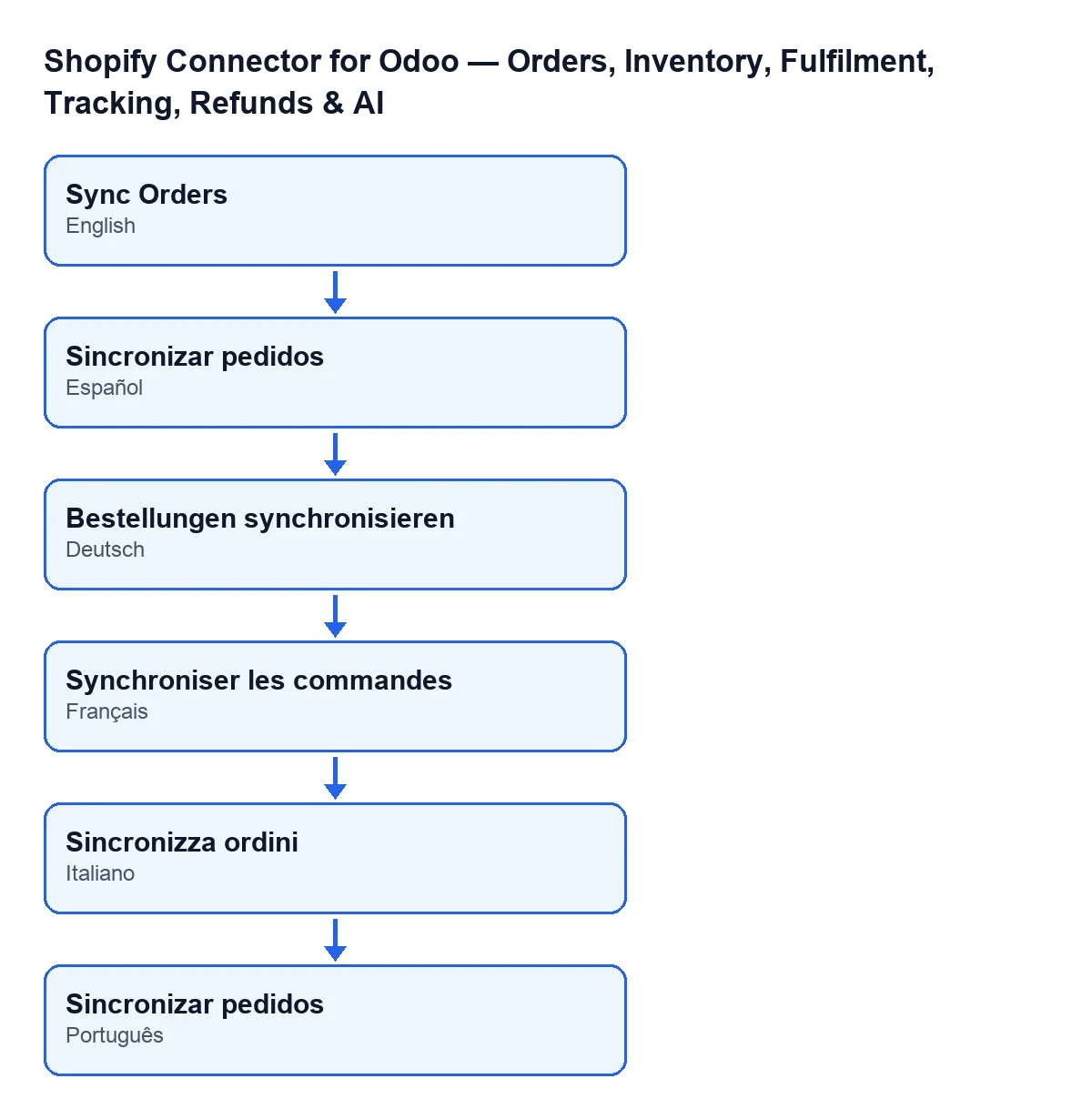
The label of the button changes with the language of your Odoo, as this diagram shows.

Step by step: what happens when orders are synced
This is what the code does, in the order it does it.
- First, the automatic path. The scheduled action
Shopify Sync Ordersruns every 5 minutes and reaches the same action as the button; it is switched off when you install the module. So the button is the way to launch it by hand, not the usual step. - You press the button. The module creates a sync log entry of the orders type, in a running state.
- It works out where to start from. If
Last Order Synchas a date and the store has already imported at least one order, it asks for orders updated since that date. Otherwise it steps back from the current moment by a number of hours set on the store, never less than one hour. The filter is on the order's update date, not its creation date. - It applies the store's import scope. Depending on the configured scope, it asks for all orders, only paid ones, or paid ones that are still waiting to be fulfilled.
- It requests pages from Shopify. The orders updated longest ago arrive first, and each one is processed in Odoo one by one. It stops when Shopify has no more or when it reaches
Max Pages, which defaults to20in the code and shows on the record, in theOperationstab,Sync Settingsgroup. - First use: a second pass without the date filter. If nothing arrived and the store has never imported an order, it repeats the request without the date filter, walking the history from the oldest order (with the same page limit). If the store had already imported orders and nothing arrives, it does not repeat: a quiet shop is the normal state.
- If orders arrived, it stores the date.
Last Order Syncbecomes the current moment, theConsecutive Sync Errorscounter goes back to zero and the last stored error is cleared. If the run stopped at the page limit, the stored date is that of the last order processed when it is later than the one already there (or there was none); the date never moves backwards. The next run continues from there. If Shopify returned no orders, none of this is written. - It closes the log entry. It records the end time and the duration, counts every processed order as updated (this action counts none as created) and with no errors, so the entry ends as successful. The button returns the total number of orders synced.
Which errors it can raise
When you press Sync Orders, the action can stop with Shopify order sync failed for …: …. After «for» comes the value of Shop Domain, and after the colon the text of the error that caused it. Before showing the message, the module marks the sync log entry as failed and stores the error text in it.
Two other endings are possible, also according to the code:
- If the error is already an Odoo warning of the kind shown in a dialog, the log entry is marked as failed and that warning is shown as it is.
- If FlexigoTech Cloud has paused the sync, the module deletes the log entry for that run, so it does not appear as failed, and the action stops.
The Consecutive Sync Errors counter is written by the code, not by you. It has no label on the record (only the number shows, read-only) and it only appears when it is not zero. It is filled in by the Sync Orders button, the Run button and the scheduled action; the Reset Sync button empties it, and also empties Last Order Sync.
What to check after syncing
- The date.
Last Order Syncshows on the record and in theShopify Instanceslist, read-only. If it does not change after a run with no errors, Shopify returned no orders; if the action stopped with a message or FlexigoTech Cloud paused it, the date is not updated either. - The domain.
Shop Domainshows on the record and in the list. Its help text reads: «Use your exact Shopify domain, for example: flexigobe.myshopify.com». The failure message carries that domain, so compare the two. - The page limit. The code cuts off at
Max Pages, so that field limits how many pages of orders are requested from Shopify in each run. With many orders waiting, the date moves up to the last order processed and the next run carries on from there. - The error counter. If it appears on the record, consecutive errors have been logged; it goes back to zero when a run that brings orders finishes successfully.
Cost and versions
The module is published on Odoo Apps for Odoo 17, 18, 19 and 20, and works with the FlexigoTech Cloud subscription, Connector plan: €49 a month or €490 a year excluding VAT, up to 3 accounts on the platform. The connection goes through FlexigoTech Cloud, which stores the credentials encrypted, monitors the sync and emails you if it fails. Without a subscription, or with the service suspended, whatever the subscription provides stops; your data stays in your Odoo. The module price for each version is on the Odoo Apps listing and on the module page.
How FlexigoTech can help
FlexigoTech implements Odoo 17, 18, 19 and 20 and builds connectors and custom integrations. If you want to review how your Shopify store is set up in Odoo, get in touch.
Keep reading
Checked in the connector's source code (version 20.0) and the linked sources
Sources
- Module source code: flexigobe_shopify_seller_connector 20.0 (03641761): views/shopify_instance_views.xml
- Module source code: flexigobe_shopify_seller_connector 20.0 (03641761): models/shopify_instance.py
- Module source code: flexigobe_shopify_seller_connector 20.0 (03641761): models/fgt_cloud.py
- apps.odoo.com/apps/modules/20.0/flexigobe_shopify_seller_connector
- flexigotech.com/en/services.html
- flexigotech.com/precios.html