

 Español
 Català
 Deutsch
 Français
 Português
 Italiano
 Nederlands
 Polski
Exactly when it appears
The module raises Webhook URL is not available. Check Odoo base URL and webhook token. when the Webhook Url field of the store is empty. It is the first thing the webhook registration checks: it comes before the webhook topics are reviewed and before the subscriptions already held in Shopify are requested. Because the message stops the action, the registration does not go any further while the field is empty.
The message is in the published code of the Odoo 17, 18, 19 and 20 branches.
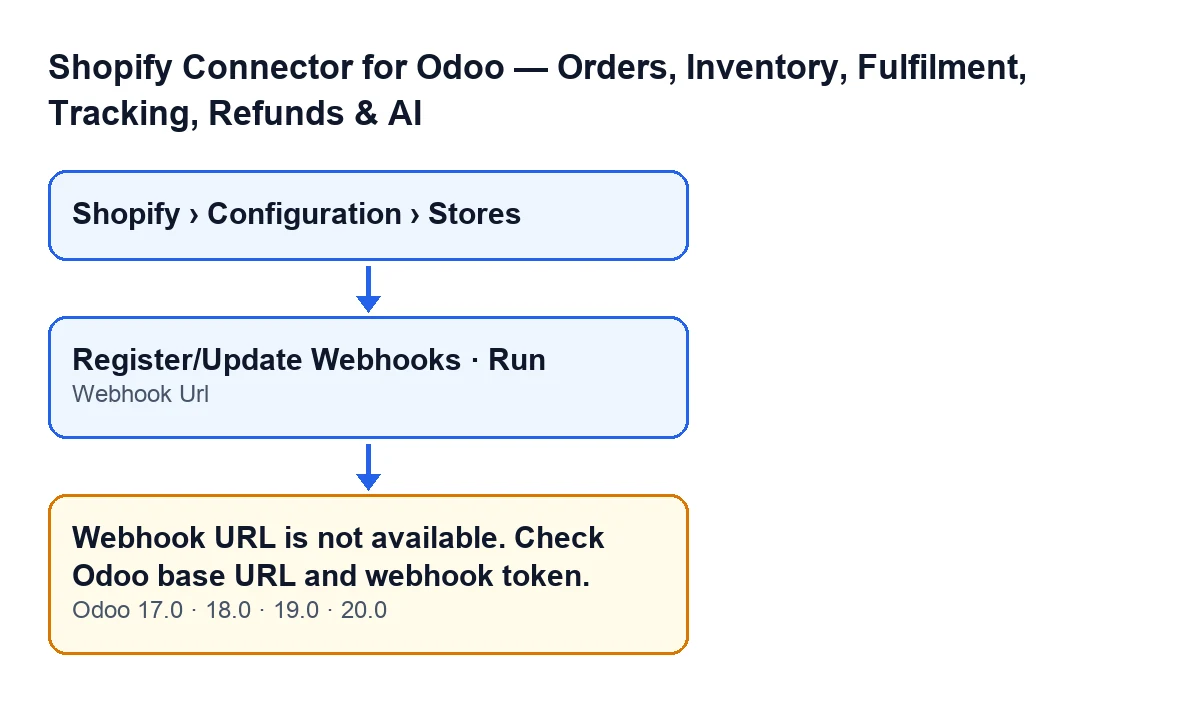
Webhook Url field and the message, with the English labels used in the code. It applies to Odoo 17, 18, 19 and 20.
The two ways to reach it
The same message can come from two buttons, because both lead to the method that registers the store's webhooks:
Register/Update Webhooks, on the store form. It is hidden when theShopify connectionfield holds the FlexigoTech Cloud connection; that field does not appear in any view and that is its default value, so with default values the button is not shown. This is the same in Odoo 17, 18, 19 and 20.Run, in theShopify Manual Syncwizard. This button is always shown.
The store form opens from the menu Shopify › Configuration › Stores. Each part of the menu asks for a permission: Configuration asks for Operator and Shopify asks for Viewer. If you lack one of them, you do not see that part. Inside the Shopify Instances form, the Webhooks tab shows the Webhook Url field, which is read-only.
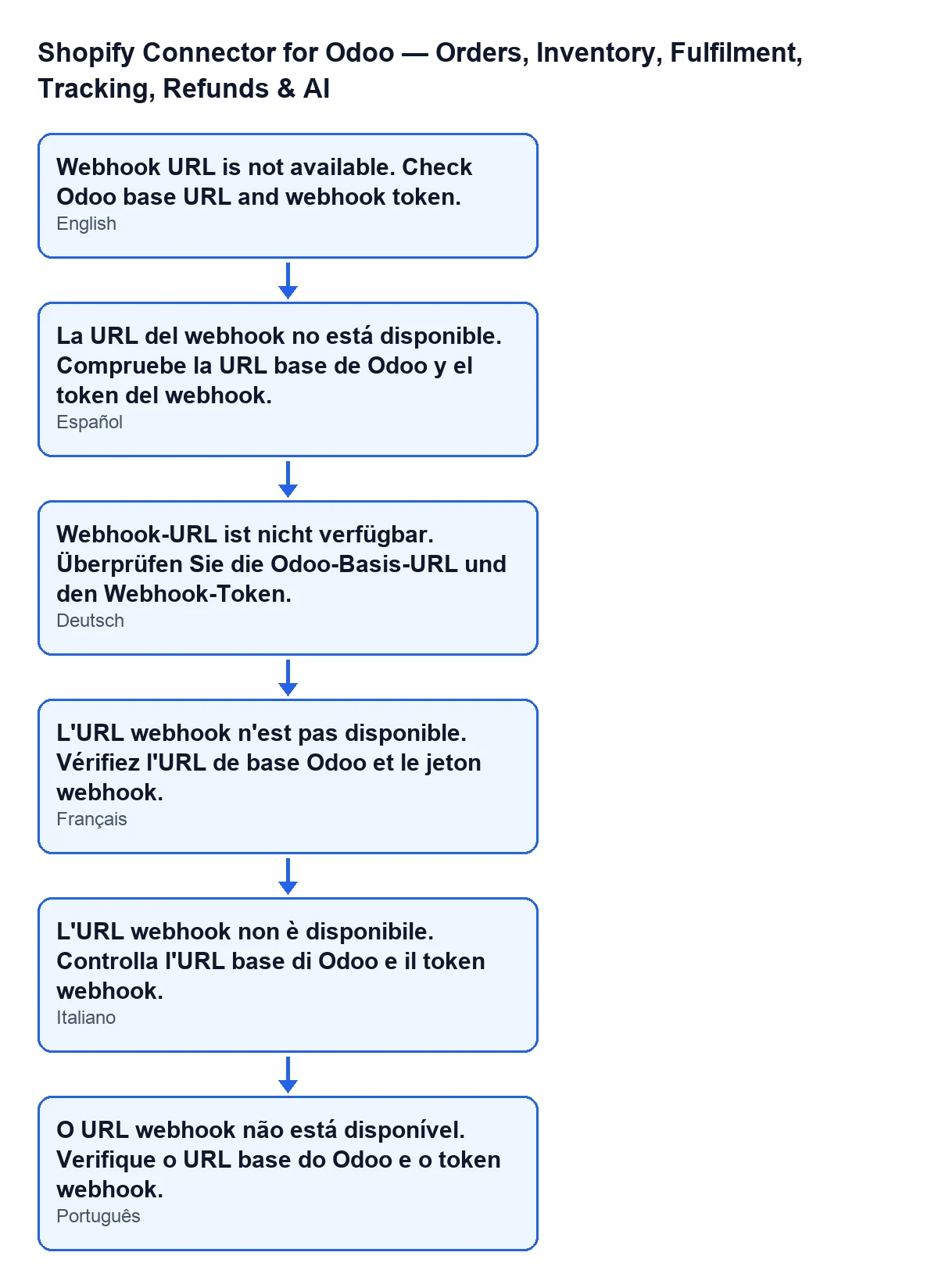
Webhook URL is not available. Check Odoo base URL and webhook token.A case to see it in action
Example Illustrative case: the company and its figures are made up to explain the flow.
Taller Norte is a company invented for this example: it sells ceramics through a Shopify store, and Marta, who runs the Odoo implementation, is getting the connection ready. She opens the Shopify Manual Sync wizard and presses Run. With Odoo in English she sees Webhook URL is not available. Check Odoo base URL and webhook token. and the webhook registration stops.
Marta does not go looking for a communication failure with Shopify: the message depends on a single condition, that the Webhook Url field is empty. She opens Shopify › Configuration › Stores, goes into the store form and looks at the Webhooks tab: it is indeed empty. Since the field is read-only, she does not try to type in it. She goes back to what the message itself names, the Odoo base URL and the webhook token, and once Webhook Url has a value she repeats the action. With that field filled in, this check stops firing.
What the registration does once this check passes
This does not cause the message, but it tells you what comes next. With Webhook Url filled in, the registration reads the store's webhook topics, asks Shopify for the subscriptions that already exist, deletes the ones that point at this Odoo database and no longer apply, and creates the ones that are missing. If it finds subscriptions that point at addresses outside this Odoo database, it leaves them as they are and writes a note on the store form.
What to do, step by step
- Open
Shopify › Configuration › Storesand go into the store form. If you cannot see the menu or one of its parts, you are missing theOperatororViewerpermission that each one asks for. - Go to the
Webhookstab and look at theWebhook Urlfield. If it is empty, that is the cause of the message. - Do not try to type in it: it is read-only. Review what the message itself says: the Odoo base URL and the webhook token.
- Once
Webhook Urlhas a value, repeat the action withRegister/Update Webhooks(if the button is shown for your store) or withRunin theShopify Manual Syncwizard. - Check that this message no longer appears when you repeat the action.
What to take away from the case
- There is a single condition:
Webhook Urlempty. It does not depend on Shopify answering, because inside the webhook registration this check comes before any request to Shopify. - One message, two buttons: if you see it after pressing
Run, the origin is the same as when you see it after pressing the button on the form. - With default values,
Register/Update Webhooksis not shown on the form. Not finding it does not mean the module is missing. - The message stops the action: the registration does not continue while the field is empty.
How FlexigoTech can help
The module is a one-off purchase per version and needs the FlexigoTech Cloud subscription (Connector plan, €49/month or €490/year excluding VAT). It is published for Odoo 17, 18, 19 and 20; with the subscription, the module for newer Odoo versions is included if you bought it on flexigotech.com, and in the Odoo App Store each version is bought there. You can see the Odoo Apps listing or the module page. If you are implementing Odoo and want someone to review the Shopify connection with you, FlexigoTech implements Odoo 17, 18, 19 and 20 and builds custom connectors and integrations.
Keep reading
Checked in the connector's source code (version 20.0) and the linked sources
Sources
- Module source code: flexigobe_shopify_seller_connector 20.0 (03641761): models/shopify_instance.py
- Module source code: flexigobe_shopify_seller_connector 20.0 (03641761): views/shopify_instance_views.xml
- Module source code: flexigobe_shopify_seller_connector 20.0 (03641761): wizard/shopify_sync_wizard_views.xml
- Module source code: flexigobe_shopify_seller_connector 20.0 (03641761): models/fgt_cloud.py
- apps.odoo.com/apps/modules/20.0/flexigobe_shopify_seller_connector
- flexigotech.com/precios.html
- flexigotech.com/en/services.html