

 Español
 Català
 Deutsch
 Français
 Português
 Italiano
 Nederlands
 Polski
Where it is and when it shows
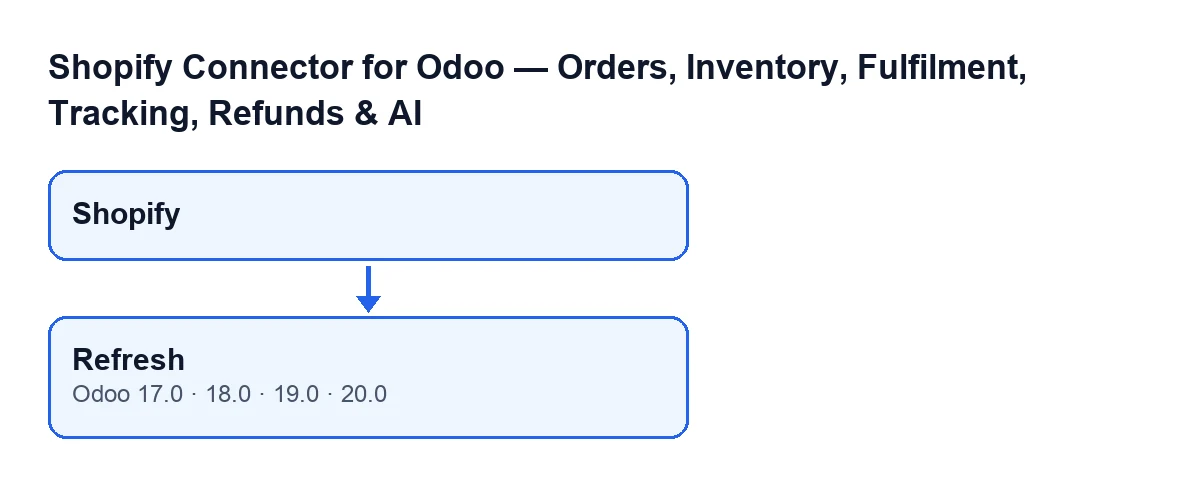
The dashboard forms open from the Shopify menu. That part of the menu asks for the Viewer permission: without it, you do not see it. On the Dashboard screen you will find the Refresh button. It has no visibility condition: it is always shown, in versions 17, 18, 19 and 20.
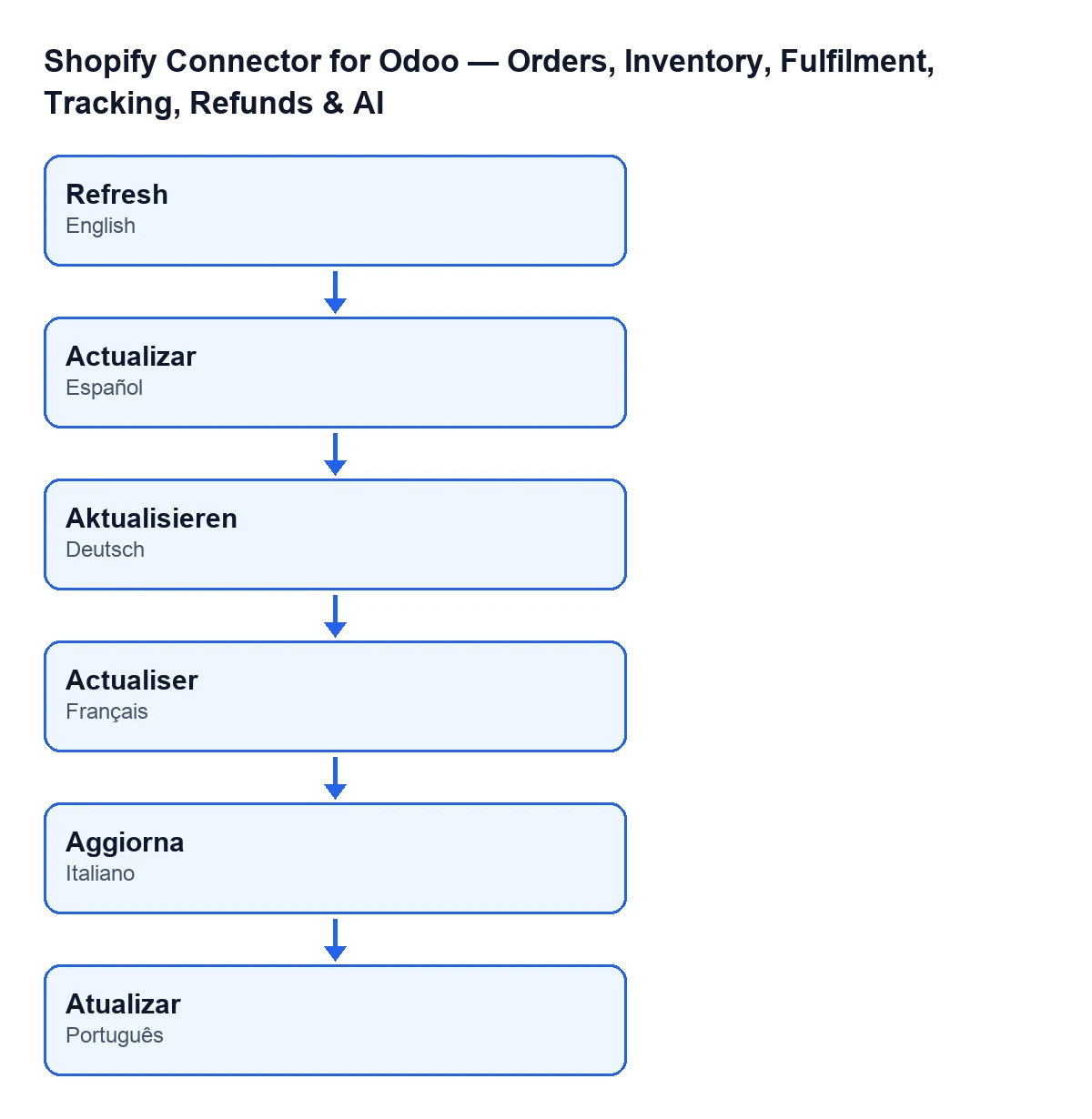
The text of the button depends on the language of your Odoo. This diagram, also generated from code and not an Odoo screen, shows how it is labelled in other languages:
Each dashboard belongs to one Shopify instance: the Instance field appears on the dashboard form and list, and the button calculates the data of that instance. The Open orders field is on the form, in the Sales group, and also in the kanban view, read-only.
The period being calculated
The Date From and Date To fields are on the dashboard form, but with the default values they are not visible: they appear only when the dashboard period is set to a custom one. If they are empty, the button uses the 30 days up to today.

Step by step: what Refresh does
- It fixes the period:
Date FromandDate Toif they have a value; otherwise the last 30 days up to today. - It adds up sales for the period. It counts the sales orders of that instance and of the instance's company whose order date falls within the period (both days included) and which are not cancelled. From them it gets the number of orders, the total amount sold, the average value per order, the units sold (leaving out lines with a display type), the Shopify refunds created in the period and the refund rate against orders.
- It repeats that calculation for the previous period, of the same length and ending the day before the current one starts.
- It works out the percentage change of total amount and number of orders against the previous period. If the previous period had nothing, the change is one hundred per cent when there is something now and zero when there is not.
- It counts the issues: the instance's sync log records that failed or were partial and started in the last 24 hours; the unassigned mappings (carriers without an Odoo carrier, taxes without an Odoo tax and Shopify locations without a stock location, added into one counter); and the Shopify orders that are not cancelled and have no sales order yet.
- It counts the instance's stock: the total number of analysed SKUs, those flagged to reorder now or out of stock, those flagged to watch and those classed as dead stock.
- It counts open orders: the confirmed sales orders of the instance and its company. This count is not limited to the period. It is the value of
Open orders. - It writes all the results on the dashboard together with the time of the refresh and the result
OK. - It saves the day's snapshot in the history: one row per instance and day. If that day already has a row, it rewrites it; if not, it creates it. The row holds the period's sales figures, the stock figures and the open orders.
What to check afterwards and cases that cause confusion
After pressing it, look at Open orders and the other dashboard figures. These cases come straight from the code:
- Unconfirmed orders. They count towards the total amount as long as they are not cancelled, even if the sales order is still a draft. Only cancelled ones are left out.
- Other companies. An order from a company other than the instance's company never enters the calculation.
- A period with no orders. The average value per order and the refund rate are zero.
- A change of one hundred per cent. If the previous period had no orders and the current one does, the change shows as one hundred per cent. It is not an error: it is the rule in step four.
- Pressing twice on the same day. It does not duplicate the day's snapshot: it rewrites it. If you change the period and press again that same day, the history snapshot keeps the figures of the last period calculated.
- Two refreshes at once. The code allows for another refresh creating the day's row at the same moment: if that happens, it writes into the row already created.
- 24-hour issues. The failed-sync counter looks only at what started in the last 24 hours, not at the whole log.
- Unassigned mappings. It is a single counter mixing carriers, taxes and locations. To find out which ones are missing you have to review each mapping.
How it fits with the subscription
The module is a one-off purchase per version, is published on Odoo Apps for 17, 18, 19 and 20, and needs the FlexigoTech Cloud subscription. The Connector plan costs €49 per month or €490 per year, excluding VAT, for up to 3 accounts on the platform. The connection goes through FlexigoTech Cloud, which stores the credentials encrypted, monitors synchronisation and emails you if it fails. You can see the module on the Odoo Apps listing or on its page at flexigotech.com.
If you are implementing Odoo and want the dashboard to reflect how you operate, FlexigoTech implements Odoo 17, 18, 19 and 20 and builds custom connectors and integrations.
Keep reading
Checked in the connector's source code (version 20.0) and the linked sources
Sources
- Module source code: flexigobe_shopify_seller_connector 20.0 (d7e627b4): views/shopify_kpi_dashboard_views.xml
- Module source code: flexigobe_shopify_seller_connector 20.0 (d7e627b4): models/shopify_kpi_dashboard.py
- apps.odoo.com/apps/modules/20.0/flexigobe_shopify_seller_connector
- flexigotech.com/precios.html
- flexigotech.com/en/services.html