

 Español
 Català
 Deutsch
 Français
 Português
 Italiano
 Nederlands
 Polski
A case to set the scene
Example Illustrative case: the company and its figures are made up to explain the flow.
Aurora Natural is an invented company that sells cosmetics and has just added its Shopify store to Odoo. Its store does not use the FlexigoTech Cloud route, so both credential fields are visible on the form. Marta, from the admin team, goes to Shopify › Configuration › Stores, opens the store form and clicks Sync Locations. The action stops and this message appears: Set the Client ID and Client Secret of your Shopify app on store Aurora Natural before connecting.
Marta assumes Shopify has rejected the connection, but the message appears before the module talks to Shopify. She opens the Connection tab, scrolls to the Shopify App Credentials group and sees that Client ID is filled in while Client Secret is empty. She pastes the secret, clicks the button again and that check is passed.
The lesson: the message is about empty fields in your Odoo, not about what Shopify thinks of your credentials.

Exactly when it appears
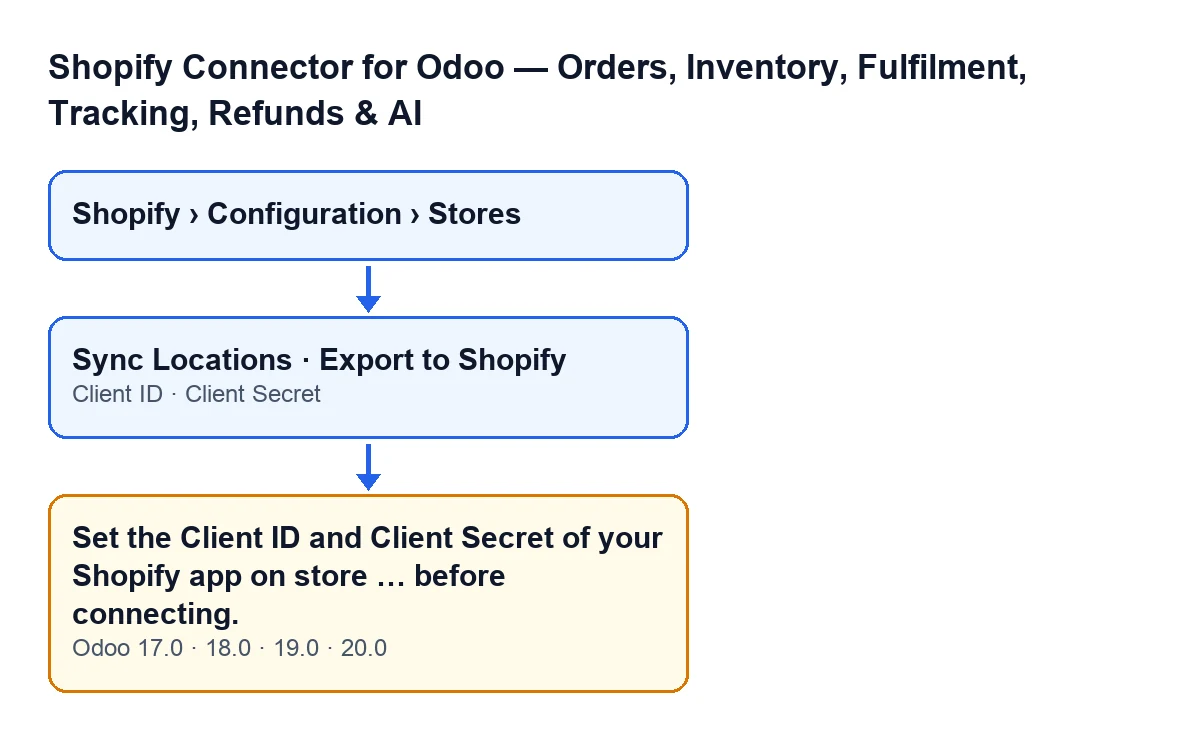
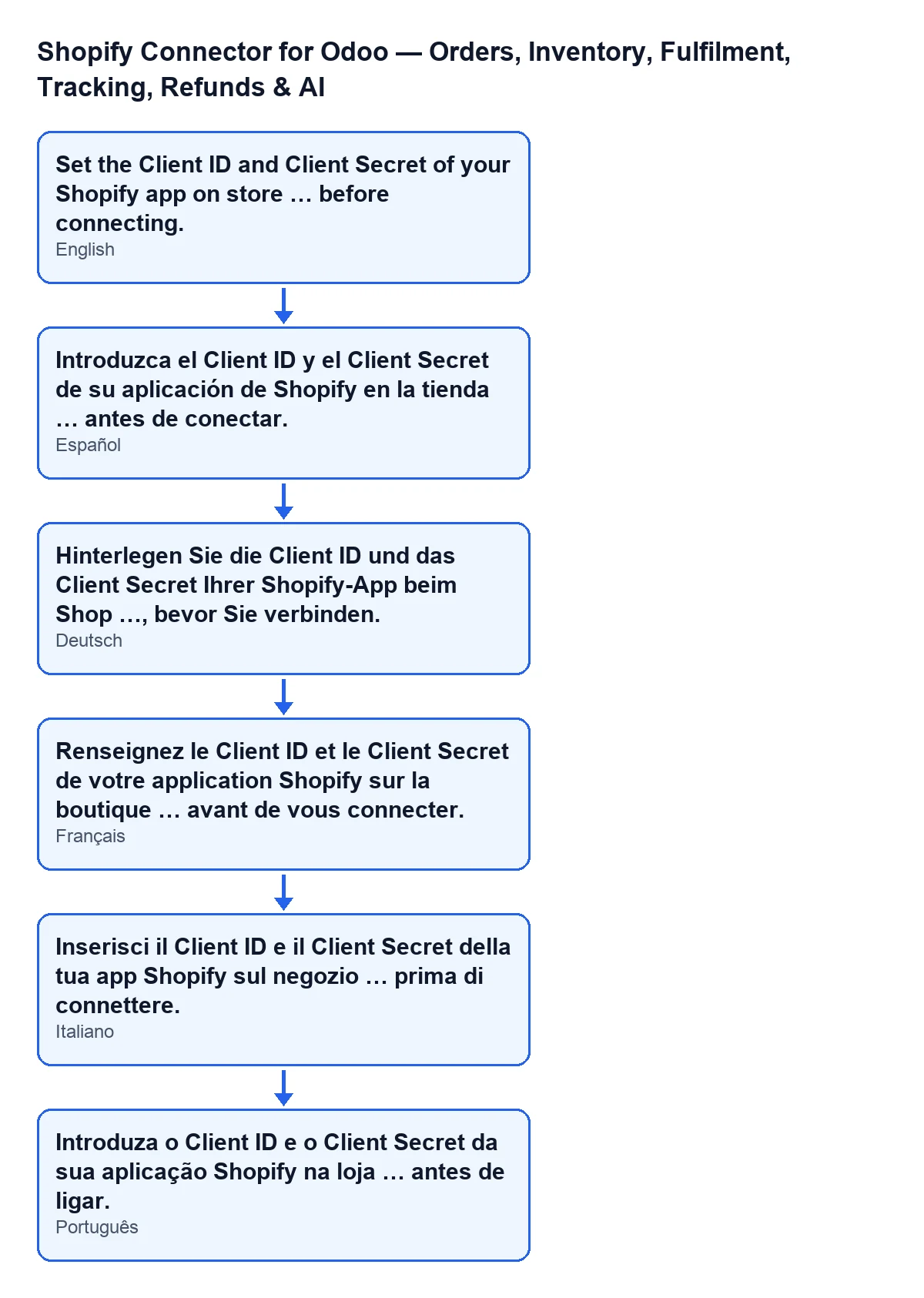
The full message is Set the Client ID and Client Secret of your Shopify app on store … before connecting.. In place of the dots, Odoo puts the name under which it displays the store.
The condition in the code is simple: the module checks that Client ID and Client Secret both have something written in them. If one is missing, or both, it raises the message. It only looks at whether the fields are empty, not whether the values are correct.
This is the first check made by the routine that asks Shopify for an access token. It can appear when you click either of these buttons:
Sync Locations, on the store form.Export to Shopify, in the product export window.
Both buttons are always visible in Odoo 17, 18, 19 and 20, and the message is in the published code of all four versions.
What happens when it appears
It is an error that stops the action: what the button was going to do is not completed. While either value is missing, the check stops it again.
Where the fields are
The store forms open from Shopify › Configuration › Stores, in the Shopify Instances form. Each part of the menu asks for a permission: Configuration asks for Operator and Shopify asks for Viewer. If you do not have one of them, you do not see that part of the menu.
Inside the form, Client ID is in the Connection tab, in the Shopify App Credentials group. Client Secret is in the same group, but it is only visible when the store does not use the FlexigoTech Cloud route.
With the default values, Client Secret is not visible: the field is hidden when the store's route is FlexigoTech Cloud, and that is the default route.
How to fix it, step by step
- Open
Shopify › Configuration › Storesand go into the form of the store named in the message. - Go to the
Connectiontab and find theShopify App Credentialsgroup. - Fill in
Client IDandClient Secretwith the values your Shopify app shows: the message only goes away when both have a value.Client Secretis only visible in that group if the store does not use the FlexigoTech Cloud route. - Click the button that gave the message again.
- Check that this message no longer appears. If a different one does, this empty-field check has been passed.
What the module does right afterwards
With both values present, the Odoo 20 code carries on with the same routine: it builds the store's token address, checks that the server is not an internal address and sends Shopify a request with the client credentials. The module rejects any redirect in the response. If Shopify hands back a token, the module saves it together with the date of the last refresh and the scope, and saves when it expires if Shopify states an expiry.
The module generates the token from those two values, the Client ID and the Client Secret.
Questions you will ask
Does it mean my credentials are wrong?
No. It means the Client ID, the Client Secret or both are missing. The message appears before Shopify is contacted, so it says nothing about whether the values are valid.
Is filling in just one enough?
No. The condition needs both to have a value; with either one empty the message keeps appearing.
Does it appear in my Odoo version?
The message is in the published code of Odoo 17, 18, 19 and 20. The module is published on Odoo Apps for those four versions.
Can it appear with more than one button?
Yes: it can appear with Sync Locations and with Export to Shopify, because both reach the same check.
How FlexigoTech can help
FlexigoTech implements Odoo 17, 18, 19 and 20 and builds connectors and custom integrations. This connector is a one-off purchase per version and needs a FlexigoTech Cloud subscription, Connector plan: €49/month or €490/year excluding VAT, up to 3 platform accounts. The connection goes through FlexigoTech Cloud, which stores the credentials encrypted, monitors synchronisation and emails you if it fails. You can see the module on its Odoo Apps listing and on its page at flexigotech.com.
Keep reading
Checked in the connector's source code (version 20.0) and the linked sources
Sources
- Module source code: flexigobe_shopify_seller_connector 20.0 (2950bdc0): models/shopify_instance.py
- Module source code: flexigobe_shopify_seller_connector 20.0 (2950bdc0): views/shopify_instance_views.xml
- Module source code: flexigobe_shopify_seller_connector 20.0 (2950bdc0): wizard/shopify_export_product_wizard_views.xml
- Module source code: flexigobe_shopify_seller_connector 20.0 (2950bdc0): models/fgt_cloud.py
- apps.odoo.com/apps/modules/20.0/flexigobe_shopify_seller_connector
- flexigotech.com/precios.html
- flexigotech.com/en/services.html