

 Español
 Català
 Deutsch
 Français
 Português
 Italiano
 Nederlands
 Polski
The scheduled action Shopify Create Credit Notes exists in the 17.0, 18.0, 19.0 and 20.0 branches of the module.
When it runs
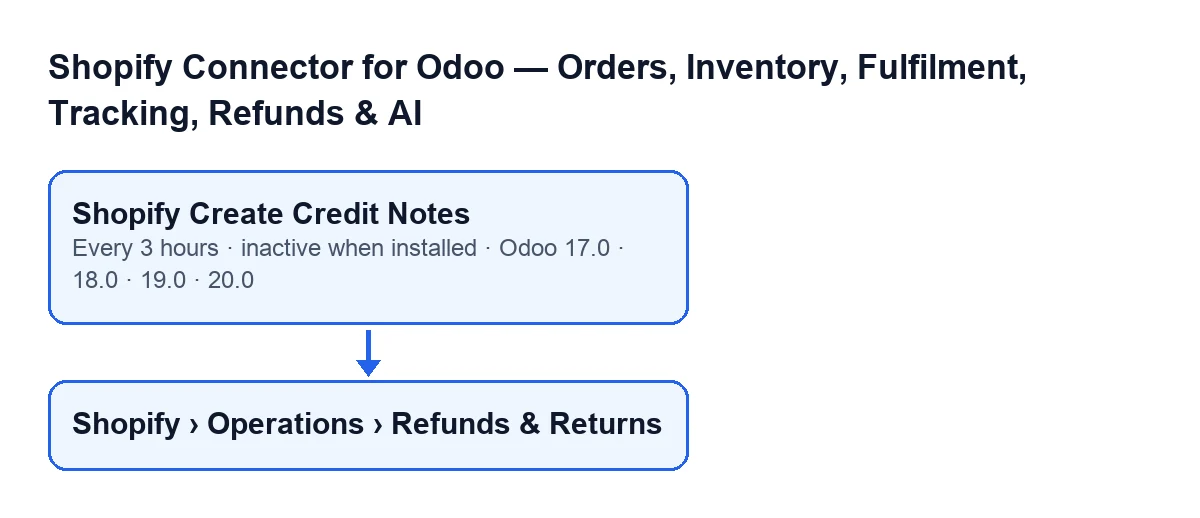
Shopify Create Credit Notes- Scheduled action on Shopify refunds. In the Odoo 20.0 code, each run calls the module method that creates the automatic credit notes.
- Frequency and activation
- It runs every three hours and is switched off on installation, so until it is activated it makes no pass at all. In Odoo 17.0 it is set up to repeat without end.
- Pass
- Each run of the action. It handles at most 100 refunds, one by one, and saves the changes after each refund: according to the code, so that one failure does not lose the whole batch.

Which refunds it picks
- Instance with finance and automatic creation
- The action only looks at Shopify instances that have both finance and automatic credit note creation enabled. If none meets both conditions, the pass ends without touching anything.
- Draft refund with a sales order
- From those instances it takes refunds in draft state that have a sales order linked. The rest are left alone.
- Posted invoice
- From the sales order, the action takes the first customer invoice that is posted. If the order has none, it skips that refund and moves on to the next.
- Full and partial refund
- A refund is full when the refunded amount matches the invoice total (with a difference of less than 0.01). The action only creates a credit note for full refunds: a partial refund is skipped entirely, because according to the code partial refunds need a credit note adjusted by hand.
What it does with each refund
- Credit note
- It is created by reversing the order's posted invoice. It carries the reference
Shopify Refund …followed by the refund's name, and a note withShopify refund …and the refund's Shopify identifier. Its invoice date is the refund date if there is one; otherwise, today's date.
- Posting
- On the action's path, the credit note of a full refund is posted in the same pass in which it is created.
- Refund with credit note created
- When it finishes correctly, the refund moves to the credit-note-created state, is linked to the note and has its error message cleared.
- Failed refund
- If Odoo cannot reverse the invoice, the refund moves to the failed state and stores the error text, truncated. The pass carries on with the rest. Since the action only searches for draft refunds, a failed one does not come back in later passes.
- Unexpected error
- If another error interrupts the handling of a refund, the action rolls back that refund's pending changes, leaves a warning in the server log with its name and moves on to the next. That refund keeps its previous state.
Where to see them
- Refunds menu
- The refund records open from
Shopify › Operations › Refunds & Returns. If you cannot see theOperationsstep or theShopifystep, you are missing a permission: each one asks forViewer.
Shopify RefundsandName- The refund screens are called
Shopify Refunds. TheNamefield appears in the list, read-only, and on the form, inside theShopifygroup; the code writes it, not the user. It is the name that goes into the credit note's reference.
What to check if the action does nothing
Go through the conditions in the code, from the outside in:
- The action is still switched off, which is how it arrives on installation.
- No Shopify instance has both finance and automatic credit note creation enabled.
- The refund is not in draft or has no sales order linked. To find it, open
Refunds & Returnsand look for itsNamein the list. For creating the sales order from Shopify data, see the article on the message about missing Shopify data when creating the sales order. - The sales order has no posted customer invoice.
- The refund is partial: the action does not touch it.
- There are more pending refunds than fit in one pass: the action handles up to 100 and the rest, if still in draft, wait for later passes.
- The refund already moved to failed in an earlier pass.
Since the action runs every three hours, after fixing a condition the result arrives in a later pass.
How it fits with FlexigoTech
The module is published on Odoo Apps for 17.0, 18.0, 19.0 and 20.0, is a one-off payment per version and needs the FlexigoTech Cloud subscription (Connector plan). The connection goes through FlexigoTech Cloud, which stores the credentials encrypted, monitors the synchronisation and emails you if it fails. You can see the Odoo Apps listing or the module page. FlexigoTech implements Odoo 17, 18, 19 and 20 and builds custom connectors and integrations, in case you need to adapt the credit note flow to your own case.
Keep reading
Checked in the connector's source code (version 17.0 and 20.0) and the linked sources
Sources
- Module source code: flexigobe_shopify_seller_connector 20.0 (d7e627b4): data/ir_cron_data.xml
- Module source code: flexigobe_shopify_seller_connector 17.0 (437257e3): data/ir_cron_data.xml
- Module source code: flexigobe_shopify_seller_connector 20.0 (d7e627b4): models/shopify_refund.py
- apps.odoo.com/apps/modules/20.0/flexigobe_shopify_seller_connector
- flexigotech.com/en/services.html
- flexigotech.com/precios.html