

 Español
 Català
 Deutsch
 Français
 Português
 Italiano
 Nederlands
 Polski
Where these fields are and who sees them
These are system-wide parameters, not fields on each store form: you look at them in Odoo Settings, not store by store.
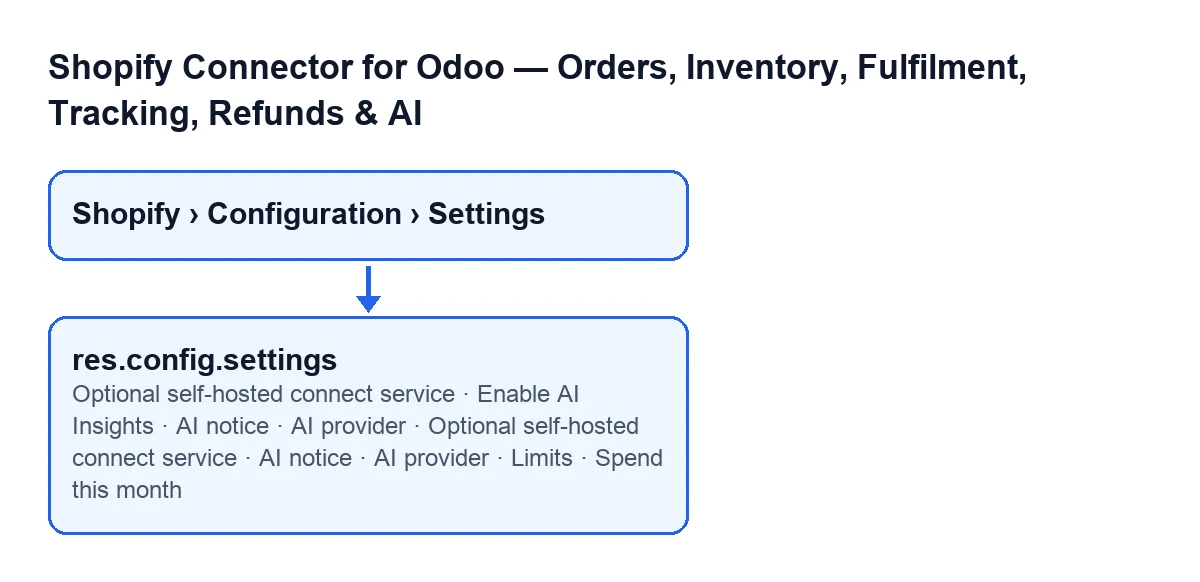
Shopify Seller- The section of Odoo Settings where the fields in this glossary live. It has a
Connectionblock and anAI Insightsblock. The fields in those blocks are only visible to users with the connector's manager permission.
- Menu
Shopify › Configuration › Settings - The path that opens the settings form. Each part of the path asks for a permission, and if you do not have the one for a part, you do not see it:
Shopifyasks forViewer,Configurationasks forOperatorandSettingsasks forManager.

Connection: what the block says and the self-hosted service
The connection block explains how stores connect. Read it before touching anything, because the field it holds is optional and meant for one specific case.
Connection(block)- The block explains that a store added now connects through FlexigoTech Cloud: the service keeps your Shopify app's client secret encrypted, renews the access token and passes each call of the store to your shop's Admin API. A store connected before keeps talking to Shopify directly from your server. Each store is connected from its own store form.
Optional self-hosted connect service- A text field. The setting says it is only for stores connected directly before FlexigoTech Cloud, and that you should leave it EMPTY, which is the default. It exists for merchants who run their own OAuth connect service and want the extra shortcut button on the store form. According to its help, leaving it empty means the connector talks to Shopify directly from this Odoo instance and no third-party service is involved in the connection. Fill it in only if you self-host an OAuth connect service of your own. What to enter: nothing, unless that is your case.
AI Insights: switching on, the notice and the key
The AI part is optional. Its first fields (switch-on, notice and key) are read together, but each says its own thing.
AI Insights(block)- Its text reads:
Opt-in. Generates restock/sales reports and Ask-AI answers from your data. Off by default.
Enable AI Insights- A system-wide checkbox. Its help says AI is 100% OPTIONAL and that the connector works fully without it: all dashboards, analytics, finance and sync keep giving you data. You turn it on (and add a free Groq or Gemini key) only if you want the AI to narrate your numbers and suggest restocks. What to enter: leave it unticked if you do not want that.
AI notice- A checkbox for the notice. The setting explains that AI Insights sends your store's figures to the AI provider you choose, outside FlexigoTech: Google (Gemini), Groq or Anthropic, companies based in the United States, or the OpenAI-compatible URL you enter (OpenRouter by default). Each AI report and each Ask-AI answer sends, with your own key and under that provider's terms, the store name and currency, its lead time and cover days, its SKU counts and, for up to 40 products, the SKU, product name, stock on hand, sales velocity, days of cover, projected stock-out date, recommended quantity, stock class and 30-day revenue. Ask AI also sends the question you type. FlexigoTech receives none of it. Nothing is sent until an administrator ticks this box, and you untick it to stop. What to enter: tick it only once an administrator has decided to accept that sending to the chosen provider.
AI provider- A text field that takes the API key of the selected provider. The setting names Groq (console.groq.com) or Google Gemini (AI Studio) as free options, with no credit card, and says the key applies to every store. What to enter: here, the API key of the provider you have chosen; it applies to all stores.
Limits and the month's spend
The limits and spend settings in the AI part talk about money. Their texts are short and worth reading as they stand.
Limits- Its text reads:
The cost cap only applies to paid providers; free providers always report 0.What to enter: according to that text, with a free provider the cost cap does not apply.
Spend this month- Its text reads:
AI spend in the current month versus your cap.
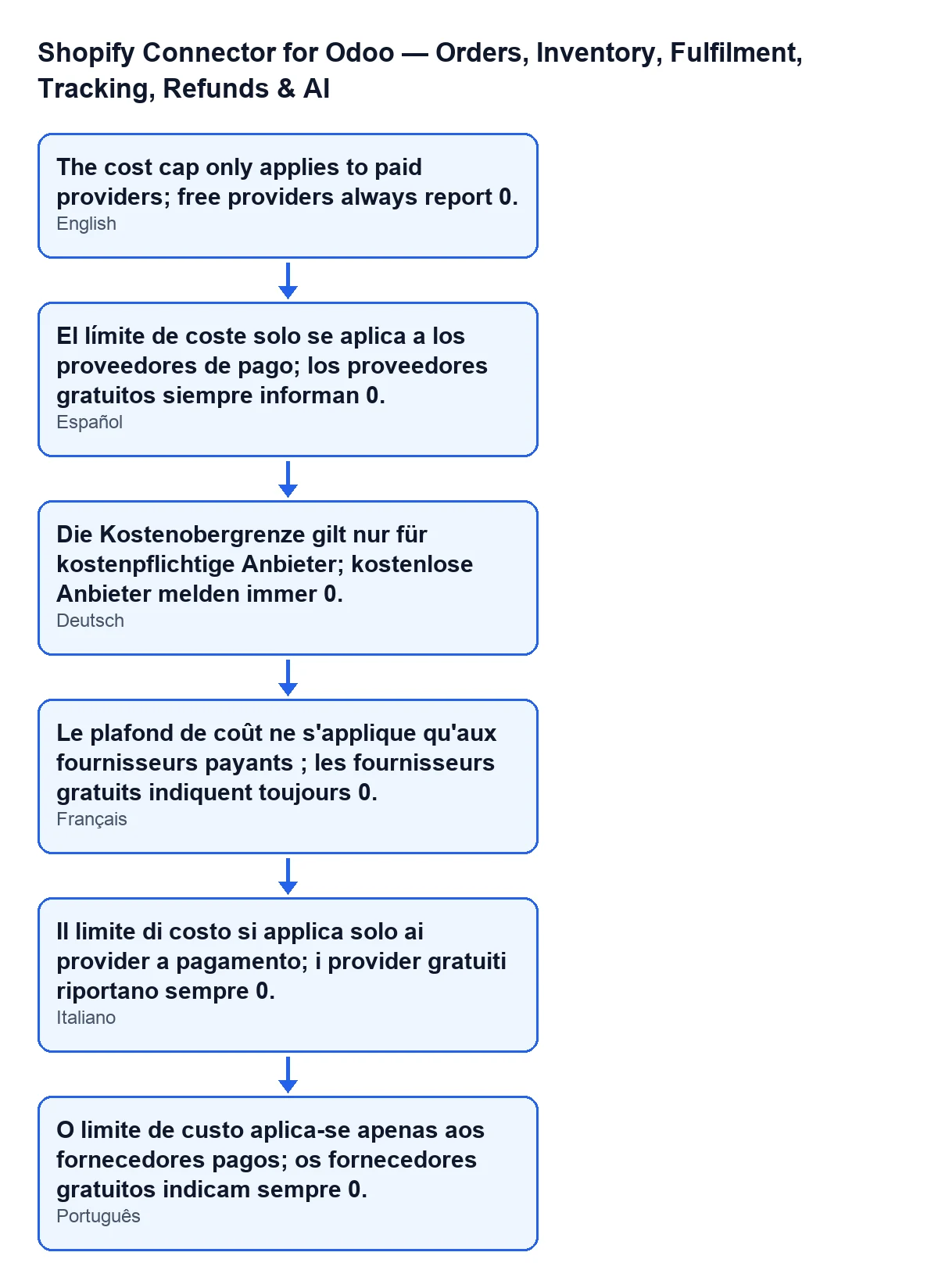
Limits setting as the user sees it depending on the language of their Odoo.What to enter, in short
Optional self-hosted connect service: empty, which is its default.Enable AI Insights: unticked while you do not want AI reports or answers.AI notice: ticked only if an administrator accepts sending figures to the chosen provider.AI provider: the API key of the provider you chose (for example Groq or Gemini); it applies to all stores.
What it costs and how FlexigoTech can help
The module is a one-off purchase per version, is published for Odoo 17, 18, 19 and 20 (Odoo Apps listing, module page) and needs a FlexigoTech Cloud subscription on the Connector plan: €49/month or €490/year excluding VAT, up to 3 accounts of the platform (the Pro plan is €98/month or €980/year excluding VAT and goes up to 10). That connection runs through FlexigoTech Cloud, which stores the credentials encrypted, watches the synchronisation and emails you if it fails.
If you are implementing Odoo and want someone to review these settings with you, FlexigoTech implements Odoo 17, 18, 19 and 20 and builds custom connectors and integrations.
Keep reading
Checked in the connector's source code (version 20.0) and the linked sources
Sources
- Module source code: flexigobe_shopify_seller_connector 20.0 (d7e627b4): models/res_config_settings.py
- Module source code: flexigobe_shopify_seller_connector 20.0 (d7e627b4): views/res_config_settings_views.xml
- apps.odoo.com/apps/modules/20.0/flexigobe_shopify_seller_connector
- flexigotech.com/en/services.html
- flexigotech.com/precios.html