

 Español
 Català
 Deutsch
 Français
 Português
 Italiano
 Nederlands
 Polski
What the module does on its own before you press anything
Pressing Connect is not the normal way to hold a valid token. According to the module's code, since 2026 Shopify no longer shows a permanent token in its interface: an app displays a Client ID and a Client Secret, and a token that expires every 24 hours is generated from them. That is why the module also requests that token by itself, with nobody pressing anything.
It does so when the store has a Client ID and a Client Secret and no refresh token, and one of these conditions holds: a forced renewal has been requested, there is no token yet, or the current token has five minutes or less left. That check is reached, without touching the button, from:
- saving a delivery order record;
- validating a delivery order with Odoo's standard button, which the module extends;
- the scheduled task
Shopify Process Webhooks, every minute and active on install; - the scheduled task
Shopify Sync Orders, every five minutes and inactive on install; - the scheduled task
Shopify Sync Payouts, every six hours and inactive on install; - the scheduled task
Shopify Sync Products, every hour and inactive on install.
Stores that hold a refresh token are left out of this route. According to the code, automatic token generation is meant for an app developed by your own organisation and installed in a store you own, not for an app distributed to someone else's store.

Where Connect is and when you see it
Store records open from Shopify › Configuration › Stores. The Shopify step asks for the Viewer permission and the Configuration step asks for Operator: if you lack one of them, you do not see that step of the menu. The Connect button is on the Shopify Instances screen in every published branch of the module: Odoo 17, 18, 19 and 20.
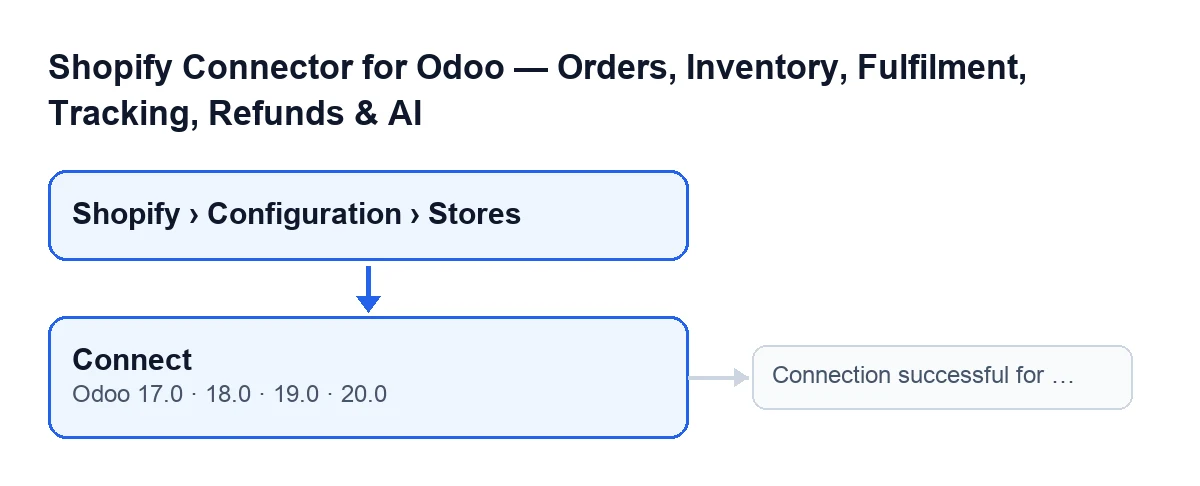
Connect button, with Connection successful for … as a possible outcome.With the default values the button is visible. It is hidden only for one specific combination of two internal settings, Shopify connection (which does not appear in any view) and Shopify app, when both hold a particular value. The condition is the same in Odoo 17, 18, 19 and 20.
The Cerámica Norte case: connecting the store in one click
Example Illustrative case: the company and its figures are made up to explain the flow.
Cerámica Norte is an invented company that sells through Shopify and runs its back office in Odoo. Marta, its operations manager, has created an app in the company's own organisation, has the Client ID and Client Secret to hand and wants to leave the store connected. This is what happens when she presses Connect, in the order the Odoo 20 code follows:
- Marta opens
Shopify › Configuration › Stores, goes into her store's record and pressesConnect. - The module checks that the store has a Client ID and a Client Secret. If either is missing, it does not even call Shopify: it marks the connection with an error, stores the error text and shows a red notice.
- With both in place, it asks Shopify for an access token. If Shopify replies with an error, or replies without a token, the outcome is the same: the error is stored on the store and a red notice appears.
- If Shopify hands over the token, the module saves it together with the time of the renewal and the permissions Shopify returns. If Shopify says how long it lasts, the expiry date is saved too.
- It then tests the connection: it gets the store's profile, saves its name, email and currency, marks the connection as connected and clears the last error.
- Finally it shows a success notice that does not stay pinned:
Connection successful for …, with the store's name or, if it has no name yet, its domain.
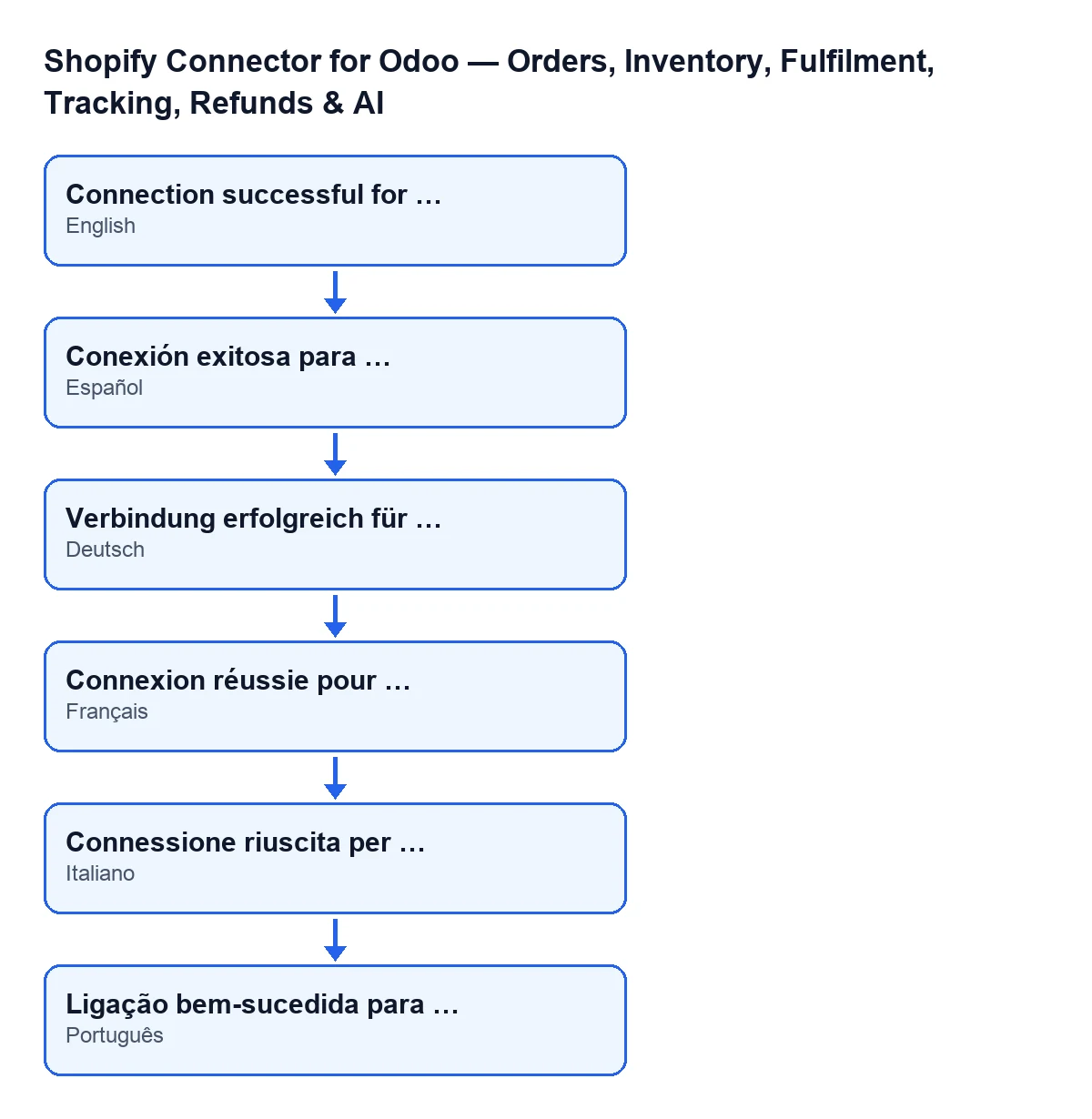
Conexión exitosa para …, in German Verbindung erfolgreich für …, in French Connexion réussie pour …, in Italian Connessione riuscita per … and in Portuguese Ligação bem-sucedida para ….What is stored depending on the result
| Result | What the module does | Notice |
|---|---|---|
| All correct | Saves the token, name, email and currency, marks the connection as connected and clears the last error | Green: Connection successful for … |
| Token generation or the connection test fails | Marks the connection with an error and stores the error text | Red, stays on screen and carries the error text |
| FlexigoTech Cloud pauses the service during the connection test | In that test it does not mark the store as failing | The pause notice appears |
On failures the module deliberately does not raise an exception. According to its code, this way what has been saved is not rolled back and the record can show the reason for the last failure, instead of leaving the problem with no trace.
What to take from the case
- If you are on the store's record and the button does not show, the cause is the combination of
Shopify connectionandShopify appthat hides the button. Connectalways asks for a new token; it does not wait for the current one to be close to expiry. The automatic renewal, by contrast, acts only when the token is missing or nearly expired.- If you see the red notice, read its text: it is the reason the module has stored on the store.
- A token generated once is not for ever: it expires, and the module renews it by itself as long as the store has a Client ID and a Client Secret and no refresh token.
Another button of the module with its own article: What the Pull Stock button does.
How it fits with the subscription
The module is a one-off purchase per version and needs the FlexigoTech Cloud subscription, Connector plan: €49/month or €490/year excluding VAT, up to 3 platform accounts. It is published for Odoo 17, 18, 19 and 20. The connection goes through FlexigoTech Cloud, which stores the credentials encrypted, watches the synchronisation and emails you if it fails. If you bought it on flexigotech.com, the module for newer Odoo versions is included with the subscription; on the Odoo App Store, each version is bought there. You can see the module on its page.
If you are implementing Odoo and want someone to review the Shopify connection with you, FlexigoTech implements Odoo 17, 18, 19 and 20 and builds custom connectors and integrations.
Keep reading
Checked in the connector's source code (version 20.0) and the linked sources
Sources
- Module source code: flexigobe_shopify_seller_connector 20.0 (d7e627b4): views/shopify_instance_views.xml
- Module source code: flexigobe_shopify_seller_connector 20.0 (d7e627b4): models/shopify_instance.py
- Module source code: flexigobe_shopify_seller_connector 20.0 (d7e627b4): models/fgt_cloud.py
- apps.odoo.com/apps/modules/20.0/flexigobe_shopify_seller_connector
- flexigotech.com/precios.html
- flexigotech.com/en/services.html