

 Español
 Català
 Deutsch
 Français
 Português
 Italiano
 Nederlands
 Polski
What the message means
Each Scrive Connector signature document opens from the Scrive › Signature Documents menu. The Scrive entry asks for the User permission: without it, you do not see that entry. Inside the document, the Open source document button jumps to the Odoo record that the document keeps as its source. When that jump cannot be made, Odoo shows The source document no longer exists. and the action stops: no new screen opens and you stay where you were.
The message is in the published code for Odoo 17, 18, 19 and 20, and the button is hidden by the same condition in all four versions (explained below).
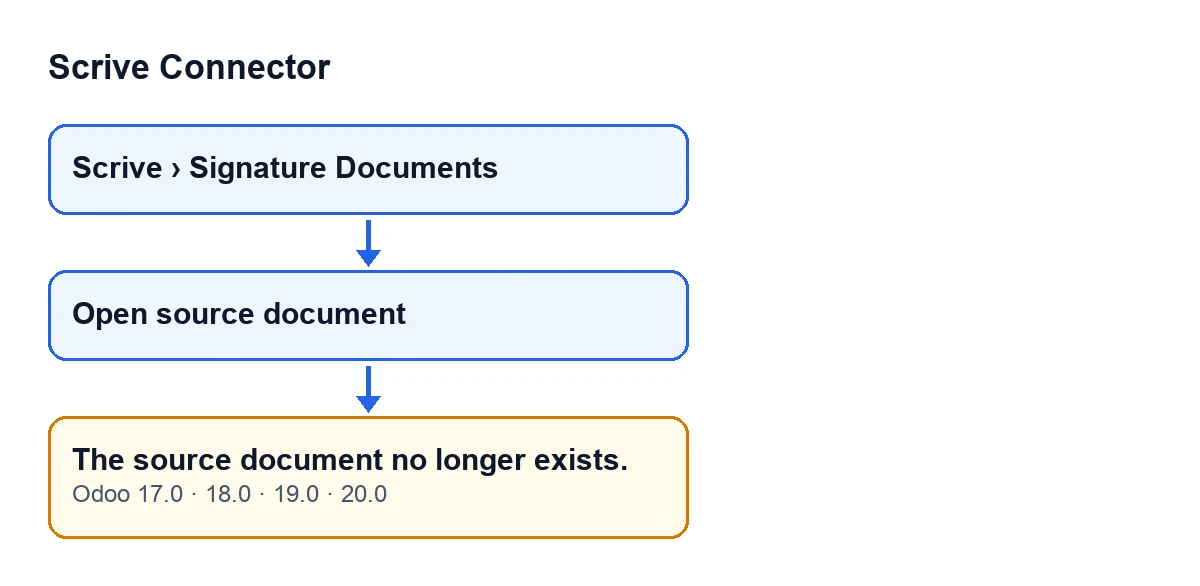

Exactly when it appears
When you press the button, the module looks for the source record of that document. If the search returns nothing, it raises the message. If it returns a record, it opens that record's form in the current window. The search only finds the record when all four of these hold:
- the document stores which type of Odoo document it comes from;
- the document stores which specific record of that type it is;
- that type of document is available in your database;
- that record still exists.
If any one fails, the message appears. The easiest reading is the last one: the record the document points to no longer exists, hence the wording of the message. The message changes nothing: the button only searches and, if it finds something, opens it.
Why you can see the button and still get the message
The Open source document button is hidden when Source Reference is empty, in Odoo 17, 18, 19 and 20. In other words, the view only looks at that reference; the check on the record happens afterwards, when you press. So a visible button does not guarantee that the source document still exists.
Step by step to fix it
The first step starts in Scrive › Signature Documents.
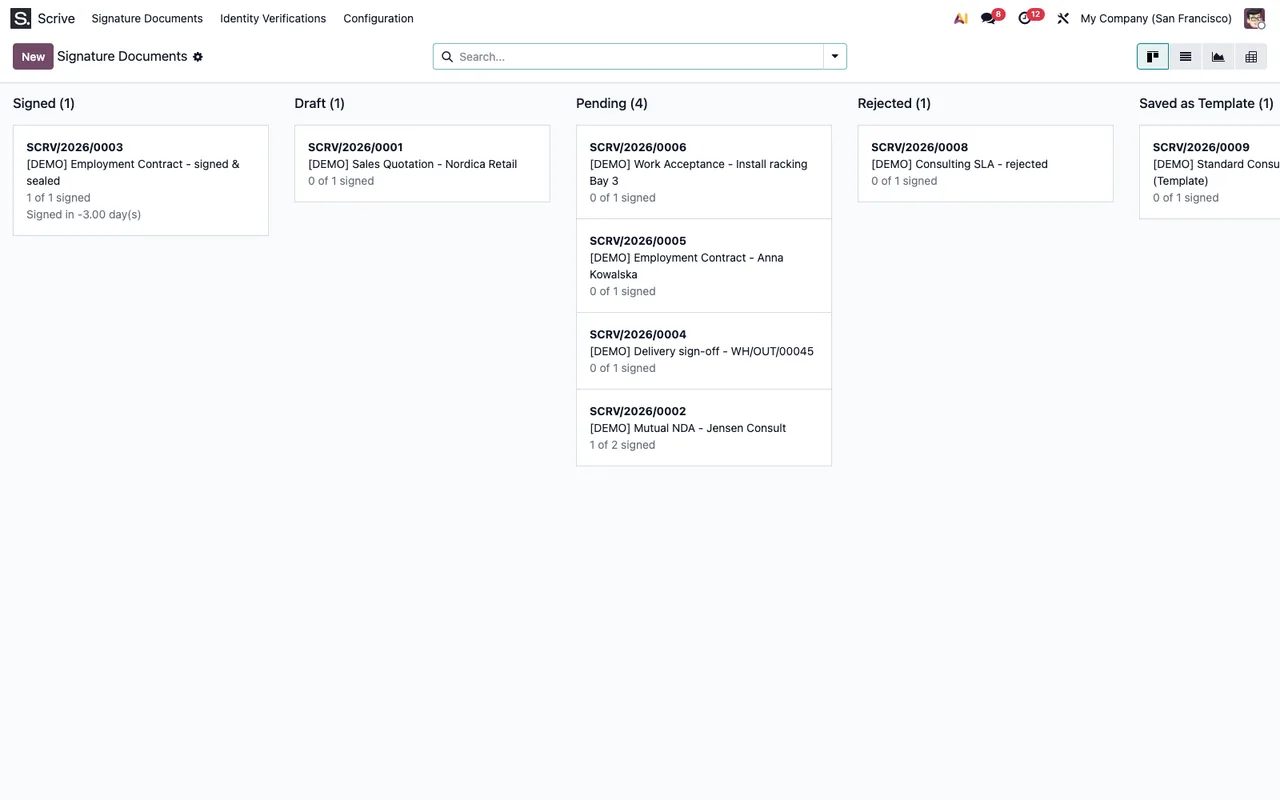
- Open
Scrive › Signature Documentsand go into the document where you saw the message. - Check whether the
Open source documentbutton is on the form. If it does not appear, you cannot reach this message through that button. - Press the button. If the source document's form opens in the same window, the link works and there is nothing to fix.
- If
The source document no longer exists.appears, look for that document in its own Odoo app using any name or number you know for it. - If you cannot find it, the message is correct: there is no record to open. If you deleted it by mistake, recover it by your usual means (for example, a backup of your Odoo) and press the button again.
- If you can find it, the fault is in the signature document's link: the document type or the record may be missing, or the document type may not be available in your database. Write to us with your Odoo version and which source document you expected to open.
- Once resolved, press
Open source documentagain and check that the source document's form opens.
What to check afterwards
If the button opens the source document, the message is resolved. If it comes back, repeat the search in step four: it is the quickest way to tell a source document that no longer exists from a badly resolved link on the signature document.
If you are reviewing other messages from the module, see what the Send button of Scrive Connector does, step by step and the message about callbacks that can only be launched for sent documents.
How FlexigoTech can help
Scrive Connector is a one-off purchase per Odoo version, published for 17, 18, 19 and 20, and it needs the FlexigoTech Cloud subscription (Connector plan, €49 a month or €490 a year, excluding VAT). The connection goes through FlexigoTech Cloud, which stores the credentials encrypted, monitors synchronisation and emails you if it fails. You can see the listing on Odoo Apps and the module page.
FlexigoTech implements Odoo 17, 18, 19 and 20 and builds custom connectors and integrations. If your source document will not open and you do not know why, tell us about your case.
Keep reading
Checked in the connector's source code (version 20.0) and the linked sources
Sources
- Module source code: flexigobe_scrive_connector 20.0 (21b3b940): models/scrive_document.py
- Module source code: flexigobe_scrive_connector 20.0 (21b3b940): views/scrive_document_views.xml
- apps.odoo.com/apps/modules/20.0/flexigobe_scrive_connector
- flexigotech.com/en/services.html
- flexigotech.com/precios.html
- Module source code: flexigobe_scrive_connector 20.0 (21b3b940): __manifest__.py
- Module source code: flexigobe_scrive_connector 20.0 (21b3b940): wizard/scrive_send_wizard.py