

 Español
 Català
 Deutsch
 Français
 Português
 Italiano
 Nederlands
 Polski
Exactly when it appears
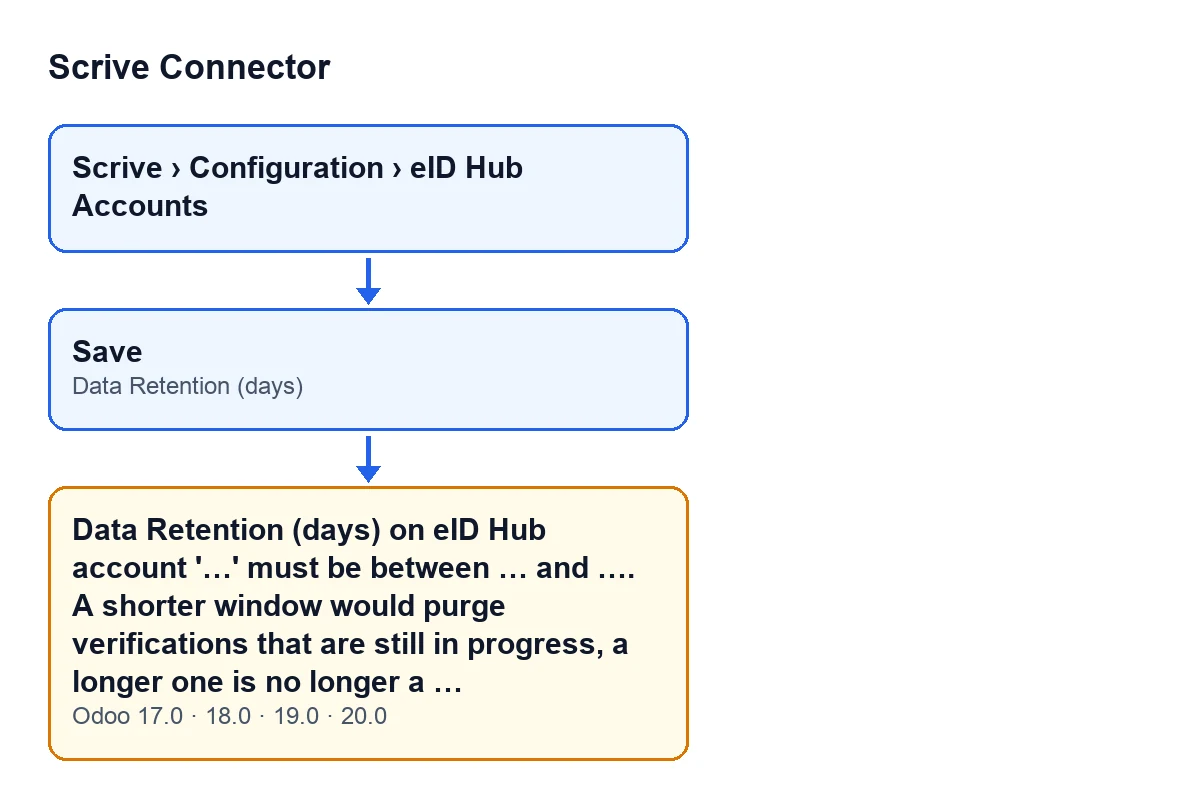
The message appears when you save an eID Hub account whose Data Retention (days) value is below the minimum or above the maximum the module allows. The check is made on saving: if the value is outside the range, the record is not saved and the action stops.
The full text is: Data Retention (days) on eID Hub account '…' must be between … and …. A shorter window would purge verifications that are still in progress, a longer one is no longer a retention policy. The dots stand for values the module fills in: the account name and the two limits.

Details you will not see on the form
It fires when you save the record
The check is tied to saving the Data Retention (days) field. If the value does not comply, the account record is not saved and the module shows you the message. With a value inside the range, this check lets the save through.
Both ends of the range are valid
The condition in the code requires the value to sit between the minimum and the maximum, both included. It fires if the number is below the minimum or above the maximum. A value equal to either limit saves without trouble.
The message names the account at fault
The account name appears in quotes in place of the first «…». The code goes through the accounts one by one and stops at the first one that fails, so the message tells you which one to correct.
Where the field is and who can reach it
The records open from Scrive › Configuration › eID Hub Accounts. The Configuration step asks for the Manager permission and the Scrive step asks for User: if you lack one, you do not see that step of the menu. Inside the form, Data Retention (days) sits in the Identity, Retention & Safety group.
The field help already carries the range
The help on Data Retention (days) reads: Verified-identity data (name, personal number, raw payload) captured on each verification is purged after this many days, mirroring Scrive's own 30-day eID Hub data retention. Between 1 and 3650 days. So the help itself speaks of between 1 and 3650 days, while the message gives you the limits the module applies at the moment of saving.
What the second sentence of the message means
The text gives the reason for both limits in its own words: a shorter window would purge verifications that are still in progress, and a longer one is no longer a retention policy. What does not fit is the value in that field, not any other part of the account.
The field has a default value
According to the module's code, Data Retention (days) has a default value, defined in the module itself. If you have changed the field and are unsure what to enter, the message gives you the range the save accepts, and the field help reminds you that verified-identity data is purged after that many days.
It is the same message in every published version
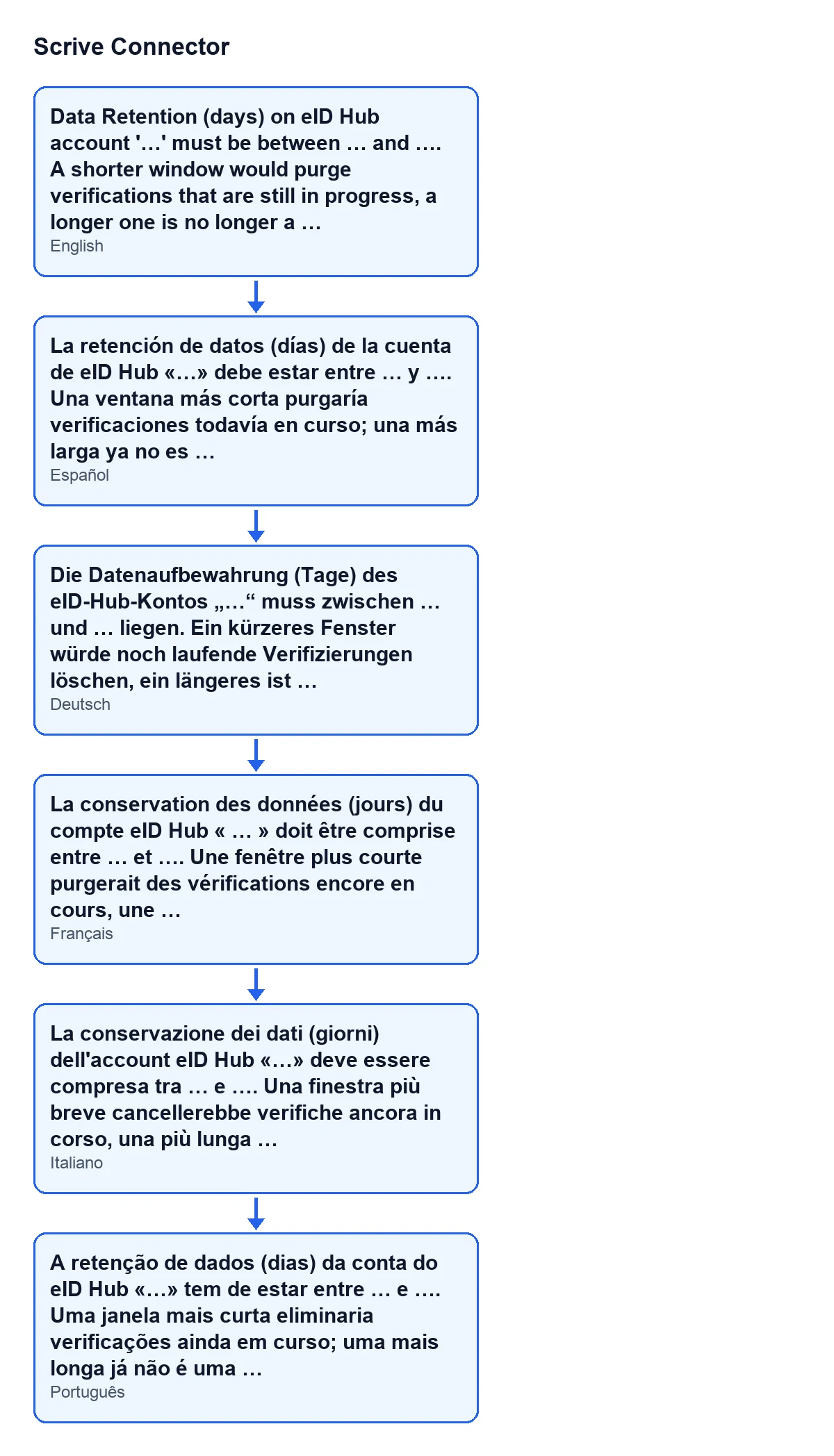
The module is published on Odoo Apps for versions 17, 18, 19 and 20, and this check is in the code of all of them. The diagram below shows the text as the user sees it depending on the language of their Odoo: Spanish, German, French, Italian and Portuguese.
How to fix it
- Open
Scrive › Configuration › eID Hub Accountsand go into the account named in the message. - Find
Data Retention (days)in theIdentity, Retention & Safetygroup. - Enter a value inside the range the message gives, limits included.
- Save again.
If you cannot see the Configuration menu, you lack the Manager permission: ask whoever administers permissions in your Odoo.
How FlexigoTech can help
At FlexigoTech we implement Odoo 17, 18, 19 and 20 and build connectors and custom integrations. Scrive Connector is a one-off purchase per Odoo version and needs a FlexigoTech Cloud subscription: the Connector plan costs €49 a month or €490 a year, excluding VAT. If you want to review how your eID Hub accounts are set up, see the module page or the listing on Odoo Apps.
Keep reading
Checked in the connector's source code (version 20.0) and the linked sources
Sources
- Module source code: flexigobe_scrive_connector 20.0 (21b3b940): models/scrive_eid_account.py
- apps.odoo.com/apps/modules/20.0/flexigobe_scrive_connector
- flexigotech.com/en/services.html
- flexigotech.com/precios.html
- Module source code: flexigobe_scrive_connector 20.0 (21b3b940): wizard/scrive_send_wizard.py