

 Español
 Català
 Deutsch
 Français
 Português
 Italiano
 Nederlands
 Polski
Where the button is and when you see it
Offers open from the menu Octopia › Offers › Offers. The Octopia step asks for the Octopia User permission: without it, you do not see that step.
The Publish (Upsert) button is on the offer view and is always visible, in Odoo 17, 18, 19 and 20. The Publish Selected button is on the Offers screen and exists in the 17, 18, 19 and 20 branches. Pressing Publish Selected triggers the same publication method, which is what is described below.
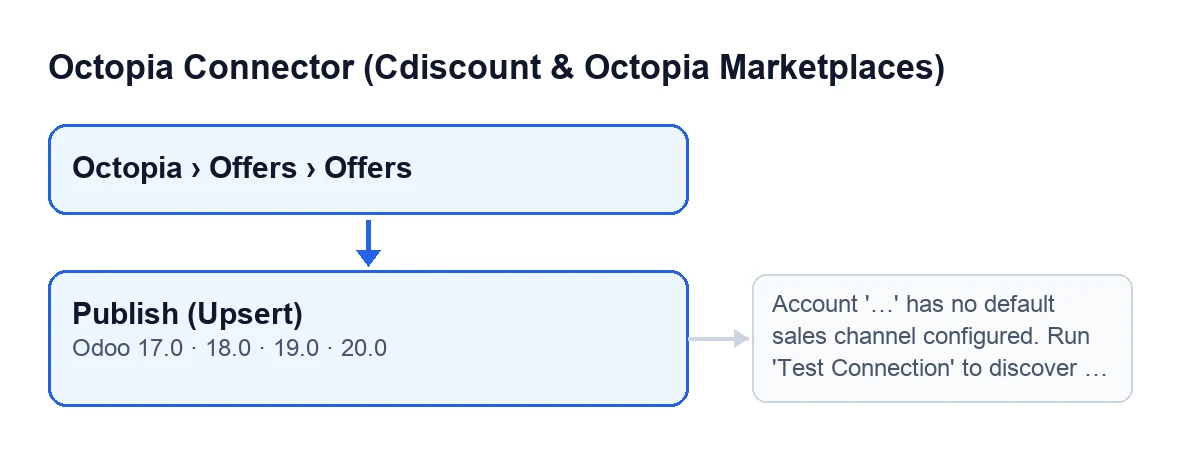
Publish (Upsert) button (Odoo 17, 18, 19 and 20).The label of the button depends on the language of your Odoo:
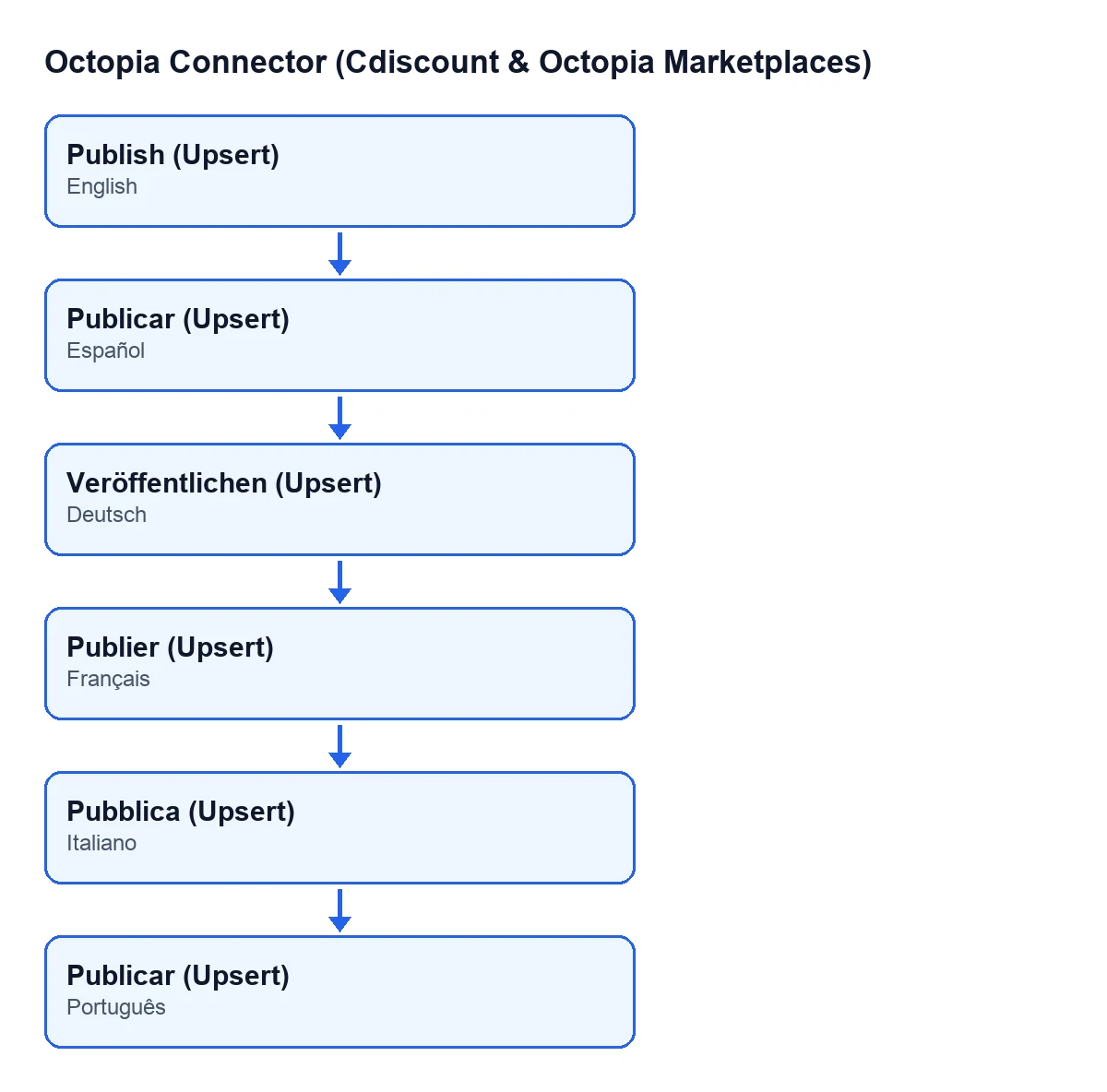
Publicar (Upsert), in German Veröffentlichen (Upsert), in French Publier (Upsert), in Italian Pubblica (Upsert) and in Portuguese Publish (Upsert).
The two fields that split the publication
Every offer has an Account field and a Sales Channel field. Both show on the Offers form, in the Listing group, and also in the list of offers. They are the data the module uses to group offers: if you publish several at once, each combination of account and channel is treated as a separate group.
Step by step: what it does when you press it
- Open the list from
Octopia › Offers › Offers, tick the offers you want and pressPublish Selected. From an offer's form you havePublish (Upsert). - The module groups the offers by account and by sales channel. Each group is published separately.
- For each group it picks the publication channel. If the account is in test mode, every publication goes to the SELLZZ sandbox channel, whatever channel the offer has configured. If it is not, it uses the offer's channel.
- It checks that the group does not exceed the maximum number of offers a package accepts. If it does, the action stops.
- With the Upsert publication type, which is its default, it checks that every offer has taxes, delivery modes and a preparation time above zero. If any offer is missing something, the action stops and the warning lists up to 15 references of the offers affected.
- Also with Upsert, it checks that every offer carries the EcoTax and DeaTax tax components, even at zero. The code records that the French channel on SELLZZ rejects offers that omit either of them, which is why the module checks beforehand instead of waiting for the rejection. If they are missing, the action stops and the warning lists up to 15 references of the offers affected.
- It checks that no offer reference is repeated inside the same package: one repeated reference would make all the package's requests be rejected. If there are any, the action stops and lists them.
- If the account holds the delivery modes the seller is subscribed to and an offer uses one that is not on that list, publication carries on regardless and the decision is left to Octopia.
- If every check passes, the module sends the offers to Octopia and stores the package in Odoo.
What changes in Odoo afterwards
For each group published, the module creates a package holding the account, the package identifier, the publication type, the channel code, a ready state and the date and time of submission.
For each offer in the package it creates a line that keeps the reference, the price and the quantity at the moment the submission was built. The code does this on purpose: the quantity is a live calculation and the price can change while the package is pending, and what counts as sent is the values that were actually sent.
Finally, the offer is left pending synchronisation.
If a check stops you
The checks in steps four to seven run before the group's package is sent and stored; if one stops you, the action is halted. Correct the offers the warning points to or, if the group exceeds the maximum, publish fewer offers at a time, and press the button again.
What to have ready before you press it
With the Upsert type, every offer needs taxes, delivery modes, a preparation time above zero and the EcoTax and DeaTax components, even at zero. In addition, no offer reference may be repeated inside the same package. If you are unsure which account or channel each offer carries, look at the Account and Sales Channel fields in the list first.
Cost and help
The module is a one-off payment per Odoo version (17, 18, 19 and 20; the price for each is on its listing) and needs the FlexigoTech Cloud subscription, Connector plan: €49 a month or €490 a year excluding VAT, up to 3 accounts. The connection goes through FlexigoTech Cloud, which stores the credentials encrypted.
If you are implementing Odoo and want your offers and the Octopia connection ready, FlexigoTech implements Odoo 17, 18, 19 and 20 and builds bespoke connectors and integrations.
Keep reading
Checked in the connector's source code (version 20.0) and the linked sources
Sources
- Module source code: flexigobe_octopia_connector 20.0 (4848da6a): views/octopia_offer_views.xml
- Module source code: flexigobe_octopia_connector 20.0 (4848da6a): models/octopia_offer.py
- Module source code: flexigobe_octopia_connector 20.0 (4848da6a): models/octopia_account.py
- Module source code: flexigobe_octopia_connector 20.0 (4848da6a): views/octopia_completeness2_views.xml
- apps.odoo.com/apps/modules/20.0/flexigobe_octopia_connector
- flexigotech.com/precios.html
- flexigotech.com/en/services.html