

 Español
 Català
 Deutsch
 Français
 Português
 Italiano
 Nederlands
 Polski
Before installing: version and listing
First, make sure the module exists for your Odoo version and know what you are buying. There is nothing to configure yet, but it is worth having this clear before you touch the database.
- Check your Odoo version. The module is published on Odoo Apps for 17.0, 18.0 and 19.0, and each version has its own listing.
- Review the listing for your version on Odoo Apps.
- Keep the module page on flexigotech.com to hand so you can check the description while you configure.
While configuring: the four fields the module validates
The module's configuration revolves around four fields with limits. If you enter a value out of range, Odoo will not let you save and shows an error message. Here they are by technical name and label, with the message you get if you get it wrong.
psa_ent_horizon_weeks(Planning Horizon (weeks)): an integer that sets the forward planning horizon. It must be between 4 and 26 weeks. Otherwise you will seePlanning horizon must be between 4 and 26 weeks.
psa_ent_pipeline_threshold(Pipeline Probability Threshold (%)): a decimal percentage. The field's help text says CRM opportunities at or above this probability are the ones included (the field text we have stops there). It must be between 0 and 100%; otherwise you getPipeline probability threshold must be between 0 and 100%.
psa_ent_amber_threshold(labelCapacity Alert,Amber (%)): the capacity utilisation percentage at or above which the module shows an amber warning.
psa_ent_red_threshold(labelCapacity Alert,Red (%)): the capacity utilisation percentage at or above which the module shows a red alert.
- Set the amber threshold below the red one. If not, the module rejects it with
Amber threshold must be lower than red threshold.
- Find the
psa_ent_config_dirtyfield (Configuration Changed). It is a boolean tick box; all we have for it is its name and type, so do not assume any behaviour without checking it in your own database.
Write down the values you choose for the horizon and thresholds, and who decided them. It will help when, in the first week, someone asks why an amber or red alert is showing.
Your first scenario snapshot
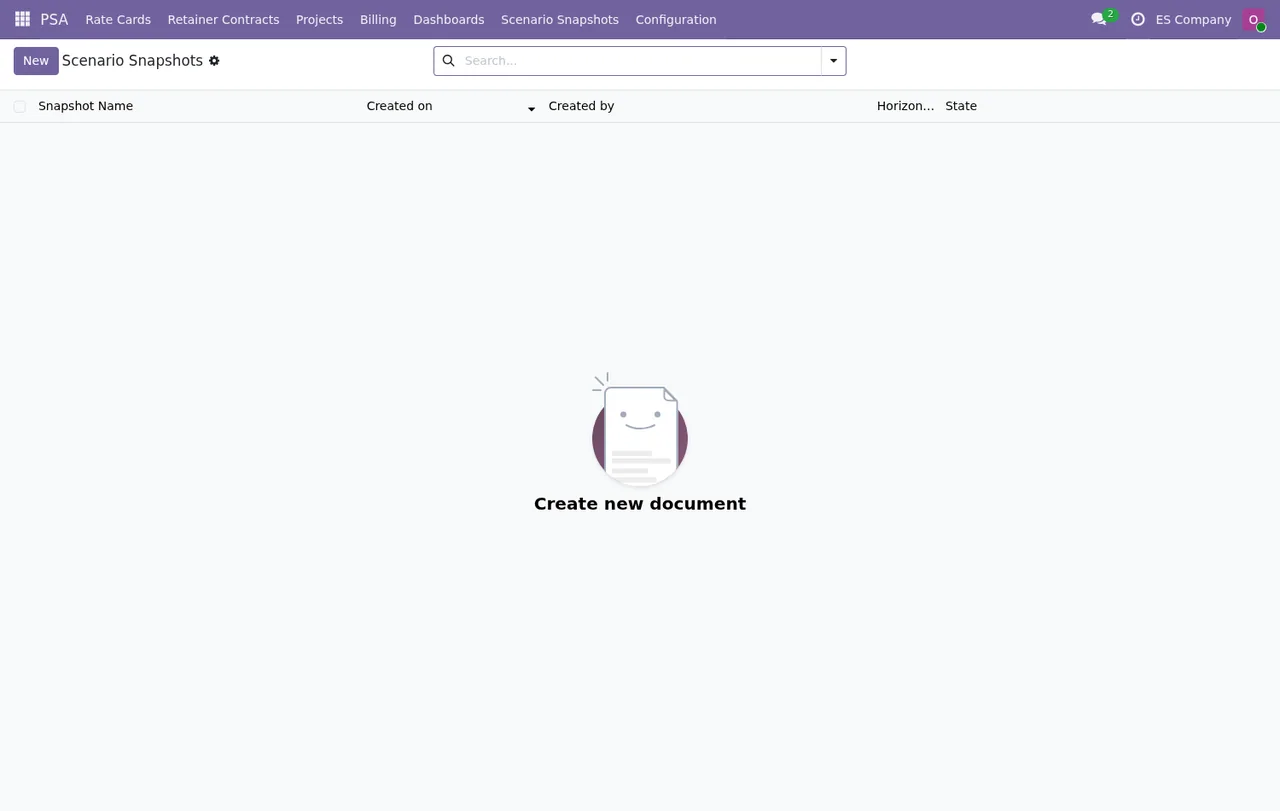
Scenario snapshots are managed in their own list, with the columns Snapshot Name, Created on, Created by, Horizon and State. Before creating the first one, go through these rules the module checks.
- Give it a name. The module does not accept an empty name or one made only of spaces:
Snapshot name cannot be empty or whitespace only.
- Pick a name that makes sense in the list, because
Snapshot Nameis the first column you will see.
- Check the data before saving. Once created, the snapshot's data fields cannot be changed:
Snapshot data fields are immutable after creation. Create a new snapshot instead.If you have made a mistake, the route the message itself gives is to create a new snapshot.
Active, archived and the per-company limit
The module limits active snapshots to 10 per company. The error messages reveal the cycle: a snapshot can be active, can be archived and can be reactivated, as long as the limit is not exceeded.
- Before creating a new one, check how many active snapshots that company has. With 10 active, the module replies
Maximum of 10 active snapshots per company. Delete or archive an existing snapshot before creating a new one.Delete or archive one and try again.
- To reactivate an archived snapshot when the quota is full, archive another one first. The message is
Maximum of 10 active snapshots per company. Archive another snapshot before re-activating this one.
- If you want to correct a snapshot, create a new one and, if you are at the limit, archive or delete the old one first.
- If you work with several companies in the same database, remember the limit is counted per company.
The first week: what to check
With the configuration saved and a snapshot or two created, set aside some time every few days to go over these screens.
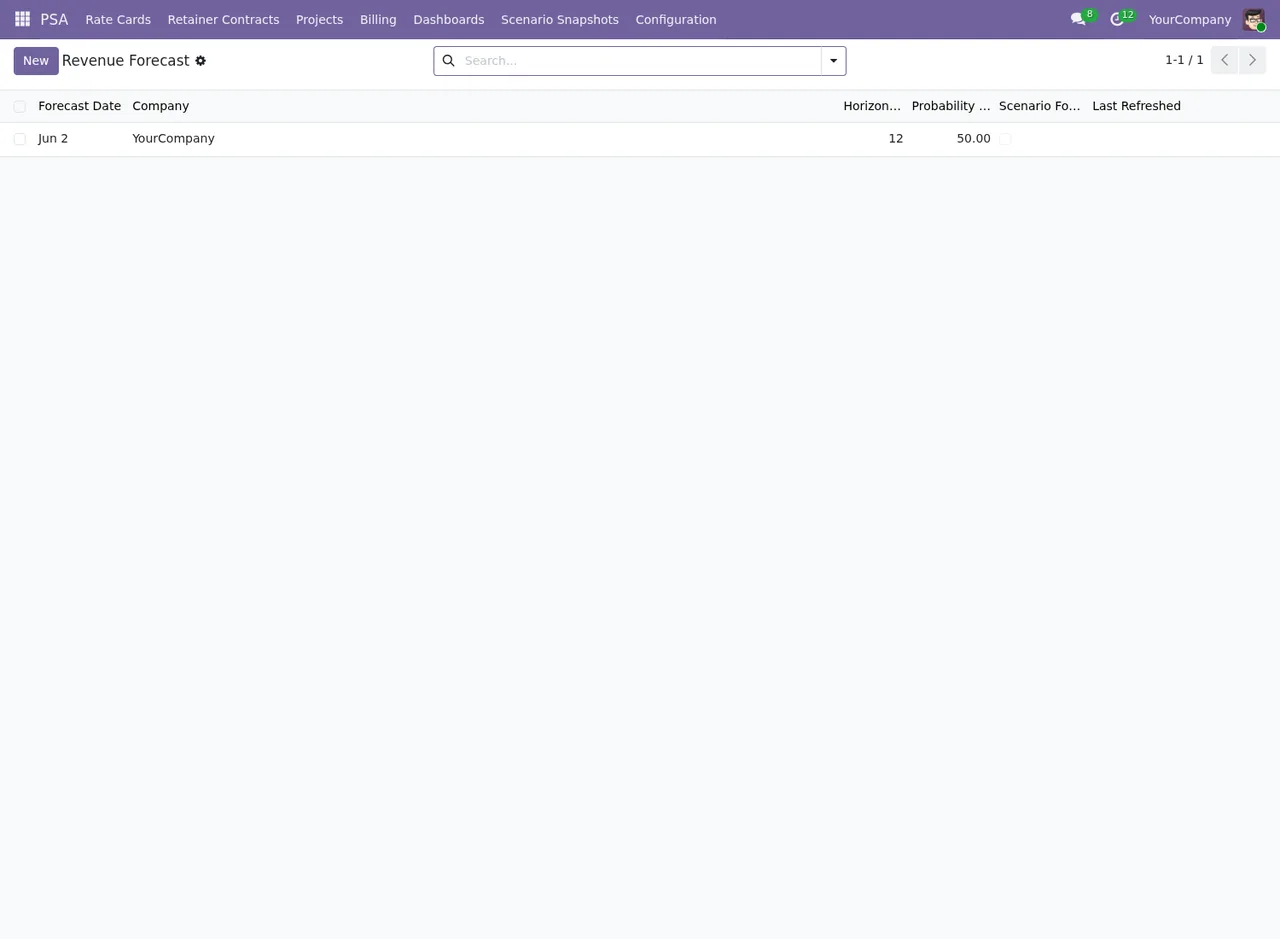
- Open the Revenue Forecast list and check each record's company, horizon and probability against what you configured.
- In the Odoo scheduled actions list, find the PSA Enterprise ones and check their next execution, their interval and that they are active.
- Go through the Scenario Snapshots list: clear names, the
Statecolumn and how many active snapshots each company has against the limit of 10.
- If someone changes the horizon or thresholds, confirm they are still within range: horizon between 4 and 26 weeks, probability between 0 and 100% and amber below red.
- Archive any test snapshots you created while learning, so they do not take up active slots.
Setup messages at a glance
Planning horizon must be between 4 and 26 weeks.: fixpsa_ent_horizon_weeks.
Pipeline probability threshold must be between 0 and 100%.: fixpsa_ent_pipeline_threshold.
Amber threshold must be lower than red threshold.: lower amber or raise red.
Snapshot name cannot be empty or whitespace only.: type a name.
Snapshot data fields are immutable after creation.: create a new snapshot.
Maximum of 10 active snapshots per company.: archive or delete another before creating or reactivating.
If you want to understand which menus the module adds and which scheduled tasks run, we cover it in how it works under the bonnet.
How FlexigoTech can help
At FlexigoTech we implement Odoo and build bespoke connectors and integrations. If you would like help setting the horizon and thresholds with your team, or fitting the module in with the rest of your Odoo, get in touch via the module page.
Keep reading
Checked in the module's source code (version 19.0) and the linked sources
Sources
- Module source code: flexigo_psa_premium_enterprise 19.0 (c373a0db): models/psa_scenario_snapshot.py
- Module source code: flexigo_psa_premium_enterprise 19.0 (c373a0db): models/res_config_settings_ext.py
- apps.odoo.com/apps/modules/19.0/flexigo_psa_premium_enterprise
- apps.odoo.com/apps/modules/17.0/flexigo_psa_premium_enterprise
- apps.odoo.com/apps/modules/18.0/flexigo_psa_premium_enterprise
- flexigotech.com/en/services.html