

 Español
 Català
 Deutsch
 Français
 Português
 Italiano
 Nederlands
 Polski
What the module adds, at a glance
On its Odoo Apps listing, the module is introduced under the heading Enterprise PSA: Forward Utilization, Pipeline Revenue & Scenario Modelling. Inside your database, that boils down to three kinds of building blocks you can find yourself:
- One menu:
Scenario Snapshots, sitting underPSA. - Two scheduled actions, in Odoo 19:
PSA Enterprise: Refresh Forward UtilizationandPSA Enterprise: Refresh Pipeline Forecast, both running every day and both active. - Four data models of its own:
psa.forward.util.cache,psa.pipeline.refresh.state,psa.planning.bridgeandpsa.scenario.snapshot.
If you already run Odoo or are rolling it out, this inventory works as a checklist: what to look for after installing and what to review if something does not add up. The settings and fields you need to fill in are covered in the module set-up article; here we stick to how it works inside.
Timeline: from installation to day-to-day use
This is the sequence of what you will find in your database, in the order you are likely to come across it:
- On installation The
Scenario Snapshotsmenu appears inside the module's root menu,PSA. - In the scheduled actions list In Odoo 19,
PSA Enterprise: Refresh Forward UtilizationandPSA Enterprise: Refresh Pipeline Forecastare listed, both with the active box ticked. - Every day In Odoo 18 and 19,
PSA Enterprise: Refresh Forward Utilizationruns. - Every day In Odoo 19,
PSA Enterprise: Refresh Pipeline Forecastruns. - When you open
PSA › Revenue ForecastEach record shows its date, company, horizon, probability, a scenario checkbox and a refresh date column. - When you open
Scenario SnapshotsYou see the list of scenario snapshots; in our screenshot it is empty, with the button to create the first one.
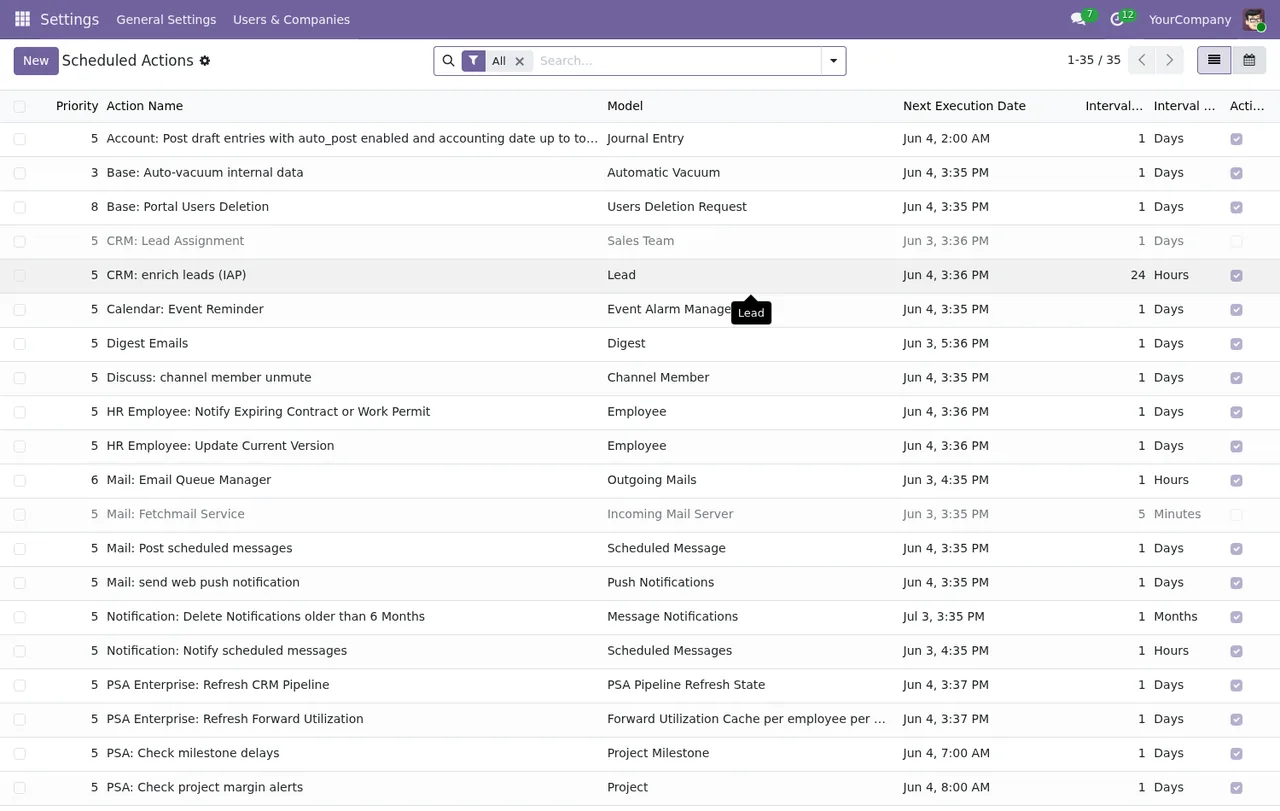
Settings › Scheduled Actions: priority, name, model, next execution, interval and active box for each action.The two scheduled actions, one at a time
PSA Enterprise: Refresh Forward Utilization
This is an active scheduled action that runs daily, in Odoo 18 and 19. In the scheduled actions list you can see, on the same row, its priority, model, next execution, interval and active box.
PSA Enterprise: Refresh Pipeline Forecast
It is also active and runs daily, in Odoo 19 only. It sits in the same list as the previous one, next to scheduled actions from other apps such as CRM, Mail and Notification, so read the full name carefully to avoid mixing them up.
With the actions in your version, the practical thing after installing is to check three points: that they exist, that their interval is as stated and that the active box is still ticked.
The four models the module stores
Under the bonnet, the module defines these models. Here are their technical names and descriptions exactly as they appear in the code:
psa.forward.util.cache:Forward Utilization Cache per employee per week, a cache per employee per week.psa.pipeline.refresh.state:PSA Pipeline Refresh State.psa.planning.bridge:PSA Planning Bridge (Enterprise).psa.scenario.snapshot:PSA Scenario Snapshot.
These are the names you will come across if a consultant reviews the database from the inside or if you raise a support request about the module. Keeping them handy saves back-and-forth when you need to explain where a piece of data lives.
What the PSA lists show
In PSA › Revenue Forecast, each row carries a date, company, horizon, probability, a scenario checkbox and a refresh date. In the screenshot, the only record has the scenario box unticked and the refresh date empty.
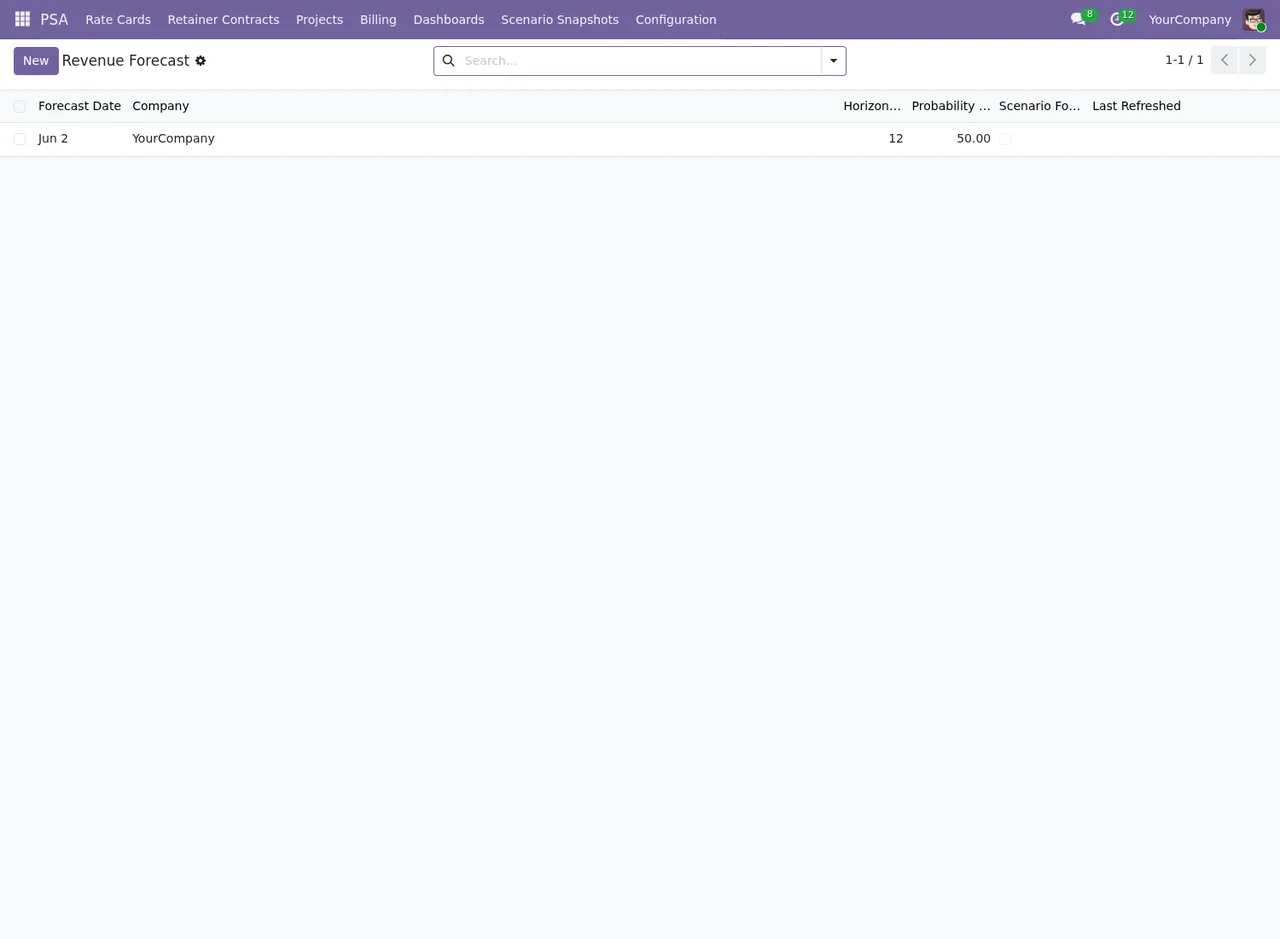
PSA › Revenue Forecast with one record: scenario box unticked and no refresh date.The second screenshot is the same list viewed again: the same record, with the scenario box unticked and no update date.
The animation goes through the screens in this order, so you can see where everything is:
Scenario Snapshots list with the columns Snapshot Name, Created on, Created by, Horizon and State, the Nuevo button and the message «Create new document».How to check everything is in place
- Go into the module's menu and find
Scenario Snapshots. - Open
Settings › Scheduled Actionsand look for the actions starting withPSA Enterprise. - For each one, check that the interval is daily and that the active box is ticked.
- Note the next execution of each action so you know when the next run is due.
- Open
PSA › Revenue Forecastand go over the columns of your records, including the refresh date.
If any of these points does not show up as described here, that is the moment to contact support using the technical names above.
Versions, price and what the listing includes
The module is published on Odoo Apps for Odoo 17.0, 18.0 and 19.0. The Odoo Apps listing also has sections called Walkthroughs, Support included, Versions & updates and More apps by FlexigoTech. You can also view it on the module page on flexigotech.com.
How FlexigoTech can help
At FlexigoTech we implement Odoo and build bespoke connectors and integrations. If you would like us to go through the module's scheduled actions with you, fit it into your implementation or connect it to other systems you already use, tell us about your situation and we will look at it on your database.
Keep reading
Checked in the module's source code (version 19.0) and the linked sources
Sources
- Module source code: flexigo_psa_premium_enterprise 19.0 (c373a0db): views/menus.xml
- Module source code: flexigo_psa_premium_enterprise 19.0 (c373a0db): data/psa_enterprise_cron.xml
- Module source code: flexigo_psa_premium_enterprise 19.0 (c373a0db): static/description/index.html
- Module source code: flexigo_psa_premium_enterprise 19.0 (c373a0db): models/psa_forward_util_cache.py
- Module source code: flexigo_psa_premium_enterprise 19.0 (c373a0db): models/psa_pipeline_refresh_state.py
- Module source code: flexigo_psa_premium_enterprise 19.0 (c373a0db): models/psa_planning_bridge.py
- Module source code: flexigo_psa_premium_enterprise 19.0 (c373a0db): models/psa_scenario_snapshot.py
- apps.odoo.com/apps/modules/19.0/flexigo_psa_premium_enterprise
- apps.odoo.com/apps/modules/17.0/flexigo_psa_premium_enterprise
- apps.odoo.com/apps/modules/18.0/flexigo_psa_premium_enterprise
- flexigotech.com/en/services.html