

 Español
 Català
 Deutsch
 Français
 Português
 Italiano
 Nederlands
 Polski
The case: opening the SOR entries of a query
Example Illustrative case: the company and its figures are made up to explain the flow.
Hogar Norte is an invented shop that sells on Temu and uses Temu Connector for Odoo. Marta, who looks after the catalogue, wants to see the SOR entries of one particular query. Here is the walk-through, click by click.
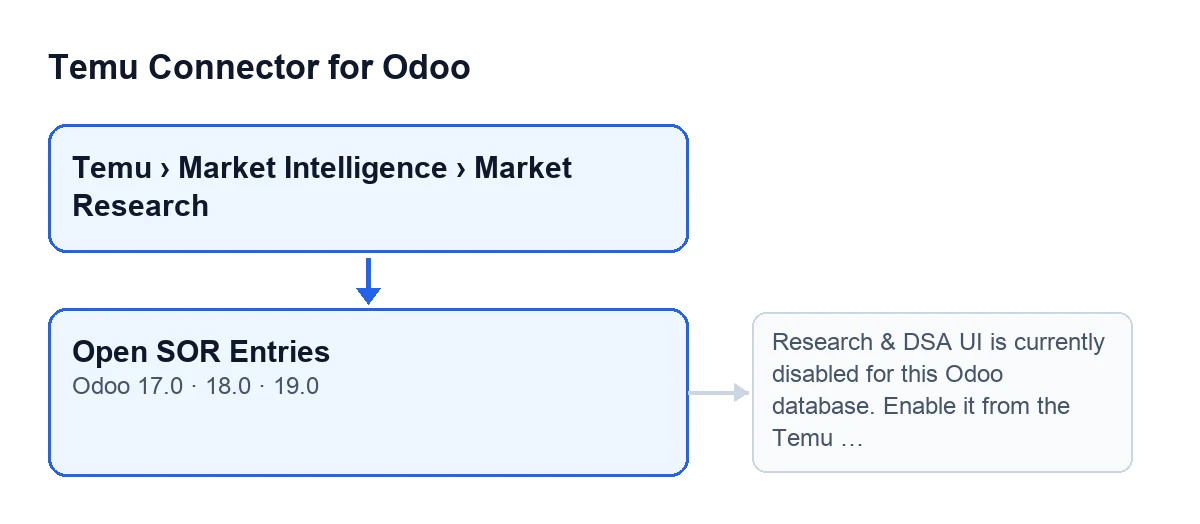

Step by step, from the list to the entries
- Marta goes in through the menu
Temu › Market Intelligence › Market Research. To see it she needs theTemu Research & DSApermission: both theMarket Intelligenceand theMarket Researchlevels ask for it, and without it she does not see that level. - She opens a query on the «Research Queries» screen. Both the list and the form have an
Instancefield, holding the query's Temu instance. - She clicks
Open SOR Entries. The view puts no condition on it: the button is always visible, in Odoo 17, 18 and 19. It acts on a single query, the one it is clicked on. - The button checks, on that query's Temu instance, whether the Research & DSA interface is enabled.
- If it is, a window titled
Temu Research SOR Entriesopens, with list and form views, showing only the SOR entries linked to that query. - If it is not, the action stops and the warning shown further down appears.
What it checks and what it does afterwards
In Odoo 19, the button has two parts: the check on the Research & DSA interface and the opening of the window. After the check, all it does is return that window. The check runs every time you click the button.
| Situation | What Marta sees | What happens |
|---|---|---|
| Research & DSA interface enabled | The Temu Research SOR Entries window, in list and form, filtered by the query | That window opens |
| Interface disabled | A warning on screen | The action stops and the window does not open |
The window that opens
The window does more than filter by the query: it opens with the originating instance and query as defaults, that is, those of the query on which Marta clicked the button.
The window title, Temu Research SOR Entries, is the one the module's code gives it, and it opens with the list first and the form second.
Open SOR Entries.The warning that can stop the button
When you click Open SOR Entries, the check can stop the action with this message:
Research & DSA UI is currently disabled for this Odoo database. Enable it from the Temu instance before using this option.
It appears when you click this button and the Research & DSA interface is not enabled. The message itself points the way: enable it from the Temu instance before using this option.
How to check it in your Odoo
Open Temu › Market Intelligence › Market Research (if you cannot see the menu, check the Temu Research & DSA permission), open a query and click Open SOR Entries. If the Temu Research SOR Entries window opens, the check has passed. If the warning appears, the action has stopped at the check and no window has opened.
The questions Marta will ask
Why can I not see the button?
The view puts no condition on it: it is always on the «Research Queries» screen in Odoo 17, 18 and 19. If you cannot reach the screen, look at the menu: without the Temu Research & DSA permission you see neither the Market Intelligence level nor the Market Research level.
Does anything change on the query when I click it?
According to the Odoo 19 code, the button checks and returns the entries window; it does nothing else. If the warning appears, the action stops and the window does not open.
Will I see entries from other queries?
The window opens filtered by the query on which you clicked the button.
Which instance does the check run on?
On the Temu instance of the query, the one shown in the Instance field in the list and the form of «Research Queries».
What to take from the case
- The button does not depend on the query's state to be visible: it is on the «Research Queries» screen in Odoo 17, 18 and 19. The control happens when you click it.
- To reach the screen you need the
Temu Research & DSApermission on both menu levels,Market IntelligenceandMarket Research. - If all goes well, the window arrives already filtered by the query.
- If the warning appears, the action stops and the window does not open.
Versions and cost
The button on the «Research Queries» screen is in the 17.0, 18.0 and 19.0 branches. The module is published on Odoo Apps for 17, 18, 19 and 20 (see the Odoo Apps listing).
The module is a one-off payment per Odoo version and needs the FlexigoTech Cloud subscription, Connector plan: €49 a month or €490 a year, excluding VAT. The connection goes through FlexigoTech Cloud, which stores the credentials encrypted and watches the synchronisation. Details are on the module page.
How FlexigoTech can help
FlexigoTech implements Odoo 17, 18, 19 and 20 and builds custom connectors and integrations. If you are setting up the Research & DSA side of Temu in your Odoo and want someone to go through the permissions and the menu with you, get in touch from the module page.
Keep reading
Checked in the connector's source code (version 19.0) and the linked sources
Sources
- Module source code: flexigobe_temu_connector 19.0 (455b3f0f): views/temu_ads_views.xml
- Module source code: flexigobe_temu_connector 19.0 (455b3f0f): models/temu_ads.py
- apps.odoo.com/apps/modules/19.0/flexigobe_temu_connector
- flexigotech.com/precios.html
- flexigotech.com/en/services.html