

 Español
 Català
 Deutsch
 Français
 Português
 Italiano
 Nederlands
 Polski
Where it is triggered and when you see the button
Temu instance records open from the Temu menu. The Update Webhook Events button is on them, and it is always visible in Odoo 17, 18 and 19. That button is the way to the notice Temu webhook event subscriptions were synced successfully., which is in the published code of branches 17.0, 18.0 and 19.0.
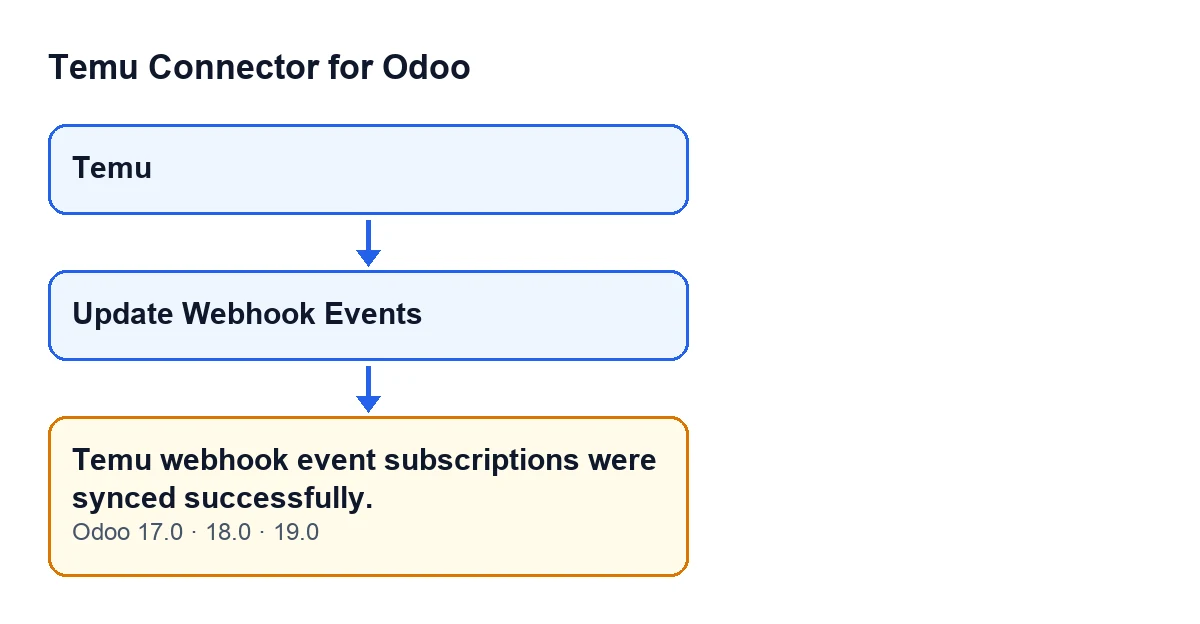
Temu menu, the button and the notice.
What the notice means
It means the module has prepared the list of webhook events you want to receive and the list of those to cancel, has sent the request to Temu with both, and has left a record on the instance, without any step raising an error. It is the module's own success notice: it tells you the process finished, not which events were requested.
Exactly when it appears
The notice is returned by the method behind the button. That method goes through each record it is run on and, for each one, does this in order: it decides which events to permit, works out which to cancel, sends the request to Temu with both lists and leaves a message on the record. When it has finished with all of them, it returns the notice.
The condition is therefore a single one: no step has stopped with an error. If one does, the action is cut short there, whatever came next does not run and you never see the success notice.
What the screen does not show you
It is a full sync, not an addition
The module does not just ask Temu for the events you want. It also builds a cancel list: every webhook event it knows about, minus the ones it wants to permit. Both lists go in the same request, so an event that no longer matches the instance configuration is asked to be cancelled in the same press.
The events requested depend on order sync and returns sync
The module checks two options on the instance: order sync and returns sync. With order sync on, it permits the order status change, the logistics address change and the cancel-order status change events. With returns sync on, it permits the after-sales status change event. Any event outside that selection goes into the cancel list.
The success notice appears whichever combination applies: it does not say which events were requested, only that the process finished without an error. To find out, look at the message the module leaves on the record (below).
With both lists empty, Temu is not called and the notice still appears
The method that prepares the request makes a check first: if there is nothing to permit and nothing to cancel, it returns without sending any request to Temu. The button's method does not tell that case apart and returns the same notice. So a success notice does not prove by itself that a call to Temu was made; what it does prove is that there was no error.
It leaves a message on the record
For each record processed, the module logs a message with three pieces of information: the Temu method used for the update, the events permitted and the events cancelled. The permitted events are sorted and without repeats; the cancelled ones appear in the order in which the module has them defined. If a list is empty, a dash appears instead. It is the place to check exactly what was requested.
It is a success notice, it does not block and it does not stay pinned
In the code the text is set as a success notice that does not stay fixed on screen. It interrupts nothing and you do not need to accept it. If you missed it, the notice leaves no trace: the record is in the message on the instance.
The button is always visible
The Update Webhook Events button is always visible in Odoo 17, 18 and 19, with no condition in the view hiding it.
Update Webhook Events; in English, Update Webhook Events.What to do if you do not see the notice
- Check that you pressed
Update Webhook Eventson the instance record, which you reach from theTemumenu. - If Odoo shows an error instead of the notice, the action has stopped: read the whole message and deal with it before pressing again. The success notice only arrives when the whole process finishes.
- When you press the button again, look at the record: there should be a new message with the method used and the lists of permitted and cancelled events.
How FlexigoTech can help
FlexigoTech implements Odoo 17, 18, 19 and 20 and builds custom connectors and integrations. The Temu Connector for Odoo module is published for 17.0, 18.0, 19.0 and 20.0, and purchase details are on the Odoo Apps listing and the module page. The connection goes through FlexigoTech Cloud, which stores the credentials encrypted, monitors the sync and emails you if it fails; the Connector plan costs €49 per month or €490 per year, excluding VAT, on top of the module's one-off payment per Odoo version.
Keep reading
Checked in the connector's source code (version 19.0) and the linked sources
Sources
- Module source code: flexigobe_temu_connector 19.0 (455b3f0f): models/temu_instance.py
- Module source code: flexigobe_temu_connector 19.0 (455b3f0f): views/temu_instance_views.xml
- Module source code: flexigobe_temu_connector 19.0 (455b3f0f): models/fgt_cloud.py
- apps.odoo.com/apps/modules/19.0/flexigobe_temu_connector
- flexigotech.com/en/services.html
- flexigotech.com/precios.html