

 Español
 Català
 Deutsch
 Français
 Português
 Italiano
 Nederlands
 Polski
Where the button is and when you see it
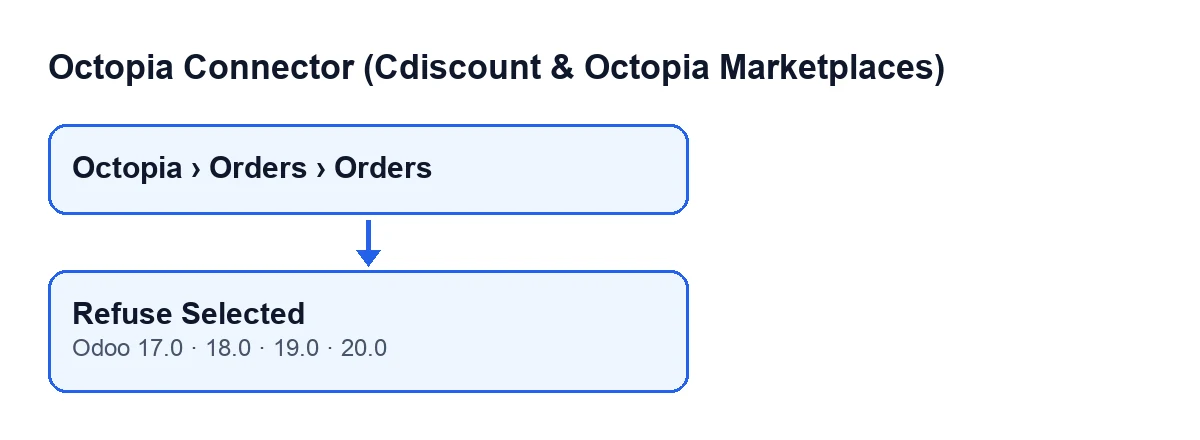
The Refuse Selected button is on the Octopia Orders screen, which you open from the menu Octopia › Orders › Orders. The Octopia part of the menu asks for the Octopia User permission: without it, you do not see that part.
The button is always visible, with no status condition, and it exists in Odoo 17, 18, 19 and 20.

Step by step: what happens when you press it
- Open
Octopia › Orders › Ordersand tick the orders you want to refuse. - Before pressing, look at the
StatusandSales Ordercolumns in the list. The button does not filter by status: it sends the decision for every order you have ticked. - Press
Refuse Selected. Odoo asks for confirmation with this text:Refuse the selected orders? Customers will be refunded by the channel. - Once you confirm, in Odoo 20 the module goes through the ticked orders one by one and sends Octopia the refusal decision for each.
- If the decision has been sent, the
Statusof the Octopia order moves to refused. - Next, if the order has a
Sales Order, the module cancels it, unless it belongs to another company or is already done or cancelled. - Go back to the list and check
StatusandSales Orderfor each order you ticked.
With Odoo in English the button is called Refuse Selected; the diagram below shows how the module's published translations label it in other languages.
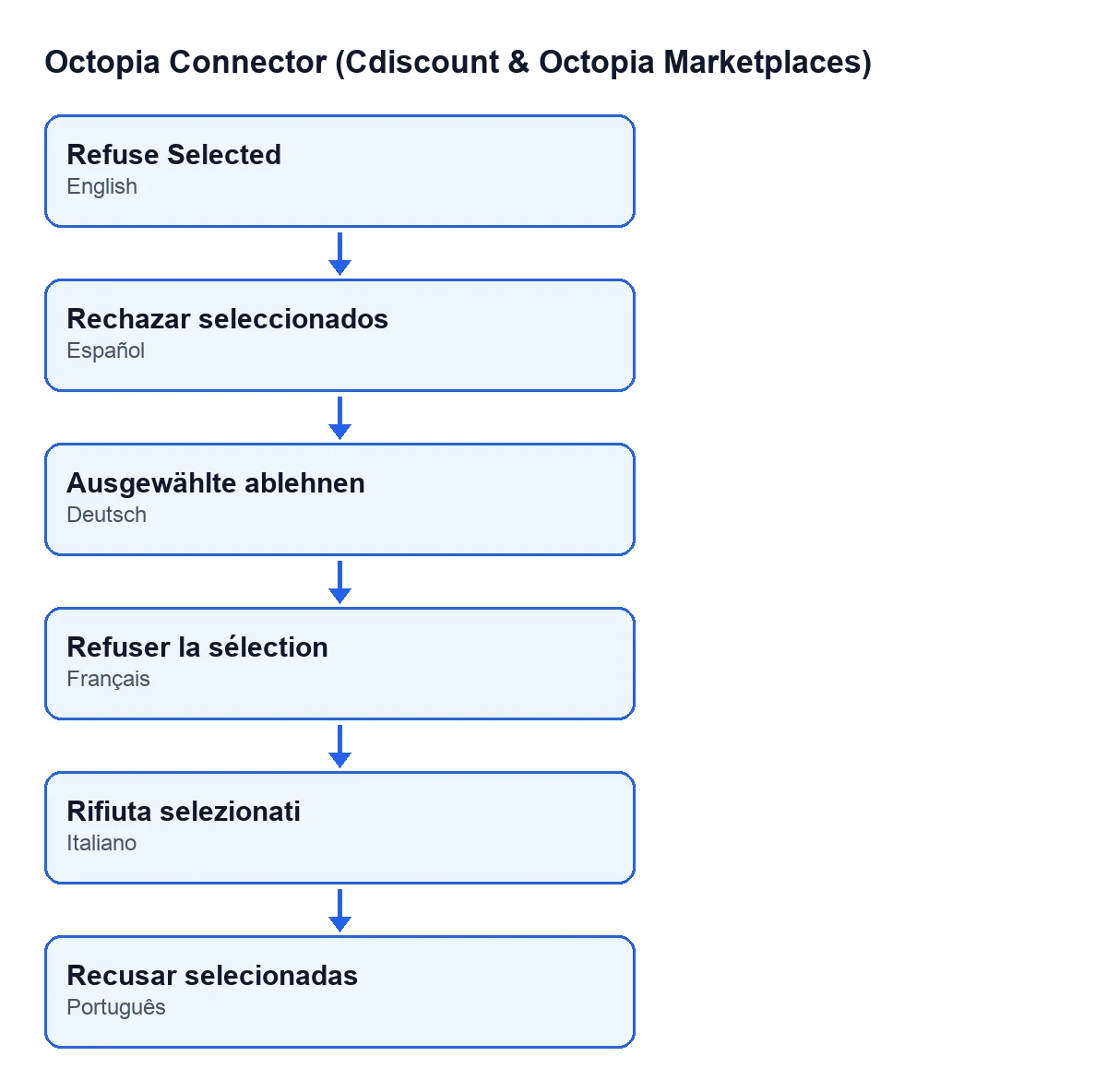
Rechazar seleccionados; in German, Ausgewählte ablehnen; in French, Refuser la sélection; in Italian, Rifiuta selezionati; in Portuguese, Recusar selecionadas.What it checks before changing anything
That the decision reaches Octopia
The order matters: the decision is sent first and the order is touched only afterwards. If the sending does not complete, the order does not move to refused and its sales order is not cancelled.
That the sales order belongs to the same company
The module checks whether the linked sales order belongs to the same company as the Octopia order. If it belongs to another company, it leaves it as it is: it does not cancel it. Note the order in the code: the Status of the Octopia order has already moved to refused before this check, so in that case the Octopia order is refused and the other company's sales order is left untouched.
That the sales order is not already done or cancelled
The module cancels the sales order only if it is not already done or cancelled. If the Octopia order has no Sales Order, there is nothing to cancel and the change stays in the Status of the Octopia order.
When nothing changes and when it stops with an error
If Octopia returns an error when it receives the decision, the module does not give up at the first attempt: it reads the order again from Octopia and looks at how it stands there. Depending on the answer:
- If the order is no longer waiting for the seller's decision, nothing is sent: the module leaves on the order the message
Octopia had already moved this order to … before the seller's decision; nothing was sent.and moves on to the next one. For that order, the button does not mark it as refused and does not cancel its sales order. - If Octopia's reply carries no status, cannot be read, or says the order is still waiting for acceptance, the API error is raised again and the action stops: the orders still to be processed in the selection are never reached, and some of the orders earlier in the selection may already have had their refusal sent to Octopia.
So, if the action has stopped with an error, do not assume the list reflects everything already sent to Octopia: before refusing again, check how each order stands on the channel.
What the button shares with the automatic download
The scheduled task Octopia: pull orders runs every ten minutes and is active on install. It shares two pieces with the button:
- The company check on the sales order: if it belongs to another company, the automation leaves that order alone.
- Sending the decision to Octopia: automatic acceptance uses the same sending, with acceptance instead of refusal. It applies to orders waiting for acceptance when the sales channel (or, if the channel does not decide, the account) has automatic acceptance switched on, among other conditions on the order.
With automatic acceptance on, an order may already have moved to accepted by the time you open the list, and the button does not look at the status before sending. Check Status before refusing.
Deadline context before refusing
The Cdiscount Marketplace CGMAD (25/08/2025, p. 47) say to accept orders within 48 working hours and, with no reply from the seller within 2 days, the order is cancelled automatically. That is what the channel's terms say; the module only sends the decision you take.
How it fits with the subscription and what else FlexigoTech can do
The module is a one-off purchase per Odoo version (17, 18, 19 and 20 on the listing) and needs the FlexigoTech Cloud subscription, Connector plan: €49 a month or €490 a year, excluding VAT, with up to 3 accounts. The connection goes through FlexigoTech Cloud, which stores the credentials encrypted, watches the synchronisation and emails you if it fails.
FlexigoTech implements Odoo 17, 18, 19 and 20 and builds custom connectors and integrations.
Keep reading
Checked in the connector's source code (version 20.0) and the linked sources
Sources
- Module source code: flexigobe_octopia_connector 20.0 (4848da6a): views/octopia_completeness_views.xml
- Module source code: flexigobe_octopia_connector 20.0 (4848da6a): models/octopia_order.py
- apps.odoo.com/apps/modules/20.0/flexigobe_octopia_connector
- marketplace.cdiscount.com/wp-content/uploads/2025/08/2025.08.25-CGMAD-FR.pdf
- flexigotech.com/precios.html
- flexigotech.com/en/services.html