

 Español
 Català
 Deutsch
 Français
 Português
 Italiano
 Nederlands
 Polski
Where the button is and what each offer needs
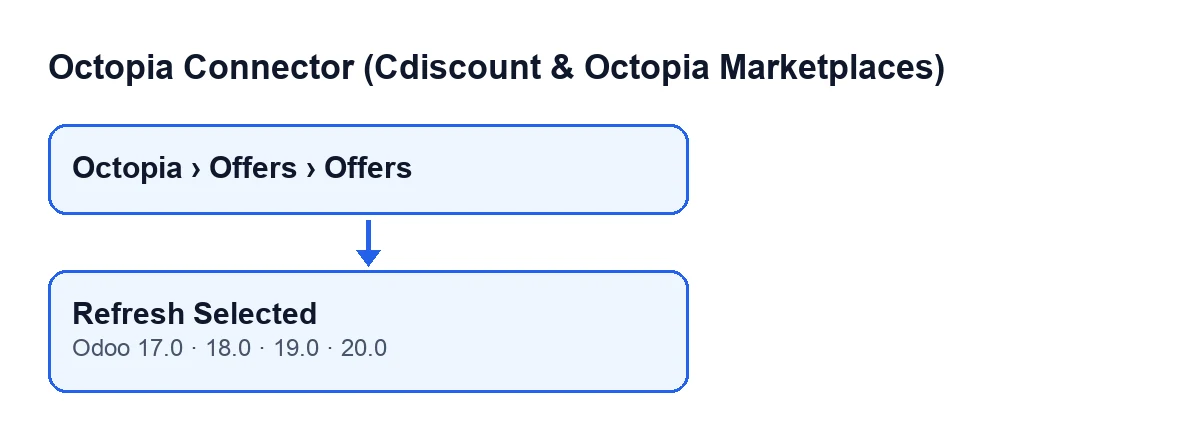
The Refresh Selected button is on the Offers screen, which you open from Octopia › Offers › Offers. It is always visible, with no state condition, and it exists in the Odoo 17, 18, 19 and 20 branches. The Octopia menu level requires the Octopia User permission: without it, you do not see that level.
The second diagram shows how the button is labelled depending on the language of your Odoo.
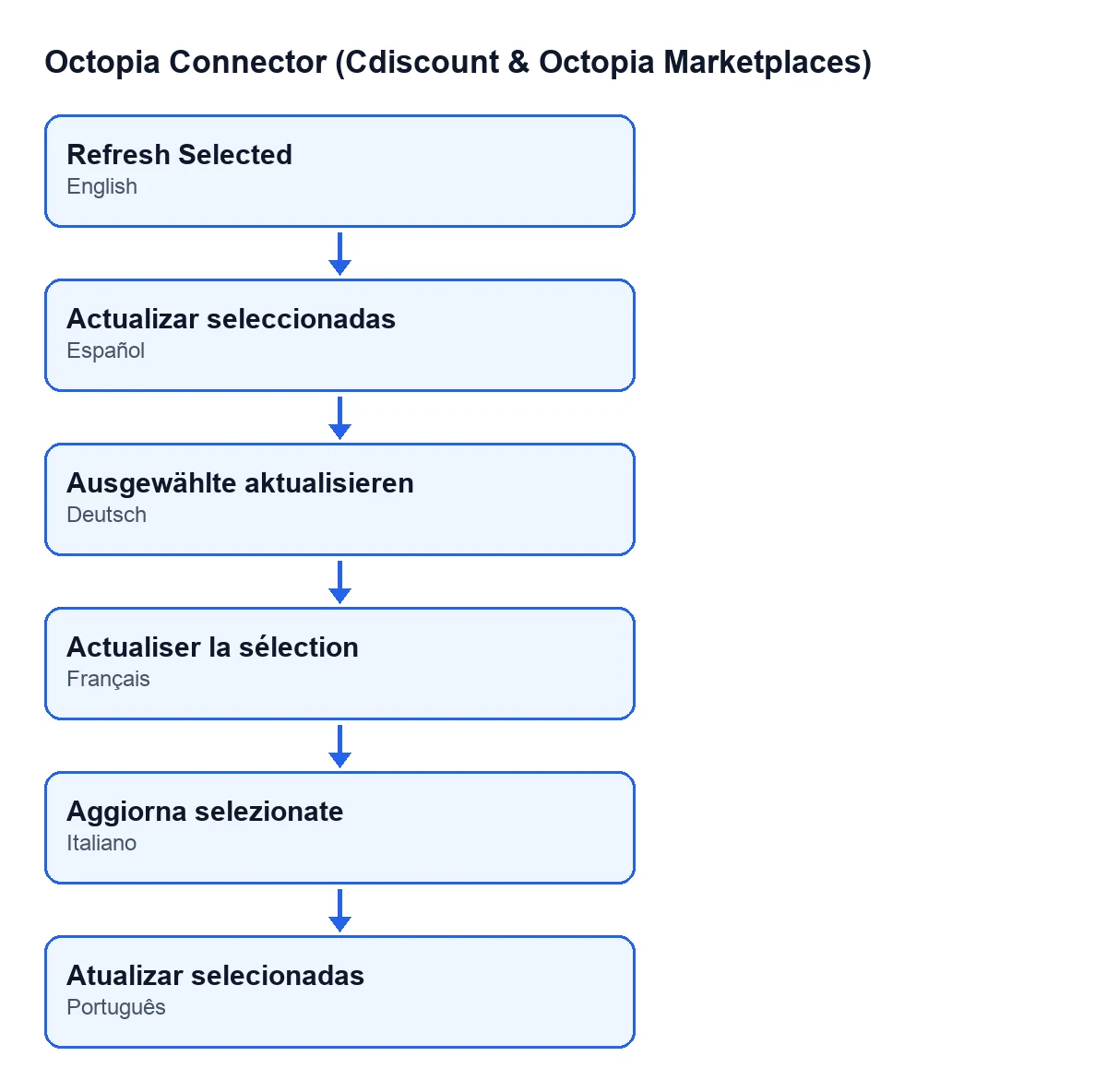
Actualizar seleccionadas; in German, Ausgewählte aktualisieren; in French, Actualiser la sélection; in Italian, Aggiorna selezionate; in Portuguese, Atualizar selecionadas.Before you press it
- You have the
Octopia Userpermission and open the screen fromOctopia › Offers › Offers. - The offer has its
Accountfilled in: it is the account the button uses to open the connection to Octopia. It is on theOffersform, in theListinggroup, and also in the list. - The offer has its
Sales Channel, in the same group and in the list: the button sends the code of that channel in the query. - The offer has its
Seller External Reference, in the same group and in the list. It is the value the button uses to look the offer up in Octopia. The field help reads:Unique offer reference within the sales channel; duplicate references inside one package reject ALL its requests.
The module is a one-off purchase per version and needs a FlexigoTech Cloud subscription (Connector plan: €49 a month or €490 a year, excluding VAT). The connection to Octopia goes through that service, which stores the credentials encrypted, monitors synchronisation and emails you if it fails.

What the button does, in order
The button goes through the offers it acts on, one by one, and for each of them it does this:
- It opens the connection to Octopia using the offer's
Account. - It asks Octopia for the offers matching the
Seller External Referenceand the code of theSales Channel, and includes the sales channel feedback in the request. It filters on the reference because a filter the query does not know would be ignored and would return the whole channel. - It reads the offers in the response and ignores anything that does not look like an offer.
- It compares references: if an entry carries a reference (or an offer identifier) different from your offer's, it skips it. It works with the first entry that matches and stops looking at the rest.
- It looks at the state Octopia returns and writes it only if it is one of the states the module knows.
- It collects the market data from that entry: best offer (the Buy Box), best-offer price, channel feedback and external competitor.
- It saves on the offer whatever it has gathered. If there is nothing to save, it writes nothing.
The changes are written to the offer in Odoo.
What changes on the offer
| Octopia data | What the button does |
|---|---|
| Offer state | Writes it only if the returned state is one the module knows; otherwise it keeps the previous one. |
| Whether it is the best offer | If the response includes that data, it stores it as yes or no. |
| Best offer: price and delivery cost | If the response includes that block, it stores both amounts; an empty value is stored as zero. |
| Channel feedback | If the response includes that block, it stores its full content as indented text. |
| External competitor | If an external competing offer appears inside that feedback, it stores the marketplace name, price, delivery cost, total price, price index and update date. |
When a block is missing from the response, the value already on the offer stays as it was. If the channel feedback does not arrive, the external competitor data is not touched either.
After pressing it, and when it does not change what you expect
If nothing changes
- Check that the
Seller External Referenceis exactly the one the offer has in Octopia: the button discards entries with a different reference and, if none matches, it writes nothing on that offer. - Check that the
Accountand theSales Channelare the ones for the offer you want to query: the request is built from them. - If the connection fails, remember that it goes through FlexigoTech Cloud, which monitors synchronisation and emails you if it fails.
If some data changes and some does not
- The state does not move but other data does: the state is written only if Octopia returns one the module knows.
- An amount shows as zero: if Octopia sends the block without a price or delivery cost, zero is stored.
- The external competitor is not updated: it is written only when the response carries the channel feedback and, inside it, an external competing offer.
- The competitor name is empty: if that offer arrives without a marketplace name, it is stored empty.
How FlexigoTech helps
FlexigoTech implements Odoo 17, 18, 19 and 20 and builds custom connectors and integrations. If you are setting up your Octopia offers in Odoo, we can review the account, channels and references with you before you start querying.
The module is published on Odoo Apps for 17, 18, 19 and 20; you can see it on its Odoo Apps page.
Keep reading
Checked in the connector's source code (version 20.0) and the linked sources
Sources
- Module source code: flexigobe_octopia_connector 20.0 (4848da6a): views/octopia_completeness2_views.xml
- Module source code: flexigobe_octopia_connector 20.0 (4848da6a): models/octopia_offer.py
- apps.odoo.com/apps/modules/20.0/flexigobe_octopia_connector
- flexigotech.com/precios.html
- flexigotech.com/en/services.html