

 Español
 Català
 Deutsch
 Français
 Português
 Italiano
 Nederlands
 Polski
When the message appears, according to the code
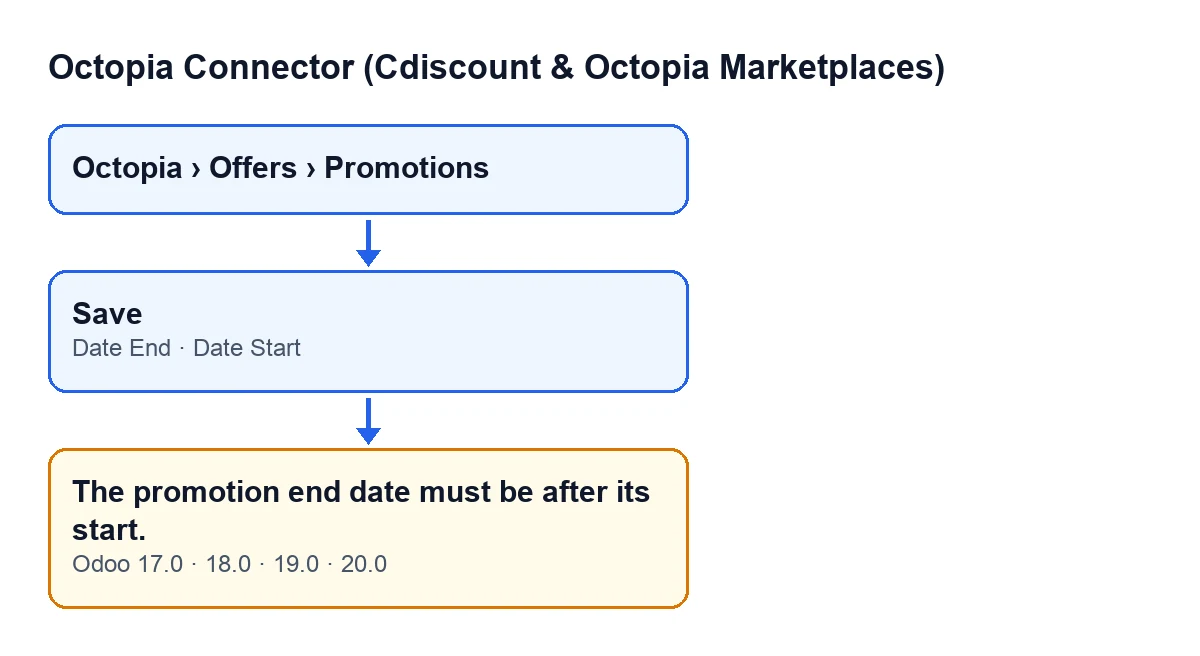
The promotions in Octopia Connector open from the Octopia › Offers › Promotions menu. The Octopia level asks for the Octopia User permission: if you do not have it, you do not see that level. On the Promotions form, inside the Promotion group, you will find the two fields that matter here: Date Start and Date End. Both also appear in the Promotions list.
The check runs when you save, and it looks at those two fields. For each promotion, the module compares Date End with Date Start: if the end is equal to or earlier than the start, it raises the message, the action stops and the form is not saved. With an end date strictly after the start, the check says nothing.
Both fields hold a date and a time, and they are compared in full. That is why two identical values also trigger the message, and why it is worth checking the time as well as the day.

What the message means
The reading is straightforward: the module does not accept a promotion that ends at the very moment it starts, or one that ends before it starts. It requires Date End to fall after Date Start. It is not a connection problem or a permissions problem: it is a check on the two values you have in front of you on the form.
Because the check runs on saving, the message does not appear while you are typing the dates, but when you try to save the form. Until both dates meet the condition, the promotion is not saved.
What the code checks, in brief
- It compares
Date EndwithDate Startfor each promotion being saved. - The message appears if the end is equal to or earlier than the start.
- When it appears, the action stops and the form is not saved.
- The message is in the published code of versions 17.0, 18.0, 19.0 and 20.0 of the module.
Before you save the promotion
If you are creating or editing a promotion, run through this before you save:
- Open
Octopia › Offers › Promotionsand go into the promotion's form, or create a new one.
- In the
Promotiongroup, findDate StartandDate End.
- Check that
Date Endfalls afterDate Start, not at the same moment.
- Look at the time too: these are date and time fields, and the check compares them in full.
- Make sure the two dates are not the wrong way round, with the start in the end field and the other way about.
Once the message has appeared
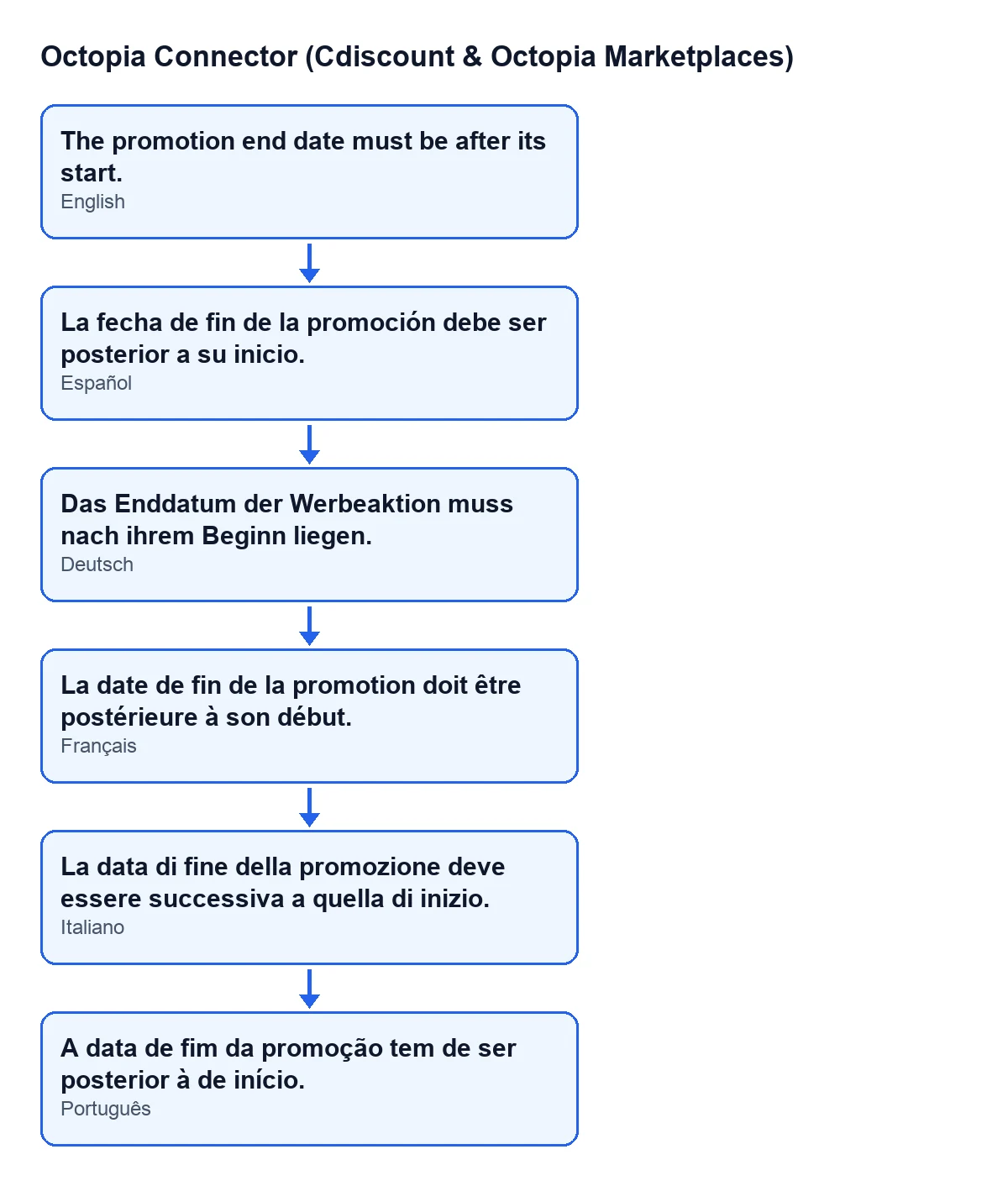
The text you see is The promotion end date must be after its start. Only one condition triggers it, so there is no need to look for another cause.
Work through it in this order:
- Read the whole message and dismiss it: the action has stopped and the form has not been saved, so the changes you just made on it are not stored.
- Correct
Date Endso that it is afterDate Start.
- If
Date Startwas the one that was wrong, adjust it instead; either will do, as long as the end ends up later.
- If you changed both dates, check the resulting pair rather than each date on its own.
- Save the form again.
- If you have edited several promotions, open the
Promotionslist, where both dates are also shown, and review each one.
After the fix
- Confirm that the form saves without the message appearing.
- Go back to the
Promotionslist and check thatDate StartandDate Endshow what you intended.
- If the message comes back, compare the date and time of both fields again: the same value in both also triggers it.
- If you do not see the
Octopiamenu, check theOctopia Userpermission before changing anything else.
Where FlexigoTech fits in
Octopia Connector is published on Odoo Apps for Odoo 17.0, 18.0, 19.0 and 20.0 (Odoo Apps listing). FlexigoTech implements Odoo 17, 18, 19 and 20 and builds custom connectors and integrations; if you are rolling the module out and want to review how your team works with it, we can do that with you. For other messages from the module, there is the guide to the Submit to Octopia button, covering what it checks and the errors it can give.
Keep reading
Checked in the connector's source code (version 20.0) and the linked sources
Sources
- Module source code: flexigobe_octopia_connector 20.0 (4848da6a): models/octopia_promotion.py
- apps.odoo.com/apps/modules/20.0/flexigobe_octopia_connector
- flexigotech.com/en/services.html