

 Español
 Català
 Deutsch
 Français
 Português
 Italiano
 Nederlands
 Polski
Where the fields are and which ones are read-only
Offer records open from the menu Octopia › Offers › Offers. You only see the Octopia part of the menu if you have the Octopia User permission. The module is published on Odoo Apps for 17.0, 18.0, 19.0 and 20.0.
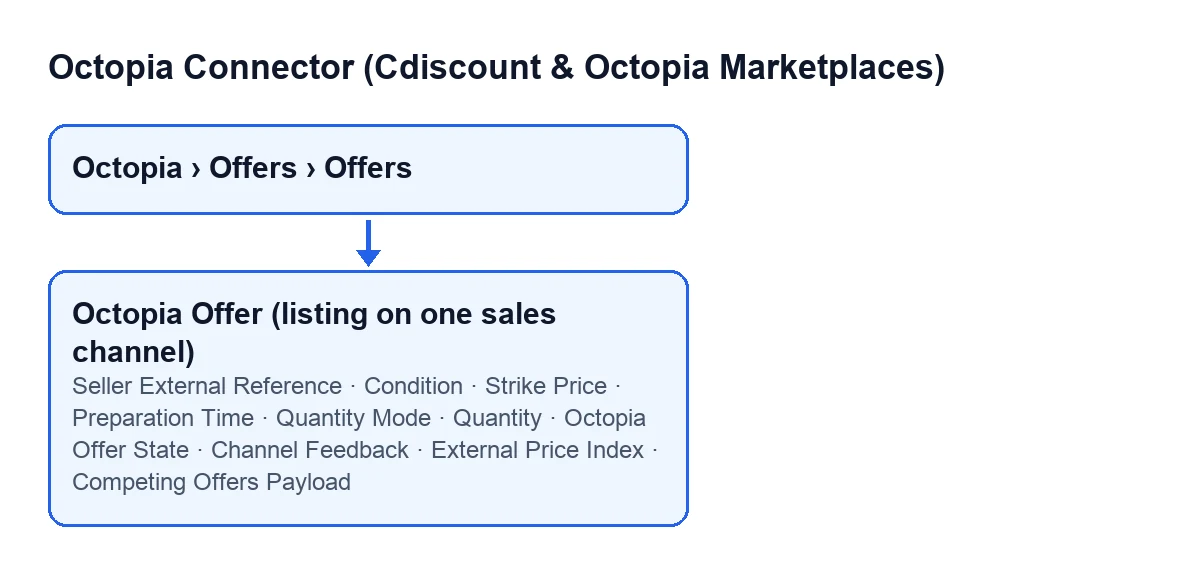
Some fields on the form are read-only: they are marked one by one below.

Identifying the offer
Seller External Reference- It sits on the
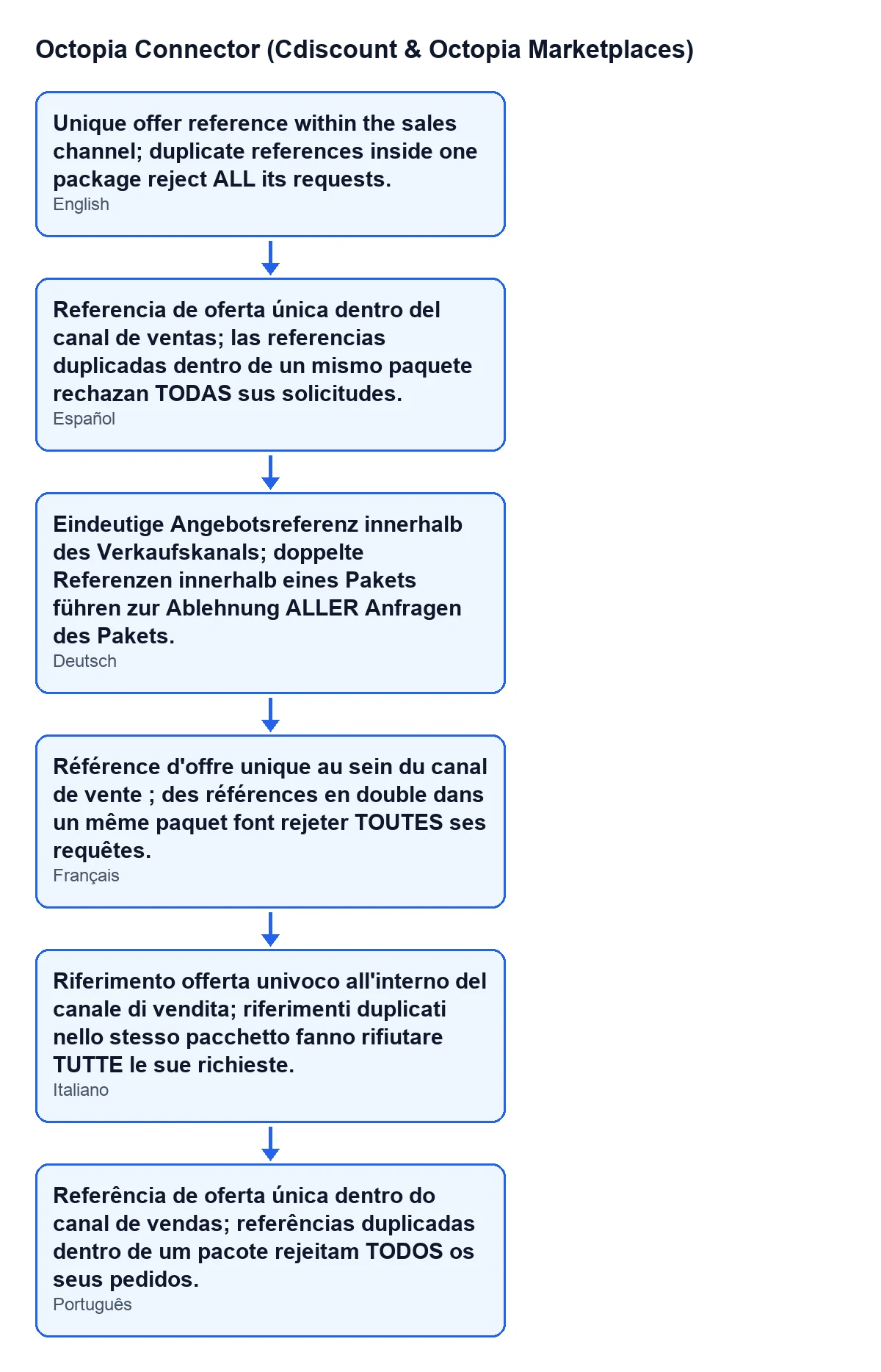
Offersform, in theListinggroup, and also in the list. Its help says: ‘Unique offer reference within the sales channel; duplicate references inside one package reject ALL its requests.’. What to enter: a different reference for every offer on the channel. A duplicate inside one package does not only reject its own offer; it rejects all the requests of that package.
Condition- It is in the
Listinggroup and in the offers list. Its help says: ‘Immutable at Octopia once the offer exists (Delete + re-create to change).’. The field comes with a default value in the code, so confirm it before the first publication: according to the help, changing it means deleting the offer and creating it again.
Octopia Offer State- It is in the
Listinggroup and in the list, read-only. Its help says: ‘State read back from GET /offers.’. You do not fill it in: the module writes it when the buttonsRefresh SelectedandRefresh from Octopiarun, and another internal process of the module also fills it.
The diagram below shows the help text of the reference field in the languages that have a published translation.
Price and stock
Strike Price- It is on the form, in the
Pricegroup, and in the list. Its help says: ‘Crossed-out reference price (originPrice). Leave 0 for no strike-through.’. What to enter: 0 if you want no strike-through; if you do want one, the reference price that will appear crossed out.
Preparation Time- It is on the form, in the
Stockgroup. Its help says: ‘Days of preparation before handover to the carrier. Mandatory whenever delivery modes are sent (the API requires it on deliveryModes updates).’. It defaults to 1 in the code. What to enter: the real number of days your warehouse needs to prepare the order, and do not leave it empty if you are going to send delivery modes.
Quantity Mode- It is in the
Stockgroup. Its values areFrom Odoo stockandFixed value; by default it comes set toFrom Odoo stock. Its help warns: ‘Octopia stock is GLOBAL per product+condition across channels: pushing this offer's quantity updates every channel selling the same product+condition.’. What to bear in mind: if you sell the same product in the same condition on more than one channel, publishing the quantity of one offer updates all of those channels.
Quantity- It is in the
Stockgroup and in the offers list. Its help says: ‘Quantity that will be pushed on the next publication.’. Check it just before publishing, because it is the number that goes out to Octopia and, going by the help of the quantity mode, it affects every channel with the same product and condition.
What Octopia sends back (read-only)
Channel Feedback- It is a read-only field in the
Channel Feedbacktab of the form. Its help says: ‘salesChannelFeedback returned by GET /offers?expand=...’. You only read it.
External Price Index- It is in the
Markettab,Best External Offergroup, and in the list, read-only. Its help says: ‘Octopia's ratio between the best offer price and the external market price, in percent (above 100 = dearer).’. The module writes it whenRefresh SelectedorRefresh from Octopiaruns. If you see a value above 100, according to the help the best offer is dearer than the external market.
Competing Offers Payload- It is in the
Competing Offers (Buy-Box)group, read-only. On screen it has no label: you only see its content. Its help says: ‘Raw competing-offers snapshot (Buy-Box monitor). The upstream endpoint is DEPRECATED and permission-gated: it only works for accounts that were granted it.’. TheBuy-Box Snapshotbutton fills it. Before relying on it, check that your account has been granted that permission.
What to look at before publishing an offer
Before publishing, review the condition (immutable at Octopia once the offer exists), make sure the reference is not repeated within a package, and check the quantity mode (Octopia stock is global per product and condition across channels). The read-only fields (Octopia Offer State, Channel Feedback, External Price Index and the competing offers payload) are not filled in by hand: you only read them.
How FlexigoTech can help
The connection to Octopia goes through FlexigoTech Cloud, which stores the credentials encrypted, monitors synchronisation and emails you if it fails. If you are implementing Odoo and want to review how to publish your products, FlexigoTech implements Odoo 17, 18, 19 and 20 and builds custom connectors and integrations.
Keep reading
Checked in the connector's source code (version 20.0) and the linked sources
Sources
- Module source code: flexigobe_octopia_connector 20.0 (4848da6a): models/octopia_offer.py
- apps.odoo.com/apps/modules/20.0/flexigobe_octopia_connector
- flexigotech.com/en/services.html
- flexigotech.com/precios.html