

 Español
 Català
 Deutsch
 Français
 Português
 Italiano
 Nederlands
 Polski
Where the button is and when you see it
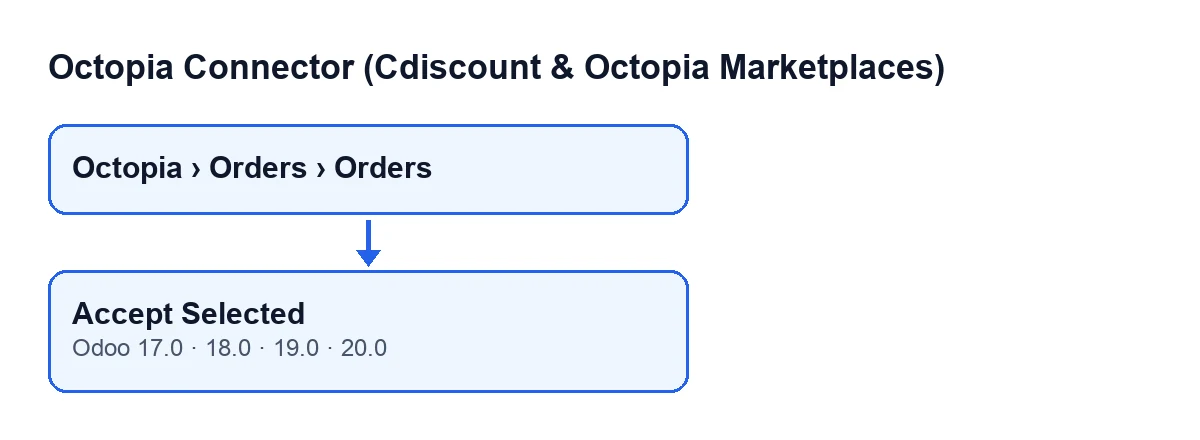
The Accept Selected button is on the Octopia Orders screen, opened from the menu Octopia › Orders › Orders. The Octopia part of the menu requires the Octopia User permission: without it, you do not see that part. The button is in Odoo 17, 18, 19 and 20, and its view puts no condition on it: it is always visible and does not depend on the order's status.
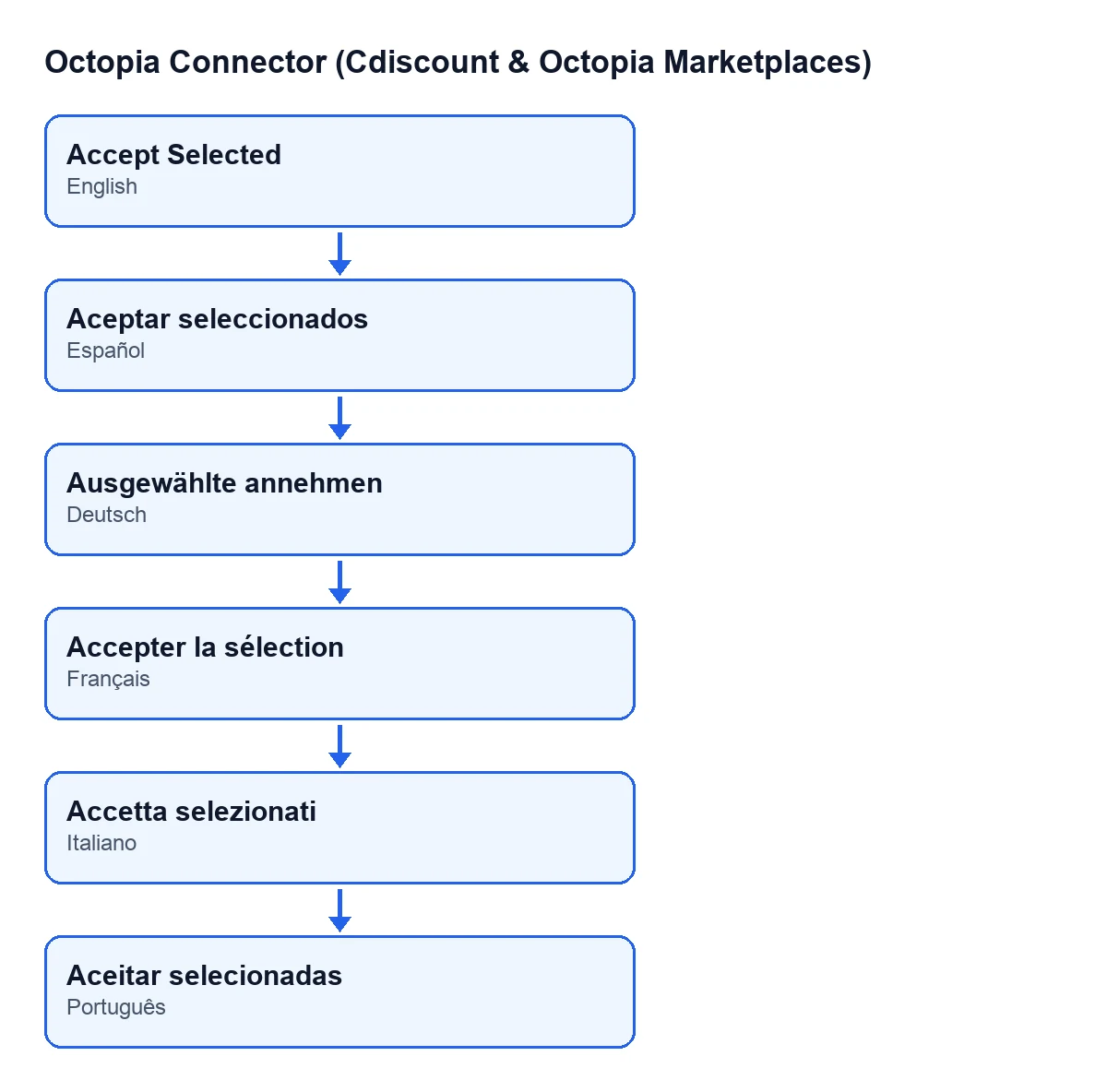
The label changes with the language of your Odoo; the second diagram shows how it is written in each.

Myths about the button and what it really does
«Accepting by hand is the normal route»
The button is the manual route. The scheduled task Octopia: pull orders runs every ten minutes and is active as soon as the module is installed. The orders that task imports go through the module's automation, whose first step may accept the order if, among other conditions:
- the order is waiting for acceptance;
- it is not on hold (the code comments it this way: accepting would promise what Odoo never ships);
- it has a sales channel.
That automatic acceptance calls the same method as the button. If it fails, the failure is written to the log and the automation carries on with its remaining steps. The button is left for orders you want to accept yourself.
«Pressing it only marks the order as accepted in Odoo»
It does not. In Odoo 20.0, for each selected order, in turn, the module first sends the decision to accept to Octopia, using the connection of that order's account. Only if the sending succeeds does the order's Status field, visible on the form and in the list of Octopia Orders, change to accepted, and the automation run. The order is: send to Octopia, change the status, run the automation.
«If Octopia gets there first, the button overrides it or hangs»
It depends on what Octopia says when the sending returns an error. The module reads the order again:
- If the order is no longer waiting for the seller, it is updated with what Octopia returns and a message is left on the order:
Octopia had already moved this order to … before the seller's decision; nothing was sent.For that order the button does not mark it as accepted and moves on to the next selected one. - If the order is still waiting, or the reading brings no status, the Octopia error is passed on and the action stops.
«Accepting already creates and invoices the sales order»
On accepting, the button does not create the sales order: it is created by the order import, when the order has a customer and lines and is not on hold. That same import is the one that runs if Octopia got there first and the button reads the order again.
After accepting, the automation can confirm the sales order if, among other conditions, the account has automatic confirmation switched on, the sales order is in draft or sent, the order's status allows it and, if it were already shipped, the order is Fulfillment. Automatic invoicing, delivery validation and mirrored cancellation look at the shipped, delivered or cancelled statuses; the button leaves the order as accepted, so those steps do not apply in that pass.
«The button checks the same things as automatic acceptance»
Automatic acceptance requires, among other conditions, the waiting status, no hold and a sales channel. The button's method starts straight away by sending the decision for each selected order. Before pressing it, look at the Status of the orders you select so that you leave out any that no longer wait for your decision.
«Accepting late has no consequences»
According to the CGMAD of Cdiscount Marketplace (25/08/2025, p. 47): orders must be accepted within 48 working hours, the acceptance rate must be 97.5 % or higher and, with no reply from the seller within 2 days, the order is cancelled automatically. That is why it pays to check often the orders still waiting for acceptance, rather than relying on remembering to press the button.
The path of each selected order
- The module sends Octopia the decision to accept.
- If Octopia receives it, the
Statuschanges to accepted. - The automation runs and may confirm the sales order, depending on the account.
- If Octopia had already moved the order, the order is updated, the message is left and the next order is processed.
How FlexigoTech can help
We implement Odoo 17, 18, 19 and 20 and build connectors and custom integrations; if you want to review how order acceptance from Cdiscount is set up, we can go through it with you. The module is published on Odoo Apps for those four versions, is a one-off payment per version and needs the FlexigoTech Cloud subscription: Connector plan, €49/month or €490/year excluding VAT.
Keep reading
Checked in the connector's source code (version 20.0) and the linked sources
Sources
- Module source code: flexigobe_octopia_connector 20.0 (4848da6a): views/octopia_completeness_views.xml
- Module source code: flexigobe_octopia_connector 20.0 (4848da6a): models/octopia_order.py
- apps.odoo.com/apps/modules/20.0/flexigobe_octopia_connector
- marketplace.cdiscount.com/wp-content/uploads/2025/08/2025.08.25-CGMAD-FR.pdf
- flexigotech.com/en/services.html
- flexigotech.com/precios.html