

 Español
 Català
 Deutsch
 Français
 Português
 Italiano
 Nederlands
 Polski
What the button is and when you see it
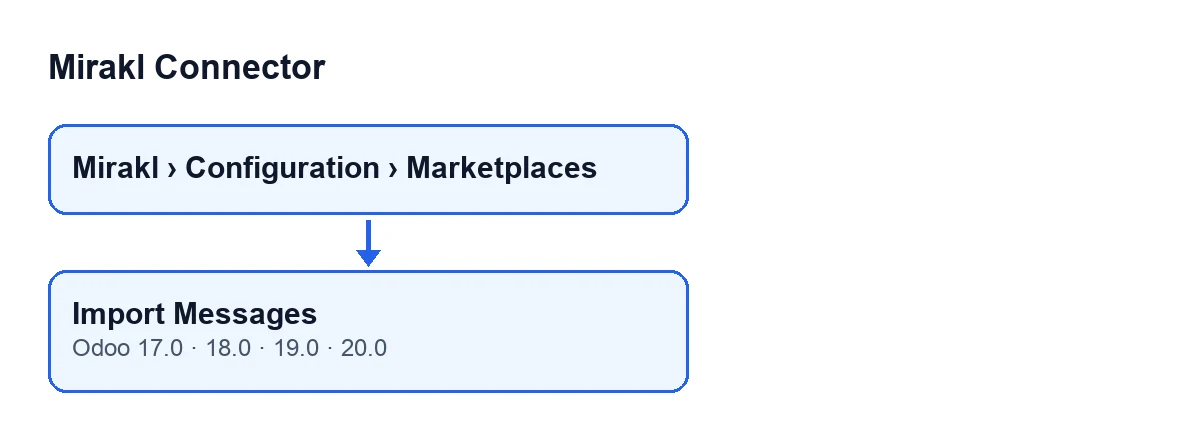
The Import Messages button is on the Mirakl Instances screen, which opens from the menu Mirakl › Configuration › Marketplaces. It is always visible, in Odoo 17, 18, 19 and 20: no view condition hides it. It works on the instance you have open.
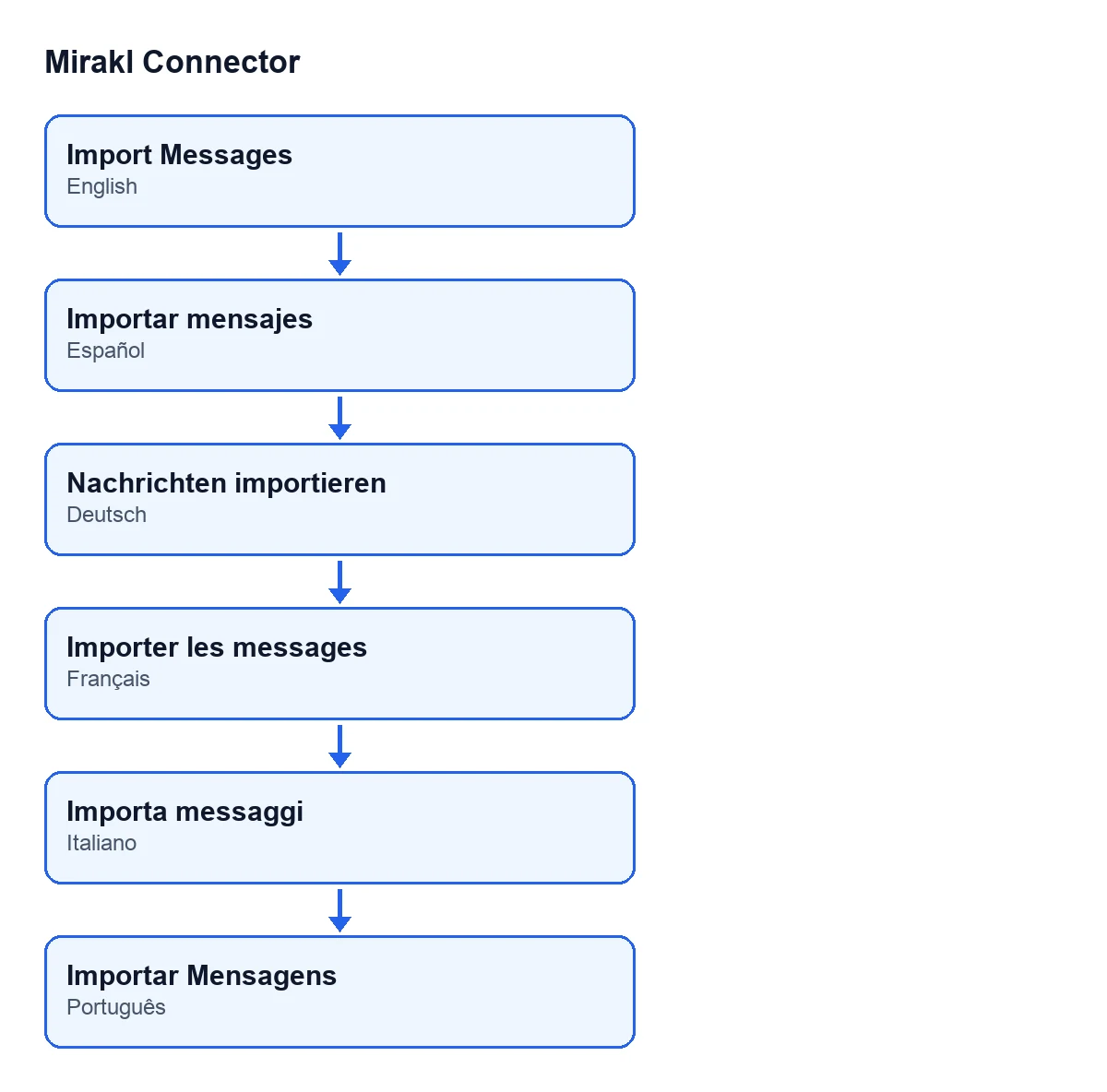
The button's label changes with the language of your Odoo: in English it is Import Messages; in Spanish, Importar mensajes; in German, Nachrichten importieren; in French, Importer les messages; in Italian, Importa messaggi; in Portuguese, Importar Mensagens.
If you have not yet checked that the connection to the marketplace works, the article on the Test Connection button explains what that other button does.

Step by step
- Let Odoo do it on its own. The scheduled action
Mirakl - Sync Messagesruns the message import every 30 minutes, but it is switched off when the module is installed. It goes through the active instances that have message sync enabled, and only an administrator can run it. That is the normal route; the button is for launching the import by hand. - Open the instance. Go to
Mirakl › Configuration › Marketplacesand open the instance's form. - Check the day window. In the
Invoices and Messagestab,Messagesgroup, you will findInitial Message Sync Days. Its help reads: «Historical window (days) for manual message sync.» The default value is 30. The button passes that value to the import. - Press
Import Messages. The module queries the marketplace (details in the next section) and leaves a notice when it finishes. - Read the notice. If messages were processed you get a success notification:
Import Messages completed: … messages processed.(the count replaces the dots). If none were processed, a warning:Import Messages completed: 0 records. The operator may not support this endpoint. - If you get the warning, look at the read-only field. In the same tab and group,
Messages Endpoint Unavailableshows whether the module has flagged that the marketplace does not expose/messages.
What the button does inside, in order
- It ignores the
Messages Endpoint Unavailablefield. With the button, the module makes the request even if that field is ticked. The scheduled action, by contrast, skips the endpoint until it is retried manually, as the field's help says. - It reads page by page. It sends a read request to the
/messagesendpoint (or the one set on the instance), page after page, up to a page limit that the instance itself sets. - It processes each message. Every message received goes through Mirakl's message model, and the module adds one for each record that results. That count is the one you see in the notice.
- It clears the flag if the read succeeds. If a request succeeds and
Messages Endpoint Unavailablewas ticked, the module empties it. That is why pressing the button is the way to retry. - It records and notifies. It posts the same notice text as a message on the instance itself and shows a notification titled
Mirakl. The notification is not a sticky one.
Errors and notices it can give
The button does not show read errors as an error message: it writes them to the Mirakl API log and ends with the «0 records» notice if nothing was processed. So that warning does not prove by itself that something is failing: it also appears when the marketplace had no messages to return.
| Situation | What happens | What to do |
|---|---|---|
| Messages are processed | Success notice with the count | Nothing: check the imported messages |
| The marketplace answers 410 or 404 | The module flags Messages Endpoint Unavailable, logs a warning and stops; the on-screen notice counts what was processed up to that point | If it is 0, the operator may not expose /messages; check the field and press again only if something has changed |
| Any other request error | An error is logged and reading stops; what was already processed is counted | Check the API log and press again |
| A response shape the connector does not recognise | It is not taken for an empty page: an error is logged and reading stops | Keep the payload recorded in the log and raise it with FlexigoTech |
| FlexigoTech Cloud does not let the call through (no subscription or a service pause) | The import is cut short, nothing is flagged and the completion notice is never reached | Check your Connector plan subscription |
Button or scheduled action
Import Messages button | Mirakl - Sync Messages action | |
|---|---|---|
| When it runs | When you press it | Every 30 minutes, if you switch it on (it is off by default) |
| With the endpoint flagged as unavailable | Queries anyway | Skips it until it is retried manually |
What you need and how FlexigoTech helps
Mirakl Connector is a one-off-payment module per version, published on Odoo Apps for 17, 18, 19 and 20 (listing, module page), and it needs a FlexigoTech Cloud subscription on the Connector plan: €49/month or €490/year excluding VAT, up to 3 marketplace accounts. Without a subscription, or with the service suspended, what the subscription provides stops; your data stays in your Odoo.
If you are implementing Odoo and want the connector set up with your marketplaces, FlexigoTech implements Odoo 17, 18, 19 and 20 and builds custom connectors and integrations.
Keep reading
Checked in the connector's source code (version 20.0) and the linked sources
Sources
- Module source code: flexigobe_mirakl_connector 20.0 (aa05e537): views/mirakl_instance_views.xml
- Module source code: flexigobe_mirakl_connector 20.0 (aa05e537): models/mirakl_instance.py
- Module source code: flexigobe_mirakl_connector 20.0 (aa05e537): models/mirakl_ai.py
- apps.odoo.com/apps/modules/20.0/flexigobe_mirakl_connector
- flexigotech.com/precios.html
- flexigotech.com/en/services.html