

 Español
 Català
 Deutsch
 Français
 Português
 Italiano
 Nederlands
 Polski
Where it is and when you see it
Open Mirakl › Configuration › Marketplaces and go into the form of an instance, on the Mirakl Instances screen. The Import Invoices button is there. It has no visibility condition: you see it in Odoo 17, 18, 19 and 20.
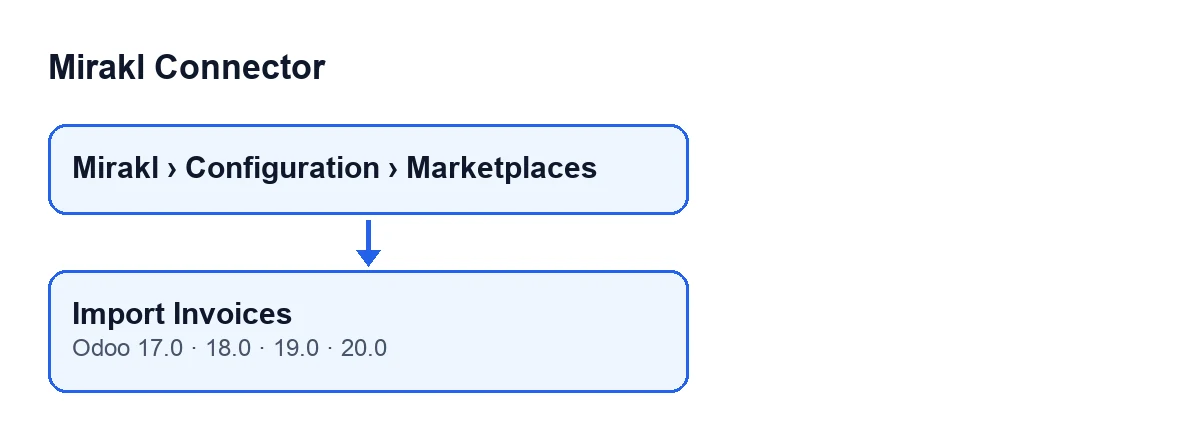
The label changes with the language of your Odoo. In English it is Import Invoices; the diagram also shows the label in other languages.
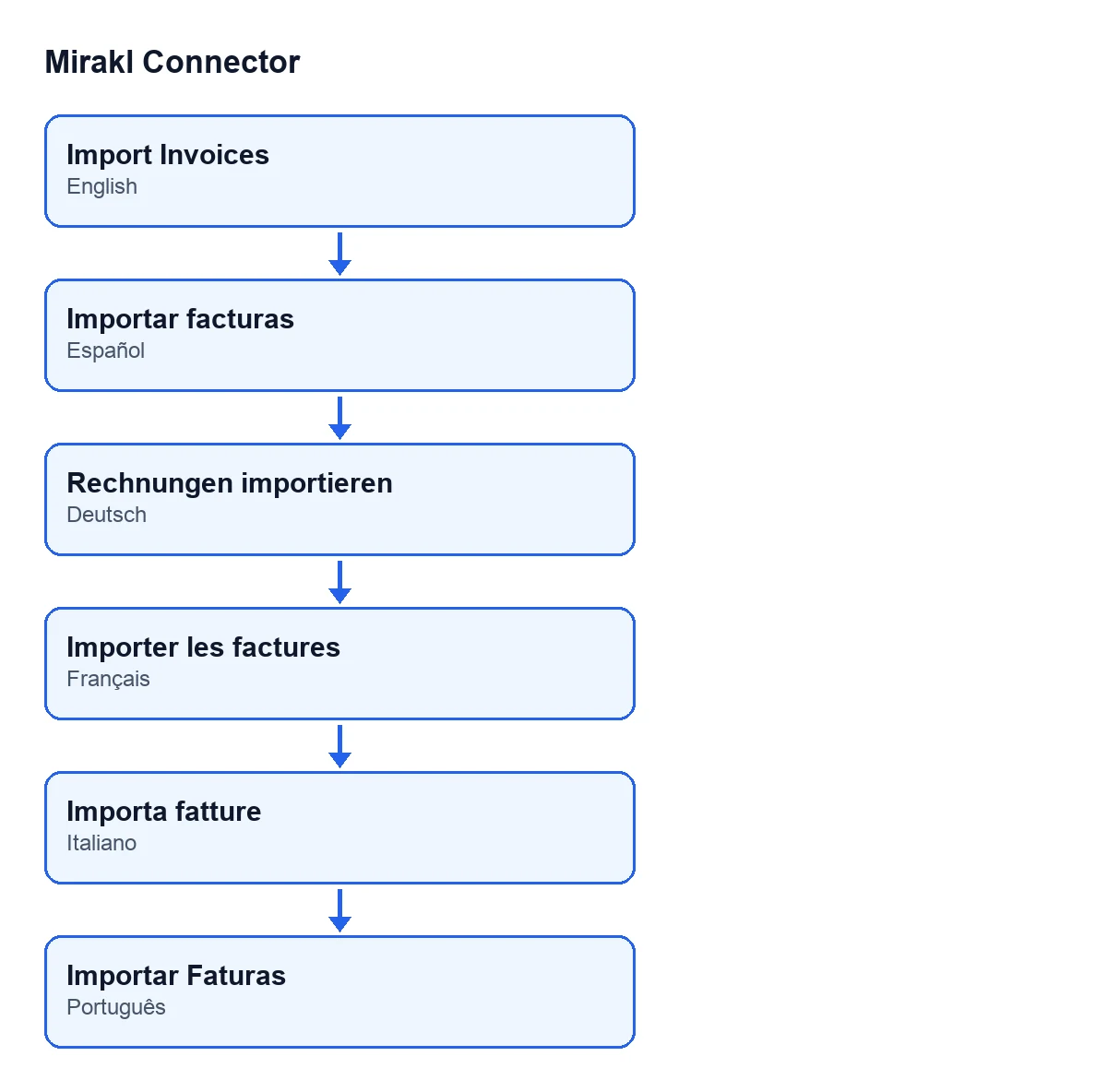
Importar facturas, German Rechnungen importieren, French Importer les factures, Italian Importa fatture and Portuguese Importar Faturas.If you have not yet checked the instance's connection, first read what the Probar conexión button does.

Six wrong ideas about the button
«Pressing the button is the normal way to bring in invoices»
Reality: the module has a scheduled action, Mirakl - Sync Invoices, which runs every day and is switched off when you install the module. Once you activate it, it goes through the active instances that have invoice sync switched on and asks each one for its invoices. Only an administrator can run that scheduled action.
There are two filters on that route. Instances that go through FlexigoTech Cloud and have no saved key are not called. And if the stored permit does not include the service, none of the instances that go through FlexigoTech Cloud is called. If one instance fails, the module writes an error line in the log and carries on with the next.
The button is the manual route: you press it when you want to import now, without waiting for the scheduled action.
«It brings in every invoice the operator has»
Reality: the button uses as its window the days in the Initial Invoice Sync Days field. You see it on the instance form, in the Invoices and Messages tab, in the Invoices (Settlements) group. Its help text reads: «Historical window (days) for manual invoice sync.» The default value in the code is 90.
The request is made page by page. The module stops when a page returns fewer invoices than the page size, when it reaches the total given in the response, or when nothing comes back. There is also a cap on pages per run.
«If the operator offers no invoices, the button throws an error»
Reality: if the platform answers HTTP 404 when invoices are requested, the module raises no error. It ticks the Invoices Endpoint Unavailable box, leaves a warning in the log, records the date of the last invoice sync and finishes with whatever count it had. If the 404 arrives on the first page, that count is zero.
The box is read-only and sits in the same tab and group as the day window. Its help text reads: «Set automatically when /invoices returns 404 so scheduled sync skips the endpoint until retried manually.»
That is what separates the two routes. The daily action skips the instance while the box is ticked. The button does not apply that check and tries again. If the request works, the module clears the box.
«If one invoice fails, nothing is imported»
Reality: each invoice received is processed on its own. If one fails, the module writes an error line in the log and carries on with the rest; the one that failed does not add to the count.
It is different if the request to the platform fails with an error other than 404, a network error for example. The module then records the error in the log and stops asking for pages. The invoices from earlier pages have already been processed.
«Zero records means there are no invoices»
Reality: when it finishes, the button posts the result as a message on the instance form and shows a notice titled Mirakl that does not stay fixed on screen. If the count is above zero, the notice is a success:
Import Invoices completed: … invoices processed., with the number in place of the dots.
If the count is zero, the notice is a warning:
Import Invoices completed: 0 records. Check logs or increase sync window.
The zero can come from a window with no invoices, from a 404, or from invoices that failed while being processed. The last two leave a line in the log, which is what the notice tells you to check. If there is nothing to see there, increase the days in the Initial Invoice Sync Days field and press again.
«The button always ends with the completed notice»
Reality: if FlexigoTech Cloud does not let the call through (no subscription, or a relay pause), the import is interrupted without marking anything and the completed notice does not appear. Without a subscription, or with the service suspended, whatever the subscription provides stops; your data stays in your Odoo.
What to check after pressing it
- The message with the result on the instance form.
- The
Invoices Endpoint Unavailablebox, in theInvoices and Messagestab,Invoices (Settlements)group. - The error lines in the module's log, if the notice said zero records.
How this fits with FlexigoTech
Mirakl Connector is a one-off purchase per version, published for Odoo 17, 18, 19 and 20, and it needs a FlexigoTech Cloud subscription, Connector plan: €49 per month or €490 per year, excluding VAT. The price for each version is on its Odoo Apps page, and there is more on the module page. If you need to implement Odoo or adjust the integration to your operator, FlexigoTech implements Odoo 17, 18, 19 and 20 and builds connectors and custom integrations.
Keep reading
Checked in the connector's source code (version 20.0) and the linked sources
Sources
- Module source code: flexigobe_mirakl_connector 20.0 (aa05e537): views/mirakl_instance_views.xml
- Module source code: flexigobe_mirakl_connector 20.0 (aa05e537): models/mirakl_instance.py
- Module source code: flexigobe_mirakl_connector 20.0 (aa05e537): models/mirakl_ai.py
- apps.odoo.com/apps/modules/20.0/flexigobe_mirakl_connector
- flexigotech.com/precios.html
- flexigotech.com/en/services.html