

 Español
 Català
 Deutsch
 Français
 Português
 Italiano
 Nederlands
 Polski
Where the button is and when you see it
The form opens from the menu Mirakl › AI Assistant › Ask the AI. On the form you have the Marketplace field, the Question field and the Ask button. The button does not depend on any state: it is visible at all times and exists in Odoo 17, 18, 19 and 20.
The Answer and Note fields start hidden and are filled in by the code, not by you. Answer only appears when the query has gone well. Note appears when the query ends with no key, with AI disabled, as unavailable or with an error, and it is shown without a label, just its text.
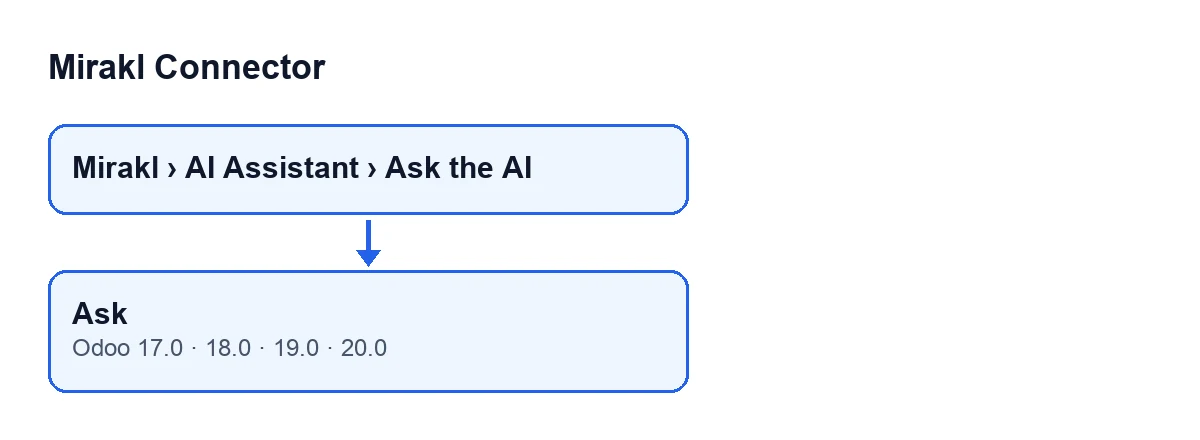
With Odoo in English the button is called Ask. The diagram below shows what it is called in other languages.
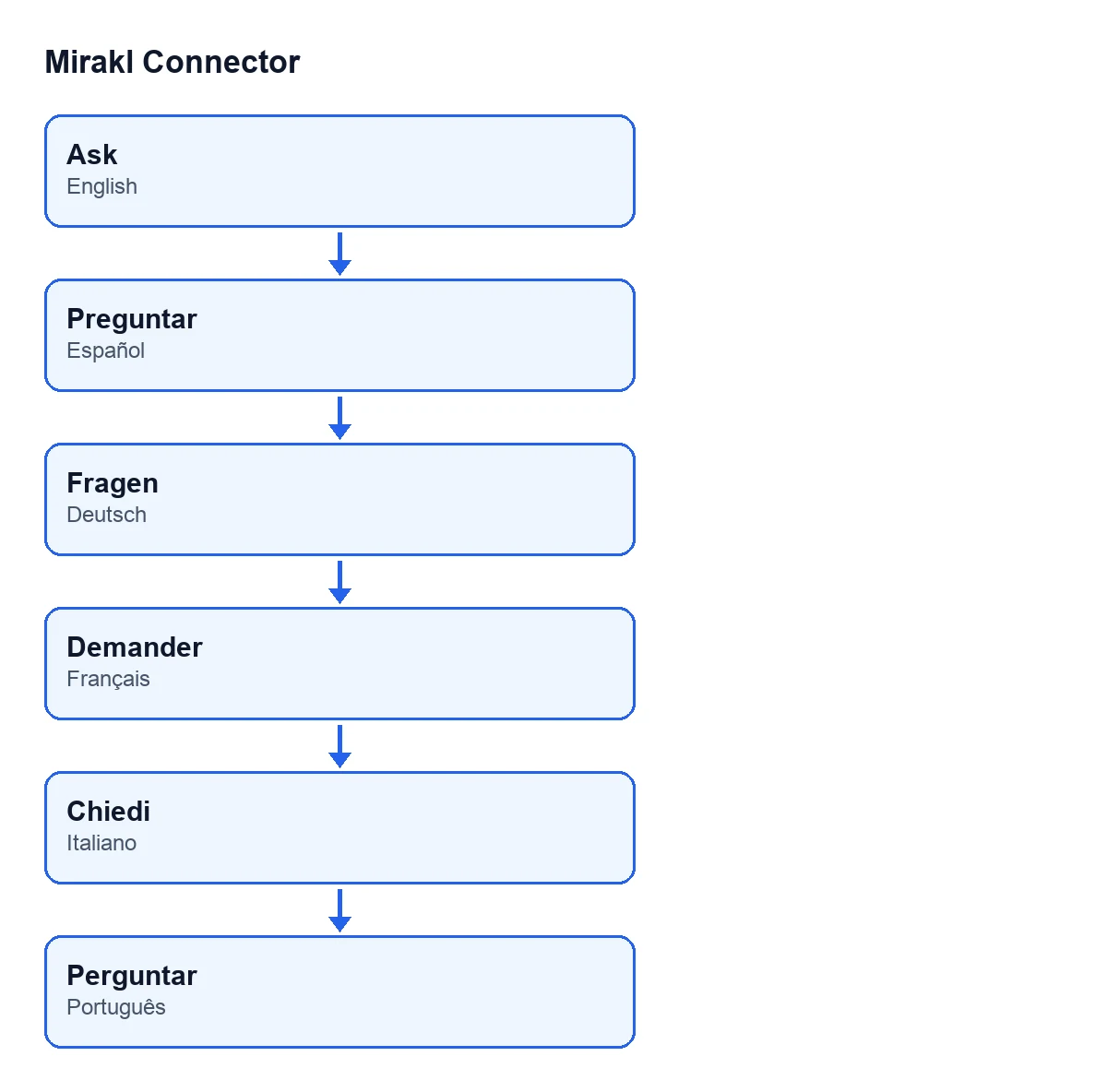
Ask appears as Preguntar in Spanish, Fragen in German, Demander in French, Chiedi in Italian and Perguntar in Portuguese.
An illustrative case: Hogar Norte
Example Illustrative case: the company and its figures are made up to explain the flow.
Hogar Norte is an invented company that sells on a Mirakl marketplace and has the connector with its subscription. Elena, in administration, opens the form, types in Question what commission the marketplace is costing her and presses Ask. Here is what happens, in the order the code checks things.
First press: AI is switched off
The first thing the button looks at is whether the instance has AI enabled. If not, it leaves the query in the AI-disabled state, writes this text in Note and reopens the form, nothing more:
AI is disabled on this marketplace. Enable it on the instance (Configuration ▸ Instances ▸ AI).
The checkbox is on the Mirakl Instances form, on the AI (optional) tab, and is called Enable AI insights. It comes unticked. Its help text reads: ‘Optional. The connector works fully without AI. If you don't enable this / don't set a key, no AI call is ever made and nothing changes.’ Hogar Norte ticks it. The other fields on that form are covered in this guide.
Second press: the hosted AI and what is sent
Hogar Norte's instance works through FlexigoTech Cloud, and in that case the module only uses the hosted AI. The button then makes two checks before building anything:
- That the subscription service is active. If it is not, the button stops with the notice to subscribe and nothing is sent.
- That the company has accepted what is sent. Until then nothing is built or sent.
If the acceptance is missing, there are two paths depending on who presses. A person with the Mirakl manager profile who works in that company sees the window AI analysis in FlexigoTech Cloud: what is sent; pressing Accept carries the query on. Anyone else gets the unavailable state and this note:
Nothing was sent. Before the AI analysis sends anything to FlexigoTech Cloud, a Mirakl manager of … has to accept what it sends: What is sent, on the AI (optional) tab of the marketplace (Mirakl ▸ Configuration ▸ Marketplaces).
Elena is not a Mirakl manager, so she sees that note. A manager accepts it under What is sent and she asks again. In the unavailable state the button leaves no record of the query.
If the instance uses its own key
When the instance does not work through FlexigoTech Cloud, the button does no subscription or acceptance check. It looks at the AI key. If it is empty, it sets the no-key state, writes the following and reopens the form without calling the AI:
No AI API key configured. Add one on the instance (Configuration ▸ Instances ▸ AI).
What it prepares and what it sends
Once the checks pass, the button prepares a sheet of marketplace figures. It looks up the dashboard for that instance (creating it if it does not exist) and recalculates its indicators; if that calculation fails, it notes it in the server log and carries on with what it has. The sheet holds:
- The marketplace name and the company currency.
- Orders, sales volume, average order value and total and percentage commission.
- Net payout, settlements and those still to review.
- Offers and those in error, and returns.
The code itself describes it as free of API keys and personal data. Your question is added to those figures. With the hosted AI, what goes out is limited to the name, the currency, the figures and the question (cut to a maximum length), with no other text from your database. With your own key, the query goes to the provider set on the instance with the question and the sheet of figures.
What you see at the end and what is saved
If the AI answers well, Answer shows the text and Note stays empty. If the call fails (network, response format or unknown provider), the state becomes error and Note shows the text of the failure, cut short and with the key replaced by asterisks if it appeared.
The AI-disabled and no-key notices stay in Note and create no report. When the query reaches the call to the AI and the result is not the unavailable one, it is logged for audit as an AI report named Ask AI followed by the marketplace name. It stores the answer, the provider, the model, the input and output tokens, the state and the error note. The window then reopens with the result.
Summary of notices
What you see in Note | When it appears | What to do |
|---|---|---|
AI is disabled on this marketplace. Enable it on the instance (Configuration ▸ Instances ▸ AI). | The Enable AI insights checkbox on the instance is unticked | Tick it on the AI (optional) tab |
No AI API key configured. Add one on the instance (Configuration ▸ Instances ▸ AI). | The instance does not work through FlexigoTech Cloud and has no key | Add the key on the instance |
Nothing was sent. Before the AI analysis sends anything to FlexigoTech Cloud, a Mirakl manager of … has to accept what it sends: What is sent, on the AI (optional) tab of the marketplace (Mirakl ▸ Configuration ▸ Marketplaces). | Instance on FlexigoTech Cloud, company has not accepted and your user cannot accept | Have a Mirakl manager of the company accept What is sent |
| Variable error text | The call to the AI has failed | Read the text in Note |
The path that needs no button
The button is for asking a specific question. Separately, the scheduled task Mirakl - AI Weekly Digest runs every week and is active on install. It reuses the same sheet of figures and the same AI call, which in turn checks the provider and the acceptance. Its result is a different report, named Weekly digest followed by the marketplace, and if the hosted AI does not answer, no report is created. The Enable AI insights checkbox, off by default, governs this whole path.
Price and help
The module needs the FlexigoTech Cloud subscription, Connector plan: €49 a month or €490 a year excluding VAT. That connection stores the credentials encrypted, monitors synchronisation and emails you if it fails. Without a subscription, or with the service suspended, whatever the subscription provides stops, and your data stays in your Odoo. It is published on Odoo Apps for 17, 18, 19 and 20 (listing, module page). FlexigoTech implements Odoo 17, 18, 19 and 20 and builds custom connectors and integrations.
Keep reading
Checked in the connector's source code (version 20.0) and the linked sources
Sources
- Module source code: flexigobe_mirakl_connector 20.0 (aa05e537): views/mirakl_ai_views.xml
- Module source code: flexigobe_mirakl_connector 20.0 (aa05e537): models/mirakl_ai.py
- apps.odoo.com/apps/modules/20.0/flexigobe_mirakl_connector
- flexigotech.com/precios.html
- flexigotech.com/en/services.html