

 Español
 Català
 Deutsch
 Français
 Português
 Italiano
 Nederlands
 Polski
A case to see it in action: orders waiting for acceptance
Example Illustrative case: the company and its figures are made up to explain the flow.
Almazara Home is an invented shop that sells kitchenware on a Mirakl marketplace and has its account connected through Mirakl Connector. One morning, the person who handles orders wonders whether Odoo accepts the orders that need it by itself, or whether she has to do it. Here is her route: first she looks at what Odoo already does on its own, then she presses the button.

First, what Odoo does without you pressing anything
The button is not the only route. The method that accepts the orders is also called by two scheduled tasks, and both run without anyone pressing anything:
- The
Mirakl - Sync Orderstask runs every ten minutes and is active on install. When it finishes importing orders, if bothAuto Accept OrdersandAccept Pending On Importare ticked on the instance, it tries to accept the pending orders, using that instance's retry limit. - The
Mirakl - Accept Orderstask also runs every ten minutes and is active on install. It calls the same acceptance method with each instance's retry limit.
Both settings are unticked by default in the code. The help text of Auto Accept Orders reads: "Automatically accept imported orders that require seller acceptance in Mirakl." The one on Accept Pending On Import reads: "Try to accept waiting orders right after each manual or scheduled order import."
Step by step with the button
- Open
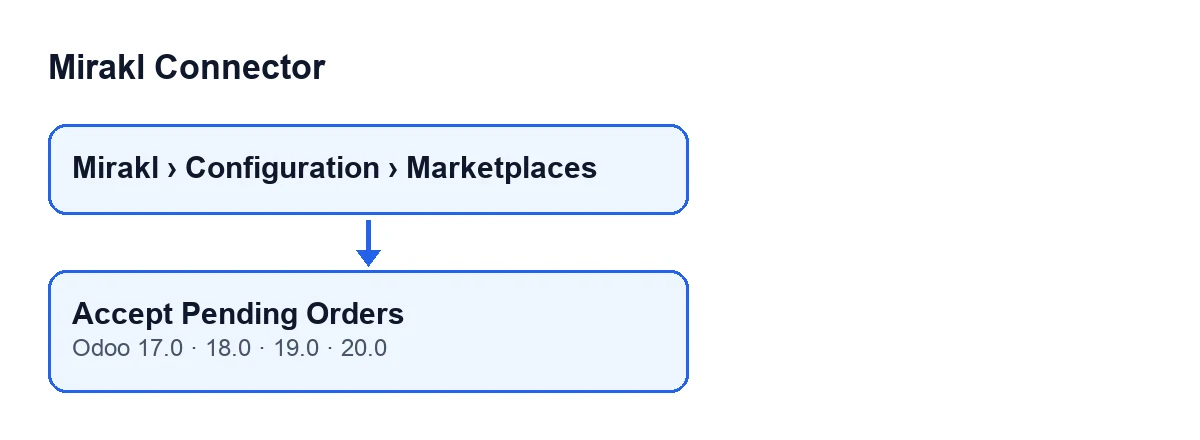
Mirakl › Configuration › Marketplacesand go into the instance form, on theMirakl Instancesscreen. - Go to the
Orders and Returnstab,Sync Policygroup. The two settings above are there, along with theAccept Retry Limitfield, whose default value in the code is100. - Press
Accept Pending Orders. The button is always visible on that screen, in Odoo 17, 18, 19 and 20. What follows is what happens according to the Odoo 20 code. - Read the notification that appears when it finishes. Its title is
Mirakl, it does not stay fixed on screen, and its text isAccepted: … | Errors: …. If there was any error, the notification appears as a warning. - Look at the instance form: the button also leaves a message there with the result.
- If no order was accepted and there were errors, the message on the form points you to the Mirakl order logs; if there were errors but also accepted orders, you will see it in the Errors count of the notification. Press the button again whenever you want to retry.
What the button does inside
The button acts on the instance you have open. According to the Odoo 20 code, it does this, in this order:
- It looks for the orders of that instance that require acceptance and whose acceptance state is pending or in error.
- It leaves out orders that are held back from sales orders. The code comment explains it: accepting them would commit to shipping what Odoo never will.
- It sorts them by order date, oldest first, and takes as many as
Accept Retry Limitallows. - It tries to accept each one. If it is accepted, it adds one to the accepted count. If it is not accepted and the order's acceptance state ends up in error, it adds one to the errors.
- It posts a message on the instance form and shows the notification with both counts. The notification appears as a warning if there was any error and as a success if there was none.
One detail about the count: an order that is not accepted but does not end up in an error state adds to neither count.
Which message you get
The text of the message on the form depends on the result:
| Message | When it appears | What it means |
|---|---|---|
Accept Pending Orders completed: … orders accepted. | At least one order was accepted | The dots stand for the number of orders accepted. |
Accept Pending Orders completed with errors. Check Mirakl order logs. | None was accepted and there were errors | Some orders ended up with their acceptance state in error. |
Accept Pending Orders completed: no orders required acceptance. | None was accepted and there were no errors either | No order was accepted and none ended up with its acceptance state in error. |
Note that if some orders are accepted and others fail, the message on the form is the first one, but the notification appears as a warning and its text shows both counts.
What to take from the case
Almazara Home checks three things, in this order: whether both settings in the sync policy are ticked, what retry limit the instance has, and what the button says when pressed. Because orders in error enter the search again, pressing the button once more retries them. Orders held back from sales orders stay out whenever you press it.
The button's name changes with the language of your Odoo:
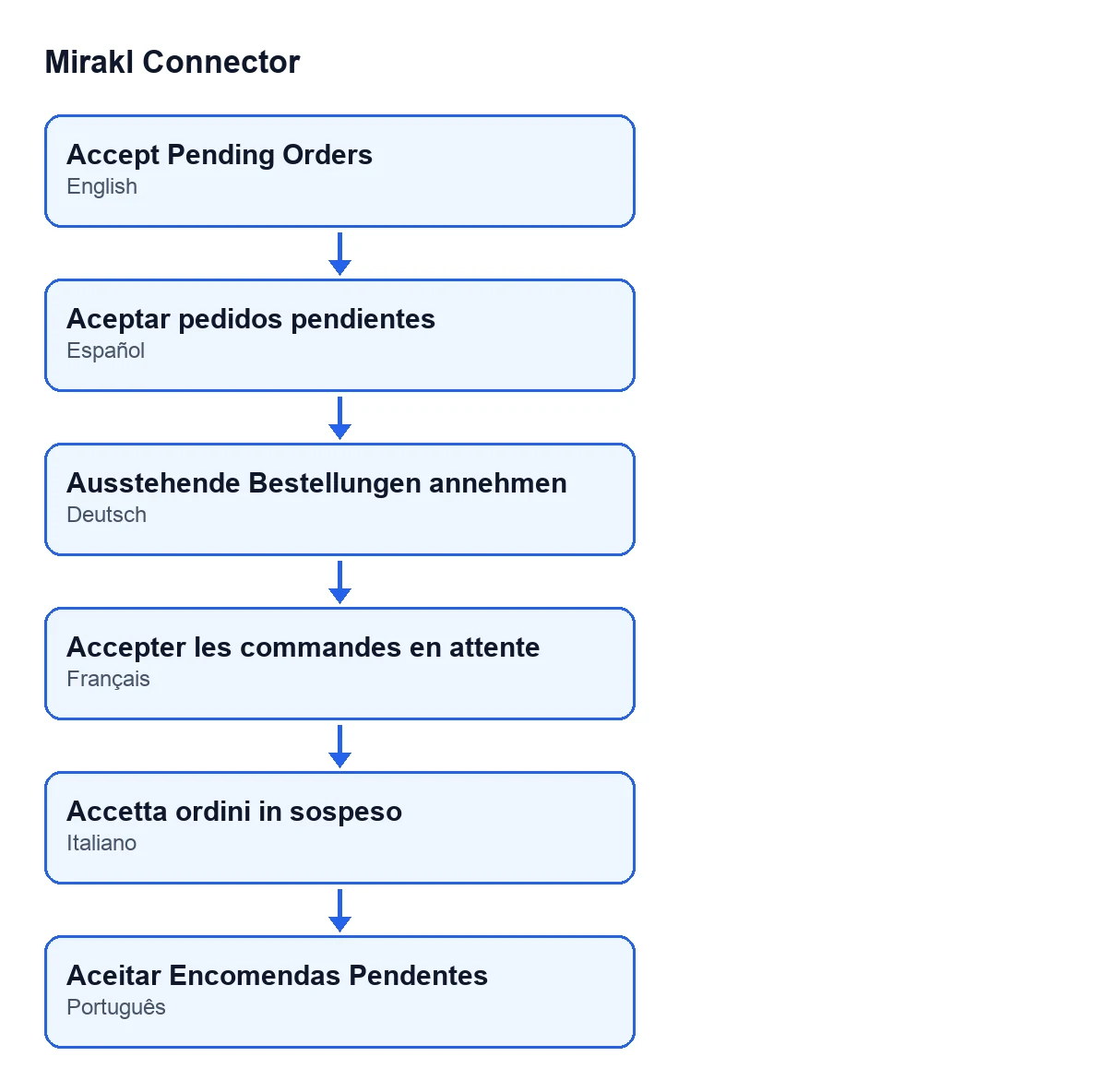
Aceptar pedidos pendientes; in German, Ausstehende Bestellungen annehmen; in French, Accepter les commandes en attente; in Italian, Accetta ordini in sospeso; in Portuguese, Aceitar Encomendas Pendentes.To continue with the set-up, the Test connection button has its own walkthrough.
Versions and cost
The button exists in the four published branches, 17, 18, 19 and 20, and is always visible in all of them. The code I describe is that of Odoo 20. Mirakl Connector is a one-off paid module per Odoo version, published on Odoo Apps for those versions (see the listing or the module page), and it needs the FlexigoTech Cloud subscription, Connector plan: €49 a month or €490 a year, excluding VAT. The connection goes through FlexigoTech Cloud, which stores the credentials encrypted and emails you if the sync fails.
If you want help getting it running
FlexigoTech implements Odoo 17, 18, 19 and 20 and builds custom connectors and integrations. If you want to go through the sync policy of your Mirakl instance with us, write to us from the module page.
Keep reading
Checked in the connector's source code (version 20.0) and the linked sources
Sources
- Module source code: flexigobe_mirakl_connector 20.0 (aa05e537): views/mirakl_instance_views.xml
- Module source code: flexigobe_mirakl_connector 20.0 (aa05e537): models/mirakl_instance.py
- Module source code: flexigobe_mirakl_connector 20.0 (aa05e537): models/mirakl_ai.py
- apps.odoo.com/apps/modules/20.0/flexigobe_mirakl_connector
- flexigotech.com/precios.html
- flexigotech.com/en/services.html