

 Español
 Català
 Deutsch
 Français
 Português
 Italiano
 Nederlands
 Polski
Before you touch anything in Odoo
Brazil IBS/CBS Reform is an Odoo module with a local service from FlexigoTech Cloud. This checklist goes through what you can see in its fields and states: company settings, the per-product IS configuration, the change log and the states each record takes. It does not explain the legislation: what follows is what the module does. If you would like to understand how the pieces fit together first, read how Brazil IBS/CBS Reform works under the bonnet.
- Check your Odoo version: the module is published on Odoo Apps for 17.0, 18.0, 19.0 and 20.0.
- Decide where to buy it. With the subscription, the module for new Odoo versions is included if you bought it on the module page at flexigotech.com; on the Odoo App Store, each Odoo version is bought there (Odoo Apps listing).
- Bear the local service in mind. Without a subscription, or with the service suspended, whatever the subscription provides stops; your data stays in your Odoo.
- For each company, gather the tax regime, the IBS and CBS CSTs and the cClassTrib code you want as the default, so you do not leave the configuration half done.
On price: the module costs €9 excluding VAT, a one-off payment per Odoo version, for 17, 18, 19 and 20, and the local service costs €29/month or €290/year excluding VAT (Pro: €58/month or €580/year).
Company settings to fill in
The configuration is tied to a company (the Company field). These are the fields to go through one by one:
- Tick
Enabled. The module describes it as the box that enables IBS/CBS reform computation for that company.
- Choose the company's
Tax Regime. It is a selection field.
- If the regime has changed, fill in
Regime Change Date: according to the module, this is the date when the tax regime was changed, if applicable.
- Have a look at
Regime Change Log, the log of regime changes linked to the company.
- Fill in
Default CST IBSandDefault CST CBS.
- Fill in
Default cClassTrib.
- Choose
Debit/Credit Note Rate Basis. The module describes it as which date to use for rate computation in debit and credit notes, so agree on it with whoever handles tax before you issue the first note.
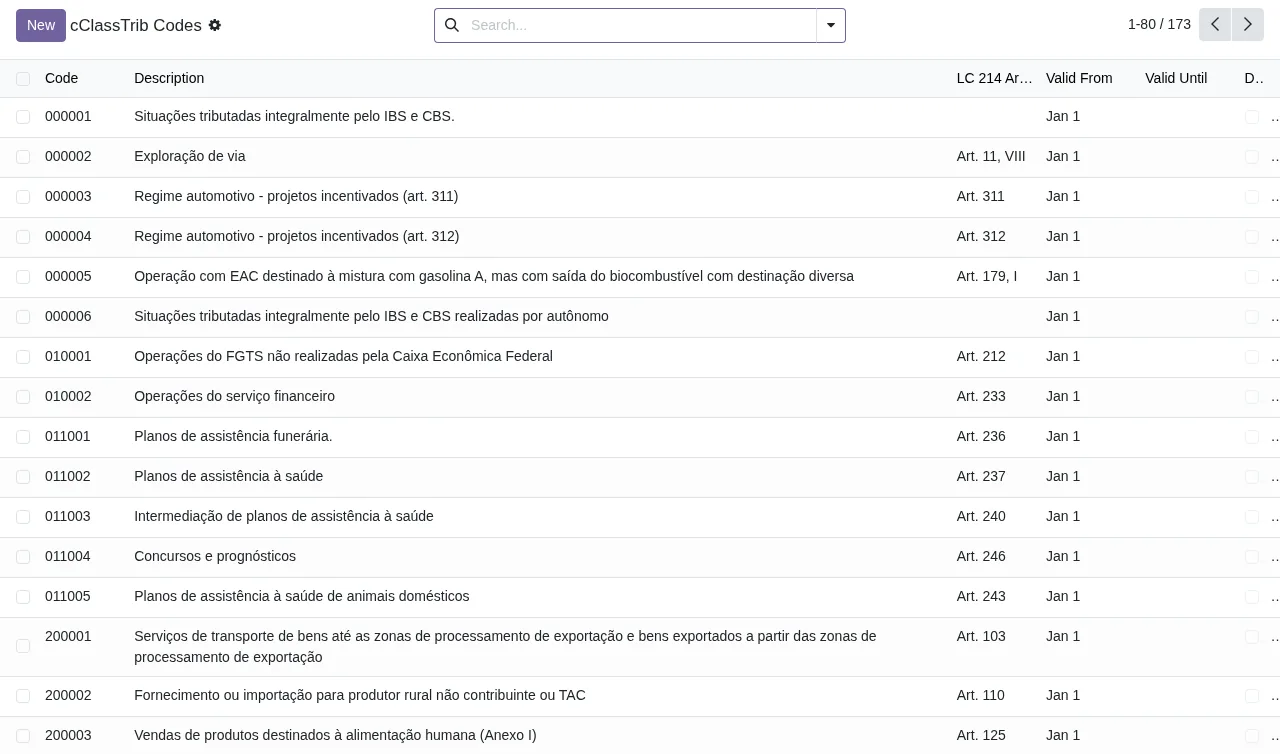
Before you set Default cClassTrib, open the cClassTrib codes list. For each code it shows the Code, Description, Valid From and Valid Until columns, and it has a search bar and a New button.
Per-product IS configuration
The module stores an IS configuration with its own fields. If you deal with products subject to IS, go through each one:
Product: the product it applies to.
Rate Type: the rate type, a selection field.
IS Rate (%): the ad valorem portion of the IS rate, as a percentage.
IS Specific Amount: the specific portion of the IS rate, a fixed amount per unit.
Unit of Measure: the unit for the specific rate calculation.
UOM ISO Code: the ISO code for that unit, for exampleLTR,KGMorUN.
Valid FromandValid Until: when the configuration starts and the date until which it is valid.
Company: the company the configuration belongs to.
If you combine an ad valorem portion and a specific portion, check that the unit and its ISO code match the unit you sell the product in.
States you will come across
The module uses a reform_state field with four values: Pending, Computed, Blocked and Validated. Learn to recognise them at a glance, as they are the quickest way to see which records need attention. There is also a separate state field with the values Choose File and Result.
- Learn the four
reform_statevalues exactly as they appear:Pending,Computed,Blocked,Validated.
- If you see
Choose FileorResult, remember these belong to thestatefield, not toreform_state.
- If a record stays in
Blockedand you cannot tell why, check the module's error messages and warnings with their exact wording.
Your first week with documents
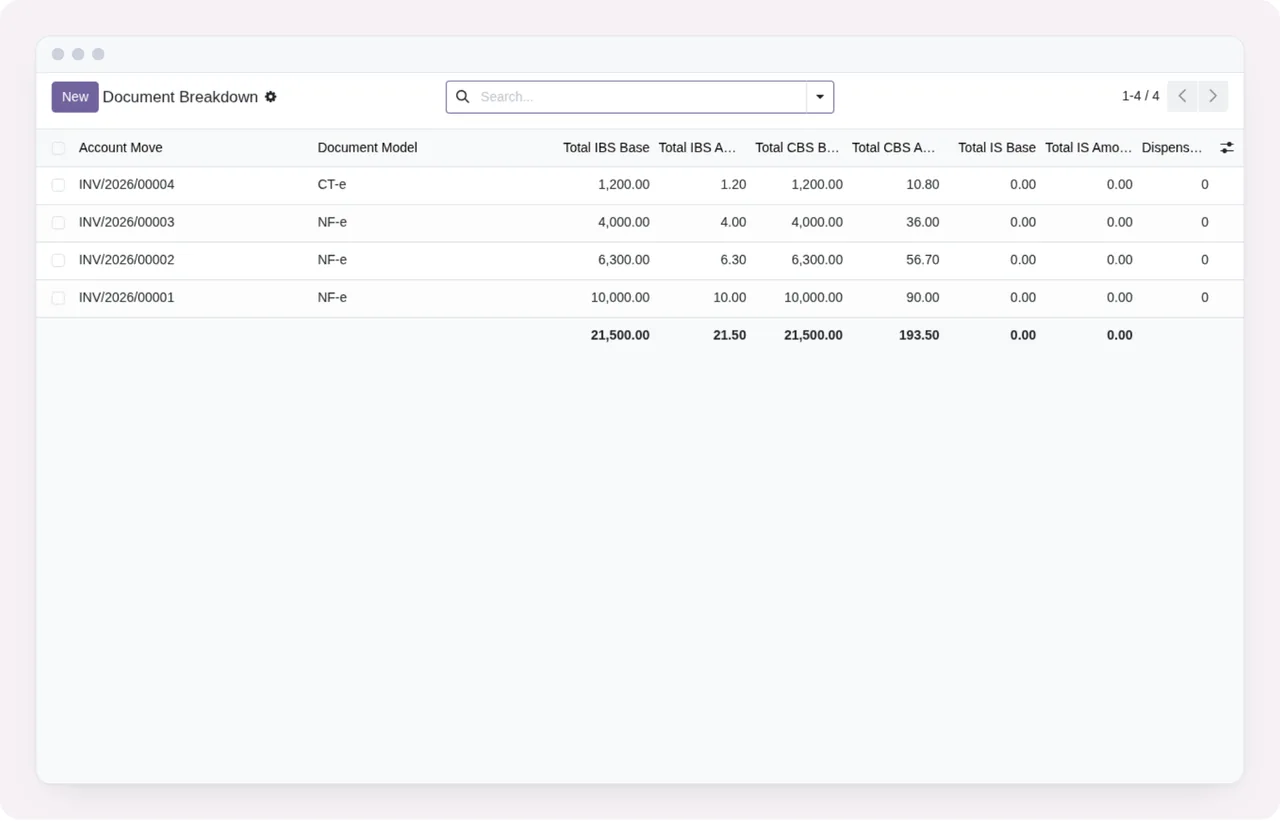
- Open the
Document Breakdownlist. It shows entries with a CT-e or NF-e model, base and amount columns for IBS, CBS and IS, and a totals row. It has a search bar and aNewbutton.
- Open individual records and go through their sections.
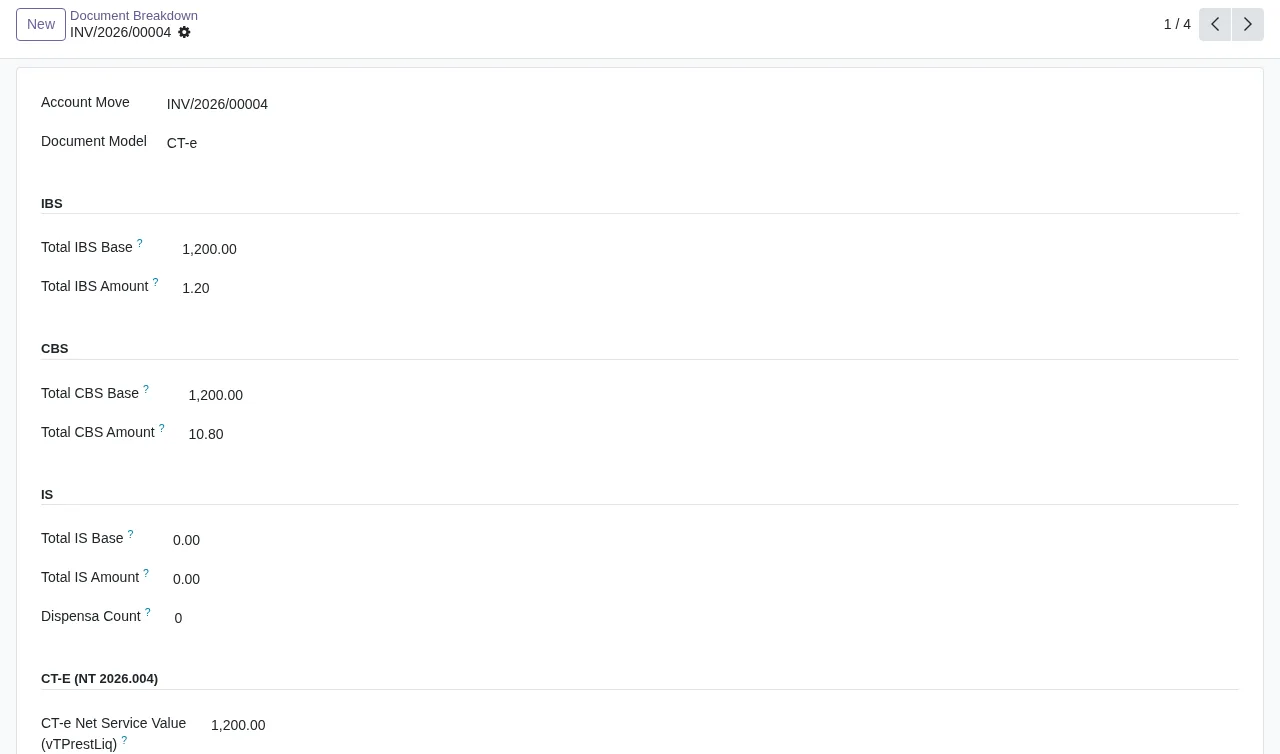
- On the
Document Breakdownform, check the IBS, CBS, IS and CT-e sections, with their bases, amounts and the waiver counter.
- Go through records in
PendingandBlockedbefore the week is out.
- Review the changes the module stores: the
User,Model Name,Record ID,Field Name,Old Value(the previous value of the field),New Value(the new value) andChange Datefields.
- Look at the
Valid Untildates on your IS configurations and on the cClassTrib codes you use.
How FlexigoTech can help
If you would rather not do the set-up on your own, FlexigoTech implements Odoo 17, 18, 19 and 20 and builds bespoke connectors and integrations. We can go through each company's configuration, the IS configurations and your first Document Breakdown records with you. Purchase and contact details are on the module page.
Keep reading
Checked in the module's source code (version 20.0) and the linked sources
Sources
- Module source code: flexigo_brazil_ibs_cbs_nota_fiscal_reform_layer_for_nf_ 20.0 (4876ef49): models/is_rate_config.py
- Module source code: flexigo_brazil_ibs_cbs_nota_fiscal_reform_layer_for_nf_ 20.0 (4876ef49): models/reform_audit_log.py
- Module source code: flexigo_brazil_ibs_cbs_nota_fiscal_reform_layer_for_nf_ 20.0 (4876ef49): models/reform_config.py
- Module source code: flexigo_brazil_ibs_cbs_nota_fiscal_reform_layer_for_nf_ 20.0 (4876ef49): models/account_move_extension.py
- Module source code: flexigo_brazil_ibs_cbs_nota_fiscal_reform_layer_for_nf_ 20.0 (4876ef49): wizards/mapping_import_wizard.py
- apps.odoo.com/apps/modules/20.0/flexigo_brazil_ibs_cbs_nota_fiscal_reform_layer_for_nf_
- apps.odoo.com/apps/modules/17.0/flexigo_brazil_ibs_cbs_nota_fiscal_reform_layer_for_nf_
- apps.odoo.com/apps/modules/18.0/flexigo_brazil_ibs_cbs_nota_fiscal_reform_layer_for_nf_
- apps.odoo.com/apps/modules/19.0/flexigo_brazil_ibs_cbs_nota_fiscal_reform_layer_for_nf_
- flexigotech.com/en/services.html
- flexigotech.com/precios.html