

 Español
 Català
 Deutsch
 Français
 Português
 Italiano
 Nederlands
 Polski
How to read the messages
The module's messages are about values that fail a check (a badly formed code, a percentage out of range, a repeated record or a configuration that does not exist for a date), a step missing before you can continue, a file that is not valid or the audit records.
Some texts contain %s or %d. These are placeholders for a specific value (company, product, date, code or number), and that value is the first thing to look at.
The case: a haulier preparing its first document under the reform
Example Illustrative case: the company and its figures are made up to explain the flow.
Transportes Rio Claro is an invented road haulage company that already works with Odoo. It installs Brazil IBS/CBS Reform and its accounts manager starts configuring it. This is what she runs into along the way.
Reform not enabled
The first attempt hits one of these three texts: Reform is not enabled for company %s., Reform is not enabled for this company. or Reform computation is not enabled for this company.. All three say that, in the company being used, the reform (or its computation, in the third case) is not enabled. What to do: enable the reform for that company. If you work with several companies, check the name in the message against the active company before changing anything.
One configuration per company, with defaults
Creating a second configuration for the same company triggers One reform configuration per company is allowed.. You do not need another one: edit the existing one.
Later on, Set the default CST IBS, CST CBS and cClassTrib in the reform configuration first. appears. The text asks for those three defaults to be filled in the reform configuration before carrying on, and that is what she does.
Rates, date by date
Rates can raise four messages. Only one rate configuration per company per date is allowed. means there is already a rate configuration for that company on that date: edit it rather than duplicating it. IBS rates cannot be negative. and IBS rates must sum to a value between 0 and 100. ask you to correct the values: none negative and a total between 0 and 100. And No rate configuration found for company %s on date %s says there is no rate configuration for that company on that date; create one or check the date shown in the message.
cClassTrib and CST codes
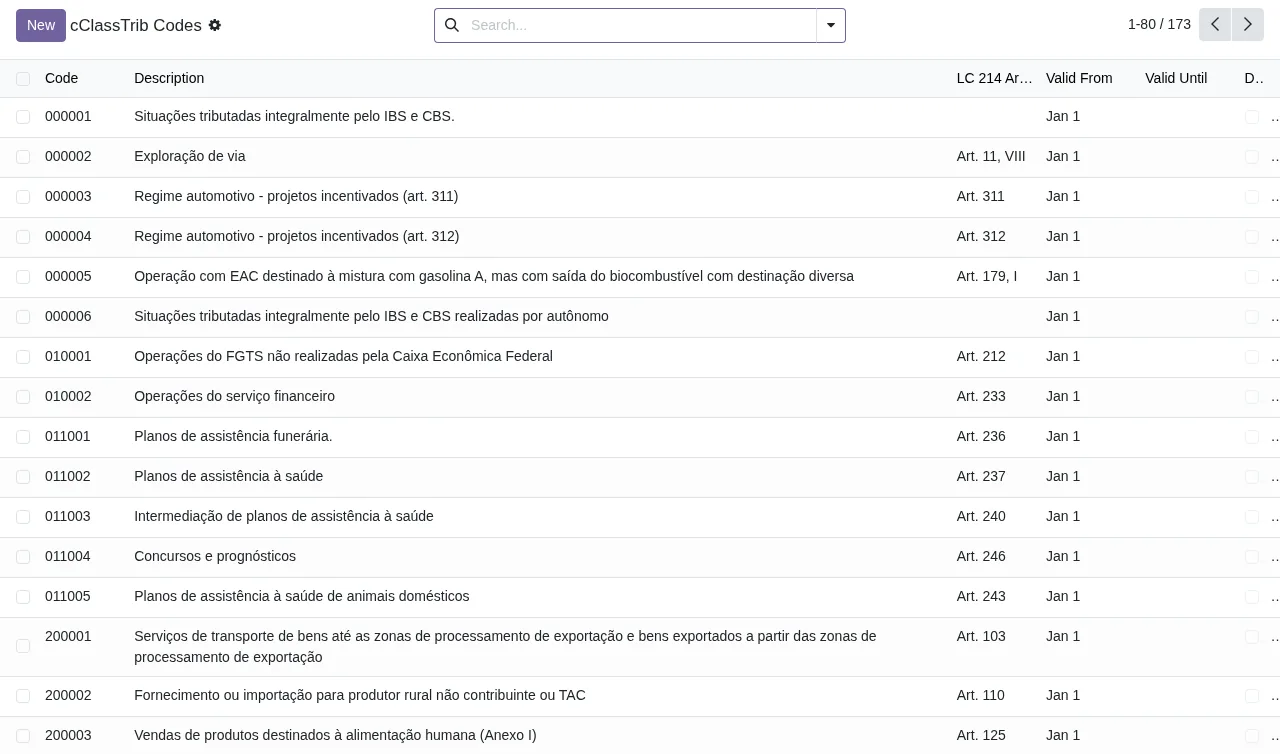
This is where format errors show up. cClassTrib code must be 6 digits. and CST code must be exactly 3 digits. are fixed by entering the code with exactly that length. The other two are about the combination: CST IBS code %s is not allowed for cClassTrib %s and CST CBS code %s is not allowed for cClassTrib %s mean that CST is not allowed with that cClassTrib. What to do: choose another CST or check whether the cClassTrib is the right one.
Products, mappings and tax type
When assigning products, One mapping per company, product and fiscal operation. appears if the same product already has a mapping for that company and fiscal operation: correct the existing one. If you get All products already have mappings., the text itself says every product already has one.
Depending on the type chosen, the module asks for different data: Ad valorem rate must be specified for ad valorem type. (the ad valorem rate is missing), Specific amount must be specified for specific type. (the specific amount is missing) and Both ad valorem rate and specific amount must be specified for mixed type. (the mixed type needs both). For the unit of measure, Invalid UOM ISO code. Valid codes are: %s shows the list of valid codes: use one of them. And No IS rate configuration found for product %s on date %s says there is no IS rate configuration for that product on that date.
Percentages and presumed credit
Base reduction percentage must be between 0 and 100. and Credit percentage must be between 0 and 100. ask for a value within that range. Presumed credit code is required. asks you to fill in the presumed credit code.
Importing a file
When loading data from a file, the module can reply Please select a file. (none has been chosen), File exceeds maximum size of 5 MB. (the file is larger than 5 MB) or File exceeds maximum of %d rows. (it has more rows than the maximum shown in the message). In the last two cases, trim the file or split it into parts and upload them separately.
Issuing: blocked by validation
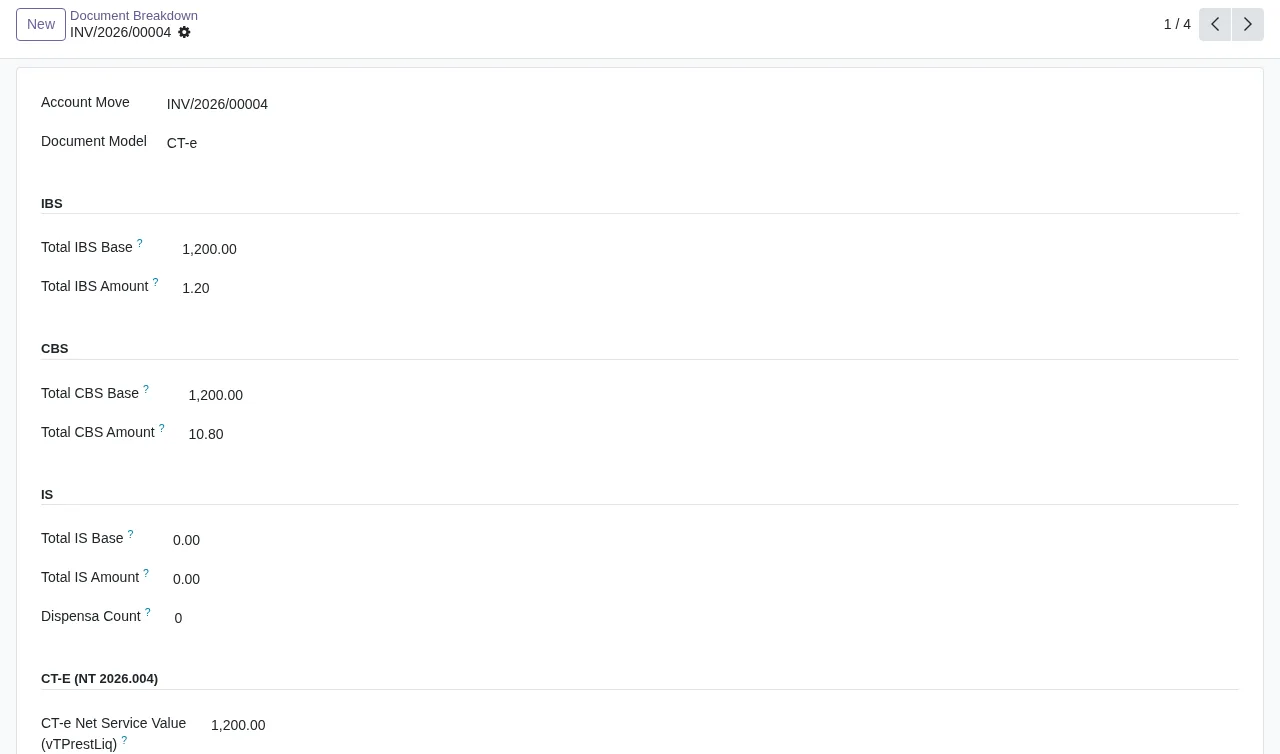
With everything configured, the accounts manager tries to issue and gets Cannot issue document: reform validation blocks exist. Please review the validation diagnostics.. The message says there are reform validation blocks and asks you to review the diagnostics. What to do: open the validation diagnostics, fix each block they point to and try again.
What cannot be touched
Two messages protect the history: Audit logs cannot be modified. and Audit logs cannot be deleted.. Audit records cannot be edited or deleted; there is nothing to fix, just stop trying. The same goes for Computed reform results cannot be modified directly.: computed results are not changed directly.
What to take from the case
- Read the value that sits in place of
%s: company, product, date or code tells you where to look. - If a message says the reform is not enabled or asks for the defaults, sort it out in that company's reform configuration.
- Duplicates (configuration per company, rates per date, mappings per product and fiscal operation) are solved by editing what already exists.
- If the block comes when issuing, the validation diagnostics are where to start.
If you want the rollout field by field, see the setup guide, and to understand what each record goes through, how it works under the bonnet.
How FlexigoTech can help
FlexigoTech implements Odoo 17, 18, 19 and 20 and builds bespoke connectors and integrations, so we can review with you the configuration behind these messages or adapt the behaviour if your case needs it. The module costs €9 excluding VAT per Odoo version, one-off payment, for 17, 18, 19 and 20; you will find it on the Odoo Apps listing and on the module page.
Keep reading
Checked in the module's source code (version 20.0) and the linked sources
Sources
- Module source code: flexigo_brazil_ibs_cbs_nota_fiscal_reform_layer_for_nf_ 20.0 (4876ef49): models/account_move_extension.py
- Module source code: flexigo_brazil_ibs_cbs_nota_fiscal_reform_layer_for_nf_ 20.0 (4876ef49): models/base_reduction.py
- Module source code: flexigo_brazil_ibs_cbs_nota_fiscal_reform_layer_for_nf_ 20.0 (4876ef49): models/cclass_trib.py
- Module source code: flexigo_brazil_ibs_cbs_nota_fiscal_reform_layer_for_nf_ 20.0 (4876ef49): models/cst_table.py
- Module source code: flexigo_brazil_ibs_cbs_nota_fiscal_reform_layer_for_nf_ 20.0 (4876ef49): models/is_rate_config.py
- Module source code: flexigo_brazil_ibs_cbs_nota_fiscal_reform_layer_for_nf_ 20.0 (4876ef49): models/presumed_credit.py
- Module source code: flexigo_brazil_ibs_cbs_nota_fiscal_reform_layer_for_nf_ 20.0 (4876ef49): models/product_reform_map.py
- Module source code: flexigo_brazil_ibs_cbs_nota_fiscal_reform_layer_for_nf_ 20.0 (4876ef49): models/reform_audit_log.py
- Module source code: flexigo_brazil_ibs_cbs_nota_fiscal_reform_layer_for_nf_ 20.0 (4876ef49): models/reform_config.py
- Module source code: flexigo_brazil_ibs_cbs_nota_fiscal_reform_layer_for_nf_ 20.0 (4876ef49): models/reform_doc_line_result.py
- Module source code: flexigo_brazil_ibs_cbs_nota_fiscal_reform_layer_for_nf_ 20.0 (4876ef49): models/reform_rate.py
- Module source code: flexigo_brazil_ibs_cbs_nota_fiscal_reform_layer_for_nf_ 20.0 (4876ef49): wizards/apply_defaults_wizard.py
- Module source code: flexigo_brazil_ibs_cbs_nota_fiscal_reform_layer_for_nf_ 20.0 (4876ef49): wizards/mapping_import_wizard.py
- apps.odoo.com/apps/modules/20.0/flexigo_brazil_ibs_cbs_nota_fiscal_reform_layer_for_nf_
- apps.odoo.com/apps/modules/17.0/flexigo_brazil_ibs_cbs_nota_fiscal_reform_layer_for_nf_
- apps.odoo.com/apps/modules/18.0/flexigo_brazil_ibs_cbs_nota_fiscal_reform_layer_for_nf_
- apps.odoo.com/apps/modules/19.0/flexigo_brazil_ibs_cbs_nota_fiscal_reform_layer_for_nf_
- flexigotech.com/en/services.html