

 Español
 Català
 Deutsch
 Français
 Português
 Italiano
 Nederlands
 Polski
Before you open the configuration form
The configuration form is tied to a company through the Company field. Before you touch it, gather the details it will ask for and make a few decisions. The module is listed on Odoo Apps for Odoo 17, 18, 19 and 20, at €49 excluding VAT per version, as a one-off payment.
- Have your company's tax number to hand: the
UAE TINfield asks for the 10-digit UAE Taxpayer Identification Number assigned by the FTA.
- Collect the access details from your Accredited Service Provider (ASP): the form has an
ASP Credentialssection where they are stored.
- Decide which Odoo journals will transmit e-invoices: the ones you register go under
Enabled Journals.
- Choose the mailbox that will receive FTA compliance notifications, for the
FTA Contact Emailfield.
- Check whether your company is based outside the UAE: the form has a
Non-UAE Companycheckbox, which you tick or leave empty depending on your case.
UAE E-Invoicing Setup Wizard at the TIN Entry step and an accepted invoiceIdentification and compliance phase
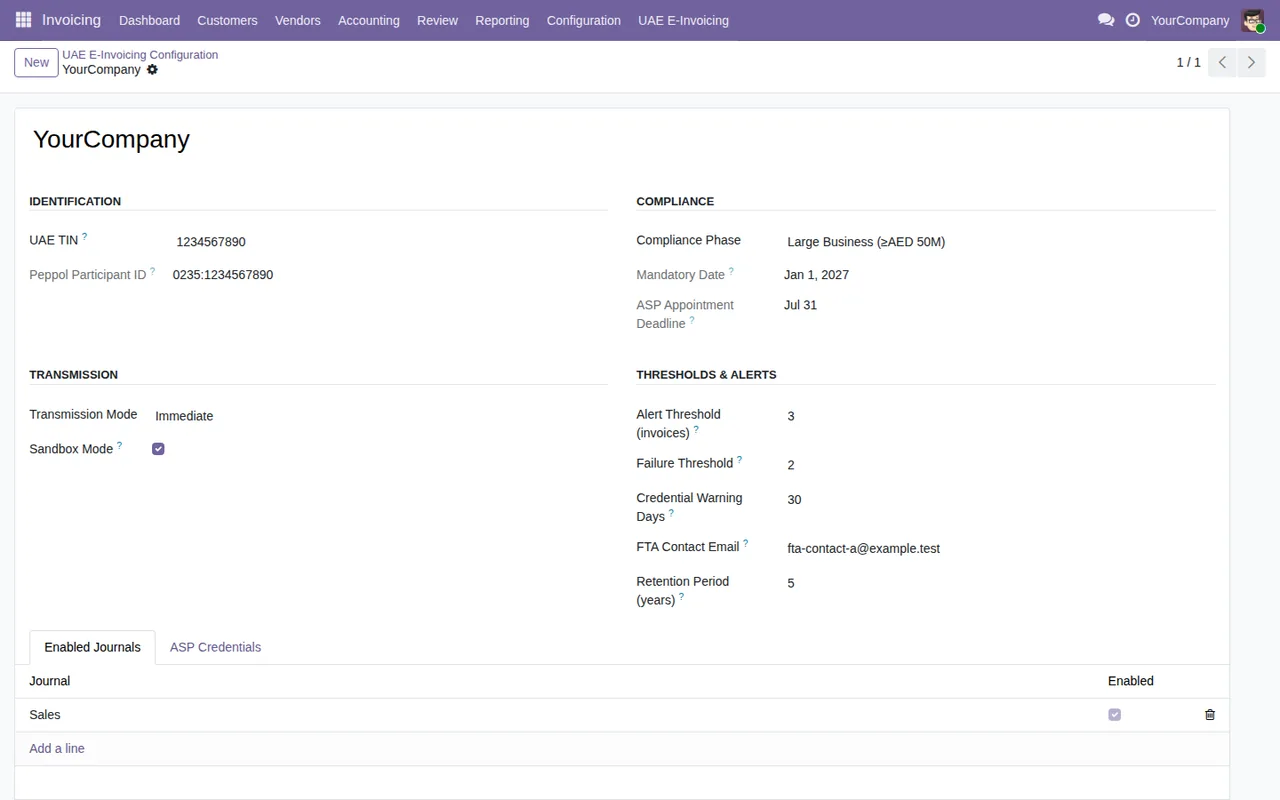
This part of the form identifies the company and sets the dates the module works with. We do not give those dates here: take them from the FTA or your tax adviser.
UAE TIN: enter the 10-digit TIN exactly as the FTA assigned it.
Peppol Participant ID: according to the field help, it is derived from the TIN using the UAE electronic address scheme 0235 (FR-015). Check that it matches the TIN you have just entered.
Compliance Phase: select the compliance phase that applies to your company.
Mandatory Date: the field help describes it as the date from which e-invoicing is mandatory for that phase.
ASP Appointment Deadline: the field help describes it as the deadline to appoint an Accredited Service Provider.
Retention Period (years): the field help describes it as the minimum FTA document retention period and cites Federal Decree-Law No. 8/2017, Art. 67. Check the value with your adviser before you settle on it.
Transmission, journals and credentials
This is where you decide where invoices go, which journals send them and which credentials they use.
Sandbox Mode: use it for testing and check its setting before you invoice for real.
Transmission Mode: pick the transmission mode from the drop-down.
Batch Cron: this is the scheduled action for batch transmission. Look at which action the field points to.
Enabled Journals: each line pairs aJournalwith theEnabledcheckbox. When the box is unticked, invoices in that journal are not transmitted, so make sure it is ticked for every journal that should send.
ASP Credentials: add your ASP credentials.
Credential Warning Days: set how many days ahead you want to be warned that a credential certificate is about to expire.
Show Verification QR on Invoice Printout: when enabled, the module adds a verification QR code (seller, TRN, date, totals). Print a test invoice to see how it looks.
Thresholds and alerts
Two fields decide when a warning goes off. Give them values that make sense for your invoice volume.
Alert Threshold (invoices): the number of pending invoices before a compliance alert is triggered.
Failure Threshold: the number of consecutive failures before a failure-episode alert is sent.
The same form holds Consecutive Failures, Failure Episode Active and Last Failure Notification Sent. You do not fill these in during setup, but it helps to know where they are, because you will look at them in the first-week review.
The states you will see on the dashboard
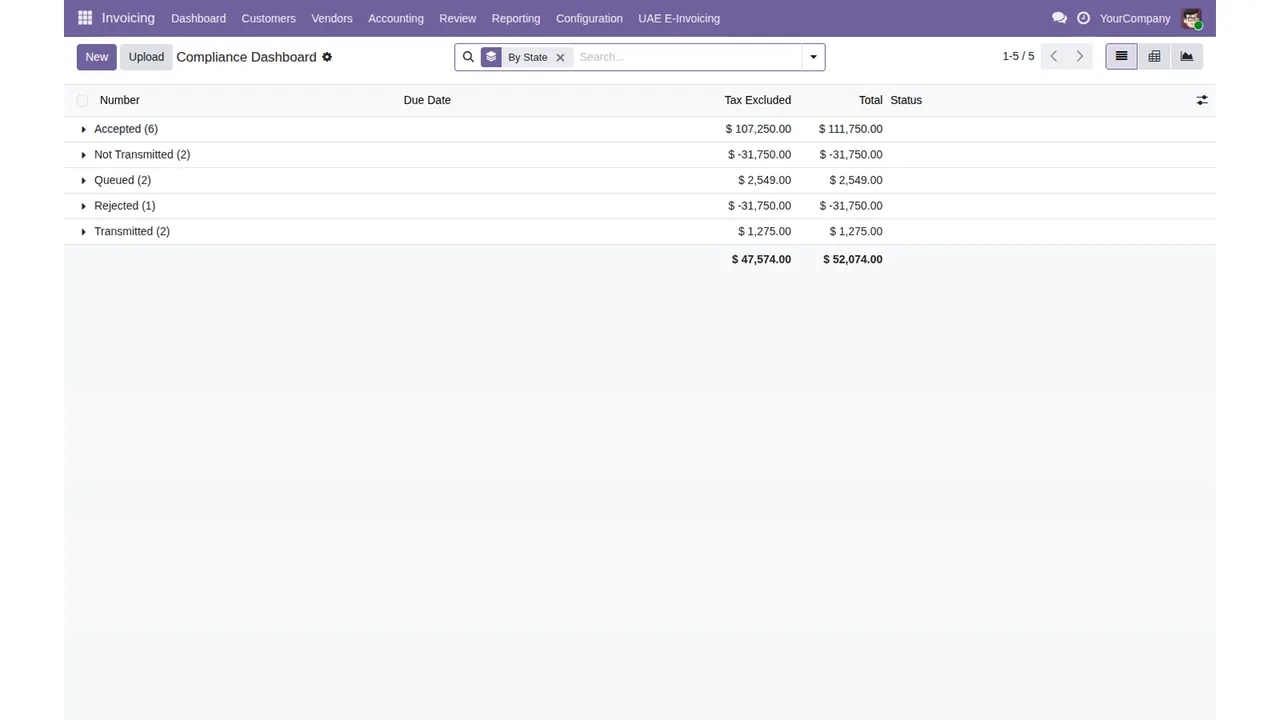
The compliance dashboard groups invoices by state. The screenshot shows Accepted, Not Transmitted, Queued, Rejected and Transmitted, with the untaxed amount, the total for each group and a totals row. If you want to know what an invoice goes through behind the scenes, we cover it in how the connector works inside Odoo.
Invoicing › Compliance DashboardWhat to check in the first week
- Open the compliance dashboard grouped by state and review the
Rejectedgroup every day.
- Look at the
Not Transmittedgroup too and, if it holds invoices from a particular journal, check inEnabled Journalsthat the journal has theEnabledbox ticked.
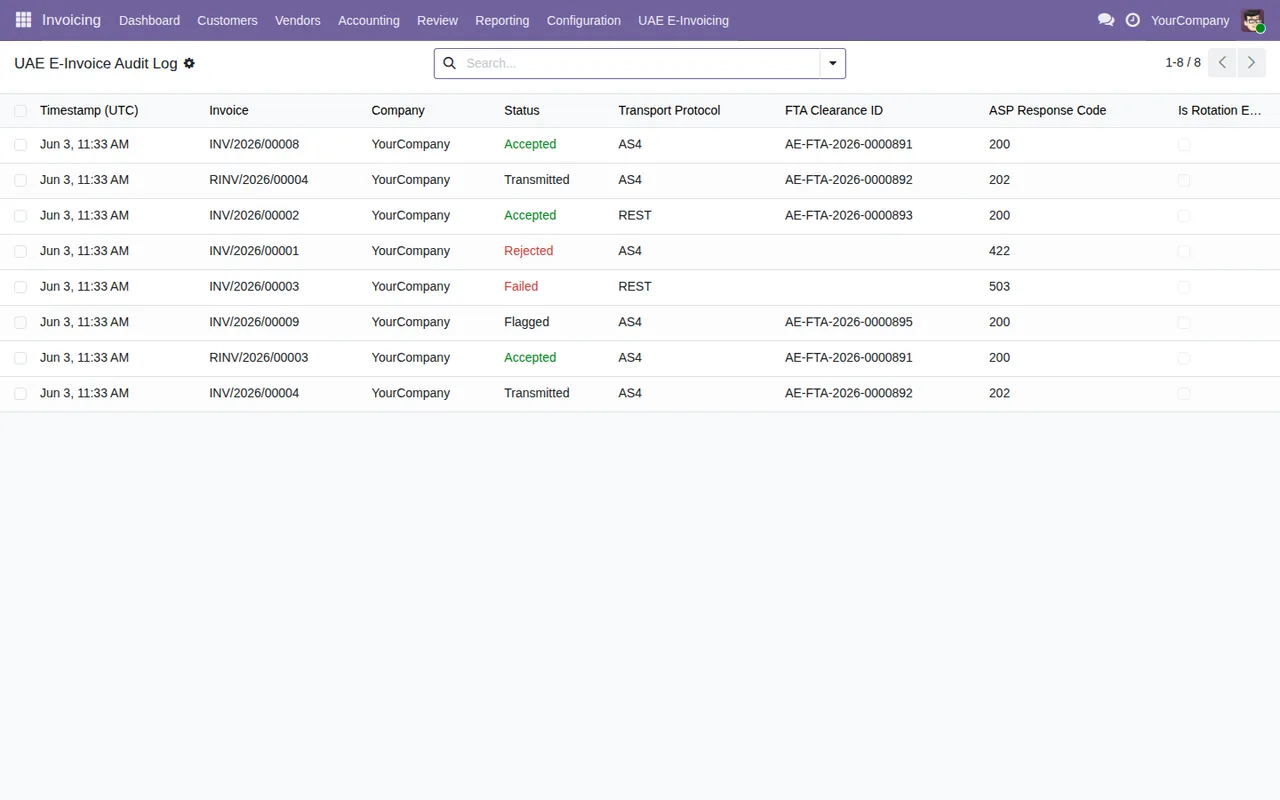
- Go through the audit log: each row shows the timestamp, invoice, company, state, protocol, FTA clearance ID and ASP response code.
- In the configuration, review
Consecutive FailuresandFailure Episode Active, plus the date inLast Failure Notification Sent.
- Make sure the
FTA Contact Emailmailbox is receiving compliance notifications.
- Confirm the
Sandbox Modesetting: if you are already invoicing for real, check it is no longer on.
- Compare the expiry dates of your
ASP Credentialswith what you set inCredential Warning Days.
Invoicing › UAE E-Invoicing › UAE E-Invoice Audit LogIf the log or an invoice shows a message you do not recognise, look it up in the connector's errors and warnings, which quotes the module's exact wording.
How FlexigoTech can help
FlexigoTech implements Odoo 17, 18, 19 and 20 and builds bespoke connectors and integrations. If you would like someone to go through this checklist with you before leaving sandbox, or you need the connector to fit alongside other developments in your Odoo, you will find the details on the module page and its Odoo Apps listing.
Keep reading
Checked in the module's source code (version 20.0) and the linked sources
Sources
- Module source code: flexigo_uae_fta_e_invoicing_connector 20.0 (bd3e6ed9): models/flexigo_uae_einvoice_config.py
- Module source code: flexigo_uae_fta_e_invoicing_connector 20.0 (bd3e6ed9): models/flexigo_uae_einvoice_journal.py
- apps.odoo.com/apps/modules/20.0/flexigo_uae_fta_e_invoicing_connector
- apps.odoo.com/apps/modules/17.0/flexigo_uae_fta_e_invoicing_connector
- apps.odoo.com/apps/modules/18.0/flexigo_uae_fta_e_invoicing_connector
- apps.odoo.com/apps/modules/19.0/flexigo_uae_fta_e_invoicing_connector
- flexigotech.com/en/services.html