

 Español
 Català
 Deutsch
 Français
 Português
 Italiano
 Nederlands
 Polski
Where the module sits inside Invoicing
Which menus does the connector add to Odoo?
Everything hangs off Invoicing › UAE E-Invoicing. There are four entries inside:
Invoicing › UAE E-Invoicing › Compliance DashboardInvoicing › UAE E-Invoicing › Transmission QueueInvoicing › UAE E-Invoicing › Audit LogInvoicing › UAE E-Invoicing › Configuration
What is under Configuration?
Four screens, all under Invoicing › UAE E-Invoicing › Configuration: E-Invoice Settings, ASP Credentials, Setup Wizard and DSAR Export. The screenshot shows the Setup Wizard open at one of its steps.
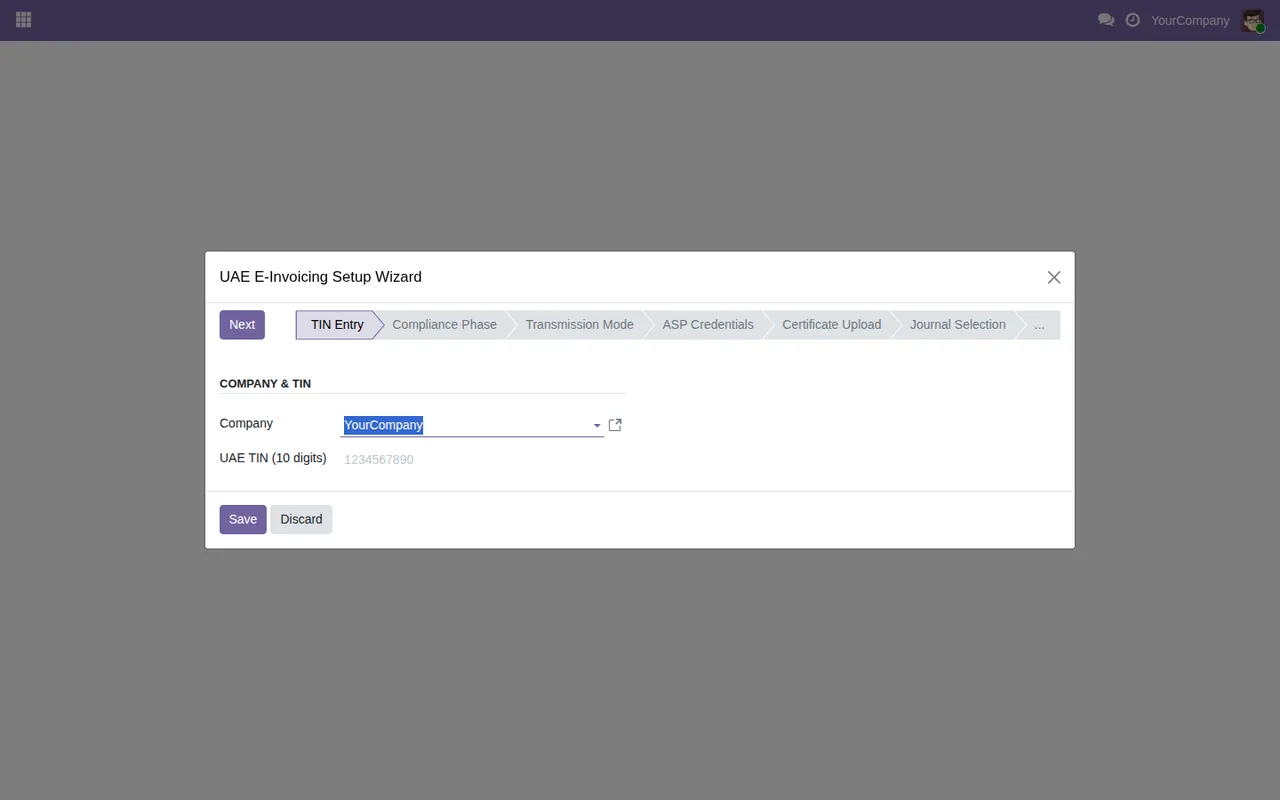
Setup Wizard at the TIN Entry step: step bar, Company field showing YourCompany (demo data), UAE TIN field still empty with its placeholder, and the Next, Save and Discard buttons.If you are after what to fill in on each screen, see the connector setup guide. Here we stick to what each piece is and where it lives.
What do Compliance Dashboard and Transmission Queue show?
In the screenshot, the Compliance Dashboard is a list grouped by state (By State), with the groups Accepted, Not Transmitted, Queued, Rejected and Transmitted, untaxed amount and total columns, and a totals row. The Transmission Queue is a list of invoices with their number, partner, date, total, e-invoice state, FTA ID, retries and last transmission.
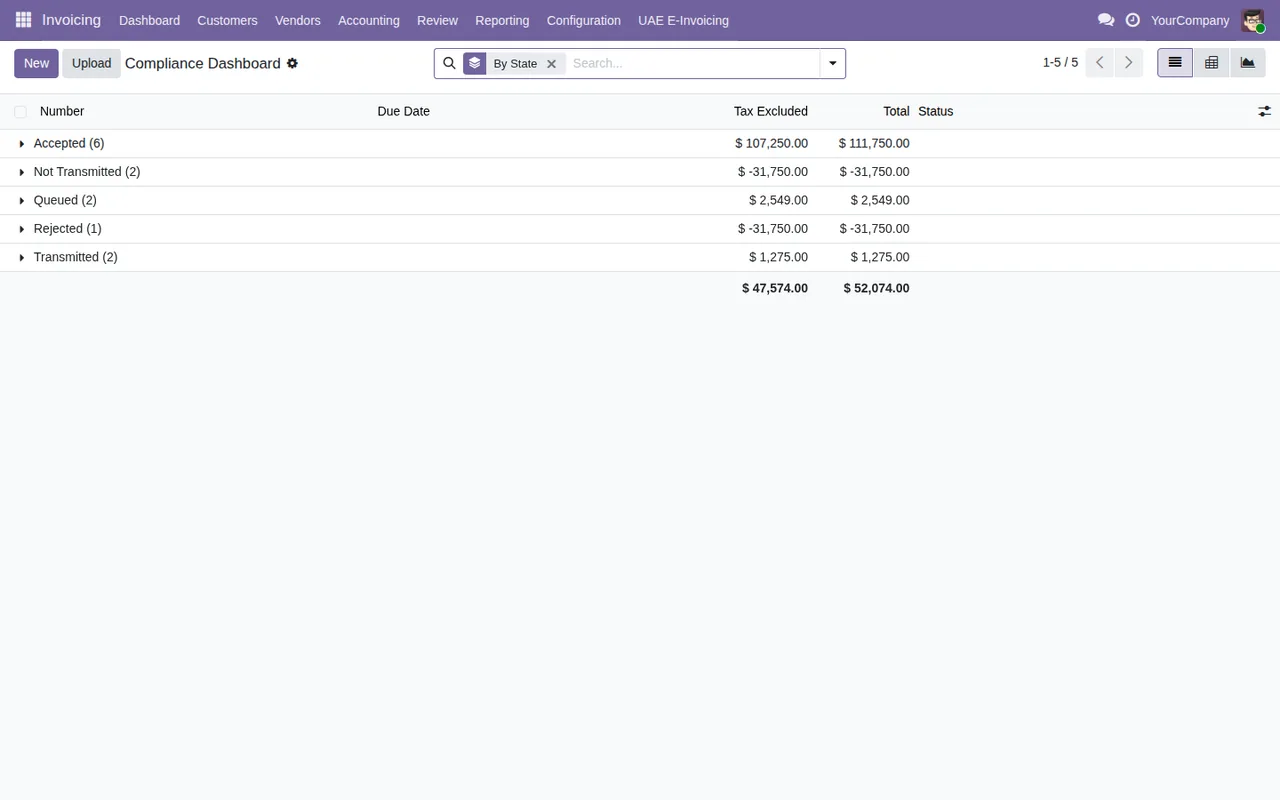
Compliance Dashboard grouped By State, with untaxed amount and total columns, and a totals row.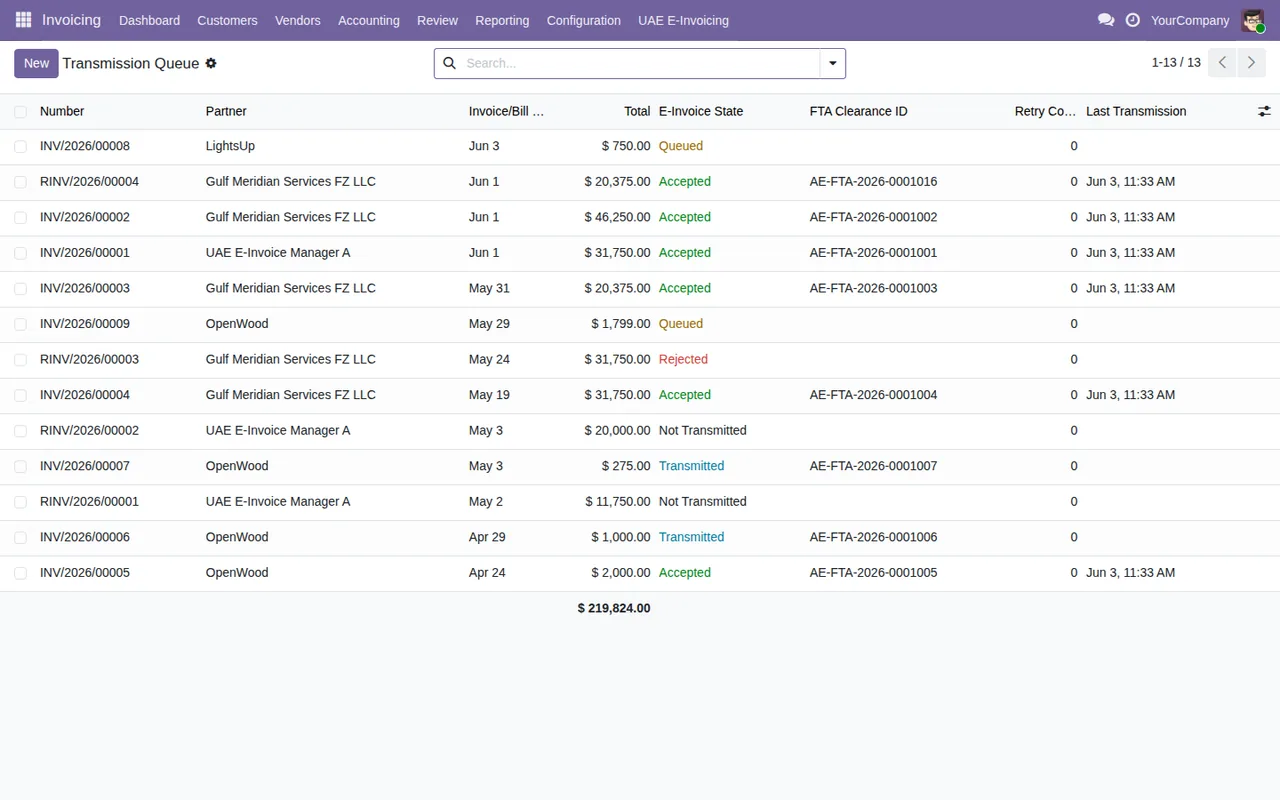
Transmission Queue: each invoice with its e-invoice state (Queued, Accepted, Rejected, Transmitted or Not Transmitted), its FTA ID, retries and last transmission.What runs in the background
Which scheduled actions does the module install?
Four, and all four are listed as active:
UAE E-Invoicing: Batch Transmit Queued Invoices, daily.UAE E-Invoicing: Retry Failed Transmissions, every 5 minutes.UAE E-Invoicing: Check Credential Expiry, daily.UAE E-Invoicing: Failure Episode Alert, every 15 minutes.
How should I read each job's name?
Read plainly, the names say: transmit queued invoices in a batch, retry failed transmissions, check credential expiry and alert on failure episodes. Before buying, read the Read this before you buy section of the Odoo Apps listing; the same listing has sections headed What it does today and In preparation for the 2027 system. And if you see a warning, the connector's error messages lists the literal texts and what to do about each one.
Where is the Audit Log?
At Invoicing › UAE E-Invoicing › Audit Log, at the same level as the Compliance Dashboard and the Transmission Queue. In the Transmission Queue you can also see, invoice by invoice, the retries and last transmission columns.
What the module adds and what the invoice shows
Which models does it add to the database?
If you are a consultant reviewing an installation, these are the technical names you will come across, each with its description:
flexigo.uae.einvoice.config: «UAE FTA E-Invoicing Configuration».flexigo.uae.einvoice.credential: «UAE FTA E-Invoicing ASP Credential».flexigo.uae.einvoice.journal: «UAE FTA E-Invoicing Enabled Journal».flexigo.uae.einvoice.log: «UAE FTA E-Invoicing Audit Log».flexigo.uae.einvoice.setup.wizard: «UAE FTA E-Invoicing Setup Wizard».flexigo.uae.einvoice.dsar.wizard: «UAE FTA E-Invoicing DSAR Export Wizard».
What appears on an invoice?
The animated flow goes through the Compliance Dashboard grouped by state, the Transmission Queue, the Setup Wizard and, finally, a posted customer invoice. Its form has a UAE E-Invoice section with the state (Accepted in the sequence), the FTA clearance ID and the last transmission, and the chatter holds a planned activity and the state change.
UAE E-Invoice section shows the Accepted state, the FTA clearance ID and the last transmission, with a planned activity and a state change in the chatter.The states visible in the screenshots are Not Transmitted, Queued, Transmitted, Accepted and Rejected. Which states each record goes through is explained in the setup guide.
Which Odoo versions is it on, and what does it cost?
It is published on Odoo Apps for Odoo 17, 18, 19 and 20, at €49 per Odoo version on each of them, one-off payment, excluding VAT. You can buy it from the listing for each version on Odoo Apps.
How FlexigoTech can help
At FlexigoTech we implement Odoo 17, 18, 19 and 20 and build bespoke connectors and integrations. If you are setting up UAE e-invoicing inside Odoo and need the connector to fit your journals, your users or another system you already run, we can review it with you and develop whatever your case needs. There are more details on the connector page.
Keep reading
Checked in the module's source code (version 20.0) and the linked sources
Sources
- Module source code: flexigo_uae_fta_e_invoicing_connector 20.0 (bd3e6ed9): views/menus.xml
- Module source code: flexigo_uae_fta_e_invoicing_connector 20.0 (bd3e6ed9): data/flexigo_uae_einvoice_cron.xml
- Module source code: flexigo_uae_fta_e_invoicing_connector 20.0 (bd3e6ed9): static/description/index.html
- Module source code: flexigo_uae_fta_e_invoicing_connector 20.0 (bd3e6ed9): models/flexigo_uae_einvoice_config.py
- Module source code: flexigo_uae_fta_e_invoicing_connector 20.0 (bd3e6ed9): models/flexigo_uae_einvoice_credential.py
- Module source code: flexigo_uae_fta_e_invoicing_connector 20.0 (bd3e6ed9): models/flexigo_uae_einvoice_journal.py
- Module source code: flexigo_uae_fta_e_invoicing_connector 20.0 (bd3e6ed9): models/flexigo_uae_einvoice_log.py
- Module source code: flexigo_uae_fta_e_invoicing_connector 20.0 (bd3e6ed9): wizard/flexigo_uae_einvoice_dsar_wizard.py
- Module source code: flexigo_uae_fta_e_invoicing_connector 20.0 (bd3e6ed9): wizard/flexigo_uae_einvoice_setup_wizard.py
- apps.odoo.com/apps/modules/20.0/flexigo_uae_fta_e_invoicing_connector
- apps.odoo.com/apps/modules/17.0/flexigo_uae_fta_e_invoicing_connector
- apps.odoo.com/apps/modules/18.0/flexigo_uae_fta_e_invoicing_connector
- apps.odoo.com/apps/modules/19.0/flexigo_uae_fta_e_invoicing_connector
- flexigotech.com/en/services.html