

 Español
 Català
 Deutsch
 Français
 Português
 Italiano
 Nederlands
 Polski
Where the button is and when you see it
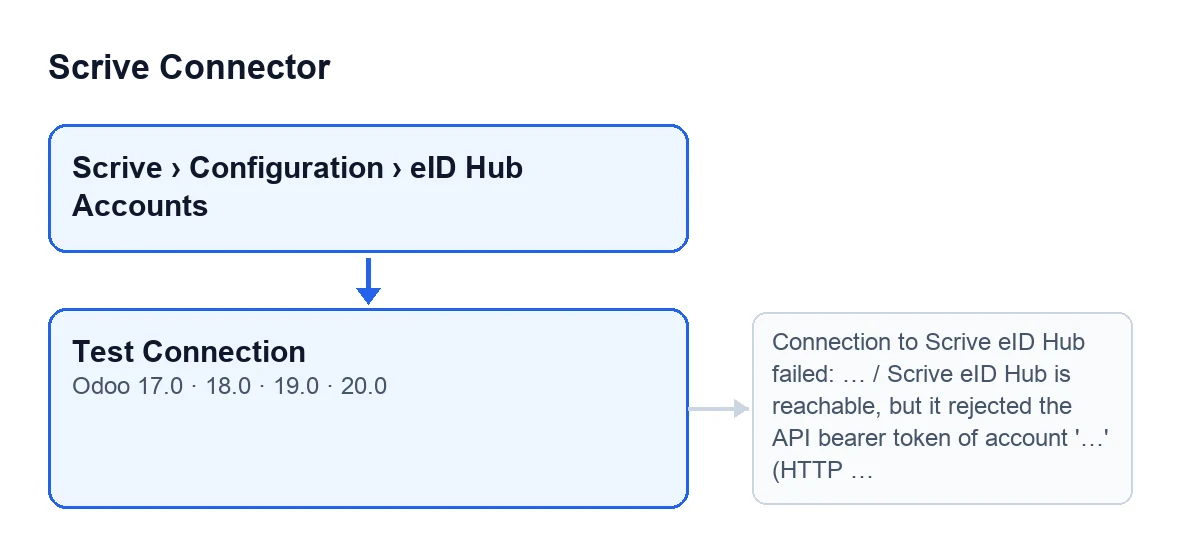
The eID Hub accounts open from the menu Scrive › Configuration › eID Hub Accounts. Each step of that menu asks for a permission: Configuration asks for Manager and Scrive asks for User. If you lack either, that step does not appear in your menu.
On the eID Hub Accounts screen you will find the Test Connection button. It is always visible, with no condition, and it exists in Odoo 17, 18, 19 and 20.
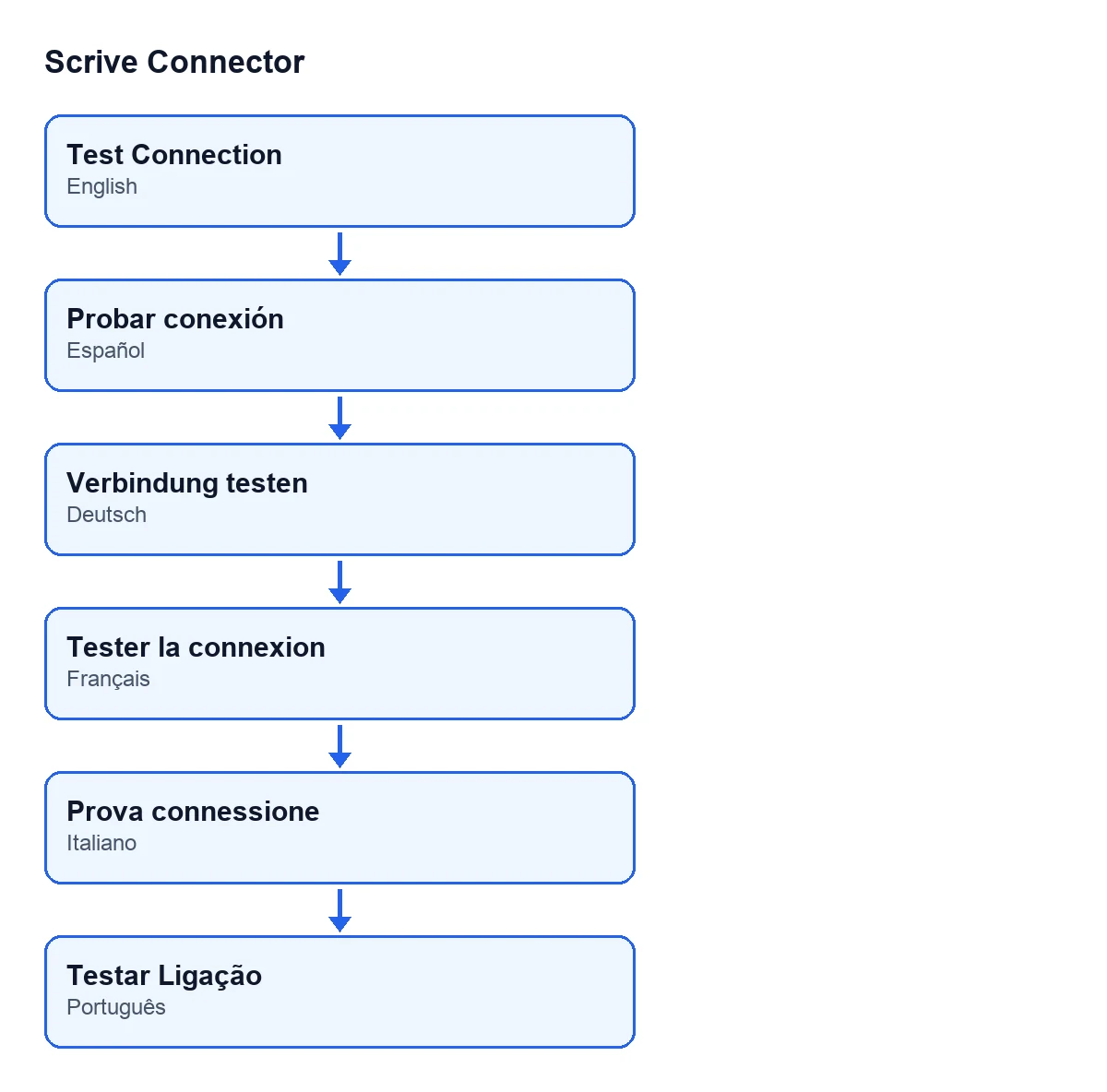
Test Connection; in Spanish, Probar conexión; in German, Verbindung testen; in French, Tester la connexion; in Italian, Prova connessione; in Portuguese, Testar Ligação.
Before you press it: what Odoo already does on its own
The button is how you ask for the check whenever you want. Separately, the scheduled task Scrive eID Hub: poll verifications in progress, active on installation and running every 10 minutes, reaches requests to the Hub that go through the same code the button uses: fetching a transaction and cancelling it. Those requests go through the same account kill switch check and the same hop through FlexigoTech Cloud that you will see in the steps below. The two test calls (Hub status and token) are made by the button when you press it.
What happens when you press it, step by step
- It checks your access. Before calling anything, the button verifies that your user can read that account, using your own permissions and the per-company rules. If it cannot, the action stops there.
- It asks the Hub whether it is up. This is a status call that needs no token, so on its own it says nothing about the credential. Before sending it, the module checks whether the account has its kill switch on: if it does, the action stops with a notice saying the kill switch is active on that account (named by its
Name) and that outbound calls are blocked. The call goes out through FlexigoTech Cloud, which holds the token. If the call fails, you getConnection to Scrive eID Hub failed: …, with the detail of the failure after the colon. - It tests the token. It makes an authenticated call for a transaction whose identifier is all zeros. It has no side effects, and the expected answer is that the transaction does not exist (code 404): that shows the Hub accepted the token. If the Hub answers 401 or 403, the button stops with the rejected-token message (below). If the Hub answers with any other error (other than 404, 401 or 403), you get
Connection to Scrive eID Hub failed: …again. - It reads the Hub status and tells you. If Scrive reports a status other than
ok(the Hub can return ok, degraded or unavailable), a persistent warning appears titledScrive eID Hub is not fully operational. It says the token was accepted, but that Scrive reports that status and identity verifications may fail or be slow until it recovers. Otherwise you get the green noticeScrive eID Hub connection OK.
Note the order: the token is tested before the status is read, so a rejected token is reported as an error even if the Hub is having problems.
What it changes
Nothing. According to the button's code, it modifies no data: both calls are reads. When the Hub rejects the token, the module leaves an entry in the Odoo log carrying the Hub's original text, which the on-screen message deliberately leaves out.
If the Hub answers with an error code that the module treats as retryable, read requests are retried a few times, with a growing wait between attempts. An error of any other kind is raised without a retry. If the FlexigoTech Cloud service refuses the call, it is not retried either and is not presented as a Hub error.
Errors it can give and what to do
| Message | When it appears | What to do |
|---|---|---|
Connection to Scrive eID Hub failed: … | The status call fails, or the token call gives an error other than 404, 401 and 403. The detail after the colon can be, for example, an unexpected HTTP redirect, an invalid JSON response or a failed request | Read the detail after the colon and try again |
Scrive eID Hub is reachable, but it rejected the API bearer token of account '…' (HTTP …). This account calls …: check with Scrive that the token is an eID Hub API token issued for that environment (testbed and production tokens are separate, and Scrive eSign credentials are not accepted), then try again. | The Hub answers 401 or 403 to the token call | Follow the message itself: confirm with Scrive that it is an eID Hub API token for the environment the account calls |
| A notice that the kill switch is active on the account and outbound calls are blocked | The account has its kill switch on, before each call | The test does not get out while it stays on |
The token message includes the account name, the HTTP code and the host that account calls.
What to look at after the green notice
The green notice says the eID Hub answered and accepted the API bearer token. To find out whether your token is licensed for the account's provider, the notice itself names the Check Provider button. Each account's provider is in its eID Provider field, in the Defaults group of the form and also in the accounts list.
If you have several accounts, the Name field helps you tell which one the token-rejected message is talking about.
What it costs and how FlexigoTech helps
Scrive Connector is a one-off purchase per Odoo version, published on Odoo Apps for 17, 18, 19 and 20 (see the listing), and it needs the FlexigoTech Cloud subscription: Connector plan, €49 a month or €490 a year, excluding VAT. The connection goes through FlexigoTech Cloud, which stores the credentials encrypted. Without a subscription, or with the service suspended, what the subscription provides stops, and your data stays in your Odoo.
FlexigoTech implements Odoo 17, 18, 19 and 20 and builds custom connectors and integrations. If you want help getting the connection running, see the module page.
Keep reading
Checked in the connector's source code (version 20.0) and the linked sources
Sources
- Module source code: flexigobe_scrive_connector 20.0 (442af8bf): views/scrive_eid_account_views.xml
- Module source code: flexigobe_scrive_connector 20.0 (442af8bf): models/scrive_eid_account.py
- apps.odoo.com/apps/modules/20.0/flexigobe_scrive_connector
- flexigotech.com/en/services.html
- flexigotech.com/precios.html