

 Español
 Català
 Deutsch
 Français
 Português
 Italiano
 Nederlands
 Polski
Where it is and when you see it
The Submit to Octopia button is on the Promotions screen, which you reach through Octopia › Offers › Promotions. The Octopia part of the menu asks for the Octopia User permission: without it, you do not see that part. The button exists in the 17, 18, 19 and 20 branches of the module.
It only shows when the promotion's State field is Draft: with any other value it is hidden. Since Draft is the default value, a newly created promotion shows the button. The values of the field are Draft, Submitted, Integrated and Rejected.
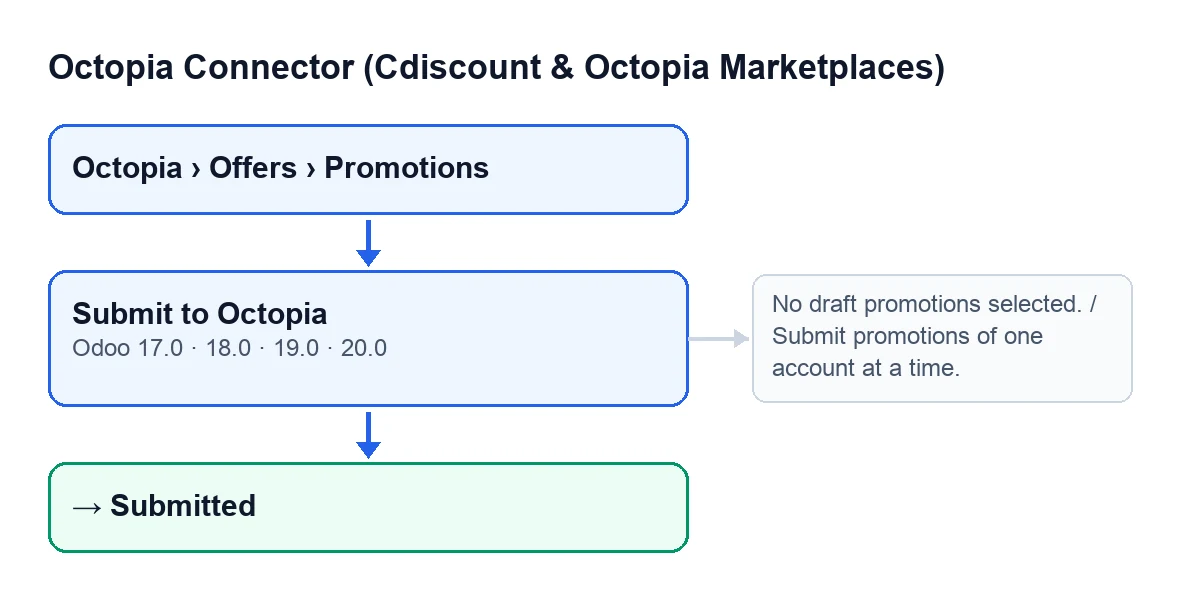
The button label depends on the language of your Odoo. In English it is Submit to Octopia; the next diagram shows how it is labelled in other languages.
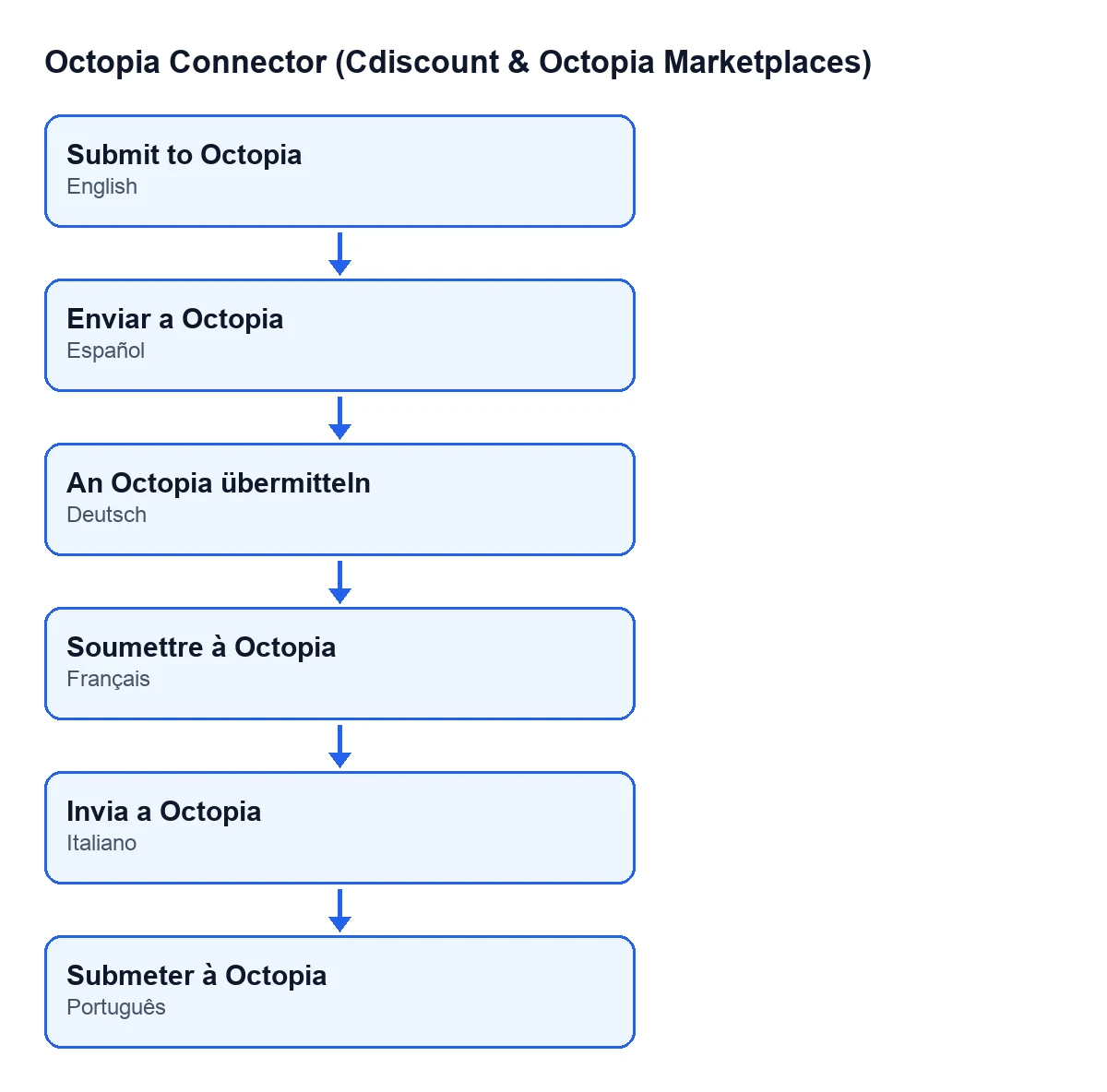
Push to Octopia, in German An Octopia übermitteln, in French Soumettre à Octopia, in Italian Invia a Octopia and in Portuguese Submeter à Octopia.
What happens when you press it, in order
Before pressing, get each promotion ready on its form, in the Promotion group: the Offer field and the Promo Type field. The default is Flash Sale (Type 1); there is also French Legal Sales / Soldes (Type 3). With Type 3, the Sales Reference Price field appears in the same group; with the default value it is not shown.
- The module keeps only the selected promotions that are in
Draft. Those in any other state are left alone. If none remain, it stops with a warning. - It checks that the draft promotions all belong to one account. If there is more than one account, it stops with a warning.
- It reviews the Type 3 promotions: each needs a price, either the promotion's own
Sales Reference Priceor the price of the linked offer. If one has neither, it stops with a warning. - It builds a zip package containing the XML of the promotions.
- It stores the zip as a non-public attachment with an access token and builds a download link from your Odoo's base URL. Submission is by link: Octopia downloads the package from that address, and the API does not accept the content directly.
- It uses the account's connection to hand that link to Octopia.
- It takes the package reference from the response: if the response carries a package identifier, or is a number, it keeps it; otherwise the reference stays empty.
- It writes to the draft promotions:
StatebecomesSubmitted, and it stores the package reference, the zip attachment and the link. - It adds a success entry to the account's synchronisation log, with the number of promotions submitted.
The warnings in the table below fire before anything is built, so if one appears, nothing changes. The state change comes almost at the end: if something fails earlier, the promotions do not move to Submitted.
The warnings that can stop the submission
| Message | When it appears | What to do |
|---|---|---|
No draft promotions selected. | None of the selected promotions is in Draft. | Select at least one promotion in Draft. |
Submit promotions of one account at a time. | The selected draft promotions belong to more than one account. | Submit those of each account separately. |
Type 3 (soldes) requires a sales reference price. | A draft Type 3 promotion has no Sales Reference Price and its offer has no price either. | Fill in Sales Reference Price on the form, where it appears when you choose Type 3. |
On Type 3, the help of the Promo Type field says it declares the French legal sales ('soldes') and is only valid within the legal sales periods. The help of Sales Reference Price describes it as mandatory for Type 3: the legal reference price the discount applies to. Note that the warning only appears when both prices are missing, the promotion's and the offer's.
What to check afterwards
- In the
Promotionslist, theStatecolumn of the submitted promotions should showSubmitted. - The button disappears from those promotions, because it only shows in
Draft. - This button only writes
Submitted: theIntegratedandRejectedvalues exist in the field, but this press does not write them.
The synchronisation log is not exclusive to the button. The scheduled task Octopia: pull discussions (ToTreat queue), which runs every fifteen minutes, also writes to it. The task Octopia: refresh referentials (categories, brands, carriers, typologies), which runs every seven days, leaves an error entry when any step of the refresh fails. Both are active on installation.
How FlexigoTech can help
If you are implementing Odoo and want to connect Cdiscount and Octopia, FlexigoTech implements Odoo 17, 18, 19 and 20 and builds custom connectors and integrations. The module is published on Odoo Apps for those four versions and needs a FlexigoTech Cloud subscription: the connection goes through that service (Connector plan: €49 a month or €490 a year, excluding VAT), which stores the credentials encrypted and emails you if synchronisation fails.
Keep reading
Checked in the connector's source code (version 20.0) and the linked sources
Sources
- Module source code: flexigobe_octopia_connector 20.0 (4848da6a): views/octopia_promotion_views.xml
- Module source code: flexigobe_octopia_connector 20.0 (4848da6a): models/octopia_promotion.py
- Module source code: flexigobe_octopia_connector 20.0 (4848da6a): models/octopia_referential.py
- apps.odoo.com/apps/modules/20.0/flexigobe_octopia_connector
- flexigotech.com/precios.html
- flexigotech.com/en/services.html