

 Español
 Català
 Deutsch
 Français
 Português
 Italiano
 Nederlands
 Polski
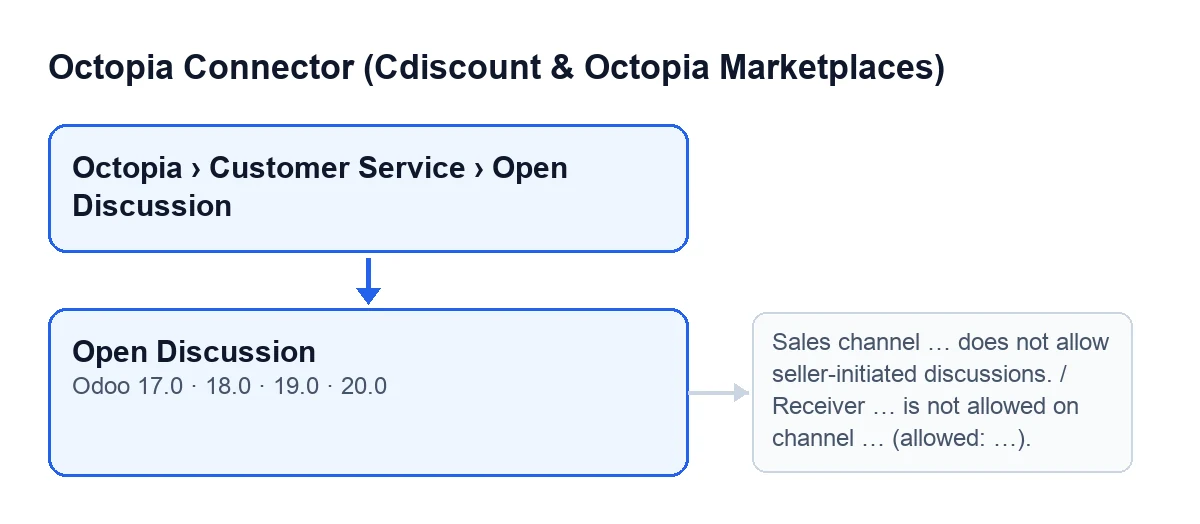
The Open Discussion button is on the screen of the same name in Odoo 17, 18, 19 and 20.
Where it is and who can reach it
The screen opens from Octopia › Customer Service › Open Discussion. Each part of the menu asks for a permission, and if you lack one you do not see that part: Octopia asks for Octopia User and Open Discussion asks for Octopia Manager.
Open Discussion; in Spanish, Abrir conversación; in German, Diskussion öffnen; in French, Ouvrir la discussion; in Italian, Apri discussione; in Portuguese, Abrir discussão.
Wrong ideas about the button
Myth: “The button shows or hides depending on the order status”
Fact: the button's view condition hides nothing; in Odoo 17, 18, 19 and 20 it is always shown. What does filter who gets there is the menu, with the permissions above.
The form has the fields Order, Receiver Type, Body and Attachment. Receiver Type has the values Customer and Channel Operator, and the default in the code is Customer.
Myth: “Pressing it sends the message straight to Octopia”
Fact: before talking to Octopia, the module checks, in this order:
- That a classification has been chosen. If not, the action stops with
Choose a classification (refresh them if the list is empty). - The length of the subject:
Subject must be between … and … characters. - The length of the body:
Message body must be between … and … characters.
If any of those checks fails, the action stops and nothing it was going to change is saved. The channel checks come next (see the next myth). If everything passes, the module builds the discussion with the subject, the order, the sales channel, the classification and a message with the body and the receiver, plus the attachments if there are any, and sends it to Octopia through the connection of the order's account.
Myth: “Any channel lets you open discussions with any receiver”
Fact: the module checks the order's sales channel, and each check has its own message:
- If the channel's configuration is synced and says the seller cannot initiate discussions, you get
Sales channel … does not allow seller-initiated discussions., with the channel code where the dots are. - If the channel has a saved list of allowed receivers and the chosen
Receiver Typeis not in it, you getReceiver … is not allowed on channel … (allowed: …).
If the channel has no synced configuration, the first check blocks nothing: Octopia's answer decides. The second one only applies when a list is saved.
Myth: “If Octopia refuses the classification, you start from scratch”
Fact: when Octopia refuses the classification, the module does not raise an error, so as not to undo what it has just re-read. It empties the chosen classification, re-reads the order, downloads the classification catalogue of its channel and shows a sticky warning titled Choose the classification again with this text: Octopia refused it: the order has changed status. The list now shows the classifications of its current status. Only the classification is emptied: the rest of the window stays as it was and is shown again with the refreshed list.
Another message can appear during that re-read: The order has no sales channel yet, so its classification catalog cannot be read. Any other error that Octopia returns is raised again and the action stops.
Myth: “Classifications and channel permissions refresh themselves when you press it”
Fact: the button only reloads the catalogue in the refusal case above. A scheduled task looks after the rest, Octopia: refresh referentials (categories, brands, carriers, typologies), which runs every 7 days and is active on install. Its steps include the sales channels, each channel's configuration (where it reads whether the seller may initiate discussions and which receivers are allowed), categories, brands, carriers and typologies.
Each step is separate: if one fails, the others carry on and an error is noted in the sync log with the steps that failed. If an account uses FlexigoTech Cloud without saved credentials or without service, the task skips that account.
Another task writes to the same log: Octopia: pull discussions (ToTreat queue), every 15 minutes and active on install.
Myth: “Once the window closes, nothing is recorded”
Fact: when Octopia accepts the discussion, the module creates an entry in the account's sync log, of the discussions type and with a successful result, that names the order and the classification used, and then closes the window. The module writes that log with system permissions. If something fails earlier, that entry is not created.
What you need to use it
The module is a one-off payment per Odoo version and needs the FlexigoTech Cloud subscription, Connector plan: €49/month or €490/year excl. VAT, up to 3 platform accounts. The connection goes through FlexigoTech Cloud, which stores the credentials encrypted. Without a subscription, or with the service suspended, whatever the subscription provides stops; your data stays in your Odoo. The module is published on Odoo Apps for 17.0, 18.0, 19.0 and 20.0.
If you are implementing Odoo and want to connect Cdiscount, FlexigoTech implements Odoo 17, 18, 19 and 20 and builds custom connectors and integrations. To see how another button in the module works, read what “Declare to Octopia” does.
Keep reading
Checked in the connector's source code (version 20.0) and the linked sources
Sources
- Module source code: flexigobe_octopia_connector 20.0 (4848da6a): views/octopia_discussion_views.xml
- Module source code: flexigobe_octopia_connector 20.0 (4848da6a): wizard/octopia_discussion_wizards.py
- Module source code: flexigobe_octopia_connector 20.0 (4848da6a): models/octopia_referential.py
- apps.odoo.com/apps/modules/20.0/flexigobe_octopia_connector
- flexigotech.com/precios.html
- flexigotech.com/en/services.html