

 Español
 Català
 Deutsch
 Français
 Português
 Italiano
 Nederlands
 Polski
Where the button is and when you see it
Cancellation requests open from the menu Octopia › Orders › Cancellations. The Octopia step of the menu asks for the Octopia User permission: without it, you do not see that step. The Submit to Octopia button is on that screen, and it exists in Odoo 17, 18, 19 and 20.
The button only shows while the request is in its initial state. Once the State changes to anything else, it disappears.
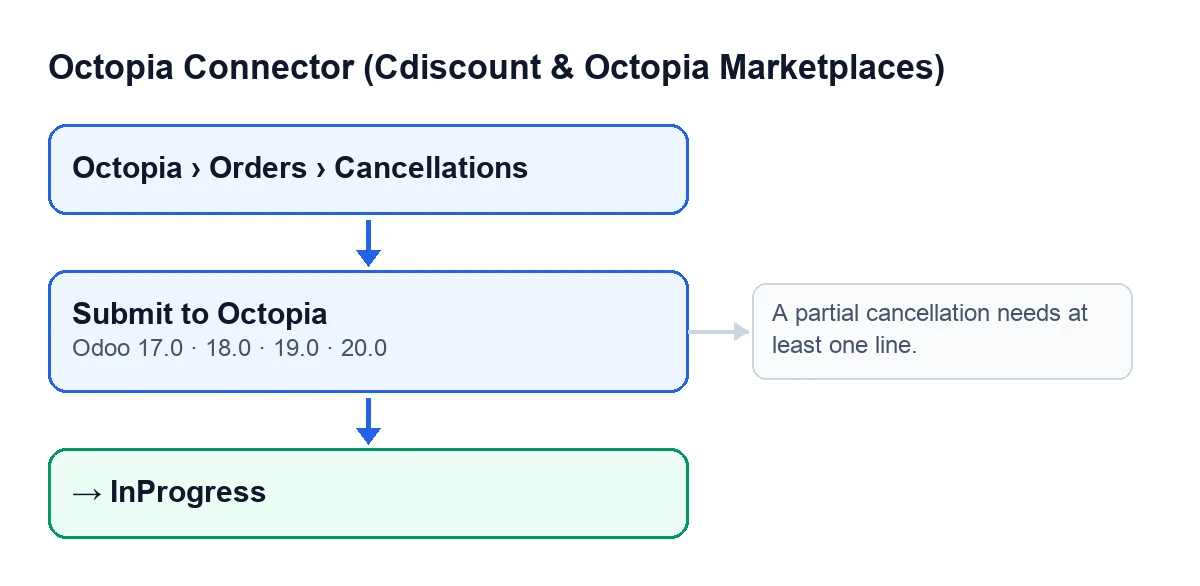
Before pressing it, look at the fields that matter. The Cancellations list shows Account, Order and Event Type. On the form, Event Type is either Full Order, which is the default, or Specific Lines. The Lines (partial) field only appears when Event Type is Specific Lines; with the default value you do not see it.

An invented case: Tienda Mediterránea cancels two orders
Example Illustrative case: the company and its figures are made up to explain the flow.
Tienda Mediterránea, an invented company selling kitchenware on Cdiscount, has two cancellations waiting to be sent. It goes to Octopia › Orders › Cancellations and opens the first one.
First cancellation: the whole order
Event Type is Full Order. The user presses Submit to Octopia and Odoo asks: Submitting an accepted cancellation refunds the customer. Continue? On accepting, in Odoo 20 the method does this, in this order:
- If the request is no longer in its initial state, it skips it and does nothing.
- It takes the request's order and opens the Octopia connection of that order's account.
- As this is a full order, it sends Octopia the order identifier, the request's reason and the shipping cost refund the request carries.
- If Octopia's reply is a set of data, it stores on the form, as the reference, the request identifier that Octopia returns.
- It writes the
InProgressstate and the date and time of the submission. - It adds an entry to the sync log of the cancellations type, with a successful result and a text giving the event type, the order and the reason.
For a full order the method does not check for lines: it does not need them.
Second cancellation: only some lines
The second cancellation has Event Type set to Specific Lines, but the user has not yet added any line under Lines (partial). They press the button, accept the confirmation and Odoo stops with this message: A partial cancellation needs at least one line.
The message appears when you press Submit to Octopia on a partial cancellation with no lines. The check comes before anything is sent to Octopia, and because the action stops, nothing it was going to change is saved: the request stays as it was and the button remains visible.
The fix is to add at least one line under Lines (partial). Switching Event Type to Full Order would also make the message go away, but then the whole order would be cancelled, so only do it if that is what you want.
Once the lines are in, the button sends a single request with all of them. For each line it sends its identifier, the offer, the reason and the request's shipping cost refund. If a line has no reason of its own, it uses the request's. Octopia can answer with a list of results or with a single result; from each one the module picks up the request identifier, and if it finds any, it stores them on the form separated by commas. After that it does the same as for the full cancellation: InProgress state, date and time, and an entry in the sync log.
What has changed when it finishes
- The request's
StatebecomesInProgress. - The date and time of the submission are saved.
- If Octopia returned identifiers, the form keeps them as the reference.
- The sync log gets an entry of the cancellations type with a successful result.
- The button stops showing, because its condition only displays it in the initial state.
The label in your Odoo language
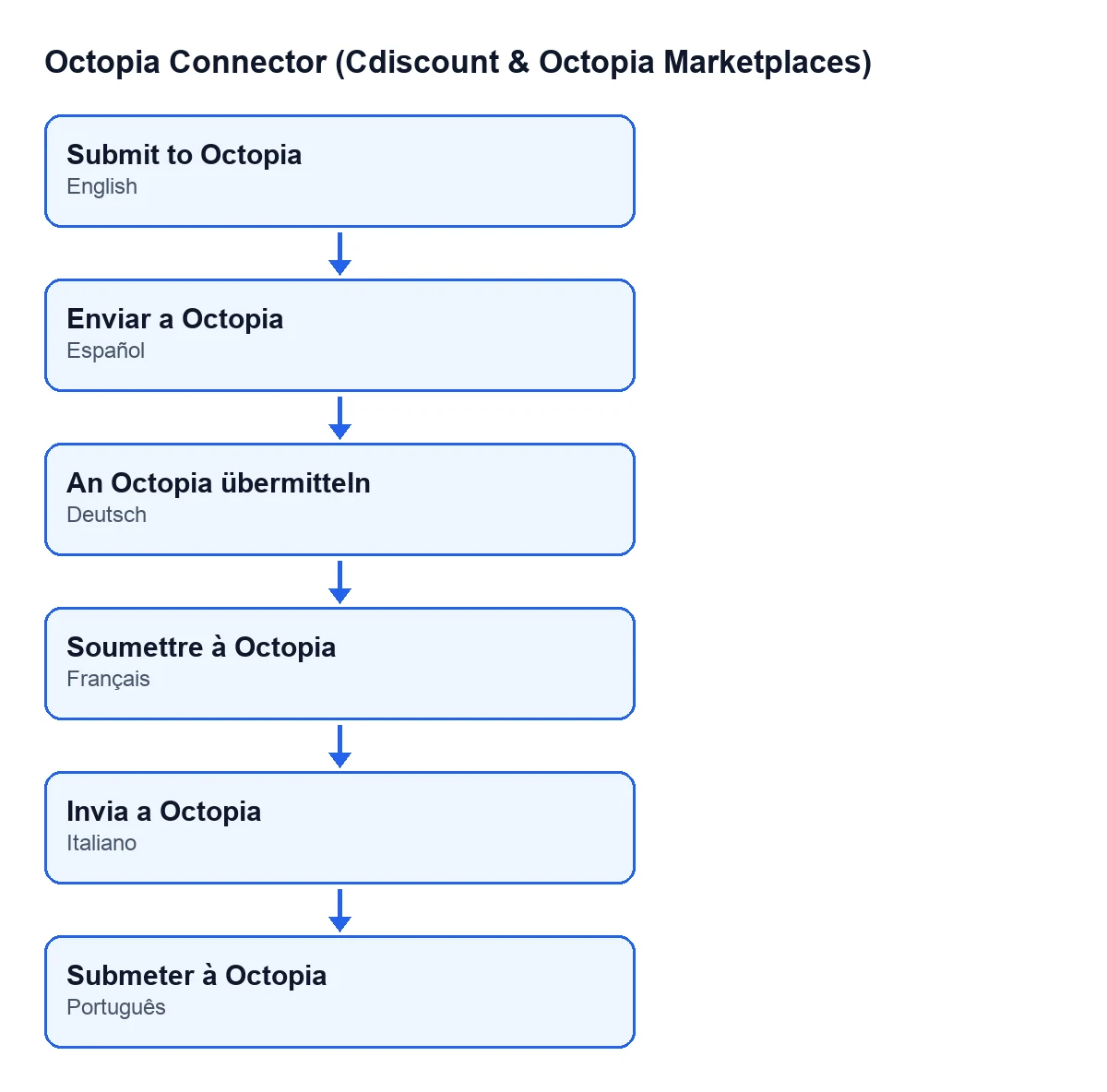
With Odoo in English the button is called Submit to Octopia. The module also ships translations into other languages, shown in the diagram.
What the case teaches
- Before pressing, check
Event Type: it decides whether the whole order or only some lines are sent. - On a partial cancellation, add the lines first; without them nothing is sent.
- The confirmation question warns that submitting an accepted cancellation refunds the customer.
- If the request is no longer in its initial state, the method does not send it again.
Cost and help
The module is a one-off payment per Odoo version and is published for 17, 18, 19 and 20 on its Odoo Apps page. It needs the FlexigoTech Cloud subscription, Connector plan: €49 per month or €490 per year, excluding VAT, with up to three accounts on the platform. The connection goes through FlexigoTech Cloud, which stores the credentials encrypted, monitors the synchronisation and emails you if it fails. Without a subscription, or with the service suspended, whatever the subscription provides stops; your data stays in your Odoo.
If you are implementing Odoo and want to review how Cdiscount cancellations fit your workflow, FlexigoTech implements Odoo and builds custom connectors and integrations.
Keep reading
Checked in the connector's source code (version 20.0) and the linked sources
Sources
- Module source code: flexigobe_octopia_connector 20.0 (4848da6a): views/octopia_order_actions_views.xml
- Module source code: flexigobe_octopia_connector 20.0 (4848da6a): models/octopia_order_actions.py
- apps.odoo.com/apps/modules/20.0/flexigobe_octopia_connector
- flexigotech.com/precios.html
- flexigotech.com/en/services.html