

 Español
 Català
 Deutsch
 Français
 Português
 Italiano
 Nederlands
 Polski
What this action does and what it does not
Shopify Connector for Odoo includes a scheduled action, Shopify Notify Sync Errors, that does not synchronise anything itself: it goes through the Shopify instances and leaves a note on those with errors in a row. The error counter and the text of the last error are written by the order sync; this action only reads them. The only thing it writes is the note.
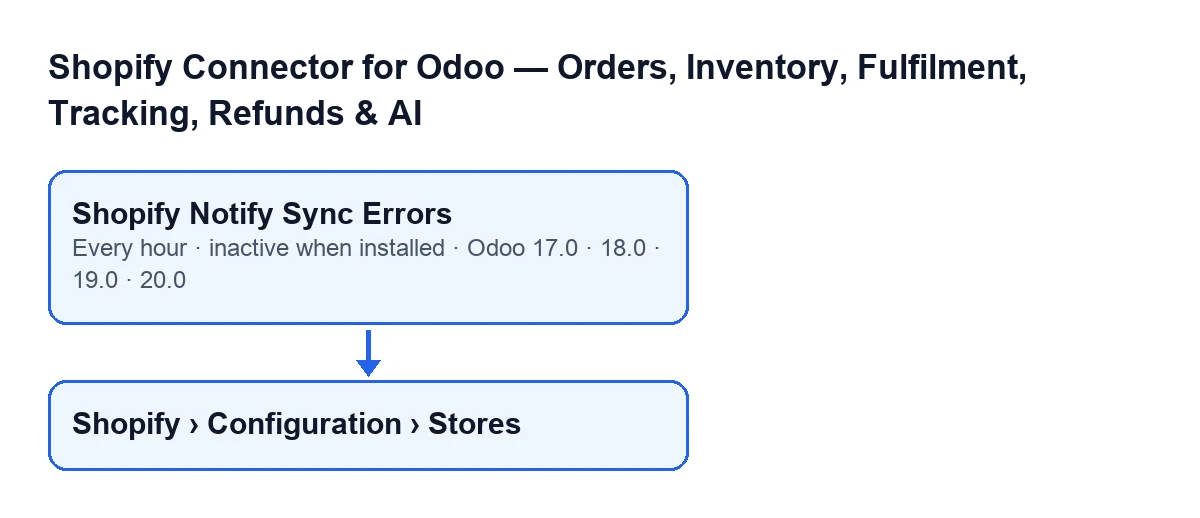
The action exists in all the published branches of the module (Odoo 17, 18, 19 and 20). In Odoo 17.0 it is defined to repeat indefinitely.
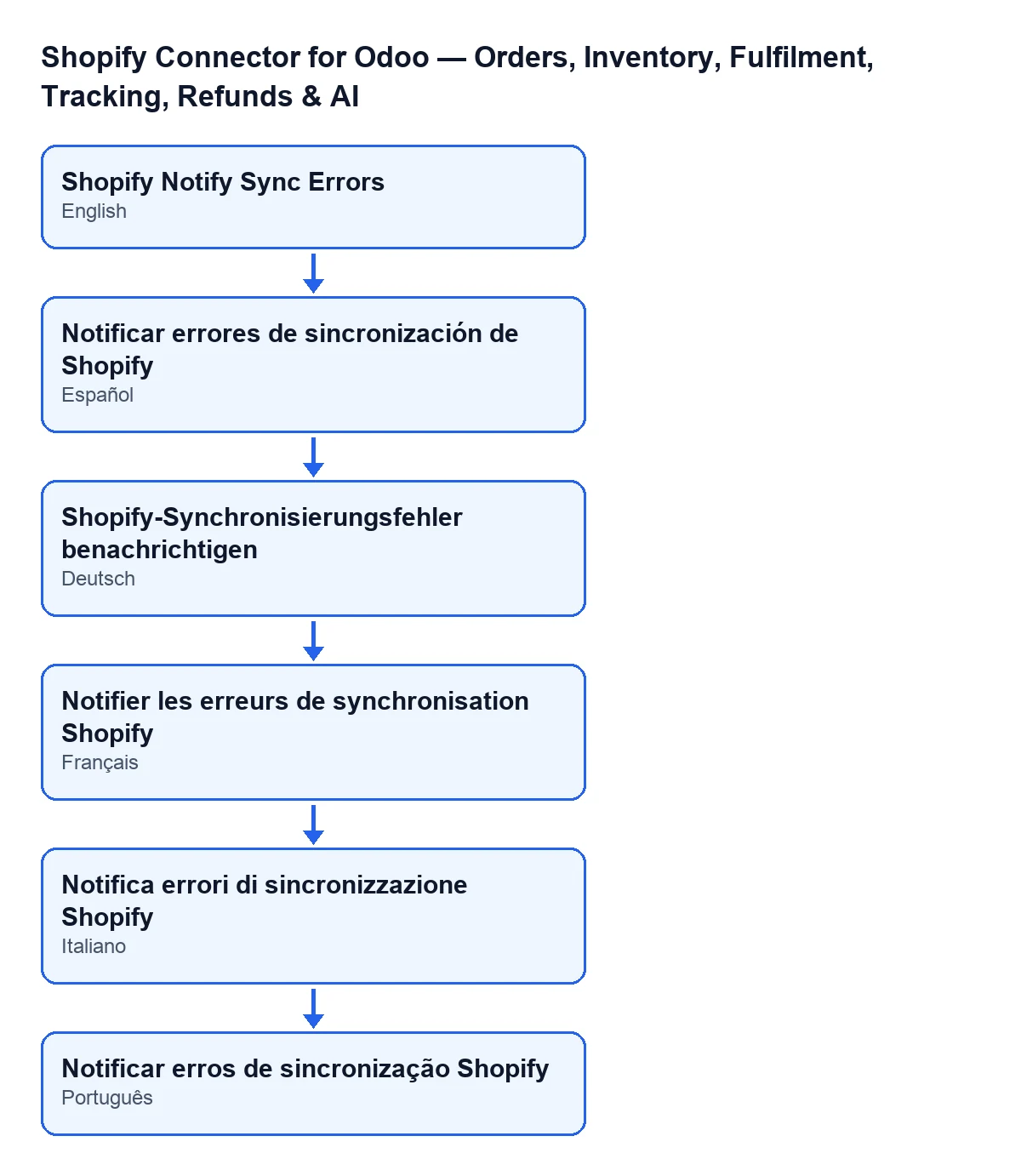
Shopify Notify Sync Errors.
Timeline of the action, from install to note
- When the module is installed The action is created and deactivated. While nobody activates it, it does not run and nothing is posted.
- When someone activates it It starts running every hour.
- Meanwhile, with each order sync The order sync fills in the instance's
Consecutive Sync ErrorsandLast Sync Errorfields. It is launched from theSync Ordersbutton on the instance form or from theShopify Sync Ordersscheduled action, which runs every five minutes and is also deactivated on install.
- At the start of each pass The action checks that whoever runs it is a system administrator. If not, it stops with 'Only an administrator can run this scheduled action.' and posts nothing.
- Then, the search It looks for instances that are active and have three or more consecutive sync errors.
- For each instance found It posts a note-type message on it with the alert (text below).
- On the next pass The method does not check whether it already left a note: if the instance still has three or more consecutive errors, it posts another note.
- When
Reset Syncis pressed That button empties the counter and the last error. With the counter at zero, the instance no longer meets the condition and the action stops alerting on it.
What the note says
In every note the text is this:
⚠️ Shopify sync error alert for …: … consecutive sync errors. Last error: …
The first gap is the content of the Shop Domain field, which the note shows in bold. The second is the number of consecutive errors. The third is the last error stored on the instance; if that field is empty, the note says unknown.
The Shop Domain field appears on the Shopify Instances form and also in the list. Its help text reads: 'Use your exact Shopify domain, for example: flexigobe.myshopify.com'.
Where to see the counter and the last error
The forms are opened from the Shopify › Configuration › Stores menu. The Shopify level asks for the Viewer permission and the Configuration level asks for Operator; if you lack either, you do not see that level of the menu.
On the instance form:
Consecutive Sync Errorsis read-only and shows without a label, just the number. It is hidden when it is zero, so with the default values you do not see it.Last Sync Erroris also read-only and shows without a label, just the text. It is hidden when empty, or when the counter is zero and the connection is not in error; with the default values you do not see it.
Neither is written by the user: the order sync fills them in and Reset Sync empties them.
If the action does nothing, what to check
Go through these in order:
- Is it activated? It comes deactivated on install. While it stays that way, it does not run every hour and leaves no notes.
- Is a system administrator running it? If not, it stops with 'Only an administrator can run this scheduled action.' before searching for anything.
- Is there an active instance with three or more errors in a row? Open the form from
Shopify › Configuration › Stores. If theConsecutive Sync Errorsfield does not appear, it is zero and the action has nothing to report. - Is anything syncing? The counter is filled in by the order sync, which is launched with the
Sync Ordersbutton on the instance form or with theShopify Sync Ordersscheduled action, deactivated on install. Check that at least one of those routes is in use. - Has someone pressed
Reset Sync? It leaves the counter and the last error empty, and then the action does not alert on that instance.
If you see the opposite, several notes in a row for the same store, that is what the timeline describes: each pass where the condition is met posts another note.
For another connector case with its condition explained, see the message about missing Shopify data when creating the sales order.
Cost and help with the set-up
The module is a one-off payment per Odoo version (published for 17, 18, 19 and 20) and needs a FlexigoTech Cloud subscription, Connector plan: €49 a month or €490 a year, excluding VAT. The connection goes through FlexigoTech Cloud, which stores the credentials encrypted, monitors the sync and emails you if it fails. That email is sent by the service; the note from this action is written inside Odoo, on the instance. The module's details are on Odoo Apps and you can buy it at flexigotech.com.
If you need help activating the action, deciding who should watch the notes or connecting Shopify to your Odoo, FlexigoTech implements Odoo 17, 18, 19 and 20 and builds custom connectors and integrations.
Keep reading
Checked in the connector's source code (version 17.0 and 20.0) and the linked sources
Sources
- Module source code: flexigobe_shopify_seller_connector 20.0 (d7e627b4): data/ir_cron_data.xml
- Module source code: flexigobe_shopify_seller_connector 17.0 (437257e3): data/ir_cron_data.xml
- Module source code: flexigobe_shopify_seller_connector 20.0 (d7e627b4): models/shopify_instance.py
- Module source code: flexigobe_shopify_seller_connector 20.0 (d7e627b4): models/fgt_cloud.py
- apps.odoo.com/apps/modules/20.0/flexigobe_shopify_seller_connector
- flexigotech.com/en/services.html
- flexigotech.com/precios.html