

 Español
 Català
 Deutsch
 Français
 Português
 Italiano
 Nederlands
 Polski
What the module adds to the sales order
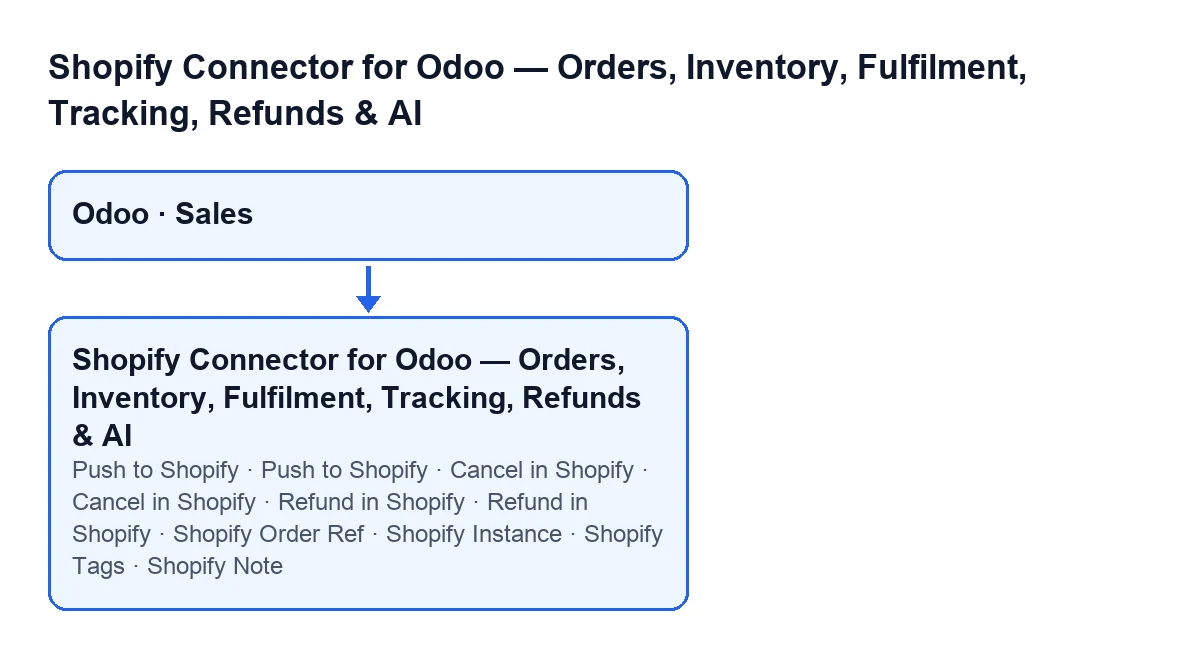
The module extends the sales order of the Sales app. On top of the standard Odoo order it places a group of Shopify data, a delivery status in the list and three buttons.
The fields on the form
With the default values they are not visible: the Shopify group on the order form only appears when the order has a Shopify Order Ref. Inside it you will find:
Shopify Order RefandShopify Instance, both read-only.Shopify Tags: the tags of the Shopify order.Shopify Note: the customer note from the Shopify order.Shopify Store Prefix, read-only: the prefix of the store of origin, taken from the Shopify instance at import.Shopify Amount Total, read-only: the total reported by Shopify, kept so you can reconcile it with the Odoo total.Shopify Total Mismatch, read-only: set at import when the Odoo order total differs from the Shopify total beyond rounding.
Two more sit outside that group. Refunds is on the form, stays hidden while it is zero and shows the count of Shopify refunds associated with the order. Shopify Delivery Status is in the sales order list.

Step by step: from the order to the actions
- Open the order in
Salesand look at theShopifygroup. CompareShopify Amount Totalwith the Odoo total: ifShopify Total Mismatchis ticked, the totals differed at import beyond rounding. - In the sales order list, check
Shopify Delivery Status. How it is worked out is explained below. - Decide whether line edits travel on their own. In
Shopify Instances,Operationstab,Sync Settingsgroup, there is the checkboxAuto-push order edits to Shopify, off by default. When it is on, saving a Shopify-linked order in theSales Orderstate with changed lines makes Odoo send the change to Shopify through the Order Edit API. If that call fails, the failure is written to the server log and the save carries on. - To send the lines by hand, click
Push to Shopify. It only appears if the order has aShopify Order Refand is in theSales Orderstate. It asks you to confirm: «Push the current order lines (quantities, added/removed products) to the linked Shopify order?». The module goes through the order lines (leaving out sections, notes and delivery lines) and looks for each one among the Shopify lines by the product's Shopify variant or by a matching SKU. If the quantity differs it changes it, asking Shopify to restock; if there is no Shopify line and the product has a variant, it adds it. - Decide whether cancellations travel on their own. The same group has
Auto-push cancellations to Shopify, also off by default. When it is on, once a Shopify-linked order ends up cancelled in Odoo through the normal cancel action, the module cancels it in Shopify too. If that fails, it is written to the server log and the Odoo order stays cancelled. - To cancel by hand, click
Cancel in Shopify. It appears if the order has aShopify Order Refand as long as it is not in theCancelledstate. It asks you to confirm: «Cancel the linked Shopify order and this Odoo order?». The order matters: the order is cancelled in Shopify first and, only if that raises no error, the Odoo order is cancelled afterwards, without sending the cancellation again. Whether the customer is notified, refunded or restocked comes from the instance settings. - To return the money, click
Refund in Shopify. It does not depend on the state: it is hidden only when the order has noShopify Order Ref. It asks you to confirm: «Create a full refund of this order in Shopify?». The refund covers the lines imported from Shopify, without the delivery lines, with their quantities and marked as a return. Customer notification and refunding as store credit come from the instance settings.
Who can click them and which messages can appear
When you click any of the three buttons, the module checks on the server that your user has Shopify Operator (or Manager) access. Ordinary Sales access is not enough. If it is missing, you get You need Shopify Operator (or Manager) access to push changes to Shopify.
Other messages that can stop the action:
- On all three buttons:
Sale order … is not linked to a Shopify order. - On
Push to Shopify:Could not begin a Shopify order edit for ….andThese products have no Shopify variant and cannot be added to the Shopify order (edit not committed): …. The second one lists the affected products. - On
Cancel in Shopify:Shopify order cancel failed: …, followed by the error text Shopify returns. In that case the Odoo order is not cancelled.
How Shopify Delivery Status is worked out
The value comes from the Odoo 20 code. Its options are Not Validated, Ready to Ship, Partially Shipped, Shipped and Cancelled. It first checks whether the order is cancelled. If not, it compares delivered against ordered quantities on product lines with an ordered quantity above zero (leaving out sections and notes, and only for certain product types). If there are no lines to count, it looks at the order's transfers that are not cancelled and, if there are outgoing ones, only at those.
| Value | When it shows |
|---|---|
Cancelled | The order is cancelled. |
Not Validated | There are lines to count and nothing has been delivered; or there are no lines to count and no transfers that are not cancelled. |
Partially Shipped | Delivered is less than ordered; or, with no lines to count, some transfers are done and others are not. |
Shipped | Delivered reaches ordered; or, with no lines to count, every transfer is done. |
Ready to Ship | Only with no lines to count: there are transfers that are not cancelled and none is done. |
What the module adds to Inventory transfers is covered in another article, and the stock button in this one.
Versions, subscription and help
The module is published on Odoo Apps for Odoo 17, 18, 19 and 20. The conditions under which the three buttons appear are the same in those four versions; the delivery status calculation and the rest of the behaviour described come from the Odoo 20 code. See the Odoo Apps listing or the module page.
It is a one-off purchase per Odoo version and needs the FlexigoTech Cloud subscription, Connector plan: €49/month or €490/year excluding VAT. The connection goes through FlexigoTech Cloud, which stores the credentials encrypted, watches the synchronisation and emails you if it fails.
FlexigoTech implements Odoo 17, 18, 19 and 20 and builds custom connectors and integrations, in case you need to fit this flow to your shop.
Keep reading
Checked in the connector's source code (version 20.0) and the linked sources
Sources
- Module source code: flexigobe_shopify_seller_connector 20.0 (2950bdc0): models/sale_order.py
- Module source code: flexigobe_shopify_seller_connector 20.0 (2950bdc0): views/sale_order_views.xml
- Module source code: flexigobe_shopify_seller_connector 20.0 (2950bdc0): models/shopify_instance.py
- apps.odoo.com/apps/modules/20.0/flexigobe_shopify_seller_connector
- flexigotech.com/en/services.html
- flexigotech.com/precios.html