

 Español
 Català
 Deutsch
 Français
 Português
 Italiano
 Nederlands
 Polski
When a transfer counts as a Shopify one
The module extends the standard transfer of the Inventory app. A transfer is treated as a Shopify one when its sales order carries a Shopify order reference. That fact lives in the Is Shopify Order field, which does not appear in any view: on the form, the fields and buttons are hidden whenever the transfer does not come from a Shopify order. To talk to Shopify, the module takes the connection from the linked sales order; the other side is covered in what the module adds to Sales.
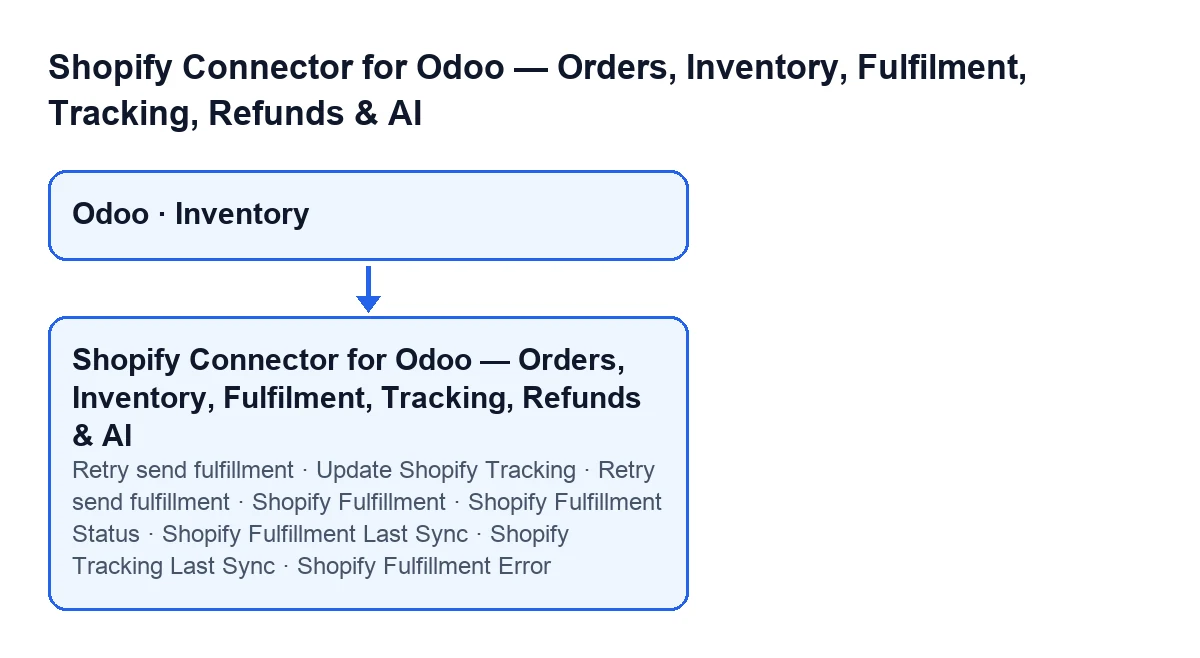

The new fields: where they show and who writes them
The fields sit on the To Ship transfer form, inside the Shopify group. You never fill any of them in: the module writes them. For the first four, on top of what the table says, the module writes to them when the form is saved, when the transfer is validated (the module extends Odoo's standard validation) and with the Return Stock button.
| Field | Where it shows | Who writes it, besides those three points |
|---|---|---|
Shopify Fulfillment | Form, Shopify group | The fulfilment sending action |
Shopify Fulfillment Status | Form, Shopify group, and the To Ship list | The sending action and the tracking update action |
Shopify Fulfillment Last Sync | Form, Shopify group | The fulfilment sending action |
Shopify Tracking Last Sync | Form, Shopify group | The tracking update action |
Shopify Fulfillment Error | Form, Shopify group; and loose on the form, with no label, content only and only when there is an error | Filled in on validation and on save, and with Return Stock; emptied by the sending action and the tracking action |
In practice: the error field decides whether the retry button appears, and the Shopify Fulfillment field decides whether the tracking button appears. Between them they rule what you see on the form.
The buttons, side by side
The form carries the Retry send fulfillment and Update Shopify Tracking buttons. Their view conditions are the same in Odoo 17, 18, 19 and 20; the code described here is the one published for Odoo 20.
Retry send fulfillment | Update Shopify Tracking | |
|---|---|---|
| When it shows | Transfer of a Shopify order, in the Done state and with content in Shopify Fulfillment Error | Transfer of a Shopify order, in the Done state and with a value in Shopify Fulfillment |
| What it does | Starts sending the fulfilment to Shopify, the same action as Send Shopify Fulfillment | Updates in Shopify the tracking of the fulfilment the transfer already has |
| What it writes on the transfer | The fulfilment returned, its status and the last fulfilment sync; it empties the error and stores what was sent and the response | The status (if the response carries none, it keeps the one already there) and the last tracking sync; it empties the error and stores what was sent and the response |
| What it leaves noted | A message: Shopify fulfillment created for picking … (fulfillment …). | A message: Shopify tracking updated for picking … (fulfillment …). |
After a successful send the error field is left empty and, because of the view condition, the Retry send fulfillment button stops showing.
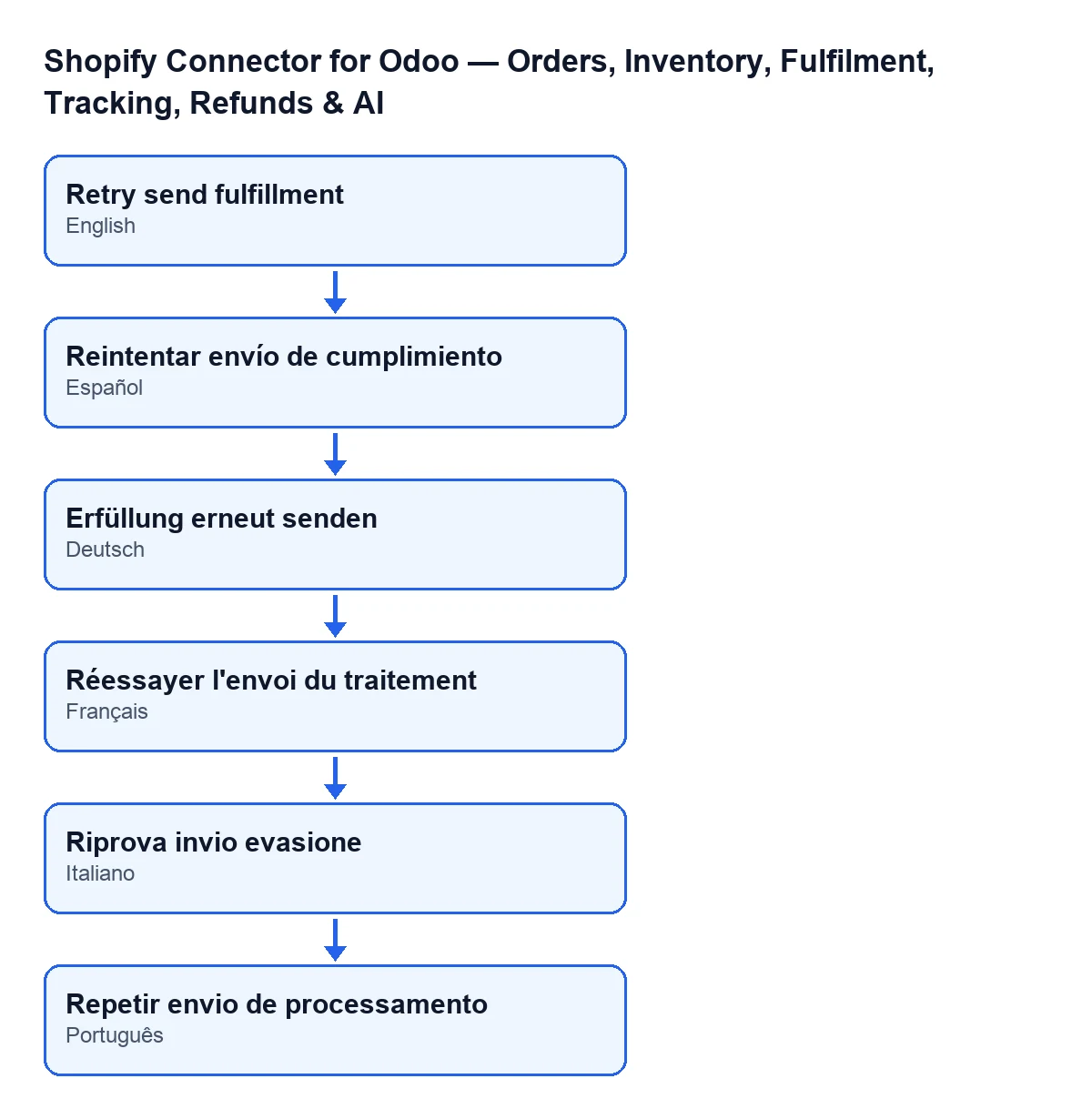
With Odoo in English the button is called Retry send fulfillment; in Spanish, Retry send fulfillment; in German, Erfüllung erneut senden; in French, Réessayer l'envoi du traitement; in Italian, Riprova invio evasione; in Portuguese, Repetir envio de processamento.
Who can press them
Both actions check permission when they run, not only when the button is drawn. If the person triggering them has no Shopify operator or manager access, the action stops with You need Shopify Operator (or Manager) access to push fulfillment updates to Shopify.. A user with ordinary Inventory access but without that role therefore cannot trigger these actions. A superuser call is exempt from that check.
Messages the actions can stop with
When you press Send Shopify Fulfillment, the action can stop, among others, with these messages:
Picking must be done before sending Shopify fulfillment.This picking is not linked to a Shopify order.This picking already has a Shopify fulfillment. Use Update Shopify Tracking.- The permission message quoted in the previous section.
The third message marks the difference between the two actions: if the transfer already has a fulfilment, the message itself points to updating the tracking, not sending again.
When you press Update Shopify Tracking, the action can stop, among others, with Picking must be done before updating Shopify tracking. and with the permission message.
What it costs and how FlexigoTech helps
The module is published on Odoo Apps for 17, 18, 19 and 20 (listing). It is a one-off purchase per version and needs the FlexigoTech Cloud subscription, Connector plan: €49 a month or €490 a year, excluding VAT. The connection goes through FlexigoTech Cloud, which stores the credentials encrypted, watches the synchronisation and emails you if it fails.
If you are implementing Odoo, FlexigoTech implements Odoo 17, 18, 19 and 20 and builds connectors and custom integrations. You can see the module on its page.
Keep reading
Checked in the connector's source code (version 20.0) and the linked sources
Sources
- Module source code: flexigobe_shopify_seller_connector 20.0 (2950bdc0): models/stock_picking.py
- Module source code: flexigobe_shopify_seller_connector 20.0 (2950bdc0): views/stock_picking_views.xml
- apps.odoo.com/apps/modules/20.0/flexigobe_shopify_seller_connector
- flexigotech.com/precios.html
- flexigotech.com/en/services.html