

 Español
 Català
 Deutsch
 Français
 Português
 Italiano
 Nederlands
 Polski
Before you touch anything
Each field comes with a default value and a help text; decide what to keep and what to change before syncing the store.
- Check that you can see the menu
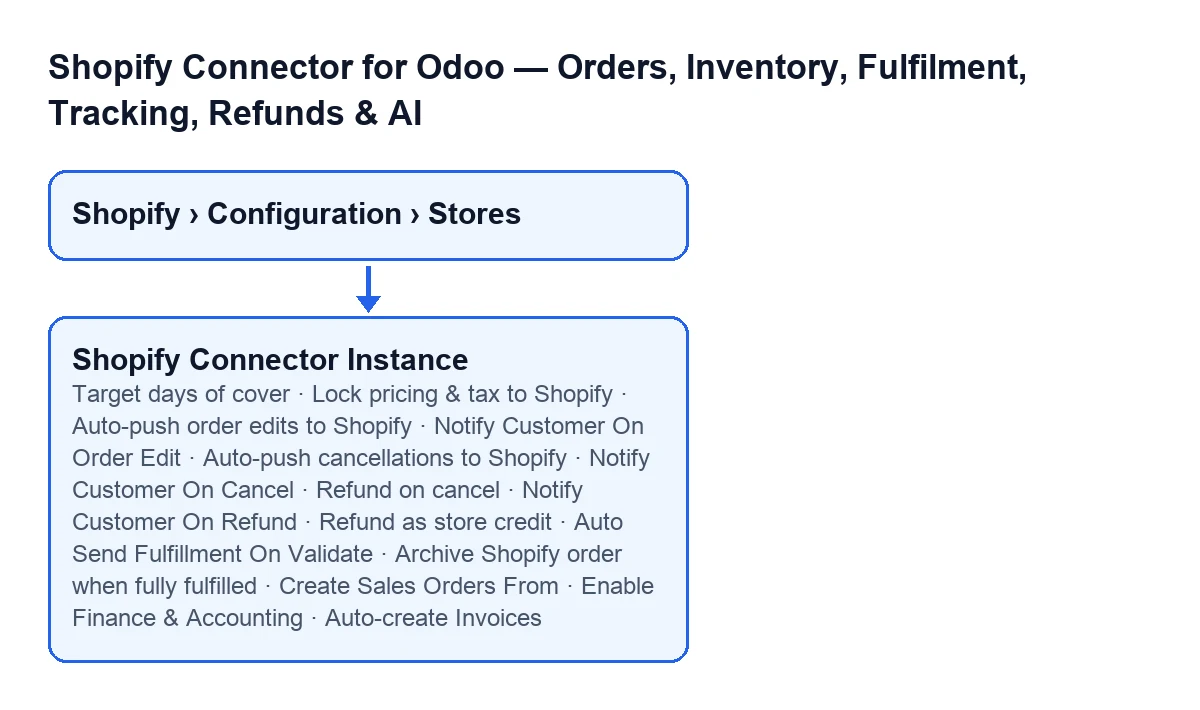
Shopify › Configuration › Stores. TheConfigurationsection needs theOperatorpermission and theShopifysection needsViewer; if you lack one of them, you do not see that section. - Open the store's form under
Shopify Instances. The order and sync fields are in theOperationstab; the finance fields are in another tab and are covered at the end.

Orders: what comes in and at what amounts
These fields are in the Order Settings group of the Operations tab.
Create Sales Orders From: according to its help, Shopify orders created before that date are imported as Shopify orders but never become sales orders, so orders you were already handling before connecting the store are not shipped again. A new store gets the moment it was created. The same help says thatCreate Sale Orderon a Shopify order creates its sales order anyway, and that emptying the field means no limit. If you connect a store that already has orders, look at this date before importing.Lock pricing & tax to Shopify: it comes switched on. With the box ticked, line prices and taxes are taken only from the Shopify order: no Odoo pricelist or fiscal position is applied to imported orders, and a line with no Shopify tax gets no tax in Odoo, instead of Odoo's default product or customer tax. If you want the Odoo order to carry exactly what Shopify says, leave it as it is.Target days of cover: a whole number, 30 by default. Its help says it is the desired days of stock cover used to compute recommended reorder quantities. Enter the number of days of stock you want covered.
Edits, cancellations and refunds towards Shopify
These fields are in the Operations tab, Sync Settings group.
Order edits
Auto-push order edits to Shopify: off by default. If you switch it on, when the lines of a confirmed Shopify-linked sales order change in Odoo, the change is pushed back to Shopify automatically via the Order Edit API.Notify Customer On Order Edit: on by default. It asks Shopify to email the customer when an order edit is committed. If you do not want that email, untick it.
Cancellations
Auto-push cancellations to Shopify: off by default. If you switch it on, when a Shopify-linked sales order is cancelled in Odoo, it is cancelled in Shopify too.Notify Customer On Cancel: on by default. It asks Shopify to email the customer when an order is cancelled.Refund on cancel: on by default. It refunds the customer in Shopify when the order is cancelled. Since it comes ticked, decide deliberately whether you want it that way.
Refunds
Notify Customer On Refund: on by default. It asks Shopify to email the customer when a refund is created.Refund as store credit: off by default. It issues refunds as Shopify store credit instead of to the original payment method. Its help warns that store-credit support depends on your shop's Shopify API version and asks you to verify it on a live order: do that before switching it on.
Fulfilment and delivery
They stay in the Sync Settings group.
Auto Send Fulfillment On Validate: off by default. If enabled, validating a done delivery for Shopify sales tries to create the fulfilment in Shopify.Archive Shopify order when fully fulfilled: off by default. It closes (archives) the Shopify order once it is fully fulfilled from Odoo.
Finance: fields in another tab
They are in the Finance & Accounting tab, Invoicing group.
Enable Finance & Accounting: off by default. It is the master switch for the finance features (invoicing, payments and payouts), and according to its help nothing is posted to your accounts until it is on.Auto-create Invoices: with the default values you do not see it, because it is hidden whileEnable Finance & Accountingis off. Once visible, its help says a scheduled job creates an Odoo customer invoice for confirmed Shopify orders, and posts it when the order is paid in Shopify. It is off by default.
Before you sign off the instance
- Review the customer notifications for edits, cancellations and refunds: all of them come switched on.
- Note which automatic-push boxes you have switched on: the ones for edits, cancellations, fulfilment and archiving come switched off.
- If you plan to use store credit, test it on a live order before leaving it on.
Cost and help
The module is a one-off payment per version and is published for Odoo 17, 18, 19 and 20 (see its Odoo Apps page and the module page). It also needs the FlexigoTech Cloud subscription: the Connector plan costs €49/month or €490/year excluding VAT, with up to 3 platform accounts.
If you would rather review these settings together, FlexigoTech implements Odoo 17, 18, 19 and 20 and builds custom connectors and integrations.
Keep reading
Checked in the connector's source code (version 20.0) and the linked sources
Sources
- Module source code: flexigobe_shopify_seller_connector 20.0 (2950bdc0): models/shopify_instance.py
- Module source code: flexigobe_shopify_seller_connector 20.0 (2950bdc0): models/fgt_cloud.py
- apps.odoo.com/apps/modules/20.0/flexigobe_shopify_seller_connector
- flexigotech.com/precios.html
- flexigotech.com/en/services.html