

 Español
 Català
 Deutsch
 Français
 Português
 Italiano
 Nederlands
 Polski
When the notice appears
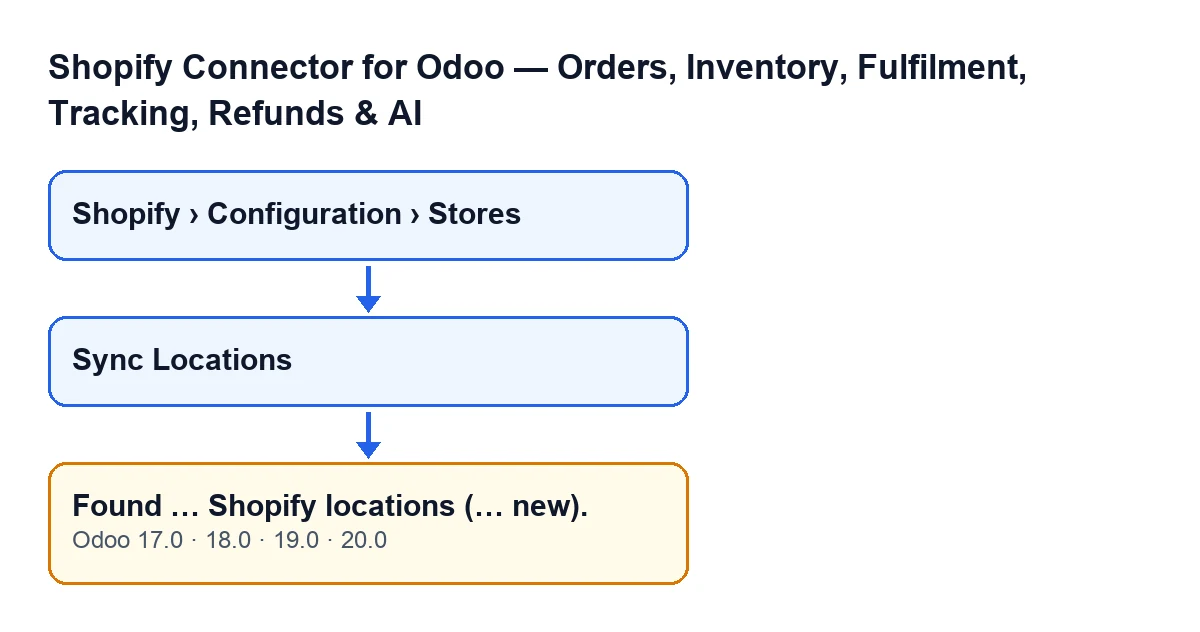
It appears when you press Sync Locations on a Shopify store record. That record opens from the menu Shopify › Configuration › Stores. To see the menu you need the Viewer permission for the Shopify step and Operator for the Configuration step. The button is always visible, in Odoo 17, 18, 19 and 20, and the notice is in the published code of all four versions.
The condition is that the synchronisation reaches the end without anything stopping it. If the call to Shopify fails earlier, the action is cut short and this notice does not appear. When it does appear, it is a notice that blocks nothing and carries the title Locations Synced.

What each number counts
The full text is Found … Shopify locations (… new). The ellipses stand for two numbers:
- The first is the total number of locations Shopify returns to the query. That query asks for the first 50 locations of the store.
- The second is how many of them Odoo did not yet have for that store. Each location is looked up by the Odoo store and by its Shopify identifier, so the same location in two Odoo stores counts as new in each.
Locations that already existed are not counted as new, but they are not left untouched either: the module updates their name, whether they are active in Shopify and their address. If Shopify returns a location with no identifier, the module skips it and does not create it, although it is included in the first number.
What else the synchronisation does
Once it has gone through the locations, the module checks whether any location of that store is marked as primary. If none is, it takes the first one that is active in Shopify, marks it as primary and records it as the store's default location (identifier and name). If there was already a primary one, it leaves it alone.
That step has its own notice, but the code does not display it: what you see at the end is the synchronisation notice. The other message, '…' is now the primary location for …., is explained in this other article.
What you read on screen
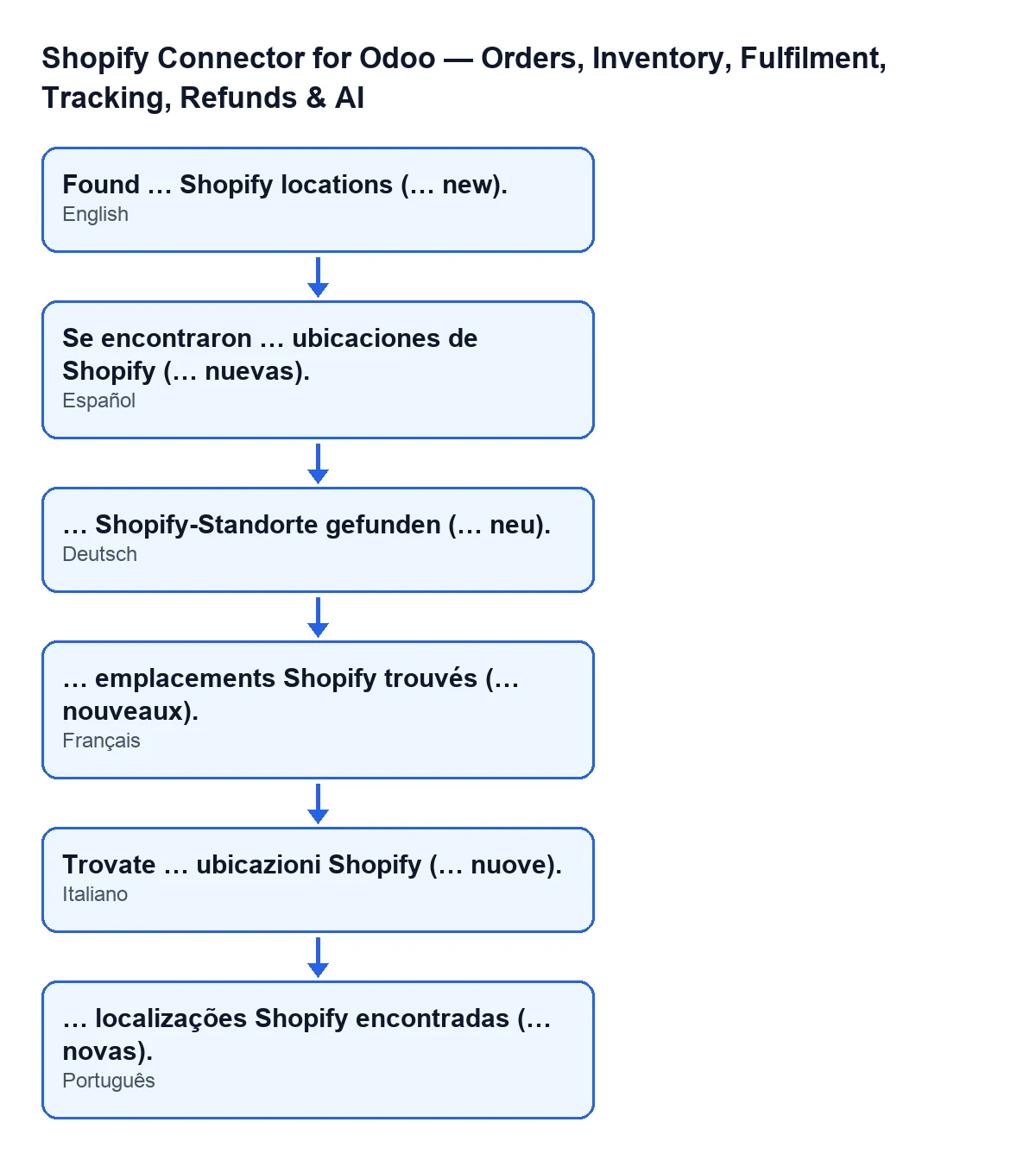
The text of the notice changes with the language of your Odoo:
| Odoo language | Notice text |
|---|---|
| Spanish | Se encontraron … ubicaciones de Shopify (… nuevas). |
| German | … Shopify-Standorte gefunden (… neu). |
| French | … emplacements Shopify trouvés (… nouveaux). |
| Italian | Trovate … ubicazioni Shopify (… nuove). |
| Portuguese | … localizações Shopify encontradas (… novas). |
A worked example: Cerámicas del Norte
Example Illustrative case: the company and its figures are made up to explain the flow.
Cerámicas del Norte is an invented shop that sells through Shopify and runs its orders in Odoo. Four moments with the button:
First synchronisation
After connecting the store, the administrator opens Shopify › Configuration › Stores, goes into the record and presses Sync Locations. The notice says Shopify returned several locations and that all of them are new: both numbers match. Since none was marked as primary, the module takes the first one active in Shopify and makes it the primary.
Pressing it again
A while later someone presses the button again. The first number is the same and the second drops to none. There is no failure and no duplicates: every location already existed for that store, and only their name, status and address have been refreshed.
A new warehouse
The company adds another location in Shopify. On syncing, the first number goes up by one and the second says one new. That is your sign that Odoo has picked it up.
A renamed location
A location is renamed in Shopify and they sync. The notice again says none new, but the name in Odoo is now updated.
What to do depending on what you read
- Second number at zero: it is not an error. It means every returned location was already in that Odoo store; they have been updated all the same.
- The first number does not match your Shopify: check in your Shopify admin how many locations you have. The notice reflects what Shopify answered to the query, which asks for the first 50.
- No notice appears: the action stopped before finishing. Because the button is always visible, you can press it again; it does not duplicate locations, since they are looked up by store and identifier.
- You want a different primary location: the synchronisation only marks one when there is none. The other article covers the primary-location notice.
If you also want to know how stock is fetched for those locations, see the stock button.
How FlexigoTech can help
FlexigoTech implements Odoo 17, 18, 19 and 20 and builds connectors and custom integrations, in case you want help connecting your store. The module is published on Odoo Apps for 17, 18, 19 and 20 and is a one-off payment per version; its price is on the listing and on the module page. It also needs the FlexigoTech Cloud subscription, Connector plan: €49/month or €490/year excluding VAT, with up to 3 platform accounts.
Keep reading
Checked in the connector's source code (version 20.0) and the linked sources
Sources
- Module source code: flexigobe_shopify_seller_connector 20.0 (d7e627b4): models/shopify_instance.py
- Module source code: flexigobe_shopify_seller_connector 20.0 (d7e627b4): views/shopify_instance_views.xml
- Module source code: flexigobe_shopify_seller_connector 20.0 (d7e627b4): models/fgt_cloud.py
- apps.odoo.com/apps/modules/20.0/flexigobe_shopify_seller_connector
- flexigotech.com/en/services.html
- flexigotech.com/precios.html