

 Español
 Català
 Deutsch
 Français
 Português
 Italiano
 Nederlands
 Polski
What the action does on each run
What exactly does the Shopify Create Invoices action do?
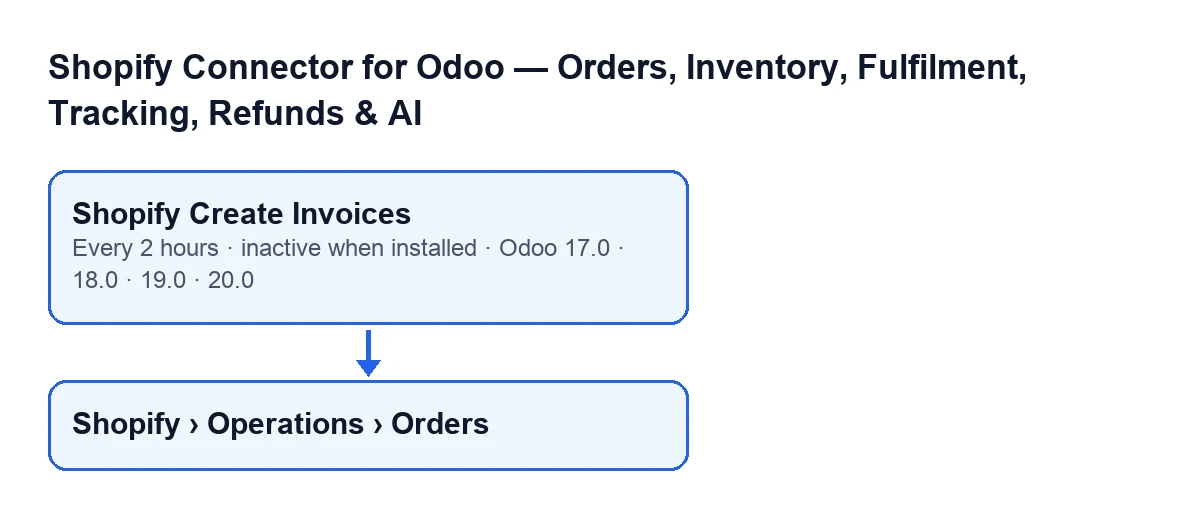
Each time it runs, it looks for Shopify instances that have both the finance master switch and automatic invoice creation turned on. If there are none, it stops without doing anything. If there are, it takes the Shopify orders of those instances that already have a Sale Order linked and that Shopify reports as paid or partially paid, and for each one it tries to create the customer invoice from that sale order.
How often does it run, and is it active out of the box?
It runs every 2 hours and is switched off when you install the module, so it invoices nothing until someone activates it. It exists in the 17.0, 18.0, 19.0 and 20.0 branches. In Odoo 17.0 the action is set up to repeat indefinitely.
How many orders does it process on each run?
Up to 100. The cap applies when the orders are searched, before the ones that already have an invoice, or whose sale order is not yet confirmed, are discarded.
What does it do with an order that meets the conditions?
It creates the invoice with Odoo's own invoice builder, from the lines of the sale order (the code notes that taxes, discounts and shipping are already on those lines from the import). If the instance has an invoice journal configured, it sets that journal on the invoice; if the order has an order date, it uses it as the invoice date. Because the action only picks up paid or partially paid orders, the invoice is posted. If the order is fully paid and the instance has automatic payment registration turned on, the module also calls its payment registration step; with a partial payment it does not.

What it skips and what happens if an order fails
Which orders does it skip without touching them?
Those whose sale order is not confirmed, and those that already have a customer invoice that is not cancelled (a cancelled invoice does not count as existing). In addition, if Odoo cannot invoice anything yet, the run leaves that order without an invoice and without an error; the code gives as an example a delivery-based invoicing policy on an order that has not been delivered.
What happens if the invoice for one order fails?
Each order is handled separately: after creating one invoice, the action saves its changes before moving to the next. If an order fails, it undoes what that order was about to change, writes a warning to the server log with the order name and the error, and carries on with the next one. Invoices already created in that run are kept.
Does the Shopify order's State matter?
The action does not look at it: it decides by the instance, by the linked Sale Order and by the payment status shown in Shopify. The State field is written by the code, not by the user, and its values are Open, Partially Fulfilled, Fulfilled, Cancelled and Refunded.
What to check if it does nothing
Where do I start checking?
Follow the same order as the action. First, that the action is activated, because it is switched off on install. Second, that the instance has finance and automatic invoice creation turned on. Third, that the order has a Sale Order linked and that the sale order is confirmed. Fourth, that Shopify reports it as paid or partially paid. Fifth, that there is not already a customer invoice that is not cancelled. Last, that the sale order's invoicing policy allows it to be invoiced yet.
Where can I see whether an order has a sale order?
In Shopify › Operations › Orders. To see that menu you need the Viewer permission on both the Shopify and Operations levels. In the list and the form of Fulfilment Funnel, Name and Sale Order appear; the latter is read-only and the module fills it in when the sale order is created from the Create Sale Orders and Create Sale Order buttons.
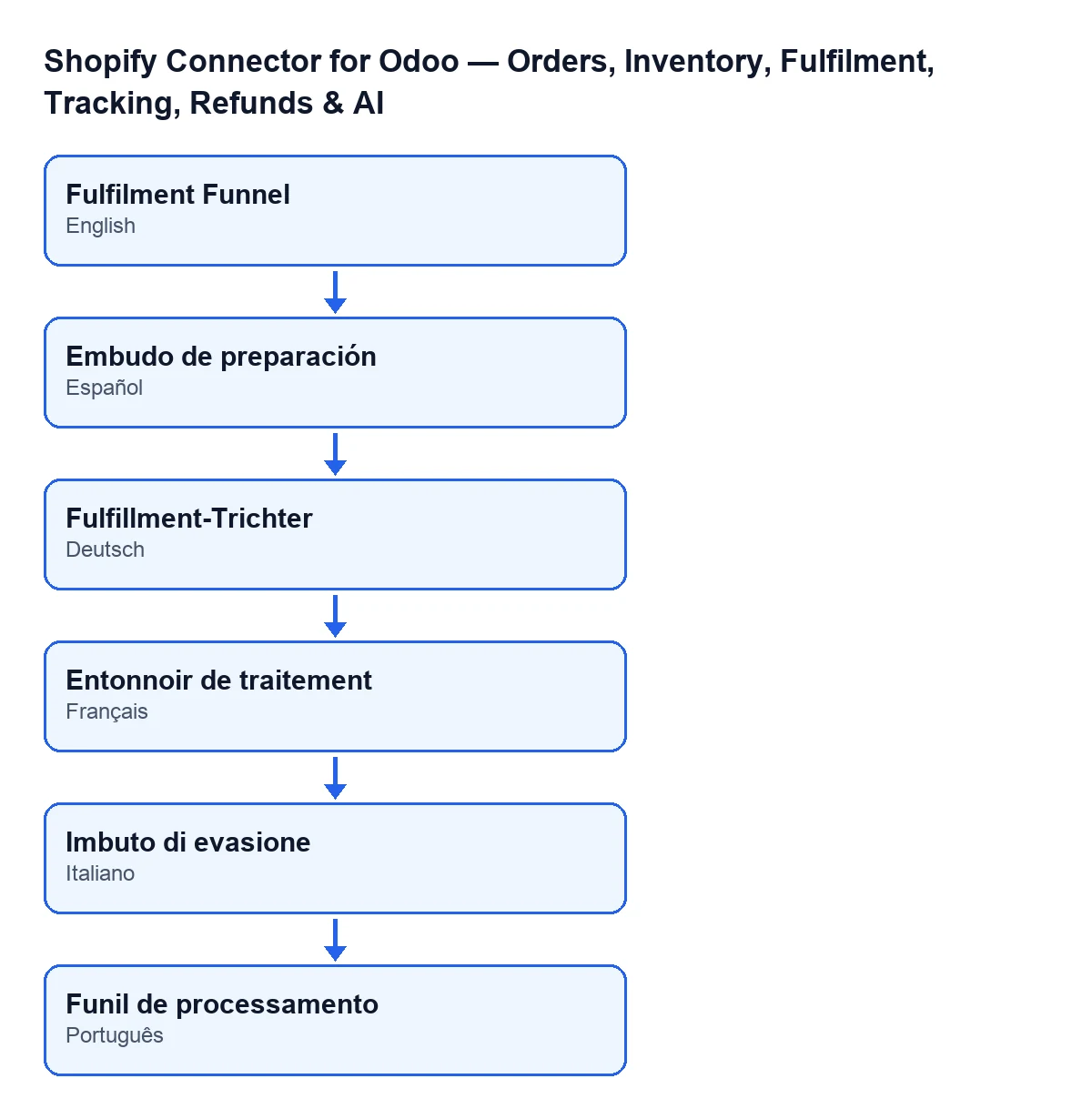
Embudo de preparación; in German, Fulfillment-Trichter; in French, Entonnoir de traitement; in Italian, Imbuto di evasione; in Portuguese, Funil de processamento. In English it is Fulfilment Funnel.Do I need anything besides the module?
Yes: on top of the module's one-off payment, you need a FlexigoTech Cloud subscription. The Connector plan costs €49 per month or €490 per year, excluding VAT (Pro is €98 per month or €980 per year). The connection goes through FlexigoTech Cloud, which stores the credentials encrypted, watches the synchronisation and emails you if it fails. Without a subscription, or with the service suspended, whatever the subscription provides stops; your data stays in your Odoo. The module is published for Odoo 17, 18, 19 and 20; see the Odoo Apps listing and the module page.
If you would like us to review it with you
FlexigoTech implements Odoo 17, 18, 19 and 20 and builds custom connectors and integrations. If your Shopify orders are not reaching an invoice and you cannot find the cause, tell us about your case from the module page.
Keep reading
Checked in the connector's source code (version 17.0 and 20.0) and the linked sources
Sources
- Module source code: flexigobe_shopify_seller_connector 20.0 (d7e627b4): data/ir_cron_data.xml
- Module source code: flexigobe_shopify_seller_connector 17.0 (437257e3): data/ir_cron_data.xml
- Module source code: flexigobe_shopify_seller_connector 20.0 (d7e627b4): models/shopify_order.py
- apps.odoo.com/apps/modules/20.0/flexigobe_shopify_seller_connector
- flexigotech.com/en/services.html
- flexigotech.com/precios.html